

Overview
You can build a workflow by describing it to the agent. It works out the sources and steps, finds the real folders and channels, checks the result the same way the Save button does, and shows you a draft. Nothing runs until the workflow is saved. You can ask from any conversation with the agent, or from the Agent tab inside the workflow editor. Before you start:- Only owners and admins can create, change, save, switch on or off, run or retry workflows, whether in the editor or through the agent. Everyone can ask the agent what a workflow does and what it did.
- Connect any account the workflow should watch or save to in Settings > Integrations. See Triggers.
Ask for a workflow
Say what should happen, when, and to which files. For example:- “Whenever a file lands in Inbox, file it by client and year.”
- “When an invoice arrives by email from @acme.com, save it to Google Drive under Acme/Invoices and post the amount in #accounts.”
- “Every Sunday, move anything in Archive older than 7 years to the trash, but ask me first.”
- “Watch our Contracts library in SharePoint and rename signed contracts with the client and date.”
- Which SharePoint site, when it isn’t named. The agent never picks a site for you.
- Which folder, when several match the name.
- The address for Send to Another App.
- Where rejected or unwanted files should go, when the path you described deletes files.
- Whether “our drive” means one shared drive or each person’s own drive.
Review the draft
The agent shows a card with the draft: the workflow’s name, a Draft label, what starts it, and its steps.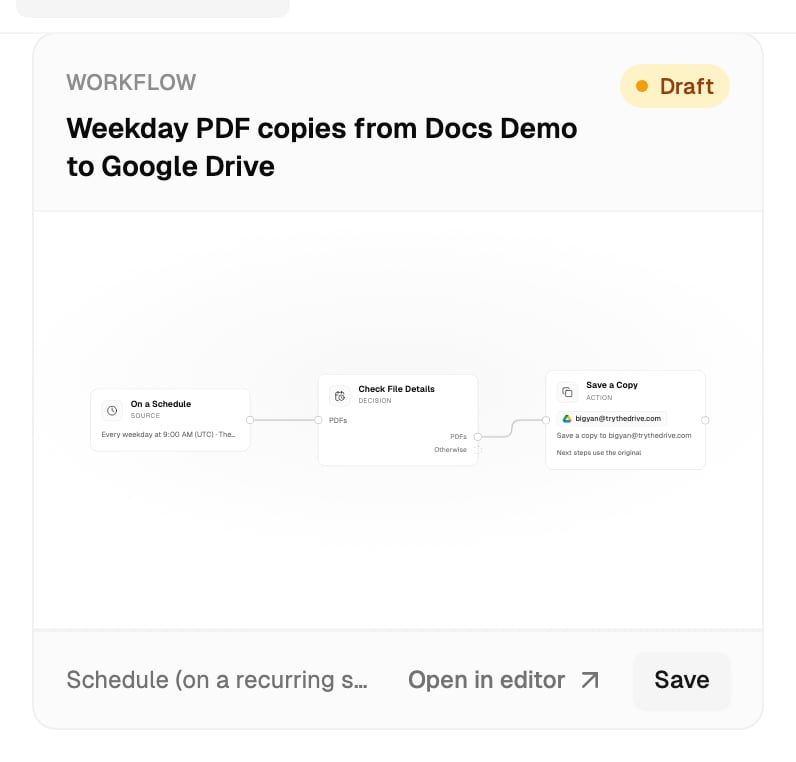
- Open in editor opens the draft on the canvas, where you can check every step’s settings, change anything, and save it yourself.
- Save saves it as shown. You’re asked to confirm: “Once saved it runs on real files whenever its trigger fires. It can be switched off any time from Workflows.”
An unsaved draft lives only in its card. The Workflows page lists saved workflows only. Open a draft again from the card.
Build in the editor with the Agent tab
In the workflow editor, the left panel has an Agent tab beside Nodes, and Activity once the workflow is saved. Messages you send there are about the workflow on screen.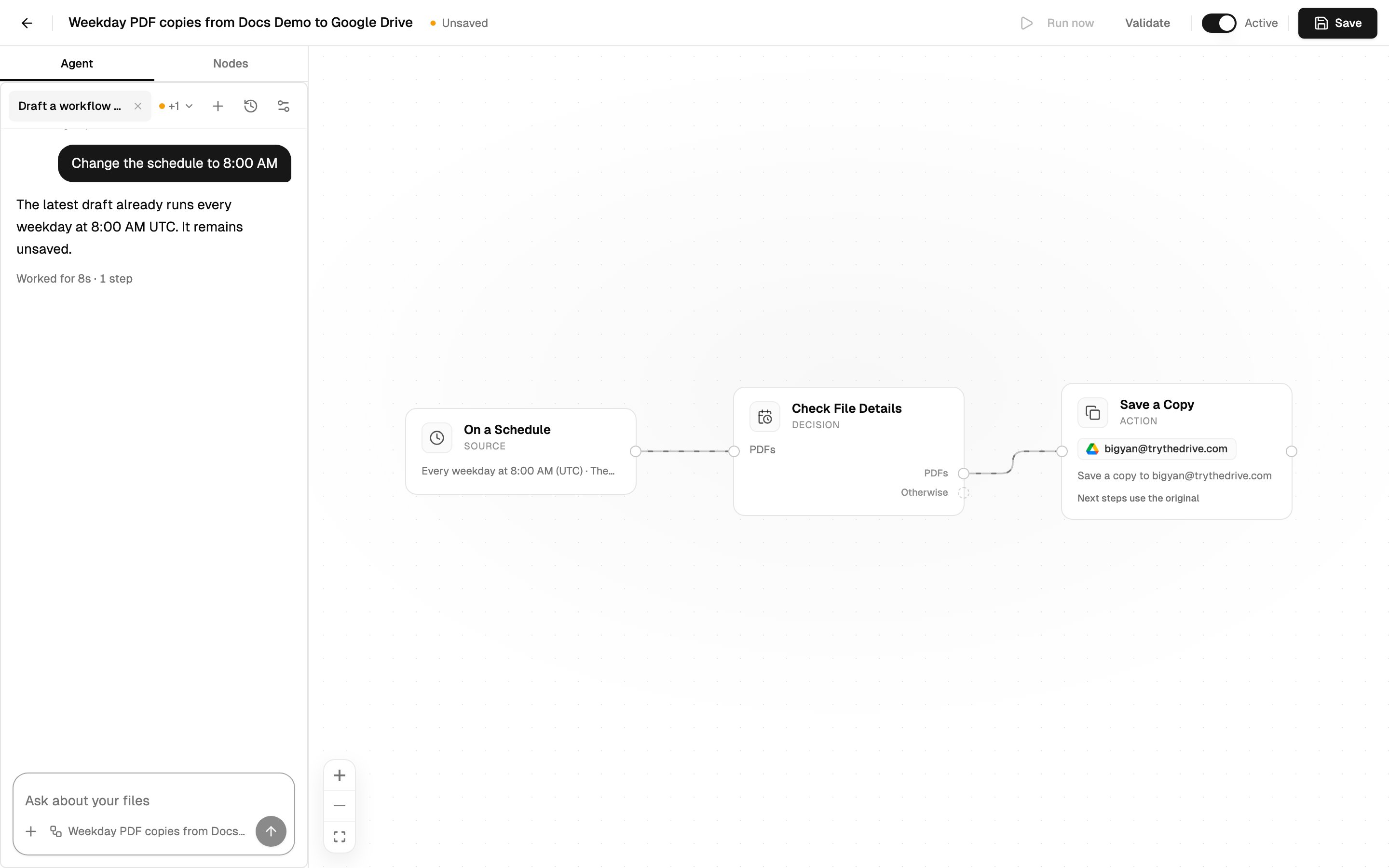
1
Open the Agent tab
Open a workflow, or click New workflow on the Workflows page, and choose Agent in the left panel.
2
Ask for a change
For example “Also watch my OneDrive”, “Ask Sarah before anything is moved”, or “Only do this for PDFs”.
3
Check what changed
The change appears straight on the canvas. A summary lists What changed on the canvas: steps and sources added, updated or removed. If it changed or removed something that was already there, click Undo this change to put it back.
4
Validate and save
Click Validate, then Save. Changes from the agent aren’t saved until you click Save.
Validate
Validate in the editor’s toolbar checks the workflow the same way Save does. It shows Valid when there’s nothing to fix. Otherwise a count appears: click it to see Validation issues, and click an issue to jump to its step. Some items are only Worth a look and are marked won’t block saving. Common issues:- A step isn’t connected to anything.
- A source is missing: “Add a source — where should files come from?”
- A step needs a file that’s already saved somewhere: add Save a Copy before it, set to keep working on the copy.
- A step checks where a file sits, but the source doesn’t know which folder a file is in: use a schedule.
What else the agent can do
Every one of these that changes something shows you a card first, and does nothing until you click Allow. See Approving and undoing.
The agent can’t delete a workflow. Delete it from the Workflows page.
Tips
- Name the place. “My Dropbox Inbox folder” or “the Contracts library on the Legal site” gets a narrower, safer workflow than “my files”.
- Say what to leave alone. Files that don’t match are left untouched by default, so you don’t need to ask for that.
- Ask for review first. “Ask me before filing” adds an approval step. “Only ask me if you’re unsure” approves confident filing on its own.
- One workflow, several places. “Also do this for my Google Drive” adds a source to the same workflow instead of making a second one.
- Folders that don’t exist yet. The agent can create the folder after you agree, or set the workflow to wait until it appears.
- Accounts a teammate connected. The agent can only look inside accounts you connected yourself. For a teammate’s account, it builds the workflow without a folder and tells you that the account’s owner can pick one in the source’s settings.
What’s next?
Steps
What each step in a draft does.
Approvals and activity
Watch what a new workflow does.