

Overview
Many services offer an MCP (Model Context Protocol) server: a way for AI assistants to use that service’s tools, such as looking up a customer in a CRM or opening a ticket. An owner or admin can connect an MCP server to your workspace, and the agent can then use its tools in every member’s conversations.- Tools that only read, like a search, run without asking.
- Tools that can change something on the other service ask you first, every time, and show exactly what would be sent.
This page is about the agent using other services. To use your The Drive AI files from Claude, ChatGPT, Cursor and other AI tools, see MCP Server.
Before you start
- You need to be an owner or admin of the workspace.
- You need the server’s URL from the service, and its token or API key if it needs one. The service’s own documentation usually lists them.
- The server must be reachable on the public internet over
https. Local and private network addresses aren’t allowed, and the URL can’t contain a username or password.
Add an MCP server
1
Open the section
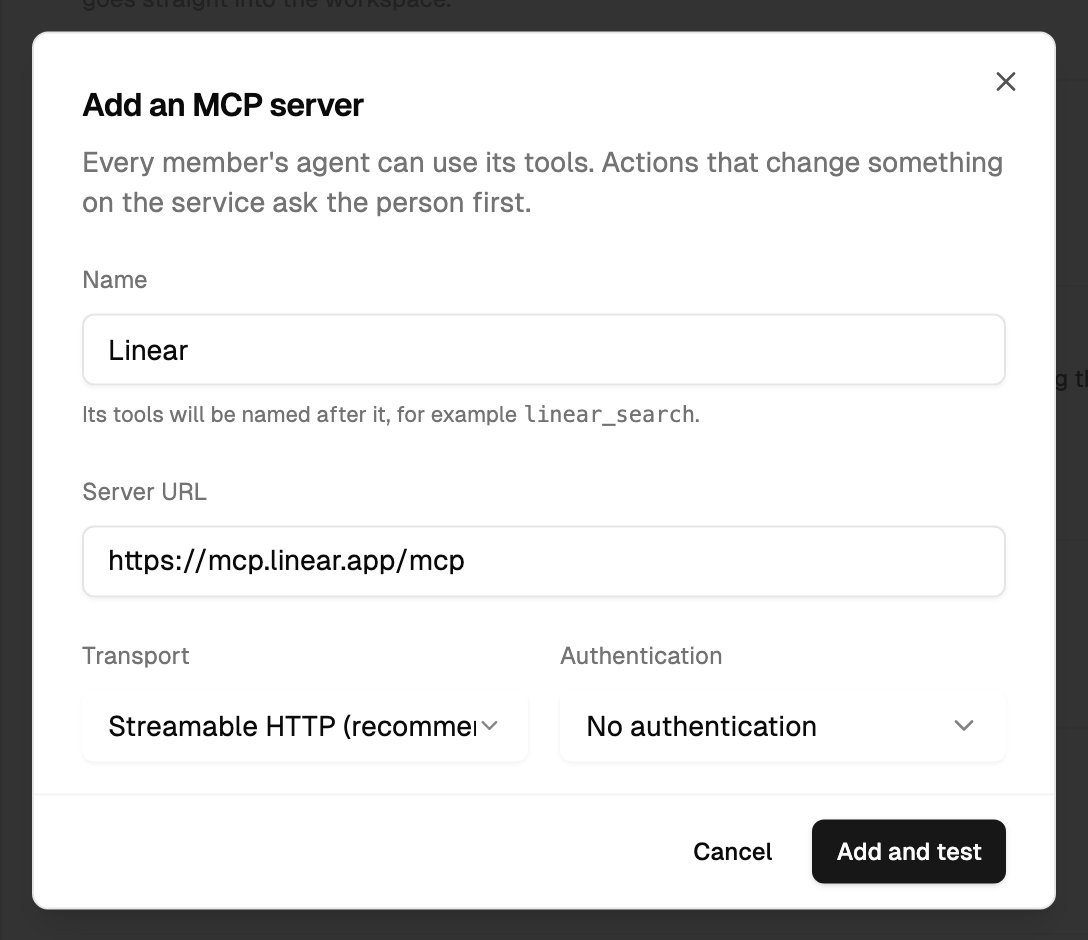
Open Settings > Agent and expand What the agent can do elsewhere. Click Add MCP server.
2
Name it
In Name, type the service’s name, such as
HubSpot. The agent’s tools from this server are named after it, for example hubspot_search. The name needs at least two letters or digits, and can’t match a server you’ve already added or one of the agent’s own tool families.3
Enter the server URL
Paste the address into Server URL, for example
https://mcp.example.com/mcp.4
Choose the transport
Leave Transport on Streamable HTTP (recommended) unless the service says to use Server-sent events (older servers).
5
Choose how it signs in
In Authentication, choose one:
- No authentication, for a server that doesn’t need a key.
- Bearer token, then paste the token into Bearer token.
- API key in a header, then enter the Header name the service expects (
X-API-Keyby default) and paste the key into Header value.
6
Add and test
Click Add and test. The Drive AI connects to the server and lists its tools. If it works, you see, for example, HubSpot connected and how many tools are available to the agent. If it can’t reach the server, the server is still saved, and you see HubSpot saved, but it could not be reached with the reason.
How the agent uses the tools
You don’t need to name a tool. Ask for what you want, and the agent uses a connected service’s tools when they fit:Manage servers
Each server in What the agent can do elsewhere shows its name, its address and one status line:
Owners and admins can:
- Test a server. Click Test to connect again and see the tools it lists.
- Turn it off or on with its switch. Off keeps the server’s settings but hides its tools from the agent.
- Change it. Click the server’s name, change the details, and click Save and test. To keep the current token or key, leave the secret field blank. Changing the address or the sign-in details clears the last check. If you rename a server, its tools keep their original names.
- Remove it. Click the trash icon and confirm. The agent no longer has its tools.
What members see
Members see the same list in Settings > Agent > What the agent can do elsewhere: each server’s name, address and status. They can’t add, test, change or remove servers. If none are connected, the section says No MCP servers are connected. A workspace admin can add one. Every member can use the servers’ tools through the agent, and every action that changes something asks the member who’s in the conversation.Troubleshooting
It says the server URL must use https
It says the server URL must use https
Use the server’s
https:// address. Plain http isn’t accepted.It says the server must be reachable on the public internet
It says the server must be reachable on the public internet
The Drive AI connects to the server from the internet, so it can’t reach
localhost or an address on a private network. Use the service’s public MCP address.The server shows Unreachable
The server shows Unreachable
Check the URL, the transport and the token or key with the service, then click Test. If the service needs sign-in in a browser window rather than a token or key, it can’t be connected here: The Drive AI supports no authentication, a bearer token, or an API key in a header.
The name is refused
The name is refused
Choose another name. It can’t be the same as a server already added, or clash with one of the agent’s own tool names.
A tool is slow or its answer is cut short
A tool is slow or its answer is cut short
A tool has 60 seconds to answer. Very long answers are shortened before the agent reads them. Ask for something narrower, such as one customer instead of all of them.
What’s next?
MCP Server
Use your The Drive AI files from Claude, ChatGPT and other AI tools.
Agent settings
Every setting for the agent in one place.