

Overview
You can shape how the agent works in two ways:- What the agent remembers. Short notes it starts every request with, such as how your workspace files invoices or how you like replies. Some are yours alone; some apply to everyone in the workspace.
- How it behaves. A persona and a set of workspace rules that an owner or admin writes once for the whole workspace.
What the agent remembers
The agent keeps short notes about procedures and preferences, not the contents of your documents. For example:- “Invoices are filed under Finance/Vendor/Year. Never rename a signed contract.”
- “Keep replies short. Ask before moving anything out of my Inbox folder.”
Yours and the workspace’s
Notes belong to one workspace. Your notes in one workspace don’t follow you into another.
Ask the agent to remember
Tell the agent in a conversation:See and edit notes
1
Open the notes
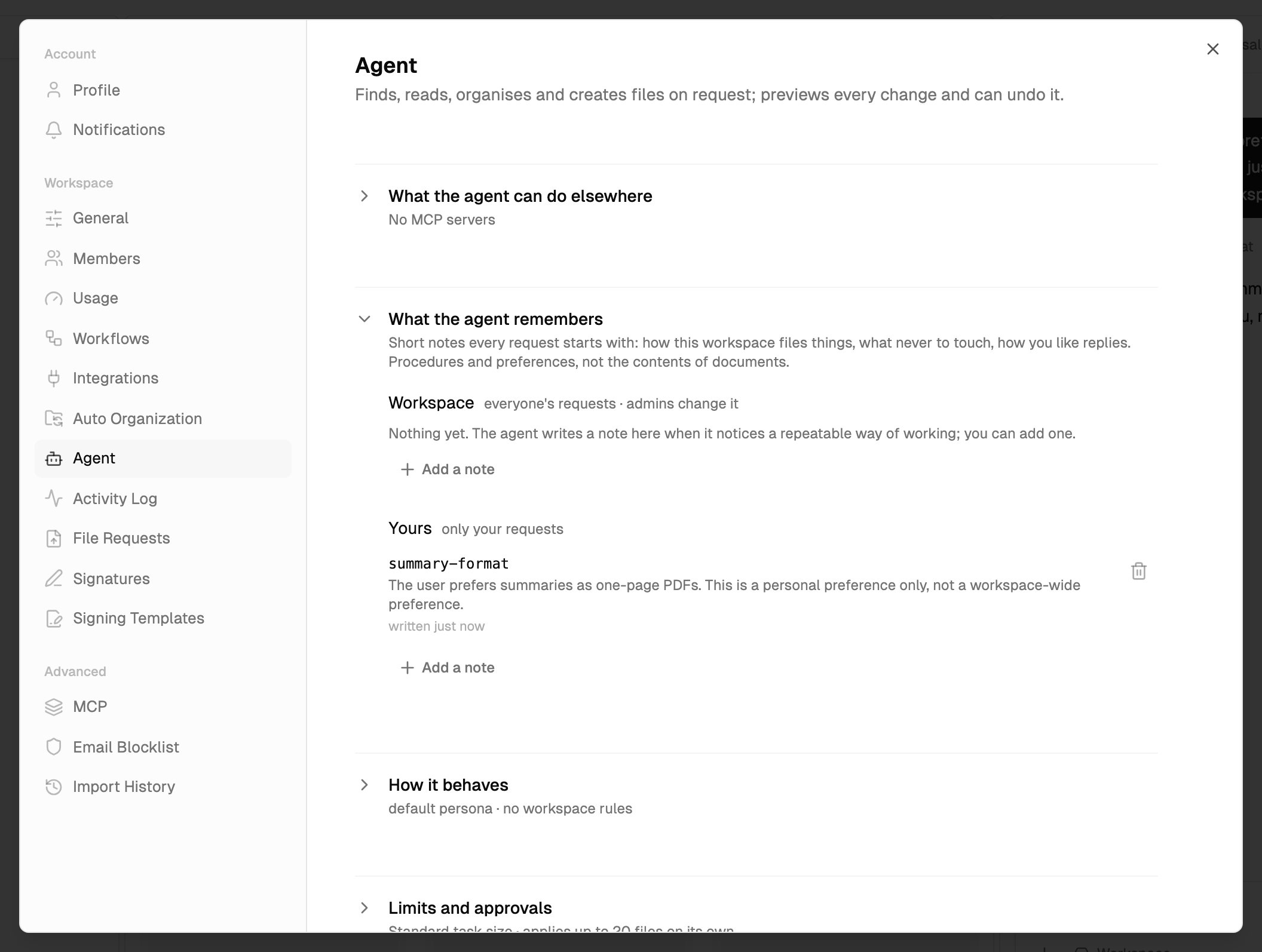
Open Settings > Agent and expand What the agent remembers. Notes are listed under Workspace and Yours. Each shows its name, its first lines and when it was written.
2
Edit a note
Click a note to open it. Change the text and click Save, or Cancel.
3
Delete a note
Click the trash icon next to the note and confirm. The agent no longer starts with it.
Add a note yourself
1
Start a note
In What the agent remembers, click Add a note under Yours, or under Workspace if you’re an owner or admin.
2
Name it and write it
Give the note a short name, such as
invoice-filing. Names use lowercase letters, numbers and dashes; anything else is turned into a dash, and the box shows what it will be saved as. Then write the note in plain text or Markdown.3
Save
Click Remember.
How it behaves
Owners and admins can give the agent a persona and standing rules for the whole workspace. Open Settings > Agent and expand How it behaves. Members don’t see this section.
Write either in plain text or Markdown. Then click Save changes at the bottom of the tab, or Discard to undo your edits. The collapsed section shows, for example, “custom persona · 3 lines of workspace rules”.
Both apply to every member’s requests in the workspace.
Memory or workspace rules?
Both reach every request. Use whichever fits:- Workspace rules are one place for the standing policy an admin owns, edited only in Settings.
- Workspace notes are separate, named notes. The agent can propose them in a conversation, and an admin approves each one.
Tips
Be specific
Be specific
“File invoices under Finance/Vendor/Year” works better than “keep invoices organized”.
Say what never to touch
Say what never to touch
Rules like “Never move anything out of /Archive” or “Never rename a signed contract” stop changes you’d otherwise have to decline. The agent still shows every change it makes.
Correct a note instead of repeating yourself
Correct a note instead of repeating yourself
If the agent keeps doing something you don’t want, check What the agent remembers for a note that says otherwise, and edit it.
What’s next?
Agent settings
Every setting for the agent in one place.
Conversations
Tabs, history, alerts and attachments.