

Overview
The Drive AI for Mac works with the same account and workspaces as the web app. On your Mac you can:- Browse, search, open and organize the files in all your workspaces, even without a connection
- Keep files available offline, and open them in the apps you already use
- Keep a folder on your Mac uploaded to a workspace with folder sync
- Send files to The Drive AI from Finder, and see in Finder which files are synced
Install and sign in
Download for Mac
Choose Apple Silicon or Intel to match your Mac.
Find your way around
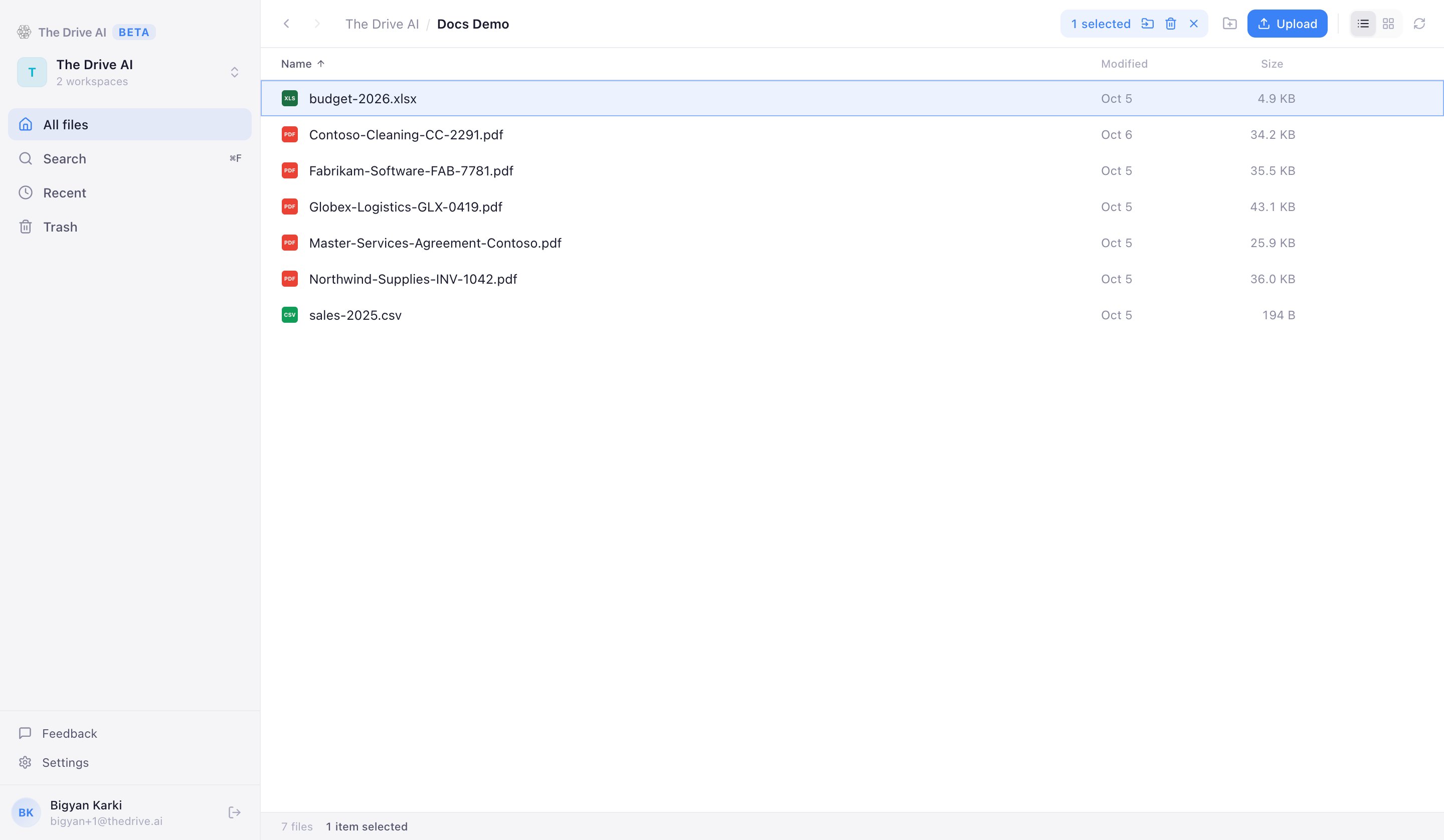
- Your files fill the main window. The status bar at the bottom shows how many items are in the folder, how many are selected, and how many are available offline.
- The sidebar has your workspace at the top. If you belong to more than one, click its name to switch. Below it are All files, Search, Recent and Trash, and at the bottom Feedback, Settings and your account.
- The menu bar icon stays when you close the window, so sync keeps running. Click it to see whether sync is up to date, open the app or your synced folder, pause syncing, or quit.
Always up to date, even offline
The app keeps a list of every file and folder in all your workspaces on your Mac, and follows changes as they happen. Switching folders or workspaces is instant, and a change made on the web or by a teammate appears within moments. When you’re offline, you can still browse everything and open any file that’s available offline. A banner says you’re offline, and changes catch up when you’re back. If the app can’t reach The Drive AI for a while, the status bar says Reconnecting or Not receiving changes.Browse and manage files
- Open a folder or file: double-click it. Files open in the app your Mac uses for that type, downloading first if needed.
- View and sort: switch between list and grid in the toolbar. In list view, click a column to sort by it.
- Search: click Search in the sidebar, or press ⌘F. Search looks through file and folder names across the whole workspace.
- Select several items: drag across empty space to draw a selection box, or ⌘-click and ⇧-click.
- Move: drag items onto a folder, onto a folder in the path at the top, or onto All files. Or right-click and choose Move to….
After you move or delete something, the confirmation has an Undo button for a few seconds.
Recent lists the files changed most recently across the workspace. Trash lists deleted items: right-click one to Restore it or Delete permanently, or click Empty trash at the top.
Keyboard shortcuts
Upload files
- Drag files or folders from Finder into the window. They upload to the folder you have open.
- Or click Upload in the toolbar and choose Files… or Folder….
From Finder
You don’t need to open the app first:- Right-click files or folders in Finder and choose Quick Actions > Add to The Drive AI.
- Drag them onto The Drive AI in the Dock or onto its menu bar icon.
Work offline
Files you open are kept on your Mac, so they open instantly next time. To make sure a file or folder is there when you’re offline, right-click it and choose Make available offline. Files on your Mac show a small drive icon next to their name. Offline copies take up space. To see how much, or to remove them, go to Settings > Storage > Offline copies and click Clear. Your files in The Drive AI aren’t affected.Folder sync
Folder sync keeps a folder on your Mac uploaded to a workspace. Put a file in the folder, and it’s uploaded. It’s a good fit for a folder you save into all the time, like scans, exports or invoices.Set it up
1
Open sync settings
Click Settings in the sidebar, then Sync. Once sync is set up, clicking the sync status in the status bar brings you back here.
2
Choose the workspace
Under Workspace to sync into, pick where the files should go.
3
Choose the folder
Click Choose a folder… and pick a folder on your Mac. Everything already in it starts uploading.
What folder sync does and doesn’t do
Hidden files (names starting with a dot) and empty files aren’t uploaded.
Sync status in Finder
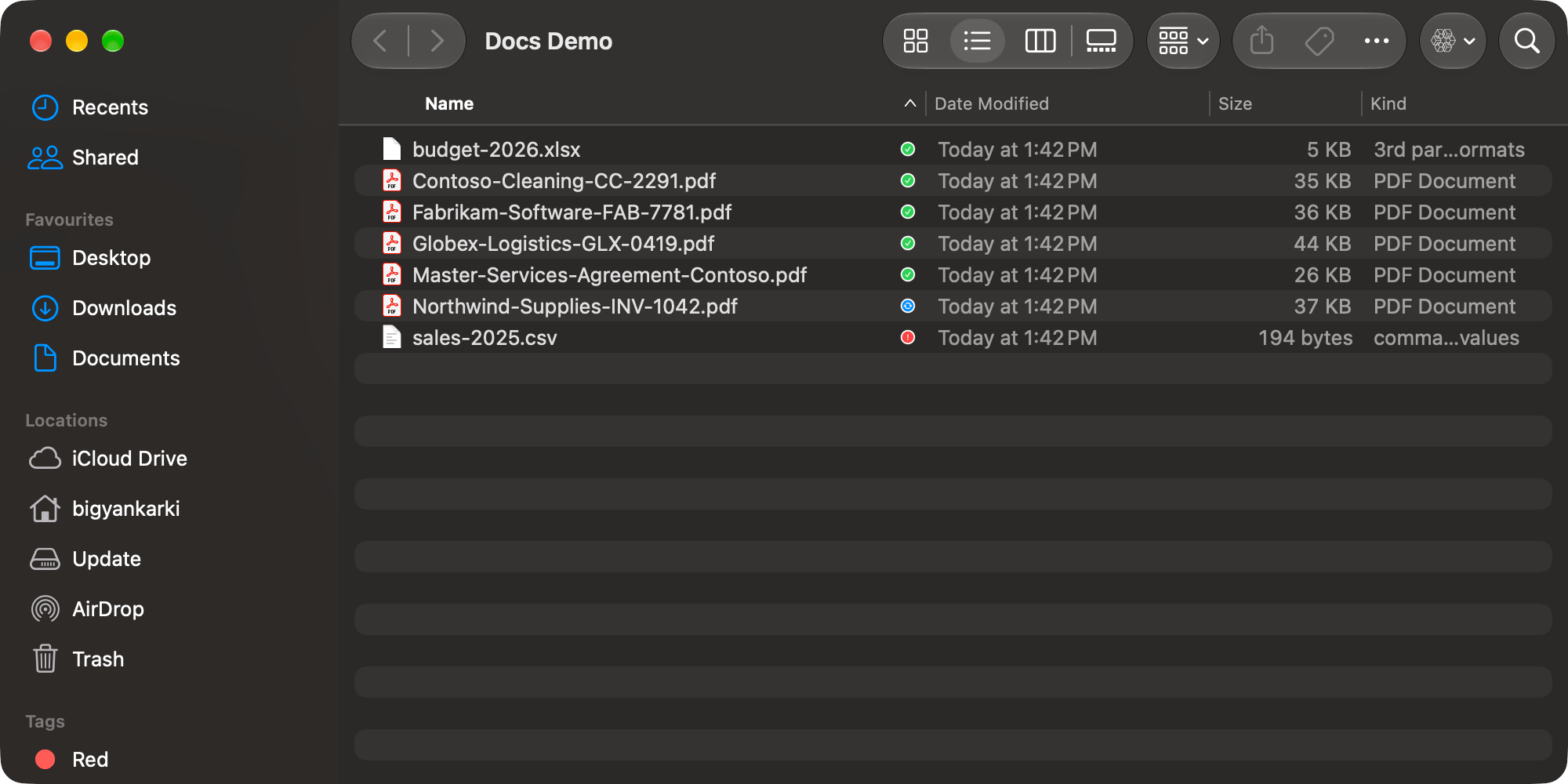
With sync badges on, every file in your synced folder shows its state in Finder:
A folder shows the state of what’s inside it. Right-click any file in the synced folder, or use The Drive AI button in the Finder toolbar, and choose Open in The Drive AI to see it in the app.
The synced folder also wears The Drive AI’s icon in Finder.
Settings
Click Settings in the sidebar.- General: Appearance (System, Light or Dark), Open at login, Notify when uploads finish, the “Add to The Drive AI” in Finder quick action, and Sync badges in Finder.
- Sync: folder sync.
- Storage: how much space offline copies use, and Clear.
- Account: who is signed in, and Manage on the web for your profile, members and billing.
- About: the version, updates and help.
Turn on sync badges in Finder
macOS asks you to allow Finder extensions. The app turns sync badges on when it’s first opened. If you don’t see badges:1
Turn them on in the app
Go to Settings > General and click Turn on next to Sync badges in Finder.
2
Or in System Settings
If the badges still don’t appear, the app opens System Settings > General > Login Items & Extensions. Under Extensions, turn on The Drive AI.
What’s on the web only
These need the web app:- The agent and workflows
- Sharing files and publishing public links
- The Shared list of items others shared with you
- File requests and e-sign
- Inviting people, changing roles, and billing
- Connected drives such as Google Drive, OneDrive and Dropbox
Troubleshooting
The status bar says Not receiving changes
The status bar says Not receiving changes
The app couldn’t reach The Drive AI for a while, so what you see may be out of date. Check your connection. The app keeps trying and catches up on its own once it gets through.
A file I added to the synced folder isn't in The Drive AI
A file I added to the synced folder isn't in The Drive AI
Check that it isn’t a hidden or empty file. If the workspace already has a file with exactly the same contents, it isn’t uploaded again: search for its name, and look for a copy under another name or folder. If the status bar says files failed, open the transfer panel to see why, and click Retry failed.
I see two files with the same name
I see two files with the same name
That’s folder sync uploading a file you changed. It uploads the new version next to the earlier one. Delete the one you don’t need, on the web or in the app.
There are no badges in Finder
There are no badges in Finder
See Turn on sync badges in Finder. Badges only appear in the synced folder.
Add to The Drive AI isn't in Finder's Quick Actions
Add to The Drive AI isn't in Finder's Quick Actions
Go to Settings > General and turn on “Add to The Drive AI” in Finder. It can also be under Services at the bottom of the right-click menu.
What’s next?
Uploading files
Limits and file types.
Mobile app
The Drive AI on your phone.