

Overview
Connect Slack, and workflows can act on files shared in your channels: read them, rename them and save them to the right folder. Workflows can also post messages to Slack. Connecting Slack doesn’t save anything by itself. Files are saved only when a workflow with a Slack trigger saves them, or when you run a historical import. The Slack integration is in beta. Connected drives and accounts come with Max, Team, Business and Enterprise. See Plans & Pricing.Who can do what
Connect Slack
1
Open Integrations
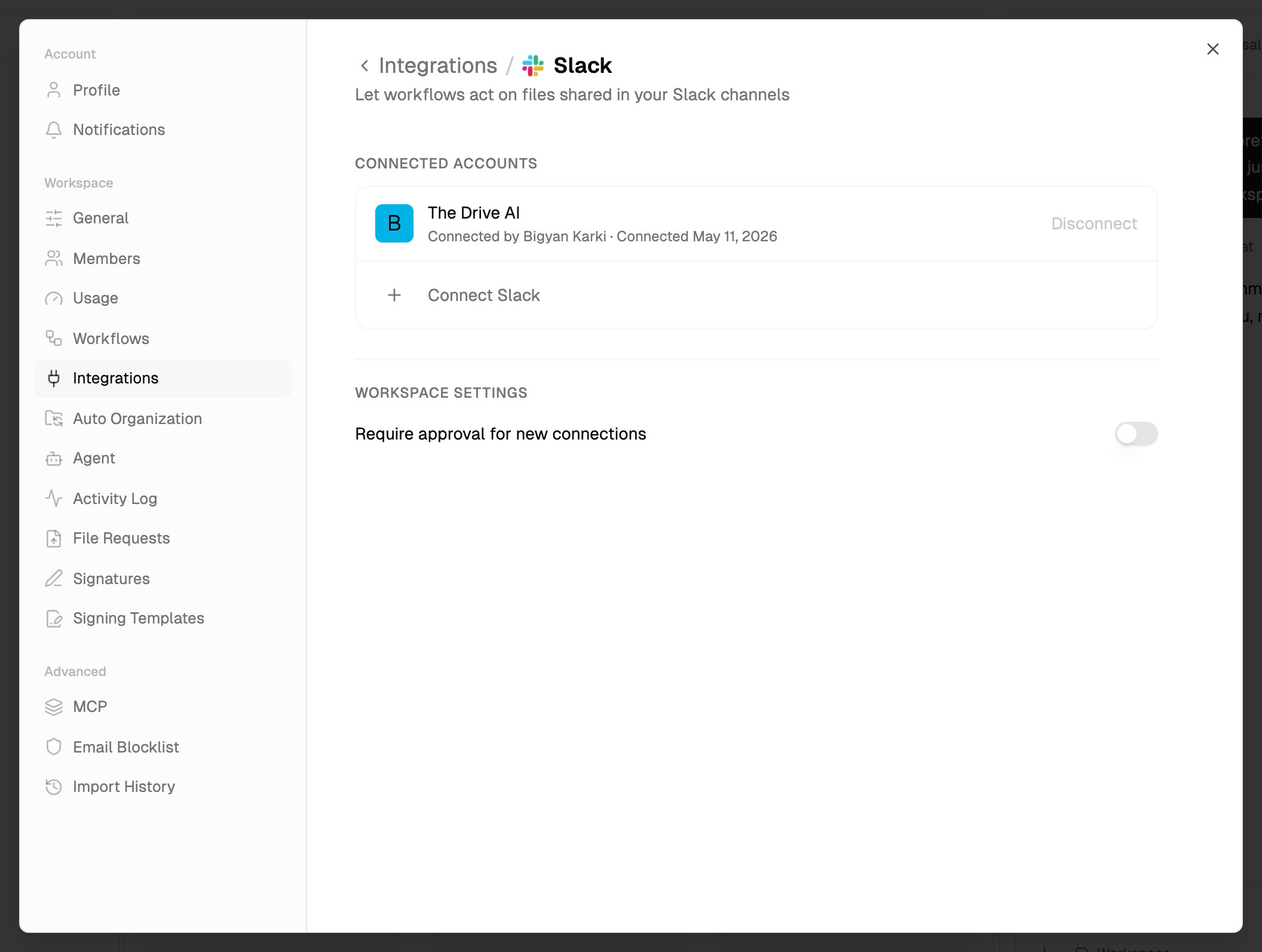
Open Settings and choose Integrations. Under Email and messaging, click Slack.
2
Install the app
Click Connect Slack. In the window that opens, choose your Slack workspace and allow the app. Your Slack workspace’s settings may require a Slack admin to approve new apps.
3
Add the app to channels
The app only sees channels it has been added to. In each channel you want covered, type:
4
Set up a workflow
Create a workflow that starts with Slack to decide what happens to shared files. See Triggers.
More than one Slack workspace
You can connect several Slack workspaces to one workspace in The Drive AI, including a personal workspace. Click Add workspace at the bottom of the list. Each one is listed by its Slack workspace name.What you allow
When you install the app, Slack asks you to let The Drive AI:- See the public and private channels it has been added to, and read their messages and shared files
- Post messages, including in public channels it hasn’t been added to
- See people’s names and email addresses in your Slack workspace
Choose which channels are covered
A channel is covered once the app is in it. To stop covering a channel, remove the app from that channel in Slack. When you set up a workflow with a Slack trigger, you choose the channels it watches, or All channels, meaning every channel the app is a member of.Post messages from a workflow
A workflow’s Send a Message step can post to a Slack channel, for example to tell your team a signed contract arrived. See Steps.Import past files
To bring in files shared before you connected:1
Open Historical sync
In Settings > Integrations > Slack, open the … menu on the Slack workspace and choose Historical sync.
2
Choose a time range
Choose Last 30 days, Last 90 days or Last 180 days (6 months).
3
Start
Click Start Import. It runs in the background, so you can close the panel.
- Which channels: every channel the app is a member of, public or private, except archived channels.
- Where files go: the top level of your workspace, as they are. Imported files don’t start Slack workflows. A workflow that watches uploads to The Drive AI can file them.
- Skipped: images, calendar files, files already imported, and files found to contain malware.
- Progress: reopen Historical sync to see progress, or click Cancel Sync to stop. Owners and admins can see every imported file in Settings > Import History.
Disconnect
Open the Slack workspace’s … menu and choose Disconnect, then confirm. Owners and admins can also click Disconnect on a Slack workspace someone else connected.- Workflows that use it are paused. If the same Slack workspace is connected again later, workflows paused only because of the disconnect start again on their own.
- Files already saved stay in your workspace.
- The app stays installed in Slack. To remove it, remove it from your Slack workspace in Slack.
Troubleshooting
I can't connect Slack
I can't connect Slack
- Only workspace owners and admins can connect Slack.
- If you see Popup blocked, allow pop-ups for The Drive AI.
- Your Slack workspace may need a Slack admin to approve the app.
A historical import found nothing
A historical import found nothing
The import covers just the channels the app is in. Add the app to the channels first, then start the import again.
What’s next?
Microsoft Teams
Let workflows act on files shared in Teams.
Workflow triggers
Start a workflow when a file is shared.