

Layout
The web app has three parts:- The left sidebar, for moving around your workspace
- The file browser in the middle, with a toolbar above it
- The agent panel on the right, which you open with Agent in the toolbar
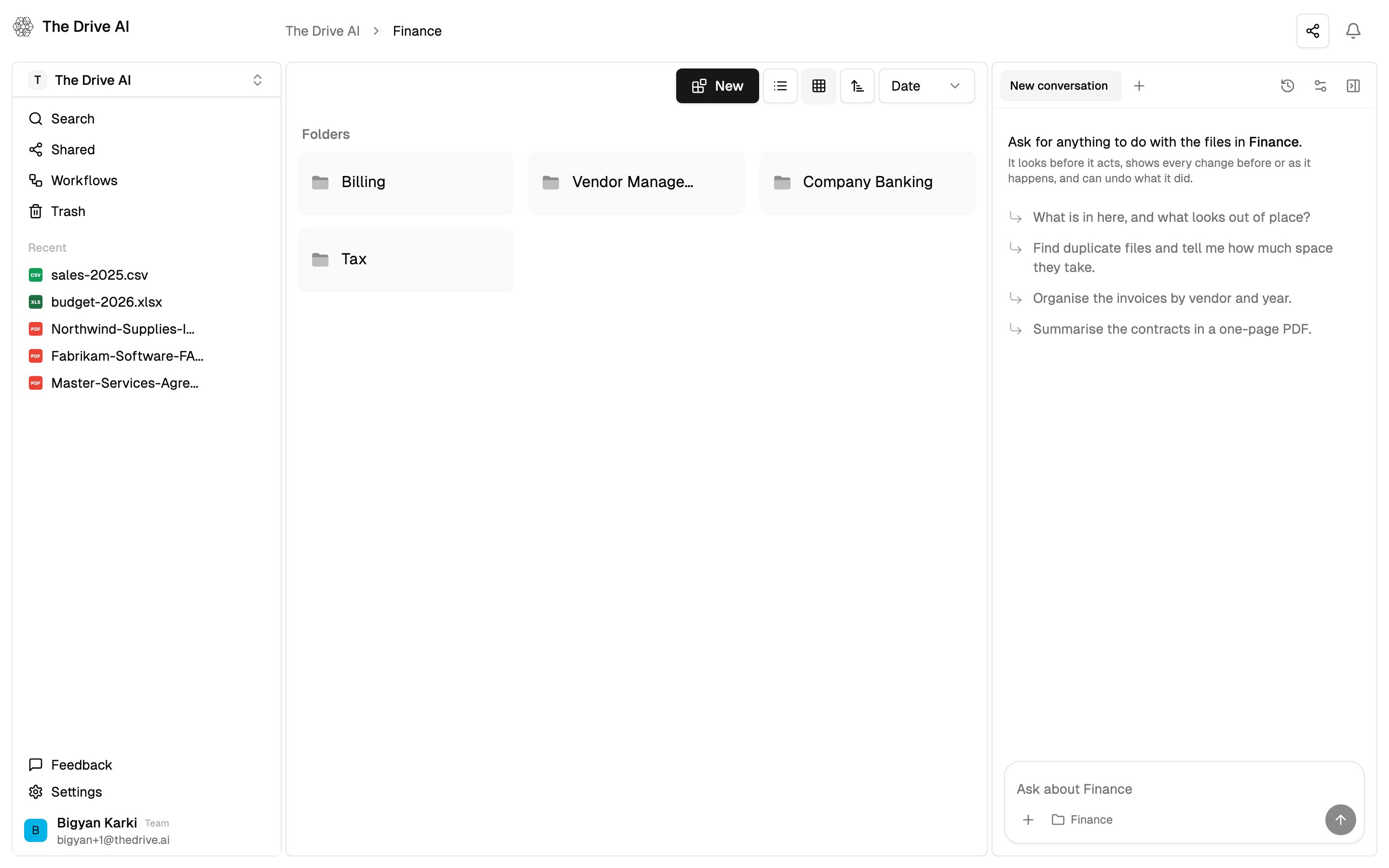
Left sidebar
From top to bottom:File browser
The file browser shows the folder you have open. The breadcrumb at the top shows where you are; click any part of it to go back up.File browser toolbar
Above your files:- New, with New File, New Folder, Upload and Import from Cloud. Viewers don’t see New.
- List view and Grid view
- Sort options
File menu
Each file has a ⋮ menu with Open, Rename, Make a Copy, Move to, Share, Download, Export to Cloud, Details and Delete. PDFs also have Request Signature.Right-click menu
Right-click an empty part of the file browser for Organize this folder (⌘K), Create New File, Create New Folder, Upload Files and Import from Cloud. Organize this folder asks AI to file everything in the folder you’re looking at into sensible subfolders, right away. It has its own monthly allowance, shown in Settings > Usage. See Usage and limits. For filing that happens automatically as files arrive, use a workflow.Selecting files
- Click a file to select it.
⌘-click (Mac) orCtrl-click (Windows) to add or remove a file from the selection.Shift-click to select a range.- Drag across empty space to select several files.
- Press
⌘AorCtrl+Ato select everything in the folder.
Top toolbar
The bar at the very top shows where you are, and on the right:Agent panel
Click Agent in the toolbar, or press⌘J (Mac) or Ctrl+J (Windows), to open the agent. It works on the folder or file you have open.
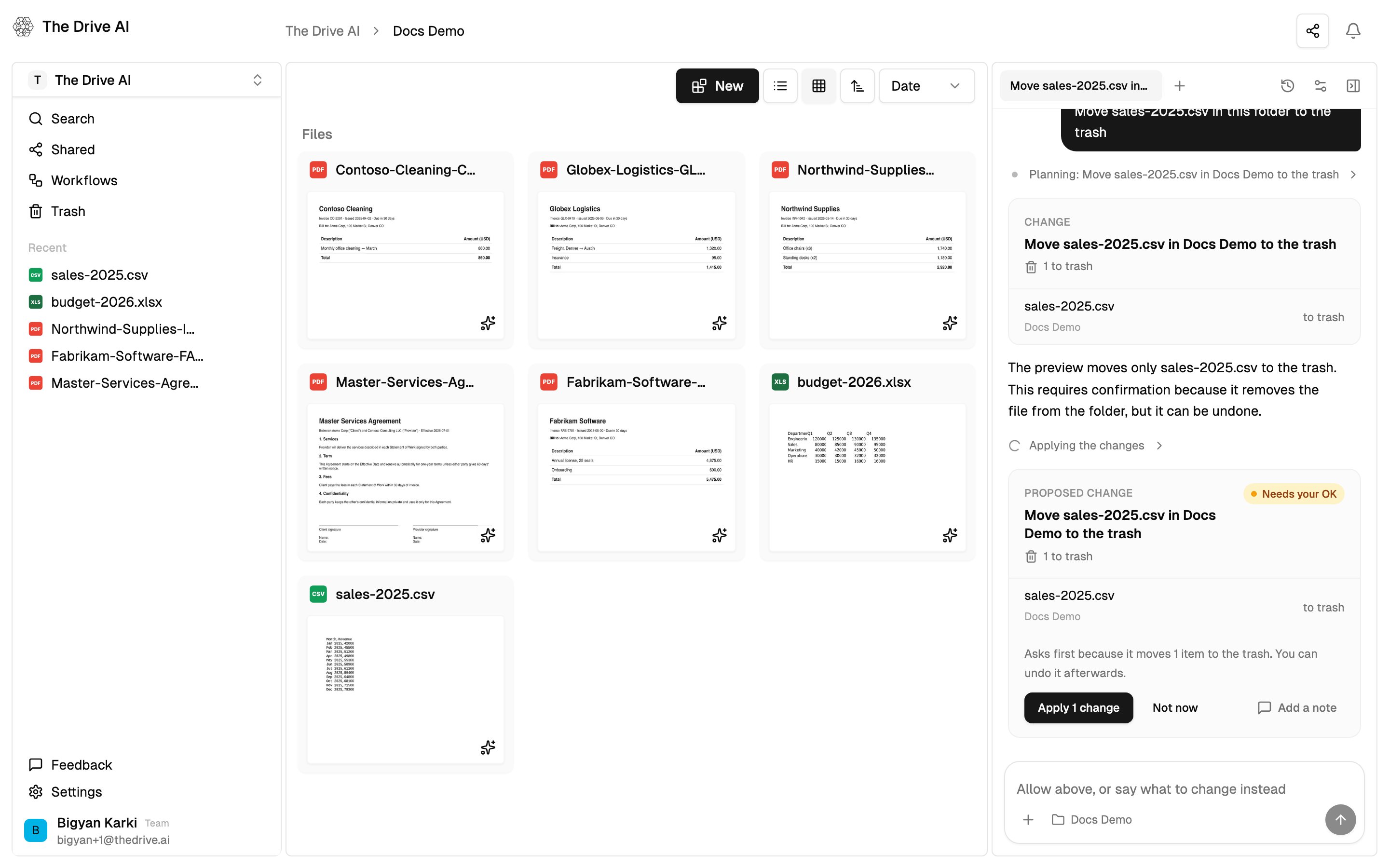
Workspace switcher
Everything you see belongs to one workspace at a time: files, members, connected accounts, workflows and usage. Click your workspace name at the top of the left sidebar to:- Switch workspace. The list shows your other workspaces, with a Personal badge on your personal workspace and an icon for your role in each. Click one to switch to it.
- Create a team workspace. Click Create team workspace. See Plans & Pricing.
Settings
Click Settings at the bottom of the left sidebar. Settings opens as a window over the app, with tabs down the side. On a phone it fills the screen. The tabs you see depend on your role in the workspace you’re in.
Viewers see only Profile and Notifications. For more about each tab, see the Settings reference.
Keyboard shortcuts
Shortcuts for files don’t work while you’re typing in a text box.
What’s next?
Uploading Files
Get files into your workspace.
The agent
Put the agent to work.