

Overview
The Drive AI connects with Google Drive so you can import files from Google Drive into your workspace and export files back. This is a manual import/export—files are copied on demand, not automatically synced.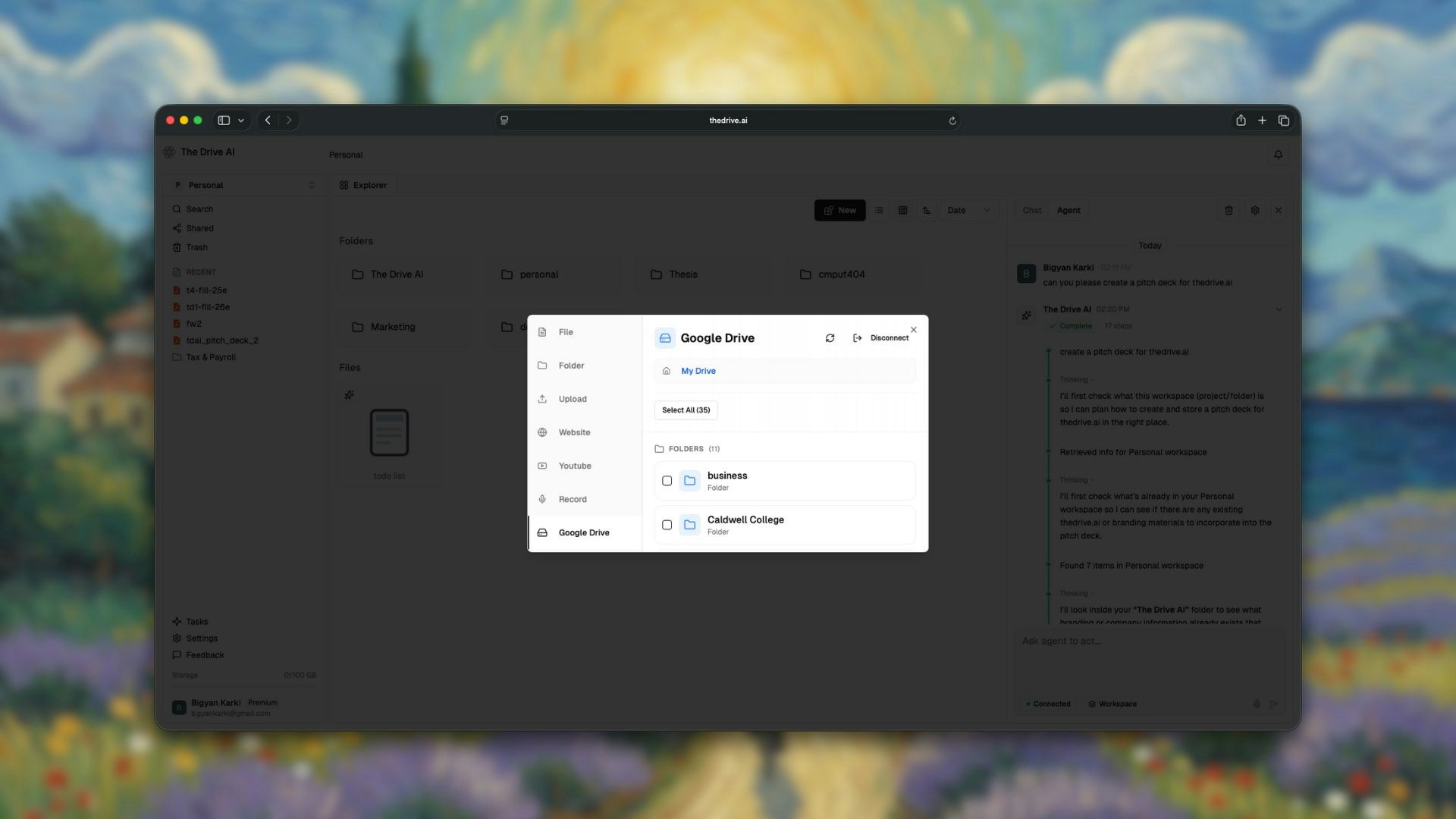
Why Import from Google Drive?
When you import files from Google Drive to The Drive AI, you unlock:- AI-powered organization for your existing files
- Natural language search across all your documents
- Chat Mode to ask questions about your files
- Agent Mode to perform bulk operations
- Unified workspace for all your files
How to Import from Google Drive
1
Connect Your Google Account
In The Drive AI, navigate to Settings > Integrations > Google Drive.Click Connect Google Drive and authorize The Drive AI to access your files.
The Drive AI uses secure OAuth authentication. Your Google password is never shared with us.
2
Browse Your Drive
Once connected, you’ll see your Google Drive folders and files in the import interface.Navigate to the files or folders you want to import.
3
Select Files to Import
Select individual files or entire folders to import.
- Single files: Click to select
- Multiple files: Hold
Command(Mac) orCtrl(Windows) and click - Entire folders: Select the folder to import all contents
4
Choose Import Location
Select where in your The Drive AI workspace you want the files to go.You can:
- Import to the root of your workspace (auto-organization will sort them)
- Import to a specific existing folder
- Create a new folder for the imported files
5
Import
Click Import to begin the transfer.Files are copied to The Drive AI—your original Google Drive files remain untouched.
Exporting Files to Google Drive
You can also send files from your Drive AI workspace back to Google Drive:1
Select Files
Select the files or folders you want to export from your workspace.
2
Choose Export
Right-click and select Export to Cloud, or use the export option from the file actions menu.
3
Choose Destination
Select the Google Drive folder where you want the files to go.
4
Export
Click Export to copy the files to your Google Drive.
How Import/Export Works
Google Drive integration is manual import/export, not live sync. Files are copied when you trigger the action. Changes made in one location are not automatically reflected in the other.
Auto-Organization on Import
When importing to your workspace root, you can enable auto-organization:- Enabled: Files are automatically sorted into logical folders after import
- Disabled: Files are placed exactly where you specify
Supported File Types
All Google Drive file types supported by The Drive AI can be imported:Google Docs, Sheets, and Slides are converted to Microsoft Office formats during import to ensure full compatibility.
Managing Your Google Drive Connection
Viewing Connection Status
Go to Settings > Integrations to see your connected Google account and connection status.Disconnecting Google Drive
To disconnect:- Go to Settings > Integrations > Google Drive
- Click Disconnect
- Confirm the disconnection
Reconnecting
If you need to reconnect or connect a different Google account:- Disconnect the current account (if connected)
- Click Connect Google Drive
- Sign in with the desired Google account
Tips for Importing
Start with Key Folders
Start with Key Folders
Don’t try to import everything at once. Start with your most important folders and let The Drive AI organize them.
Use Auto-Organization
Use Auto-Organization
Import files to your workspace root with auto-organization enabled. The AI will create a logical structure automatically.
Check Storage
Check Storage
Before large imports, check your storage limits:
- Free plan: 5 GB
- Premium plan: 100 GB
Import in Batches
Import in Batches
For large Google Drives, import in batches to monitor progress and ensure successful transfers.
Troubleshooting
Connection Failed
Connection Failed
- Ensure you’re signed into the correct Google account
- Check that you’ve granted the necessary permissions
- Try disconnecting and reconnecting
Files Not Appearing
Files Not Appearing
- Refresh the import interface
- Check if the files are in a shared drive (may have different permissions)
- Ensure the file types are supported
Import Taking Too Long
Import Taking Too Long
- Large files take longer to transfer
- Slow internet connections affect import speed
- Try importing smaller batches
What’s Next?
Email Integration
Auto-import attachments from Gmail and Outlook.
Auto-Organization
Learn how imported files get organized.