

Overview
There are two ways to let someone outside your workspace see a file or folder:- Share it by email with specific people, choosing whether they can view, edit or manage it.
- Publish it so anyone with the link can view it, without an account.
Who can share
You can share an item, and change who it’s shared with, when you have Full Access to it or own it:- Owners, admins and members of the workspace have this on its files through their role.
- People outside the workspace have it on items shared with them at Full Access.
- Viewers can’t share. They can open the Share dialog to see who has access, but can’t change it.
Share a file or folder
1
Open sharing
Click ⋮ on the file or folder and choose Share. For the file or folder you have open, you can also click the Share button in the top toolbar.
2
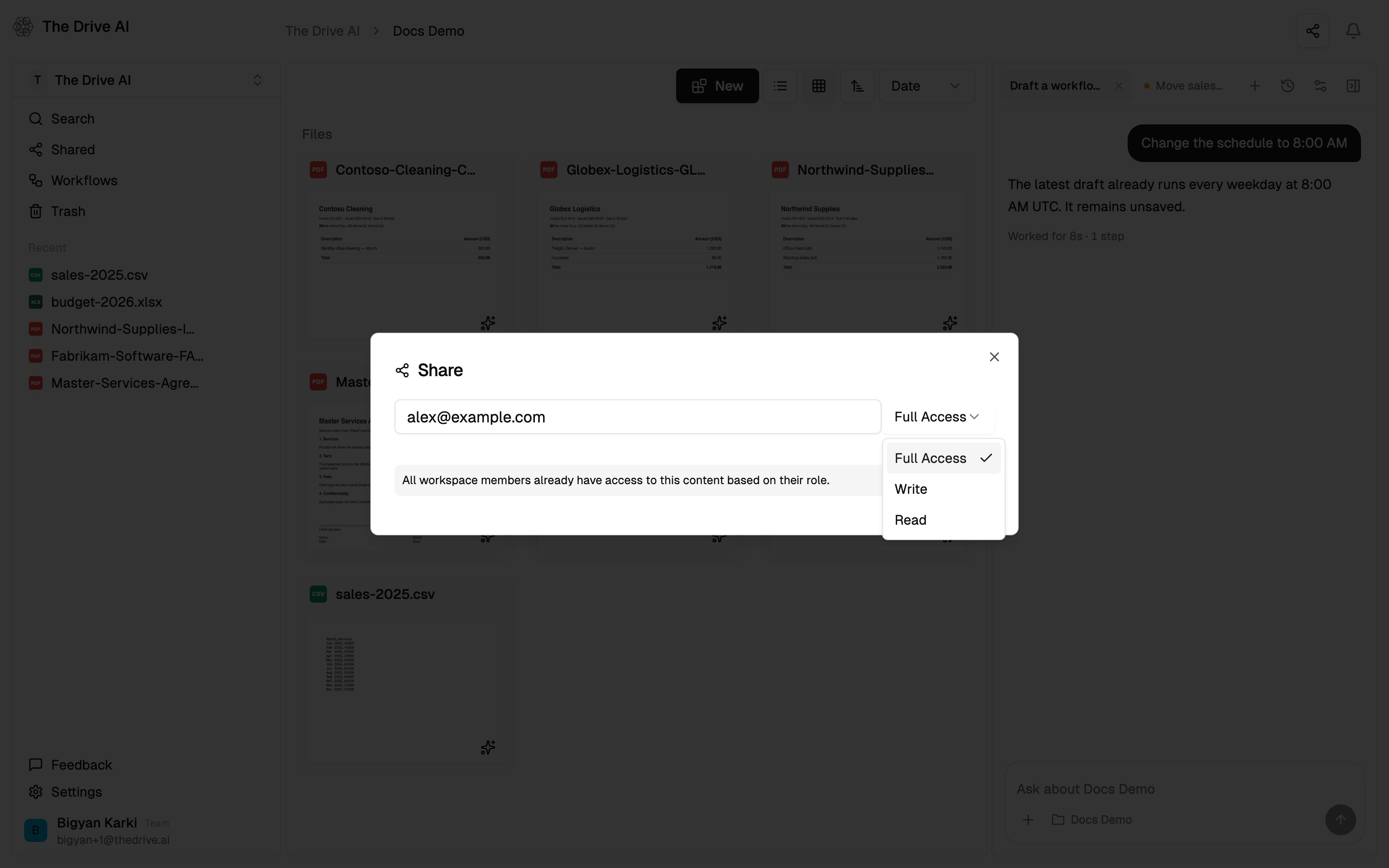
Enter an email
Type the person’s email under Invite with email address. People you’ve shared with before are suggested as you type.
3
Choose a permission
Pick Full Access, Write or Read from the menu next to the email. It starts at Full Access.
4
Press Enter
The person is added to the list below and sent an email.
Permissions
Sharing a folder
Sharing a folder shares everything in it, including files and subfolders added later. To stop sharing, remove the person from the folder itself. Their access to everything inside goes too. Moving an item changes who it’s shared with through folders. Moved out of a shared folder, it’s no longer shared with that folder’s people. Moved into one, it’s shared with them. A share you set on the item itself moves with it.Who you can’t add
- Workspace members. You see Already a workspace member: they reach the item through their role. In a team workspace the dialog reminds you: All workspace members already have access to this content based on their role.
- Someone already on the list. You see File is already shared with and their email. Change their permission instead.
- Yourself.
What the people you share with get
- If they have a The Drive AI account, they get an email saying you’ve shared the file or folder, with a link to it, and a notification in the app.
- If they don’t, they get an email inviting them to sign up. Once they sign up with that email address, the item is waiting for them.
Change or remove access
Open the Share dialog. Everyone who has access is listed with their permission.- To change someone’s permission, pick a new one from the menu next to their name. It takes effect straight away.
- To remove someone, click the trash icon (Delete) next to their name.
Public links
Publishing a file gives it a public link. Anyone with the link can view it, without signing in.1
Open the file
Open the file you want to publish.
2
Click Publish
Click the Publish button (globe icon) in the top toolbar.
3
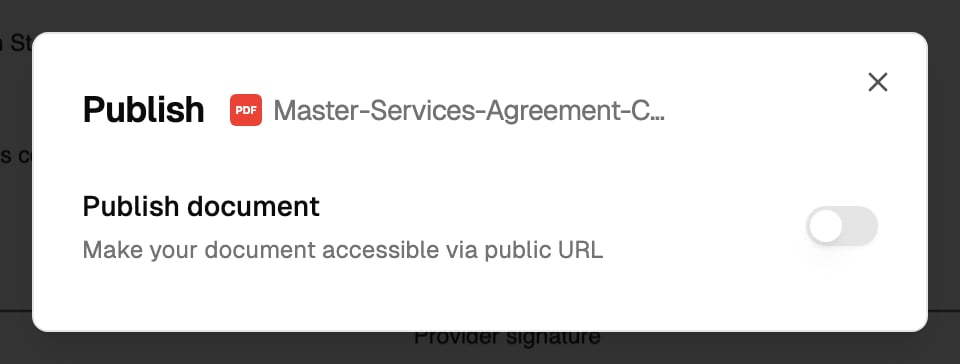
Switch it on
Switch on Publish document. The dialog shows Published and the Public URL.
4
Copy the link
Click the copy button next to the link (Copy URL) and send it to whoever needs it.
- Who can publish: people with Full Access to the file, or its owner. For everyone else the Publish button is greyed out.
- Folders: the Publish button is for files. To publish a folder and everything in it, ask the agent: “Give me a public link to this folder.” Files you upload into a published folder later are published too.
Files on connected drives
Files in Google Drive, OneDrive, SharePoint or Dropbox can’t be shared or published from The Drive AI. Share them in the drive itself. See Connected drives.Sharing through the agent
You can also ask the agent:What’s next?
File requests
Collect documents from anyone with a secure link.
Members and roles
Workspace roles and what each can do.