

Ways to sign in
You can sign in with:- Google (Continue with Google)
- Microsoft (Continue with Microsoft)
- Apple (Continue with Apple)
- Email and password
Create an account
1
Open the sign-up page
Go to thedrive.ai and choose to sign up. If you’re on the sign-in page, click Sign up next to No account?.
2
Choose how to sign in
Click Continue with Google, Continue with Microsoft or Continue with Apple, and follow the steps from that service.Or fill in Name, Email, Password and Confirm Password, complete the security check, and click Create account. Your password needs at least 8 characters, with an uppercase letter, a lowercase letter, a number and a special character.
3
Answer a few questions
A few short screens follow. You can click Skip at any point.
Forgot your password
For accounts that sign in with email and password:- On the sign-in page, click Forgot password?.
- Enter your email and click Send reset link.
- Open the email and follow the link to choose a new password.
Your profile
Open Settings > Profile, or click your name at the bottom of the left sidebar.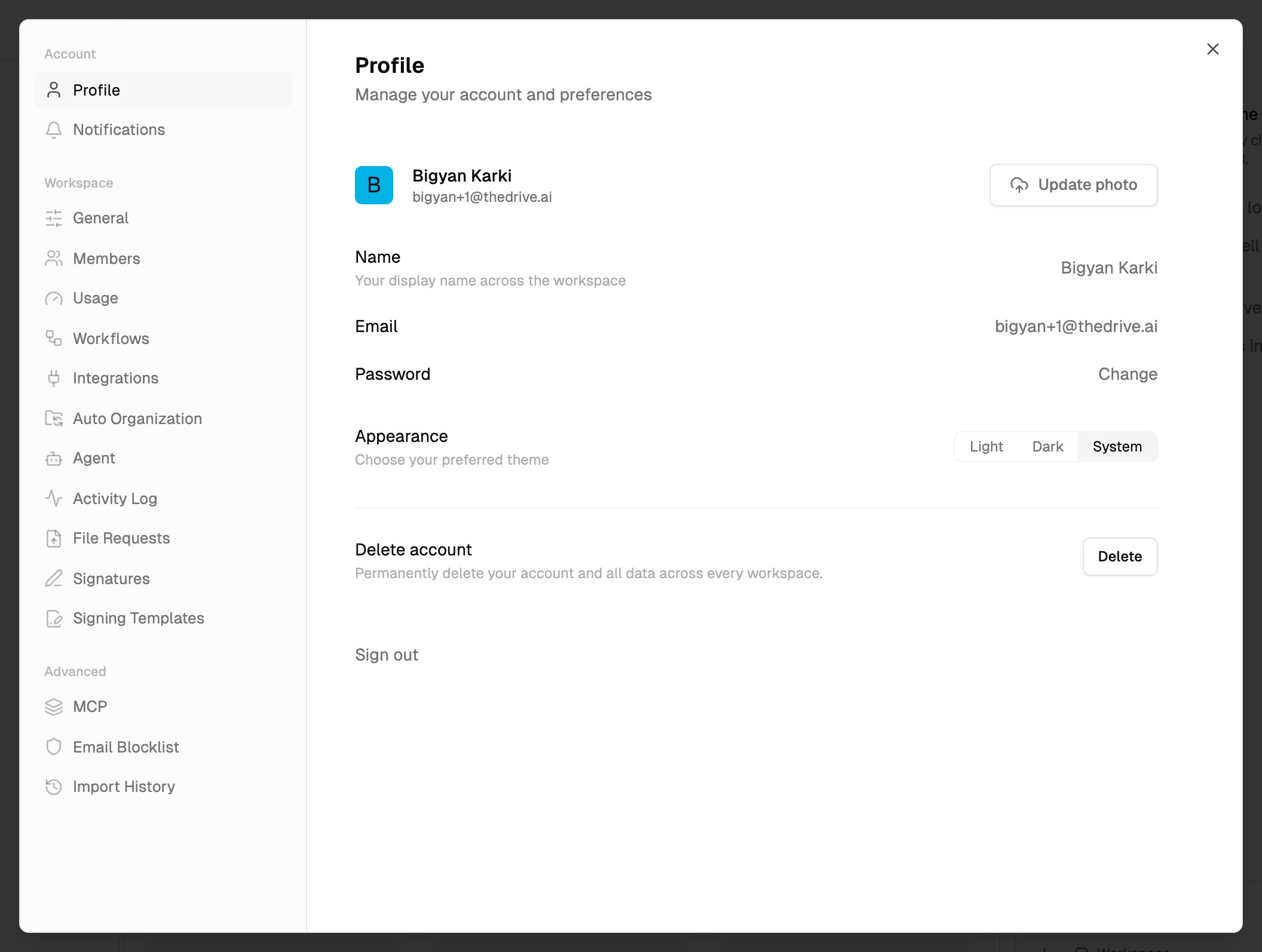
At the bottom of the tab are Delete account and Sign out.
Change your password
1
Open Password
In Settings > Profile, click Change next to Password.
2
Enter your passwords
Enter your Current password, then the New password twice. It needs at least 8 characters, with an uppercase letter, a lowercase letter, a number and a special character.
3
Save
Click Update password. You’re signed out, and you sign in again with the new password.
Your workspaces
You can belong to several workspaces: your personal workspace, team workspaces you created, and team workspaces you’ve been invited to. Your account and profile are the same in all of them. Files, members, connected accounts, workflows, plan and usage belong to each workspace. To switch workspace, click the workspace name at the top of the left sidebar and choose another. Your personal workspace is marked Personal, and an icon shows your role in each. To join a workspace, accept the invitation. It shows up in the bell in the top toolbar. To leave a team workspace, see Members and roles. The owner can’t leave their own workspace without handing it to someone else first.Delete your account
Deleting your account is permanent and can’t be undone.Before you start
- If you own a team workspace, you can’t delete your account yet. For each one, either give it to another member with Make owner in Settings > Members, or delete it in Settings > Danger Zone. If you try anyway, you see a message naming the workspaces you still own.
- If you want to keep your files, download them first. Files in your personal workspace are deleted with your account.
- If you subscribed through the Apple App Store, cancel the subscription in your Apple ID settings. Deleting your account doesn’t cancel it there.
Steps
1
Open your profile
Open Settings > Profile.
2
Delete
Next to Delete account, click Delete.
3
Confirm
Click Yes, delete my account. You’re signed out and taken to the home page.
What happens
- Your personal workspace is deleted with all its files. A paid personal plan bought on the web is cancelled.
- Team workspaces you belong to stay. You’re removed from them. Files you added to a team workspace stay there, because they belong to the workspace.
- What the agent kept for you is erased in every workspace.
- Your notifications are deleted.
Troubleshooting
I can't sign in with my password
I can't sign in with my password
Check you’re using the same method you signed up with: if you signed up with Google, Microsoft or Apple, use that button. Otherwise, click Forgot password? to reset it.
I can't change my photo
I can't change my photo
Update photo is only for email-and-password accounts. It doesn’t appear if you sign in with Google, Microsoft or Apple.
Delete account says I own a team workspace
Delete account says I own a team workspace
Transfer ownership with Make owner in Settings > Members, or delete the workspace in Settings > Danger Zone, then try again.
What’s next?
Notifications
Choose what can interrupt you.
Members and roles
Invite people and set roles.