

Overview
Each request you make to the agent lives in a conversation. You can keep several open as tabs, switch between them while they work, and find older ones in History. Your conversations are private. Other members of the workspace can’t see them, and each workspace has its own list.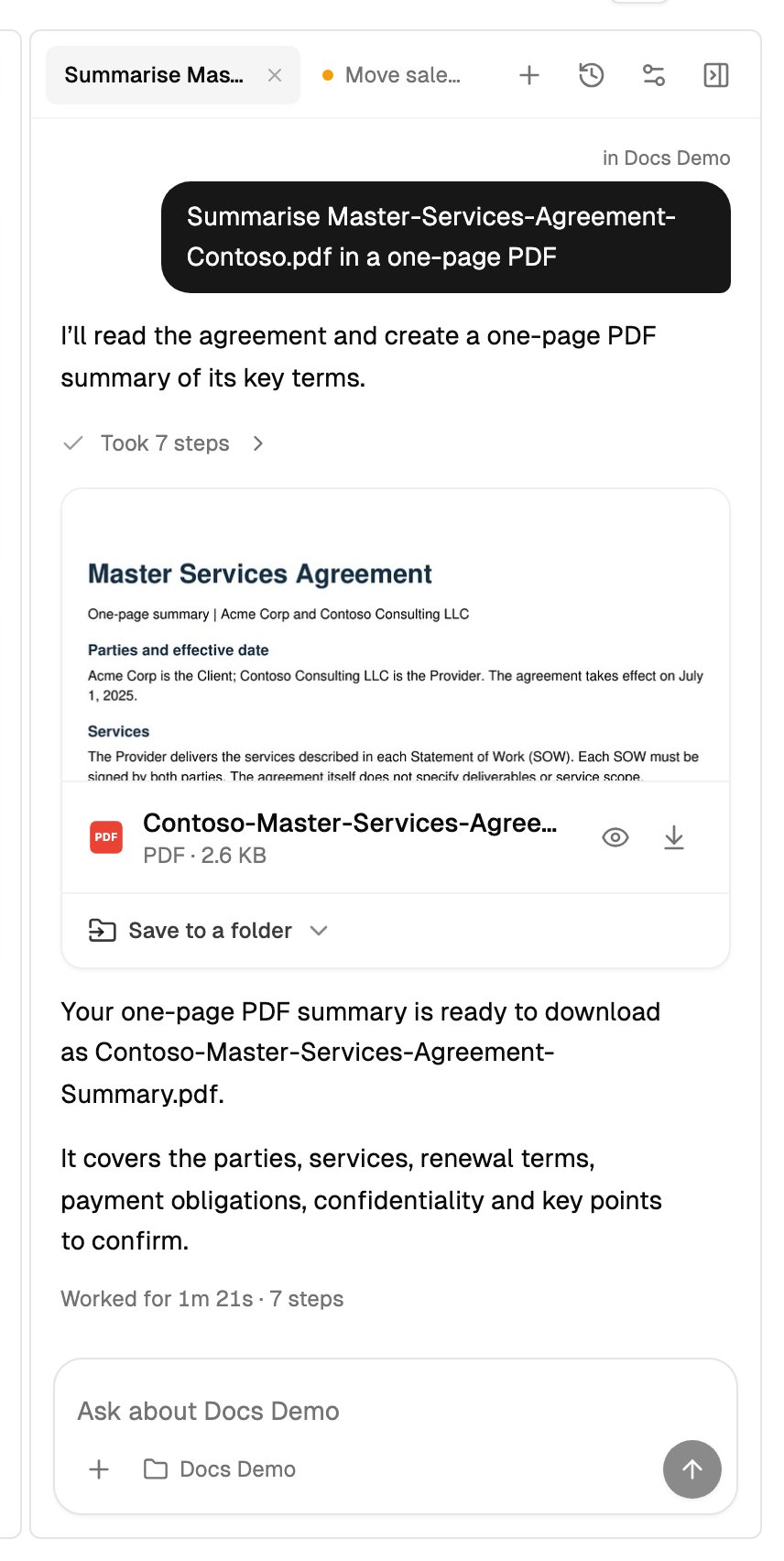
Conversation tabs
The open conversations are tabs across the top of the agent panel. The highlighted tab is the one you’re looking at.- Start a new conversation. Click + (New conversation). If you’re already in a new, empty conversation, there’s nowhere new to go.
- Switch. Click a tab. Press
⌘⇧]and⌘⇧[(Mac) orCtrl+Shift+]andCtrl+Shift+[(Windows) to step through the tabs. - More tabs than fit. The rest gather under +N. Click it to see them. Its dot shows the most urgent status among them.
- Close a tab. Point at it and click ×. The conversation isn’t deleted: it stays in History. You can’t close a tab while the agent is still working in it.
Status dots
A dot on a tab, and on each conversation in History, shows what it’s doing. Point at a tab to see the word.Several at once
You can have up to 3 conversations working at the same time. A conversation that’s waiting on you doesn’t count toward that. If you try to start a fourth, the agent asks you to wait for one to finish or stop it.History
Click History (the clock icon) in the panel’s header to see all your conversations in this workspace.- Search. Type in Search conversations. It matches the words in conversation titles.
- Groups. Conversations are grouped by when they were last active: Today, Yesterday, Previous 7 days, Previous 30 days and Older.
- Open one. Click it. It opens as a tab.
- Rename. Point at a conversation and click the pencil. Type a name and press
Enter. A conversation you don’t rename is named after your first message. - Archive. Point at a conversation and click the archive icon. Archived conversations leave your list and never appear as tabs. Stop a conversation before you archive it.
- See archived conversations. Click Show archived at the bottom of the list. They appear under Archived, where you can unarchive one. Click Hide archived to put them away again.
When a conversation needs you
You don’t have to watch a conversation while it works. The agent tells you when one needs you or finishes. While the panel is closed, the Agent button in the toolbar shows an amber number: how many conversations need you. Point at it to read, for example, “Show agent · 2 conversations need you”. While one is working and none needs you, the button shows a pulsing dot instead. While you’re on another conversation or page, a message appears in the corner of the screen, such as “Tidy invoices needs your approval”. Click Open to go straight to that conversation, even if it’s in another workspace. You get one message per conversation; a newer status replaces it.
You don’t get a message for the conversation you’re reading.
While you’re in another tab or app, your computer can show a notification instead, if you allow browser notifications for The Drive AI. Turn them on in Settings > Notifications with Browser alerts and the Assistant topic. If you haven’t allowed them, the message waits and appears when you come back. See Notifications.
Answering the agent’s questions
When the agent needs to know something, it asks in a Question card marked Needs an answer.- Click one of the suggested answers, or
- Type your own in Or say it your way (or Type an answer) and click Send.
Stop and continue
Stop. While the agent is working, the send button becomes a square Stop button. Click it to stop the task. The conversation shows Stopped. A task you stop still counts. Stopping doesn’t undo changes the agent already applied. Use Undo on their cards. See Approving and undoing. Continue. If a task grows bigger than one turn, the agent stops and says: “This task got bigger than one turn can finish, so I stopped here. Say “continue” and I’ll pick up where I left off.” Type “continue” to carry on. Continuing counts as a new task. How big one turn may be is the workspace’s task size. If the agent had already made files, such as a half-built spreadsheet, it attaches them to the chat before it stops, marked Unfinished: the task stopped before this was checked, and says it attached what it had made so far. When you say “continue”, it builds on those files instead of starting over. It attaches up to 10 files this way. On the Free plan, if you can change the plan, the stop message also links to the next plan up: “On plan, bigger tasks finish in one go.” If the agent couldn’t make progress three times in a row, it stops and asks you to say “continue” to try again.What you see while it works
- Steps. Each thing the agent looks at or does shows as one short line, such as reading a folder. Several steps fold into one line, like “Took 12 steps”. Click a line to open it.
- Plan. For bigger requests, the agent may write a short plan. Click Plan to read it.
- Cards. Changes, actions, questions and files appear as cards. See Approving and undoing.
- Cards that take you somewhere. When something needs a screen of its own, like connecting a drive or upgrading, the agent shows a card with one button that opens it. A card marked Needs an admin tells you who can do it.
- When it’s done, a line under the answer says how long it worked and how many steps it took.
Attach files
Attach files to give the agent something that isn’t in your workspace, like a document from your computer.1
Add the files
Click + (Attach a file) next to the message box and choose files, or drag files onto the panel and drop them on Drop to attach to this conversation.
2
Wait for the upload
Each file shows its upload progress above the message box. Once it’s uploaded, click it to preview it. Click × on a file to remove it before you send. A file that couldn’t upload says failed.
3
Send your message
Say what to do with them, for example “Compare these two quotes.” You can send attachments without any text.
- Up to 10 files per message.
- Up to 25 MB per file.
- Up to 200 attachments in one conversation.
- Attachments are kept for 30 days, then they expire from the conversation.
What the agent sees
The agent works from where you are when you send each message. A chip next to the message box shows it:- A folder name: you’re in that folder. The agent treats it as “here”.
- A file name: you have a file open, for example a PDF in the viewer. The agent treats that file as “this”, and its folder as “here”. Ask “summarize this” or “what’s the total on this invoice?” without naming the file.
- Workspace: you’re at the top level.
Hide the agent
Click Hide agent in the panel’s header, or press⌘J (Mac) or Ctrl+J (Windows). Nothing stops: conversations keep working, and the Agent button tells you when one needs you. Press the shortcut or click Agent to bring the panel back.
In the browser extension, close Chrome’s side panel instead.
Troubleshooting
It says I already have conversations working
It says I already have conversations working
You can have 3 conversations working at once. Wait for one to finish, or open it and click Stop.
It says the assistant is busy
It says the assistant is busy
“The assistant is busy right now. Try again in a little while.” Nothing is wrong with your account. Send your message again in a few minutes.
An attachment didn't upload
An attachment didn't upload
Check that it’s 25 MB or smaller and that the message has 10 files or fewer.
I don't get alerts in other tabs
I don't get alerts in other tabs
Turn on Browser alerts and the Assistant topic in Settings > Notifications. If your browser blocked notifications for the site, allow them in the browser’s settings first.
What’s next?
Approving and undoing
Every card the agent shows, and how to undo a change.
Memory and instructions
Teach the agent how you like things done.