

Overview
The agent never changes anything silently. Before or as it acts, it shows a card in the conversation. Small changes to files apply right away and can be undone. Bigger changes, and anything outside your files, wait for you. This page covers every kind of card, when the agent asks, and how undo works.Change cards
A change card is for anything the agent does to files and folders: moving, renaming, copying, moving to the trash, restoring, creating folders, saving new files and editing documents.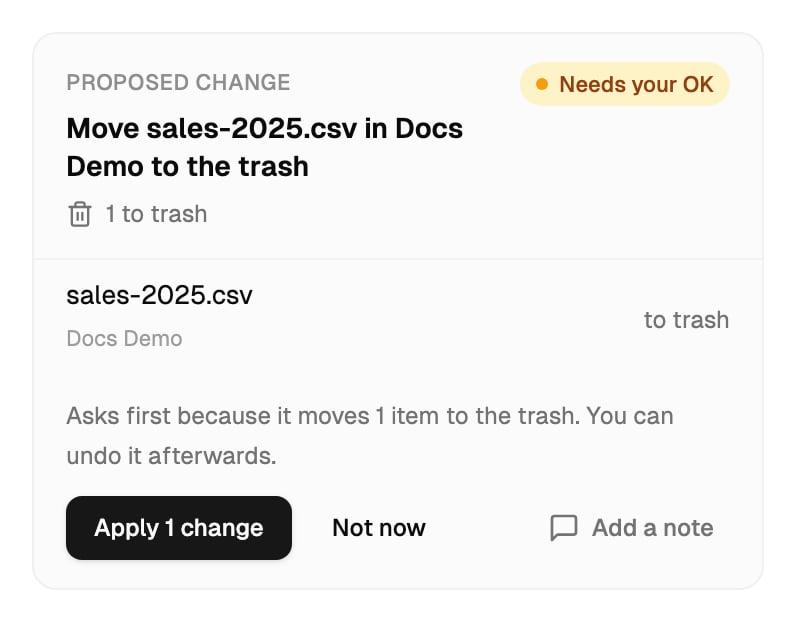
- A title that says what the change is, such as “Organize invoices by vendor”.
- A count line, such as “4 moves · 1 new folder” or “12 changes · 10 moves · 2 renames”.
- A row for each item: its name, where it is, and where it goes (or its new name). The first 5 rows show. Click Show N more, or Show all N for a large change, to see the rest.
- Why it asks, in one sentence, and what undo will and won’t be able to do.
Card states
On an applied card, the rows fold away. Click Show the N changes to see them again.
Approve, decline or redirect
When a card says Needs your OK:- Apply N changes applies it, for example Apply 5 changes.
- Not now skips it. Nothing changes, and the agent carries on from there.
- Add a note opens a box for a note to the agent. Type what to do differently, then click Not now. The card shows “Not applied. You said: …” and the agent continues from your note.
Confirming a large change
A change bigger than the workspace’s Ask once limit asks you to confirm the count. The card says “A large change: N items. It asks you to confirm the count.” Click Apply N changes, then click again on Yes, apply N changes.Items that stay where they are
If some items can’t be included, for example because a file with the same name is already in the destination, the card says “N items stay where they are” and gives the reason. The rest of the change goes ahead. If another of your conversations is changing the same folder, the card says “Another conversation is changing … right now. This will wait until it finishes.” Nothing is applied until it does. If some items fail while a change applies, for example because a file was moved or deleted in the meantime, the card lists them as failed or skipped with the reason. The rest still apply.When the agent asks first
Changes that apply on their own
A change applies right away, without asking, when all of these are true:- It only moves, renames, copies, restores or creates folders.
- Everything it touches is in the folder you’re in.
- It changes no more items than the workspace’s Apply on its own limit. By default that’s 20.
Changes that always ask
These ask first, however small:- Moving anything to the trash.
- Editing an existing document. The previous version is kept.
- Changing anything outside the folder you’re in. The folder you’re in is where the agent starts, not a limit, but a change that reaches beyond it never happens silently. When you’re at the top level of the workspace, copying files always asks.
- Saving a new file into a folder, unless an owner or admin has switched on Save the files it makes. See Agent settings.
Approval thresholds
Owners and admins set two limits in Settings > Agent > Limits and approvals:
Each item in a change counts once: a move, a rename, a new folder. See Agent settings.
Action cards
Actions that aren’t file changes always ask first. The card says what will happen, and Needs your OK.- Sharing a file or folder, changing or removing someone’s access, or publishing a public link
- Inviting a member, changing a role, removing a member, or resending an invitation
- Creating a file request, adding recipients, sending reminders, or closing it
- Sending a document for signature, reminding signers, or voiding a request
- Saving a workflow, switching one on or off, running one now, retrying a run, or resolving a workflow approval
- Saving a note to the workspace’s memory (owners and admins only)
Actions on other services
If an admin has given the agent tools from other apps, any tool that can change something on that service asks first. The card’s label names the service, for example On HubSpot. The card says the action “Acts on HubSpot, outside your files, and cannot be undone here,” and lists exactly what would be sent. Click Allow or Not now. Tools that the service marks as read-only, like a search, run without asking.Reading many files
When answering means reading a large number of files, such as pulling the amount out of every invoice in a folder, the agent may ask first with a Read many files card, for example “Read 1,240 files for “Invoices 2025"". The card says where the files are, roughly how long it will take, and what it will read from each file. Click Read them to start, or Not now. If you decline, nothing is read. How many files one task may read this way depends on your plan. See Tasks and limits.Background jobs
Long work runs in the background and shows a Background job card marked In the background, with progress such as “340 of 1,240 files read”. When it ends, the card says Done, Stopped or Failed, and the agent continues with the result. Preparing a very large change also runs in the background: “Checking every item before anything can change.” The change card follows when it’s ready. You can keep asking questions while a background job runs.Undo a change
1
Find the change
Scroll to the change’s card in the conversation. It says Applied.
2
Click Undo
Click Undo on the card. You can also ask the agent: “Undo the last change.”
3
Approve the reversal if asked
The agent proposes the reverse of the change. If it only puts things back, it usually applies right away. A bigger reversal asks like any other change.
What undo does
- Moves and renames go back.
- Files moved to the trash come back, on drives that allow it.
- New folders are removed if they’re still empty.
- New files are removed if nobody has changed them since.
- Edits go back to the previous version, if nobody has edited the file since.
Undo keeps your changes
If you or someone else changed something after the agent did, undo leaves that item as it is and tells you. For example, if you edited a file the agent created, undo keeps your version.What can’t be undone
Before you apply a change, the card says if any part of it can’t be undone. Afterwards, the card explains it and doesn’t offer Undo for that part:- Moving files to the trash on a drive that can’t restore from here. The card names where the files went, such as the SharePoint recycle bin, and how long they’re kept there, so you can restore them yourself. See Undo on each drive.
- An edit whose earlier version was too large to keep a copy of.
- A new file on a drive with no trash. Undo leaves it in place.
- Actions outside your files, like sending a signature request, inviting someone or an action on another service. Undo the action in the product instead, for example by voiding the request or removing the member.
Proposals that weren’t applied
A proposed change belongs to the request that made it. If that request ends with the change still waiting, for example because you sent a new message instead of answering the card, the change can no longer be applied. Ask again and the agent prepares it fresh, checked against your files as they are now.What’s next?
Agent settings
Set how big a change can be before the agent asks.
Connected drives
What undo can do on Google Drive, OneDrive, SharePoint and Dropbox.