

Overview
Every time a workflow handles a file, it records a run: which file, which steps it went through, and what each one did. Runs are listed under Activity. Runs that stop for a person’s decision are listed under Approvals. Both are tabs on the Workflows page. Click Workflows in the left sidebar to open it.Activity
The Activity tab lists every run in the workspace, newest first.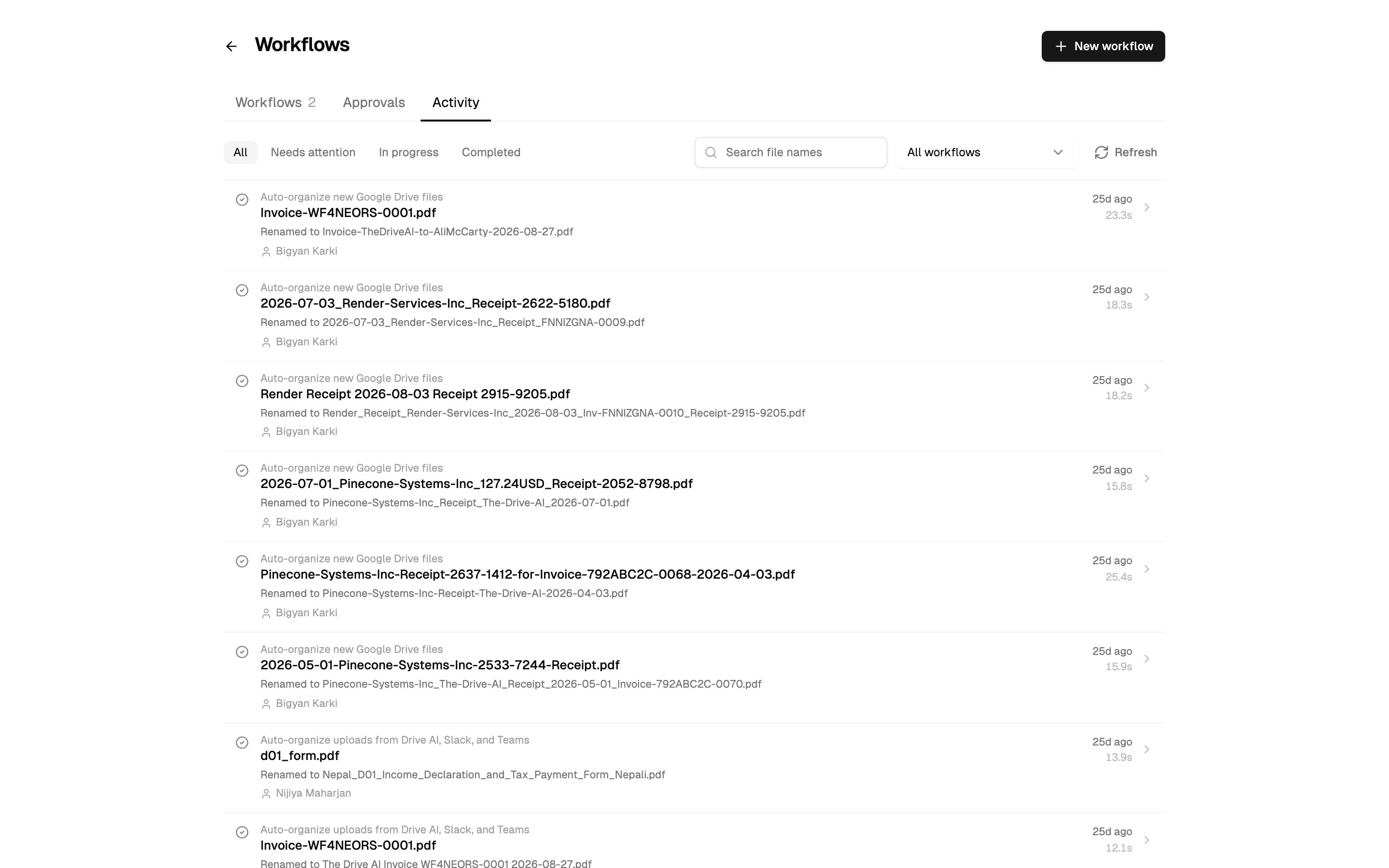
- All, Needs attention, In progress or Completed
- The workflow list, which starts on All workflows
- Search file names
What the filters mean
A skipped run isn’t an error. It means the workflow looked at the file and had nothing to do, for example the copy was already saved there, the sender is blocked, or the workspace was out of workflow files.
On the Workflows tab, each workflow’s row shows how its last run went: Success, Failed, Awaiting approval or In progress.
Read a run
Open a run to see each step in order, with what it did in plain words, for example “Classified as “invoice” (96%)”, “Moved to Clients/Acme/2026” or “Saved a copy to Inbox in Google Drive”. A step’s line links to the file where it can. Click Watch this replay on the canvas to watch the file move through the workflow’s steps, in the shape the workflow had when it ran.Retry a failed run
A failed run says which step failed and why, for example “The connection needs to be reauthorized” or “The file could not be found”. Owners and admins see a button under it:- Retry: for temporary problems. Click it to try again.
- Fix & retry: something has to change first, such as the step’s settings, a reconnected account, or a file restored. Make the change, then click it.
Approvals
When a workflow reaches an Ask a Person to Approve step, it pauses that file and asks. See Ask a Person to Approve to set one up. You hear about it three ways: an email, an Approval needed notification in the app, and a banner on the Workflows page, such as 1 approval is waiting on you.Decide an approval
1
Open Approvals
On the Workflows page, click the Approvals tab, or Review on the banner. The tab shows a count when something is waiting.
2
Check what will happen
Each card shows the workflow, the file, the question, and the steps that will run if you approve, for example ”→ Move to Clients/Acme/2026”. The file name links to the file. The time left shows on the card.
3
Add a correction (optional)
Click Add a correction and type a note, for example “this belongs to the Smith matter, not Jones”. Your note takes priority over what the AI would have decided on its own. If the card lists planned steps, approving with a note works them out again with your note in charge.
4
Decide
Click Approve or Reject.
Decide many files at once
When several files are waiting on the same workflow’s question, for example after a scheduled run went through a folder, they’re grouped on one card. Click Show the N files to see them, and Add a correction for all for a shared note. Click Approve all N or Reject all. For more than 10 files you’re asked to click again to confirm, for example Yes — approve all 24 files. The decision covers exactly the files on the card. A file that arrives afterwards waits for its own decision. You can still decide files in a group one at a time.Who can decide
The approval step chooses who is asked: admins, specific people, or everyone. Any one of them can decide. Owners and admins can decide any approval. If an approval isn’t yours to decide, its card says “Someone else was asked to decide this one.”Expiry
Each approval waits for the time set on its step: 24 hours, 3 days or 1 week. Approvals with less than 24 hours left are marked as expiring soon, the banner turns amber, and the tab’s count turns amber too. When an approval expires, the workflow follows its Expired path. If nothing is connected there, the file is left where it is.Decisions already made
Under Decided on the Approvals tab, choose a period to see every decision made in it: Last 30 days, Last 90 days, Last year or All time. Click Export CSV to download what’s shown, with when each was decided, the outcome, who decided, whether it was automatic, the file, the workflow, the actions and any note. Decisions made automatically by an approval step set to Only when unsure are listed here too.Workflows that ask to use your account
Some workflows watch each member’s own inbox or drive, for example “every member’s Gmail” or “every member’s Google Drive”. The admin who builds one chooses who is asked. Nothing runs through your account until you agree, and you can leave at any time. When you’re asked, you get an A workflow is asking to use your account notification, and the Workflows page shows 1 workflow is asking to use your account. Click Review.1
Read the request
Under Your accounts in workflows on the Approvals tab, the card names the workflow and what it watches, for example “Runs on attachments that arrive in your Gmail inbox.” Click See what it does to open the workflow.
2
Choose the account
If you have more than one account that fits, choose which to use. If you have none, connect one in Settings > Integrations, then come back.
3
Join or decline
Click Join, or Join with all N for several accounts. Click Decline to say no.
When an account is disconnected
A workflow that uses a connected account is paused when that account is disconnected, and when the workspace’s plan stops including connected accounts. Owners and admins get an email and a Workflows paused notification listing the workflows. Reconnecting the account doesn’t turn the workflows back on, because the reconnected account may be a different one. Owners and admins are reminded that the workflows are still paused. To resume one, open it and switch it to Active. If the account still isn’t connected, you’ll see Cannot resume yet and which account to reconnect. A workflow is also paused when the folder it watches can no longer be reached, or when the account it uses leaves the Teams team it watches. For a workflow that watches each member’s own account, only that member’s part pauses. It shows as Paused — account disconnected under Who has joined, and the rest keeps running.What’s next?
Workflow files
Why a run was skipped for the monthly limit.
Troubleshooting
A workflow didn’t run on a file.