

Before you start
- Your role. Owners, admins and members can upload. Viewers can’t, so they don’t see New or the upload buttons. See Members and roles.
- Your workspace’s state. While a team workspace’s subscription is paused or ended, the workspace is read-only and nothing new can be uploaded.
- Storage. Each file has to fit in the storage your plan has left. See Storage.
Ways to upload
Drag and drop
Drag files or whole folders from your computer onto the file browser. When Drop Files or Folders here appears, let go. The files go into the folder you have open, and folders keep their structure.The upload window
1
Open the folder
Go to the folder you want the files in.
2
Open the upload window
Click New in the toolbar and choose Upload. You can also right-click an empty part of the file browser and choose Upload Files. In an empty folder, click Upload files.
3
Add files or a folder
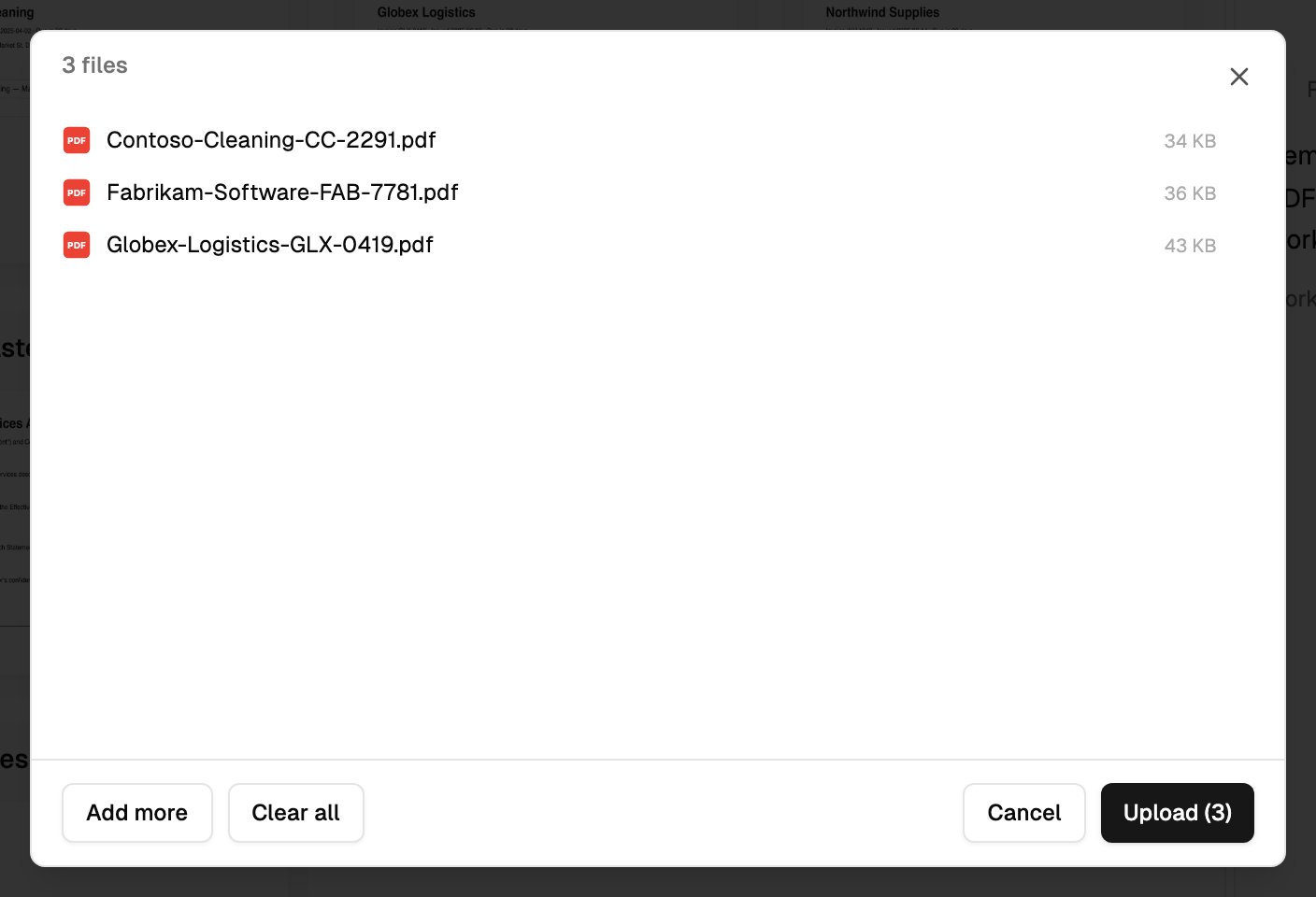
Drop files into the window, or click to browse. To upload a whole folder, click select a folder. Once something is listed, use Add more > Files or Folder to add more, or Clear all to start again. Point at a file or folder in the list and click its × to take it out.
4
Upload
Click Upload. The button shows how many files will go.
Other ways in
Limits
These limits apply to files you upload yourself, from the web app or the phone. Files that arrive through workflows, imports, file requests or the agent aren’t counted against them.- Files in one upload. On Free and Premium, the upload window stops you adding more than your limit. On Max and team plans, the window lets you add more than 100, but an upload of more than 100 files is refused. Upload a big folder in parts, for example one subfolder at a time.
- Files uploaded per hour counts everyone in the workspace together. The message tells you how many minutes until it resets.
- Files in the workspace doesn’t count folders or anything in the Trash.
Duplicates
The Drive AI doesn’t check for duplicates when you upload. Uploading the same file twice, or a file with the same name as one already in the folder, gives you two files side by side. To find duplicates later, ask the agent: “Find duplicate files in this folder and tell me how much space they take.”Malware scanning
Every uploaded file is scanned for malware. If a file is flagged, it’s removed and you see File rejected: malware detected. The file has been removed. The other files in the upload aren’t affected.What happens after upload
The Drive AI reads each file so you can search it and the agent can work with it:- Documents. Text is extracted from documents, spreadsheets, presentations and PDFs.
- Scanned PDFs are read with OCR, up to a set number of pages per file. Pages past the limit are stored but not read.
- Images, audio and video are read, and recordings transcribed, on plans that include every file type: Premium and above. On Free they’re stored but not read, and a crown icon next to the file means Upgrade to unlock.
A sparkle icon next to a file means it’s Included in assistant’s knowledge. A faded warning icon means File type is not supported by the assistant.
A file uploaded into a shared folder is shared with the same people, and a file uploaded into a published folder is published too. See File sharing.
Uploading doesn’t file anything into folders by itself. To file uploads automatically, set up a workflow with a File Uploaded trigger. To file what’s already in a folder, right-click and choose Organize this folder (⌘K), or ask the agent.
Storage
Each plan includes an amount of storage. See Plans and pricing. To see how much you’ve used, open Settings > Usage and look at Storage. Moving a file to the Trash frees its storage, and restoring it counts it again.Errors and what they mean
Too many files. Your plan allows up to N files per upload.
Too many files. Your plan allows up to N files per upload.
The upload had more files than your plan takes at once. Nothing in it was uploaded. Upload fewer files at a time, for example one subfolder at a time.
Workspace upload rate limit reached
Workspace upload rate limit reached
Your workspace has uploaded its hourly allowance. The message says how many minutes until it resets. Max and team plans have no hourly limit.
File limit reached
File limit reached
The workspace already holds as many files as the plan allows (50 on Free, 500 on Premium). Delete files you don’t need, or upgrade. Files in the Trash don’t count.
Upload would exceed workspace storage quota.
Upload would exceed workspace storage quota.
The files don’t fit in the storage you have left. Check Settings > Usage, free some space, or upgrade.
Cannot upload files - workspace is in read-only mode.
Cannot upload files - workspace is in read-only mode.
The team workspace’s subscription is paused or ended. The owner can resume or reactivate it in Settings > Billing.
Server is busy, or too many concurrent uploads
Server is busy, or too many concurrent uploads
Server is busy processing uploads. Please try again shortly. or Too many concurrent uploads. Please wait for current uploads to complete. Wait for your current uploads to finish, then try again.
The agent can't read a file
The agent can't read a file
- Large files take longer to process. Wait a few minutes.
- Images, audio and video need Premium or above to be read.
- Only the first pages of a long scanned PDF are read. See the table above.
- Password-protected files can’t be read. Remove the password and upload again.
What’s next?
Browsing and search
Find, open, move and organize your files.
Workflows
File new uploads automatically.