

Overview
Chat Mode is your conversational interface for exploring and understanding your files. Ask questions in natural language, and The Drive AI searches through your documents to provide accurate answers—without taking any actions on your files.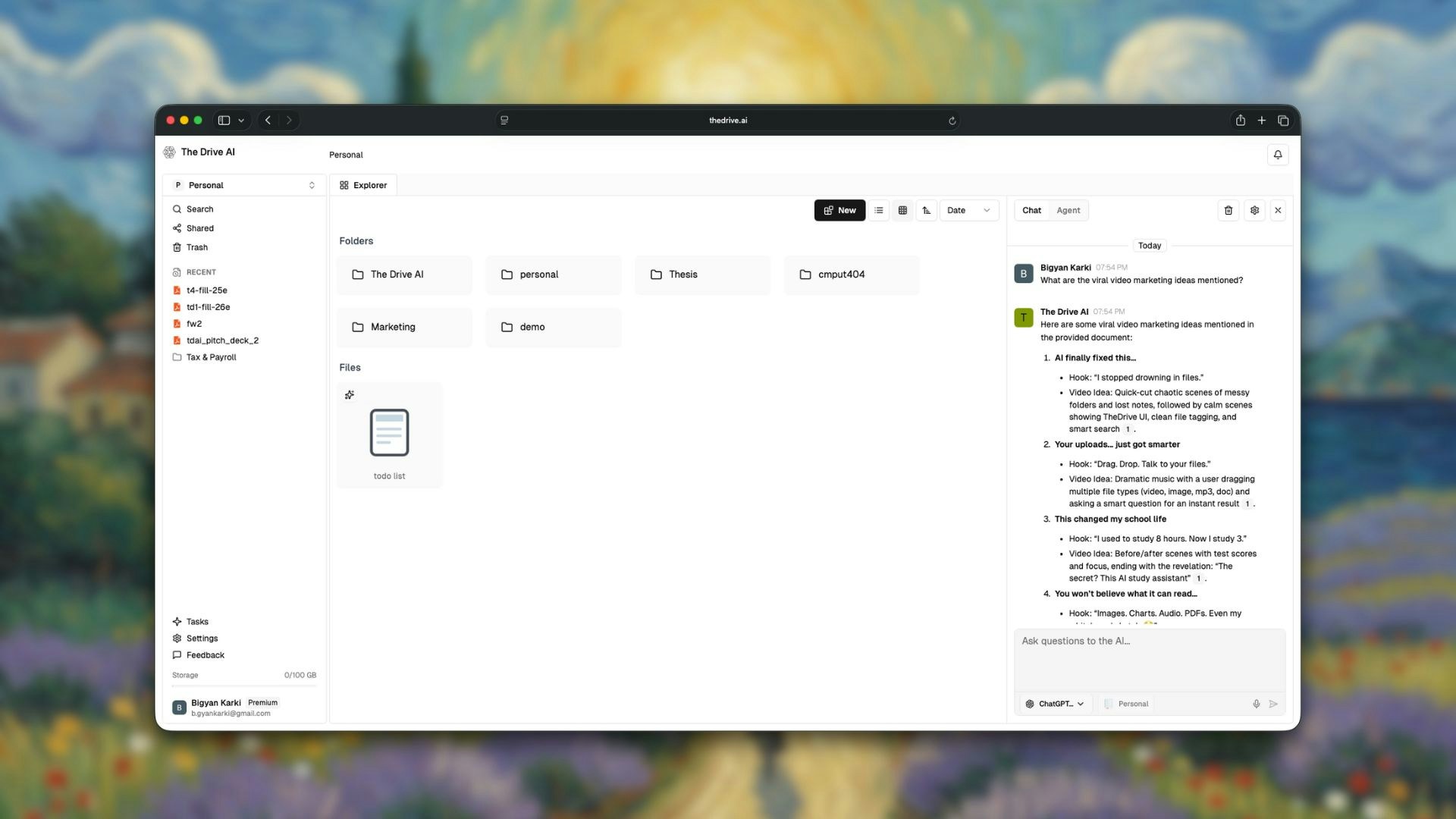
What is Chat Mode?
Chat Mode is for getting answers. The AI reads your files and responds to your questions but doesn’t create, move, delete, or modify any files.
When to Use Chat Mode
Use Chat Mode when you want to:- Find information without knowing which file contains it
- Get summaries of long documents
- Compare content across multiple files
- Search for specific data in your workspace
- Understand relationships between documents
- Extract key points from reports or notes
How to Use Chat Mode
1
Open the Chat Panel
Click on the chat interface in your workspace.
2
Select Chat Mode
Ensure Chat Mode is selected (not Agent Mode) in the mode selector.
3
Ask Your Question
Type your question in natural language and press Enter.
4
Get Your Answer
The AI analyzes relevant files and provides a response with context.
Understanding Scope
The AI only searches within your current location and its contents - not parent folders. Your scope is determined by where you are in the workspace:
The current scope is always displayed in the input box at the bottom of the chat panel, so you know exactly where the AI is looking.
Example Questions
Finding Information
Summarization
Comparison
Searching
Features
Context-Aware Responses
Chat Mode understands context across your files. It can:- Connect information from multiple documents
- Understand relationships between files
- Provide answers with references to source files
Source Citations
When the AI answers your question, it indicates which files the information came from, so you can verify or explore further.Follow-Up Questions
Continue the conversation naturally:Multi-Format Support
Chat Mode works across all your file types:- Search through PDFs, Word documents, and text files
- Query spreadsheet data
- Find information in presentations
- Analyze transcribed audio and video content (Premium)
Tips for Better Results
Be Specific
Be Specific
The more specific your question, the more accurate the answer.Instead of: “Tell me about the budget”Try: “What is the marketing budget for Q1 2024 in the annual planning document?”
Use Keywords
Use Keywords
Include relevant keywords that might appear in your documents.Example: “Find mentions of ‘machine learning’ or ‘ML’ in the technical specs”
Ask for Summaries
Ask for Summaries
For long documents, ask for summaries or key points rather than trying to find specific sentences.Example: “What are the top 5 recommendations from the audit report?”
Specify File Scope
Specify File Scope
If you know which files or folders to search, mention them.Example: “In the contracts folder, what are the payment terms for each client?”
Chat Mode vs Agent Mode
Limits
Free Plan
- 5 AI queries per day
- Text-based files only (PDF, DOCX, etc.)
Premium Plan
- Unlimited AI queries
- All file types including images, audio, and video
- Multiple AI models (GPT-5, Claude, etc.)
What’s Next?
Agent Mode
Learn to take actions with natural language commands.
Plans & Pricing
Compare plan features and upgrade.