

Overview
A file request collects documents from clients, vendors or anyone else. Each recipient gets an email with their own upload link. They open the link, upload their files, and the files land in the folder you chose. Recipients don’t need an account. You can ask for specific documents with a checklist, set a due date, rename uploads automatically, and send reminders to people who haven’t finished.Creating file requests needs a plan that includes them. See Plans & Pricing.
Who can create and manage requests
If you open someone else’s request and you’re a member, you can see its progress, but closing it, reminding or changing its recipients is refused.
Where to find file requests
Open Settings and choose File Requests. Each request shows its title, status, how many recipients have responded, how many files have arrived, and when it was created.Create a request
1
Start a new request
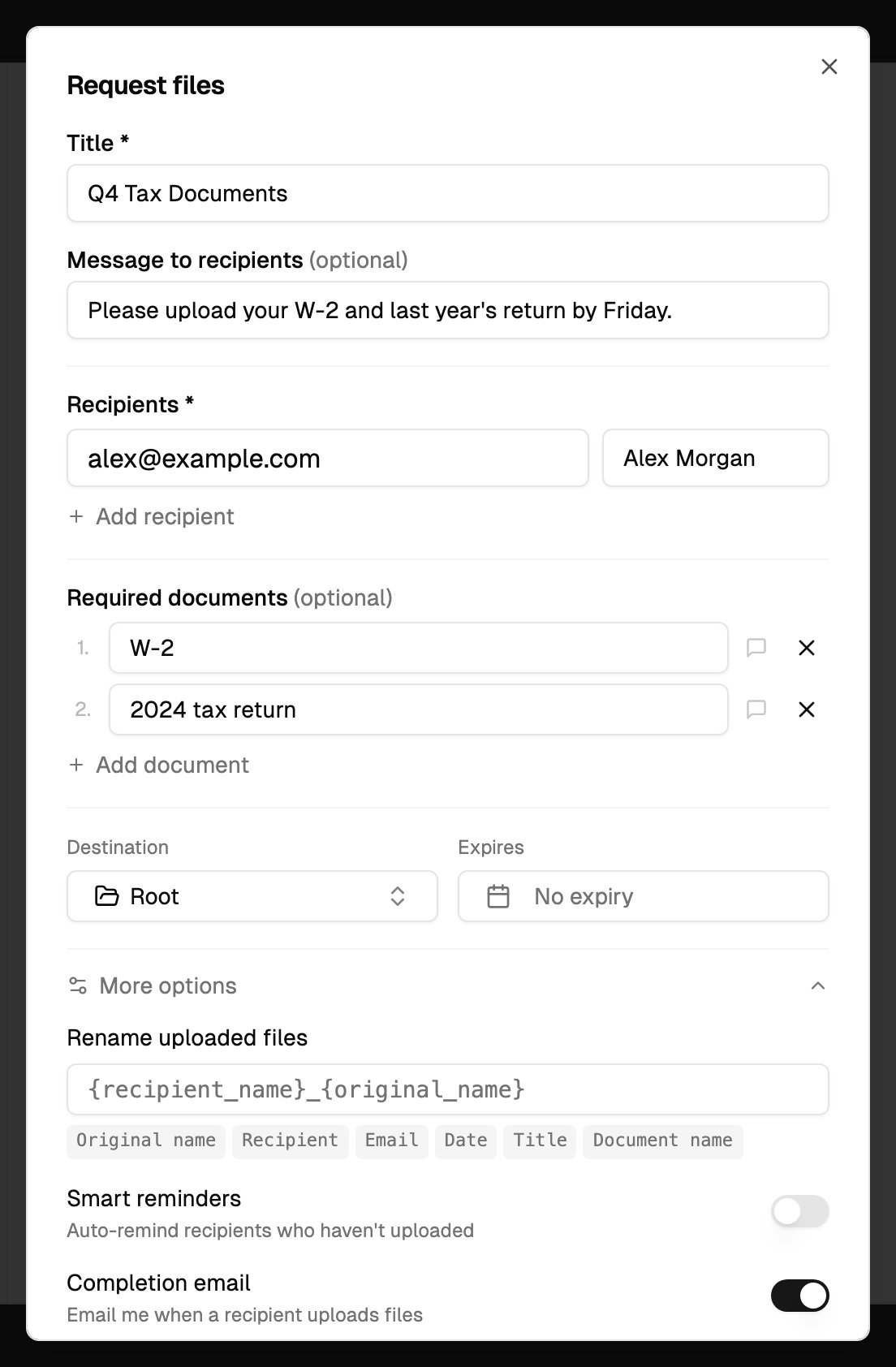
In Settings > File Requests, click New request. The Request files form opens.
2
Fill in the details
If the same email appears twice, it’s only added once.
3
Set more options (optional)
Click More options:
4
Send
Click Send Request. Each recipient gets an email with their own link. The File Request Created screen lists every recipient with Copy link, so you can also share the links yourself.Each link is personal. Uploads through it are recorded against that recipient.
Checklists
A checklist lists the documents you need, such as “W-2 Form” or “Photo ID”. Each item becomes its own upload slot on the recipient’s page, and you can track what’s arrived item by item.- Click Add document for each item and type its name.
- Click the speech-bubble icon (Add helper text) to add a short hint under an item.
- Click X to remove an item.
Templates
A template saves a checklist (item names and helper text) for reuse.- Save one: turn on Save as template under More options and give it a name. It’s saved when you click Send Request.
- Use one: in Required documents, choose Use template and pick a template. It fills in the checklist, which you can then edit. Use template appears when the checklist is empty and the workspace has saved templates.
Rename uploads
Build a pattern from text and these variables. The file’s extension is always kept.
For example,
{recipient_name}_{slot_name} turns a W-2 uploaded by Jane into Jane_W-2 Form.pdf.
What recipients see
1
The email
The subject is “Your name is requesting files from you: title”. It includes your message, the checklist and the due date, if you set them, and an Upload Files button that opens their upload page.
2
The upload page
The page shows who’s asking, the title, your message and the due date.
- With a checklist: each item has an Upload button. They pick one file per item, then click Submit N documents. A filled item shows Replace, to swap the file. Once every required item is in, the checklist shows Complete. To send files that aren’t on the list, they open Upload additional files.
- Without a checklist: they drop files on the page or click browse, then click Upload N files.
3
After uploading
They see Files uploaded and can click Upload more. They can come back to the same link until it expires or you close the request.
Upload limits
Uploaded files count toward your workspace’s storage. If the workspace is full, the recipient sees “The workspace has reached its storage limit. Please contact the person who requested these files.” Free up space or upgrade, then ask them to try again. See Usage and Limits.
Files that fail the malware scan are discarded and don’t appear in your workspace.
Where uploads go
Files go into the Destination folder you chose. They’re named by your rename pattern, if you set one. When a recipient replaces a checklist item, the new file takes that item’s place on the checklist. The earlier file stays in the folder.Notifications
Requests without a checklist don’t send a completion notice. Check the request’s progress instead.
Track a request
Click a request in Settings > File Requests to open it. You see its status, your message, and a summary: files received, how many recipients are complete (with a checklist), the due date and the destination folder.Request statuses
Recipient progress
Each recipient also shows how many files they’ve sent and when they last uploaded. Click the arrow next to a recipient to see their files. With a checklist, you see each item with the file received, or Missing or Optional.
Manage a request
These actions are available while a request is Active:- Copy upload link: copy one recipient’s personal link.
- Send reminder: email one recipient who still owes files.
- Remind all (N): email every recipient who still owes files. N is how many that is.
- Add recipient: enter an email and an optional name, then click Add. They get the request email with their own link.
- Remove recipient: their link stops working right away. Files they’ve already uploaded stay in your workspace.
- Close request: confirm in Close this file request?. All upload links stop working and no more reminders go out. Files already received stay. Closing can’t be undone.
Reminders
A reminder email with a checklist lists the items and which ones are still missing. Without a checklist, the recipient gets the original request email again. Smart reminders run once a day. They go to recipients who still owe files and haven’t been reminded within the interval you chose. The first one can go out the next time they run. They stop when the recipient is done, or when the request closes or expires.File requests through the agent
You can ask the agent to create and follow requests, for example: “Ask jane@example.com and sam@example.com for their 2025 W-2 and 1099 by October 31, into /Clients/Tax, and remind them every 3 days.” The agent can:- Create a request with a title, message, recipients, destination folder, due date, reminder interval and checklist. It can mark checklist items optional, which the form can’t.
- List requests and check one: who has sent what, and when they were last reminded.
- Add recipients, send reminders and close a request, if you created it or you’re an admin.
Uploads can only go to folders in your workspace, not to folders in a connected drive.
Troubleshooting
A recipient says their link doesn't work
A recipient says their link doesn't work
The page tells them why:
- Request expired: the due date passed.
- Request closed: the request was closed.
- Invalid upload link: you removed them from the request, or the link was copied incorrectly.
A recipient sees "Too many uploads"
A recipient sees "Too many uploads"
Each link allows 20 uploads an hour. Ask them to wait and try again, or to upload several files at once instead of one at a time.
A recipient sees "Upload limit exceeded"
A recipient sees "Upload limit exceeded"
A file is over 500 MB. Ask them to compress or split it.
I didn't get a completion email
I didn't get a completion email
Completion emails are only sent for requests with a checklist, when a recipient has uploaded every required item, and only if Completion email was on.
I can't close, remind or change recipients on a request
I can't close, remind or change recipients on a request
Only the person who created the request, and workspace owners and admins, can do that. Requests that are Closed or Expired can’t be changed.
What’s next?
File Sharing
Share files and folders with people.
E-Sign
Send PDFs for electronic signatures.