

Overview
Each plan includes allowances: assistant tasks, workflow files, folder organizes and storage. Your workspace’s plan sets the numbers, and each workspace has its own. See Plans & Pricing for what each plan includes.Check your usage
Open Settings > Usage. The tab shows what this workspace has used of its plan, and when each allowance resets. Who sees it: owners, admins and members. Viewers don’t. Only the owner can buy more or change the plan. Each meter fills as you use the allowance. It turns amber from 80% and red when the allowance is used up. A plan with no limit for something shows how much you’ve used, without a bar.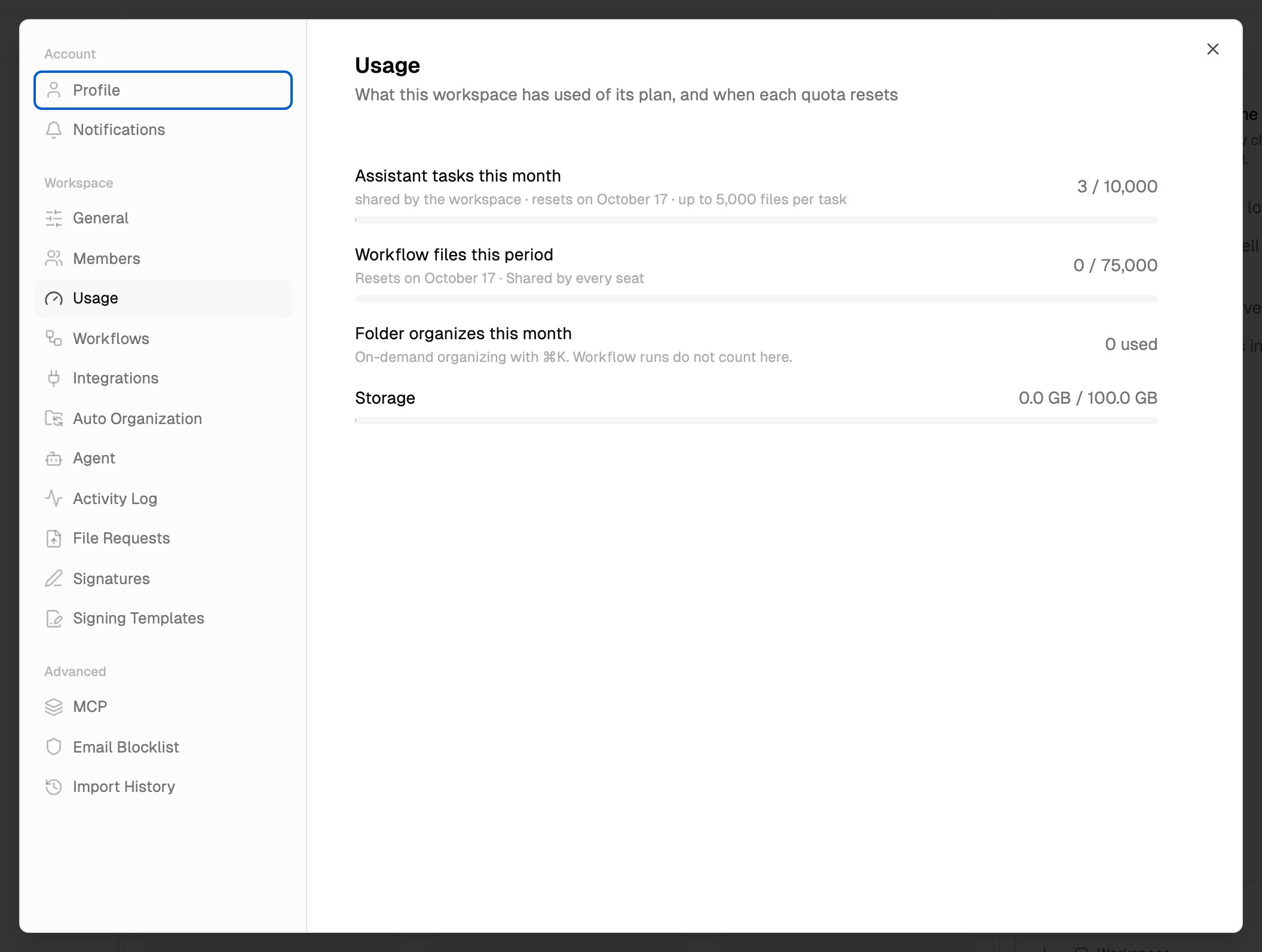
Assistant tasks
A task is a request the agent acts on. Answering a question, saying hello or asking what it can do doesn’t count. See The agent for exactly what counts. The line under Assistant tasks this month tells you:- shared by the workspace, on team plans: everyone draws from one pool
- resets and the date your tasks come back
- up to N files per task: the most files the agent reads for one task on your plan
When you use them all
When the workspace has used its tasks for the month, the agent stops taking new requests and tells you when they come back. The message reads like this:- Personal workspace: “You’ve used your N assistant tasks for this month. They come back on [date].”
- Team workspace: “This workspace has used its N assistant tasks for this month. They come back on [date].”
Smaller turns
A workspace that uses the agent very heavily in a month may have its tasks run in smaller turns for the rest of that month. Every task still runs and counts as one task, but bigger tasks stop and ask you to continue more often. Above the message box, the agent panel says:This workspace has used the assistant heavily this month, so tasks run in smaller turns until [date]. Bigger tasks will stop and ask to continue more often.Settings > Usage also shows Running in smaller turns until [date]. under the tasks meter. It ends when your tasks reset.
The monthly usage stop
Separately from the task count, there’s a hard limit on how much a workspace can use the agent in a month, including chatting that doesn’t count as tasks. It’s set high, so it isn’t reached in normal work. If a workspace reaches it, the agent can’t start anything new until the reset, even if tasks are left. You see:This workspace has reached this month’s assistant usefollowed by when it comes back.
The agent is busy
If you see The assistant is busy right now. Try again in a little while., the agent itself is at capacity. This isn’t about your allowance. Wait a moment and send your message again.Workflow files
Each file a workflow processes counts once against Workflow files this period. The line under the meter can show:- N files not processed: files workflows turned away this period because the allowance ran out
- includes N bought: files from packs the owner bought
- Resets and the date
- Shared by every seat, on team plans
Folder organizes
Organize this folder (right-click the file browser, or press⌘K / Ctrl+K) files everything in the open folder into subfolders right away. Each file it organizes counts once. Workflow runs don’t count here.
On Free and Premium there’s a monthly number. Max and team plans have no limit. When you reach it, you see Folder organize limit reached with an Upgrade button. The count goes back to zero on the 1st of each month.
Storage
Storage shows how much space this workspace’s files use, out of the plan’s total. On team plans, storage is per seat and shared by the whole workspace. Moving a file to the Trash frees its space. See Uploading files. When storage is full:- Uploads stop with Upload would exceed workspace storage quota.
- Creating, copying and importing files stops when it would go over, whether you, the agent, a workflow or Import from Cloud is doing it.
- File request uploads stop. The person uploading sees that the workspace has reached its storage limit and is asked to contact you.
Number of files
Free and Premium also limit how many files a workspace can hold, not counting folders:
When an upload would go over, you see File limit reached with the limit and how many files you have.
There are also limits on uploads themselves:
- Files per upload. Each plan limits how many files you can pick at once. If you pick more, the app tells you the limit. Upload the rest in a second batch.
- Uploads per hour. On Free and Premium, a workspace can upload a set number of files per hour. If you reach it, you see Workspace upload rate limit reached with the limit and how many minutes until it resets.
Troubleshooting
I don't see Settings > Usage
I don't see Settings > Usage
Viewers don’t see workspace tabs. Ask an owner or admin to check usage, or to change your role.
I don't see Assistant tasks this month
I don't see Assistant tasks this month
The meter is hidden when the agent is turned off in the workspace. An owner or admin turns it on in Settings > Agent with Available in this workspace.
I ran out of tasks but didn't use many
I ran out of tasks but didn't use many
On team plans, tasks are shared by everyone in the workspace. Check the meter in Settings > Usage. Ask the owner about more seats or a bigger plan.
The numbers look different in another workspace
The numbers look different in another workspace
Each workspace has its own plan and its own allowances. Use the workspace switcher to check you’re in the right one.
What’s next?
Plans & Pricing
Compare plans and upgrade.
Workflow files
How workflows count files, and buying more.