

Overview
Connect Microsoft Teams, and workflows can act on files shared in your Teams channels: read them, rename them and save them to the right folder. Connecting Teams doesn’t save anything by itself. Files are saved only when a workflow with a Microsoft Teams trigger saves them, or when you run a historical import. The Teams integration is in beta. Connected drives and accounts come with Max, Team, Business and Enterprise. See Plans & Pricing.Before you start
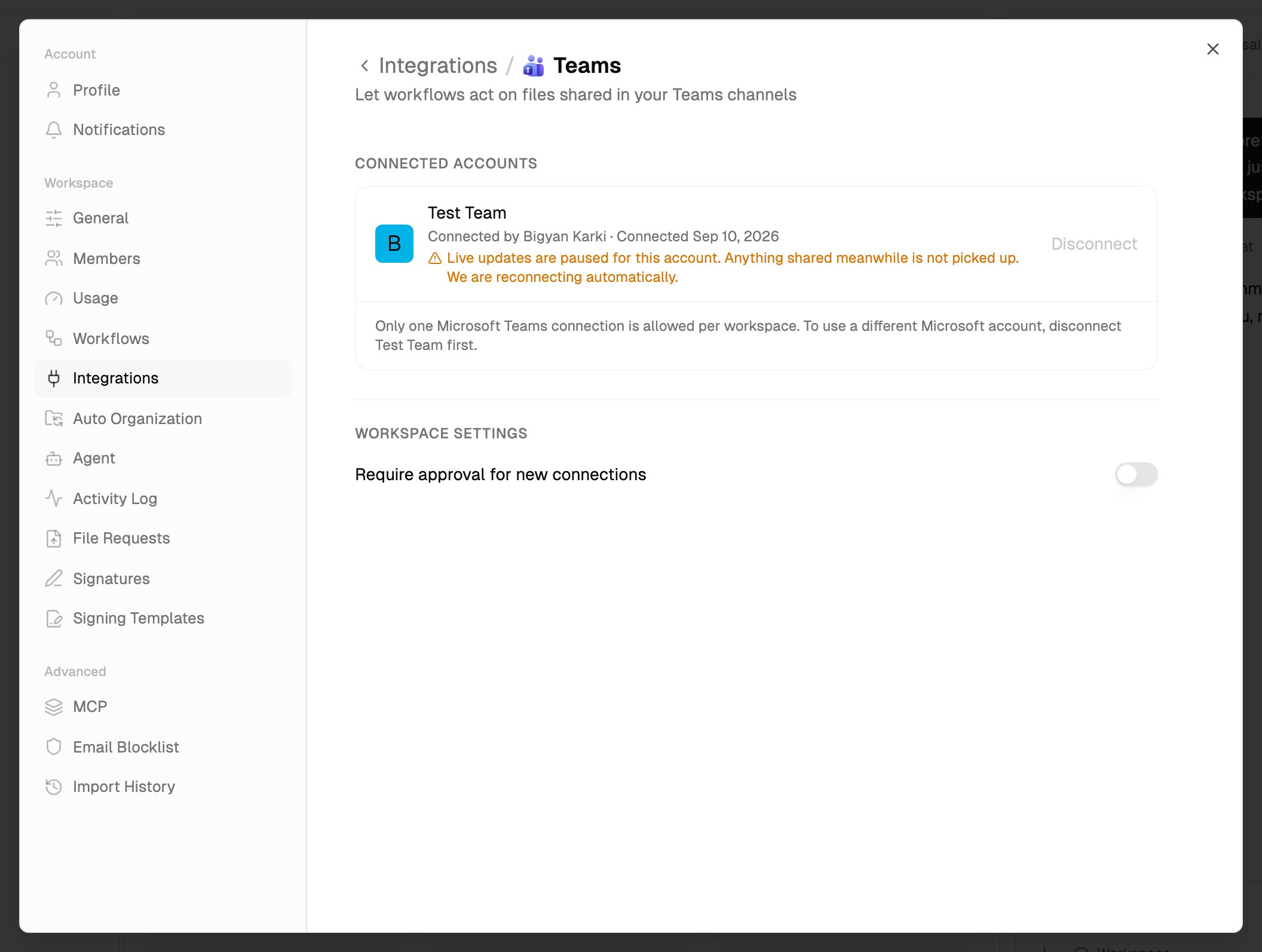
- One connection per workspace. A workspace in The Drive AI can have one Teams connection, made with one Microsoft account. It covers teams that account belongs to.
- A work or school account with Teams. Personal Microsoft accounts, such as Outlook.com, Hotmail.com and Live.com, can’t be connected. The account needs a Microsoft Teams license.
- Administrator approval. Your Microsoft 365 administrator always has to approve The Drive AI for your organization before Teams can be connected. Ask them before you start.
Who can do what
Connect Microsoft Teams
1
Open Integrations
Open Settings and choose Integrations. Under Email and messaging, click Teams.
2
Sign in
Click Connect Teams and sign in with your work or school Microsoft account in the window that opens.
3
Check which teams are covered
To start with, the connection covers every team the account belongs to when you connect. The connection is listed by the teams it covers, with the Microsoft account under it. In a team workspace, narrow it down if you need to. See Choose which teams are covered.
4
Set up a workflow
Create a workflow that starts with Microsoft Teams, and choose the team and channels it watches. See Triggers.
What you allow
Microsoft asks you to let The Drive AI:- Read messages in the channels being watched
- Read files your account can already open
- List the teams you belong to, and the channels in them
- Read your basic profile
- Stay connected without asking you to sign in again
Choose which teams are covered
In a team workspace, owners and admins can limit which teams the connection covers:- In Settings > Integrations > Teams, click the button under the connection that names the covered teams.
- Tick or untick teams. The list stays open so you can change several.
- Workflows can only watch channels in these teams. Nothing is watched until a workflow asks for it.
- The last team can’t be unticked. A connection has to cover at least one team. To stop it entirely, disconnect the account.
- Unticking a team pauses workflows that watch it. You see which ones. Tick the team again and they become active again.
- A team the account has left stays in the list marked no longer available, so you can untick it.
Import past files
To bring in files shared before you connected:1
Open Historical sync
In Settings > Integrations > Teams, open the … menu on the connection and choose Historical sync. The panel says which teams it covers.
2
Choose a time range
Choose Last 30 days, Last 90 days or Last 180 days (6 months).
3
Start
Click Start Import. It runs in the background, so you can close the panel.
- Which channels: the channels of the teams the connection covers. If no teams are covered, the panel says nothing would be imported.
- Where files go: the top level of your workspace, as they are. Imported files don’t start Microsoft Teams workflows. A workflow that watches uploads to The Drive AI can file them.
- Skipped: images, calendar files, files already imported, and files found to contain malware.
- Progress: reopen Historical sync to see progress, or click Cancel Sync to stop. Owners and admins can see every imported file in Settings > Import History.
Disconnect
Open the connection’s … menu and choose Disconnect, then confirm. Owners and admins can also click Disconnect on a connection someone else made.- Workflows that use it are paused. If the same account is connected again later, workflows paused only because of the disconnect start again on their own.
- Files already saved stay in your workspace.
- Once disconnected, an owner or admin can connect Teams again, with the same or a different account.
Troubleshooting
Teams wasn't connected
Teams wasn't connected
The window that opens tells you why:
- Teams access requires administrator approval or Teams access was not approved: ask your Microsoft 365 administrator to approve The Drive AI, then try again.
- Microsoft Teams requires a work or school account: sign in with your work or school account instead of a personal one.
- We couldn’t connect Microsoft Teams: check whether Teams is already connected to this workspace. Only one connection is allowed. Otherwise, try again or contact your workspace administrator.
A workflow was paused after I changed the teams
A workflow was paused after I changed the teams
It watches a team the connection no longer covers. Tick that team again, or change the workflow to watch a covered team.
What’s next?
Slack
Let workflows act on files shared in Slack.
Workflow triggers
Start a workflow when a file is shared.