

What the agent is
The agent works on your files for you. Describe what you want in plain language. It looks through your files first, then answers, or proposes the change and shows you exactly what it will do. It works with your own permissions, so it can’t open, change or share anything you couldn’t yourself.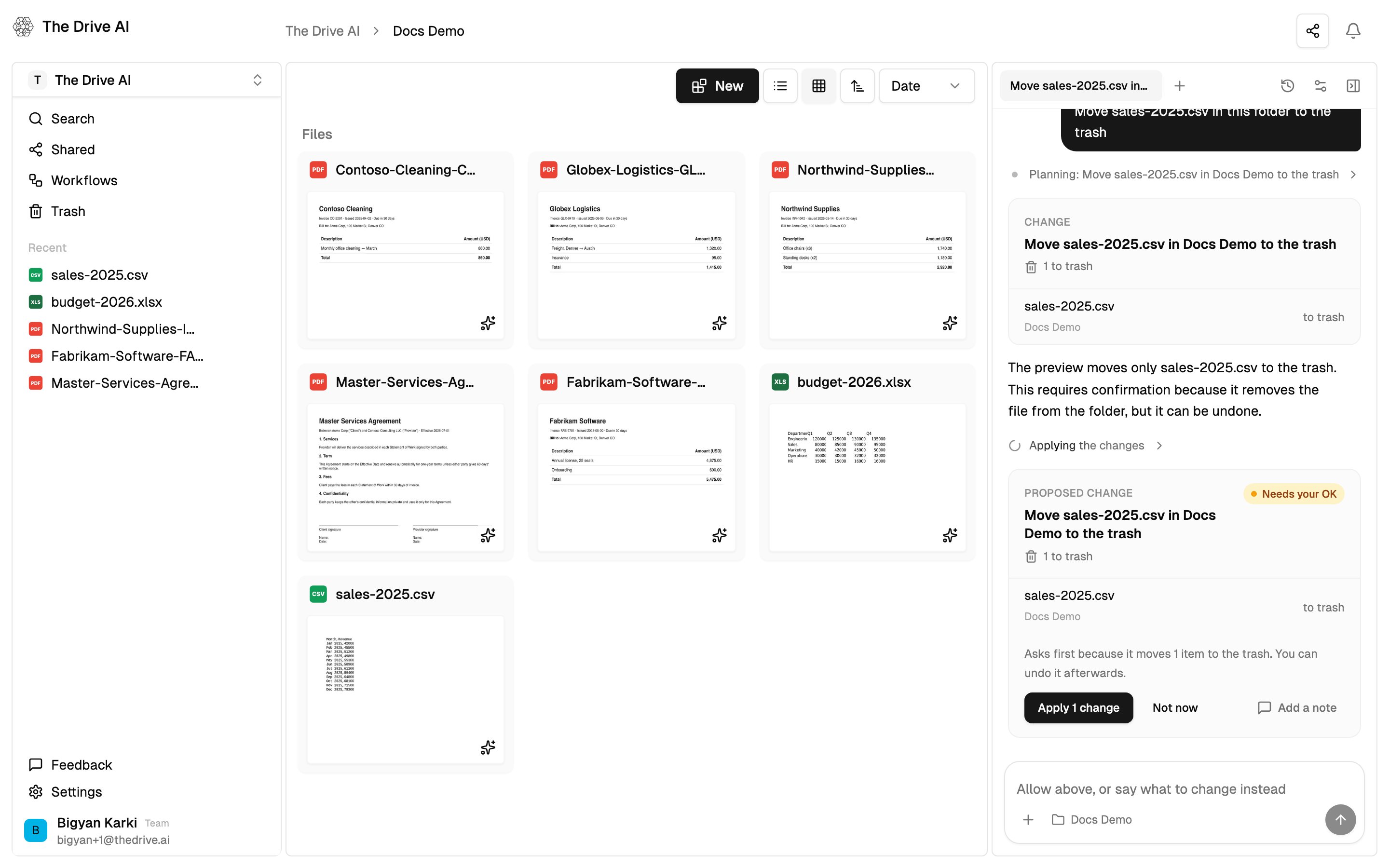
Open the agent
- In the web app. Click Agent in the toolbar, or press
⌘J(Mac) orCtrl+J(Windows). To close the panel, press the shortcut again or click Hide agent in the panel’s header. Drag the panel’s edge to resize it; double-click the edge to reset it. - In your browser, next to Google Drive, OneDrive, SharePoint or Dropbox. The browser extension opens the same agent in Chrome’s side panel.
- In the mobile app, on iOS and Android.
The agent is on in every workspace unless an owner or admin turns it off. If the panel says The agent is not enabled for this workspace., ask an owner or admin to switch on Available in this workspace in Settings > Agent. See Agent settings.
What it works on
The agent works on what you’re looking at. A chip next to the message box shows its current place:- A folder name when you’re in a folder. The agent treats that folder as “here”.
- A file name when you have a file open, for example a PDF in the viewer. The agent treats that file as “this”, and the folder it’s in as “here”.
- Workspace when you’re at the top level.
What to ask
Start with what you want done, not how to do it. When you open a new conversation, the panel suggests a few requests you can click to send.What it can do
Sharing, e-signatures, file requests, workflows and member changes always ask you before they happen.
Approving and undoing changes
The agent never changes files silently. Every change appears in the conversation as a card that lists exactly what will change, such as “4 moves · 1 new folder”.- Small changes in the folder you’re in apply right away. You can still undo them.
- Bigger changes ask first. Click Apply N changes, or Not now to skip it.
- Some changes always ask, such as moving files to the trash, editing a document, or changing anything outside the folder you’re in.
- Actions outside your files, like sharing a file or sending a signature request, ask first too. Click Allow or Not now.
Attaching files and getting files back
Attach a file by clicking + next to the message box, or by dropping files onto the panel. Attached files belong to the conversation only. They aren’t saved to your workspace. See Conversations for the limits. Files the agent makes, like a PDF summary or a spreadsheet, appear in the conversation as a card. You can view or download them, or choose Save to a folder. Until you save one, the card says Only in this chat. See Document creation.Tasks and limits
The agent counts tasks.- What counts. Each request the agent acts on is one task, however many steps it takes. Saying hello, asking what it can do, answering its questions, or asking it to remember or forget something doesn’t count. A task that stopped because of a problem on our side doesn’t count. A task you stop yourself does.
- Bigger tasks stop and ask. If a task grows bigger than one turn, the agent stops and says so. Say “continue” and it picks up where it left off, building on any unfinished files it attached. Continuing counts as a new task. How big one turn may get is the workspace’s Task size. See Agent settings.
- Every plan includes a monthly number of tasks. On team plans the tasks are per seat and shared across the workspace. The count resets on your billing date. On Free, it resets on the day of the month the workspace was created. See Plans & Pricing for each plan’s allowance.
- Reading many files at once has a cap per task. When the agent reads a whole selection of files into a table, such as totalling every invoice in a folder, the plan limits how many files one task reads. Free reads up to 50; paid plans read far more. Moving, renaming and organizing many files isn’t limited by this.
What the agent can’t do
- It doesn’t browse the web.
- It doesn’t read or send your email. Workflows can act on email that arrives in a connected inbox.
- It can’t move or copy files between two different storages in one change, for example from Google Drive into The Drive AI, or from OneDrive to Dropbox. A workflow with a Save a Copy step can. See Connected drives.
- It can’t act beyond your own permissions. If you can only view a file or drive, the agent can read it but not change it.
What’s next?
Conversations
Tabs, history, alerts, attachments and stopping a task.
Approving and undoing
Every card the agent shows, and how to undo a change.
Memory and instructions
Teach the agent how you and your workspace work.
Agent settings
Turn the agent on or off, and set its limits and approvals.