

Overview
Send any PDF in your workspace for electronic signature. You add recipients, place fields where each signer fills in or signs, and send. Each recipient gets an email with their own link. Signers open it in a browser and sign. They don’t need an account or any software. When everyone has signed, a signed copy is saved next to the original PDF and emailed to every party.Sending documents for signature needs a plan that includes e-sign. See Plans & Pricing.
Who can send
- Owners, admins and members can send signature requests. Viewers can’t.
- Only PDFs can be sent. Convert other files to PDF first (see PDF Tools).
- Requests are private to the sender. Only the person who created a request can see it, send reminders, reassign, void or download it. Other people in the workspace, including owners and admins, don’t see your requests.
Start a signature request
- From the PDF viewer: open the PDF and click the signature icon (Request Signature) in the toolbar. If your workspace has saved templates, you choose Start from scratch or a template first.
- From the file browser: click ⋮ on a PDF and choose Request Signature. The editor opens in a new tab. This path doesn’t offer templates.
- From the agent: see Send through the agent.
Prepare and send
1
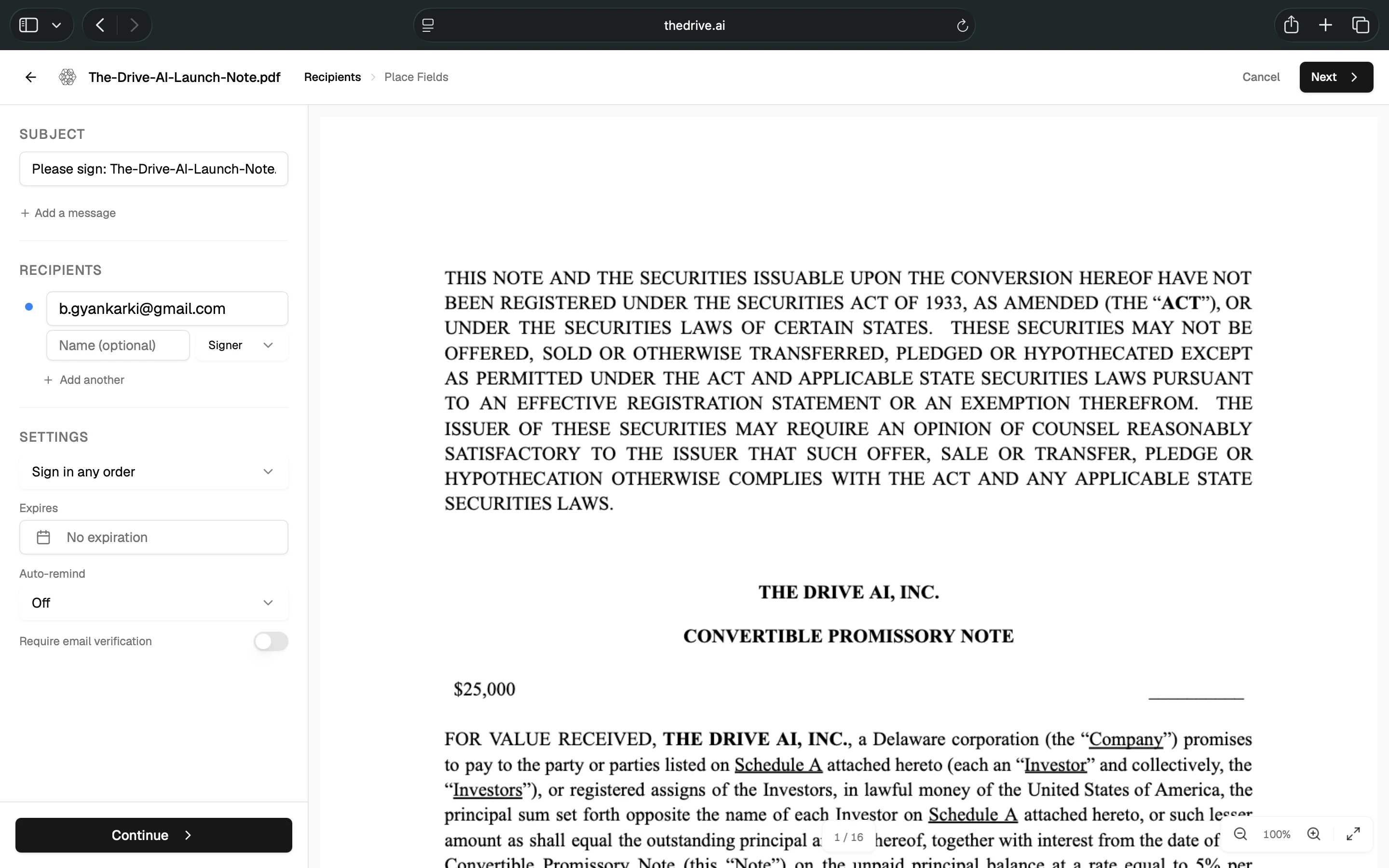
Recipients
- Subject: the request’s title. It’s filled in as “Please sign: …” with the file name, and it appears in the email subject line. Click Add a message to include a note. Signers see the note at the top of the document.
- Recipients: an email and an optional name for each person. Choose Signer or CC for each one. Click Add another for more.
- Settings:
- Sign in any order (default) or Sign in sequence. See Signing order.
- Expires: an optional date. No expiration by default. The request expires at the end of that day in your time zone.
- Auto-remind: Off (default), Every day, Every 2 days, Every 3 days or Every week.
- Require email verification: every recipient must enter a code sent to their email before they can see the document. See Email verification.
- You need at least one Signer. CC recipients don’t sign.
- Each email address can appear only once in a request.
- Rows with no email are ignored.
2
Place Fields
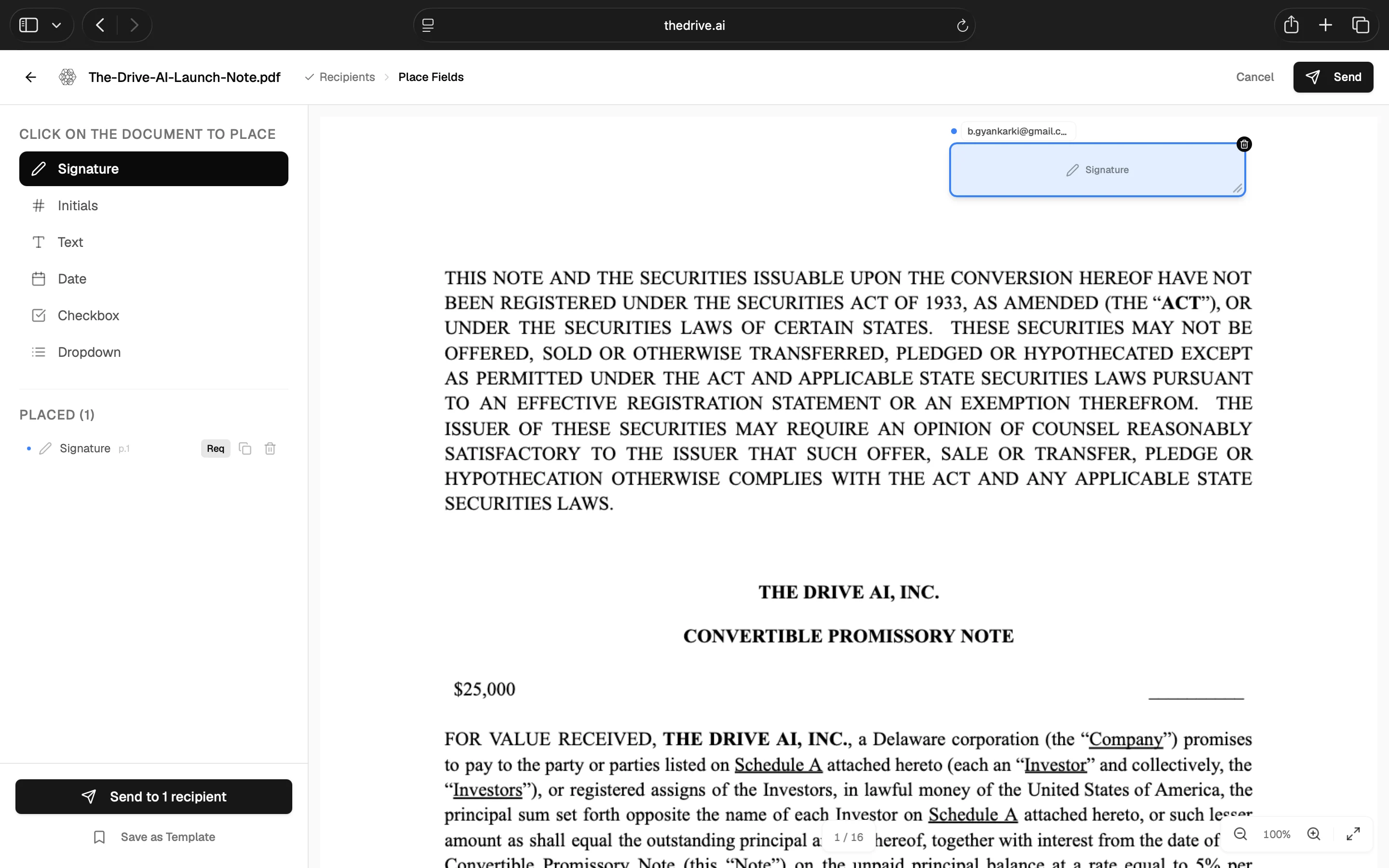
- If there’s more than one signer, choose who the field is for in Assign to. Each signer has their own color.
- Choose a field type: Signature, Initials, Text, Date, Checkbox or Dropdown.
- Click the document where the field should go. Drag a field to move it, or drag its edge to resize it.
3
Send
Click Send to N recipients, or Send at the top. You need a subject, at least one signer and at least one field.To finish later, click Save draft. To reuse the layout, click Save as Template.
Field settings
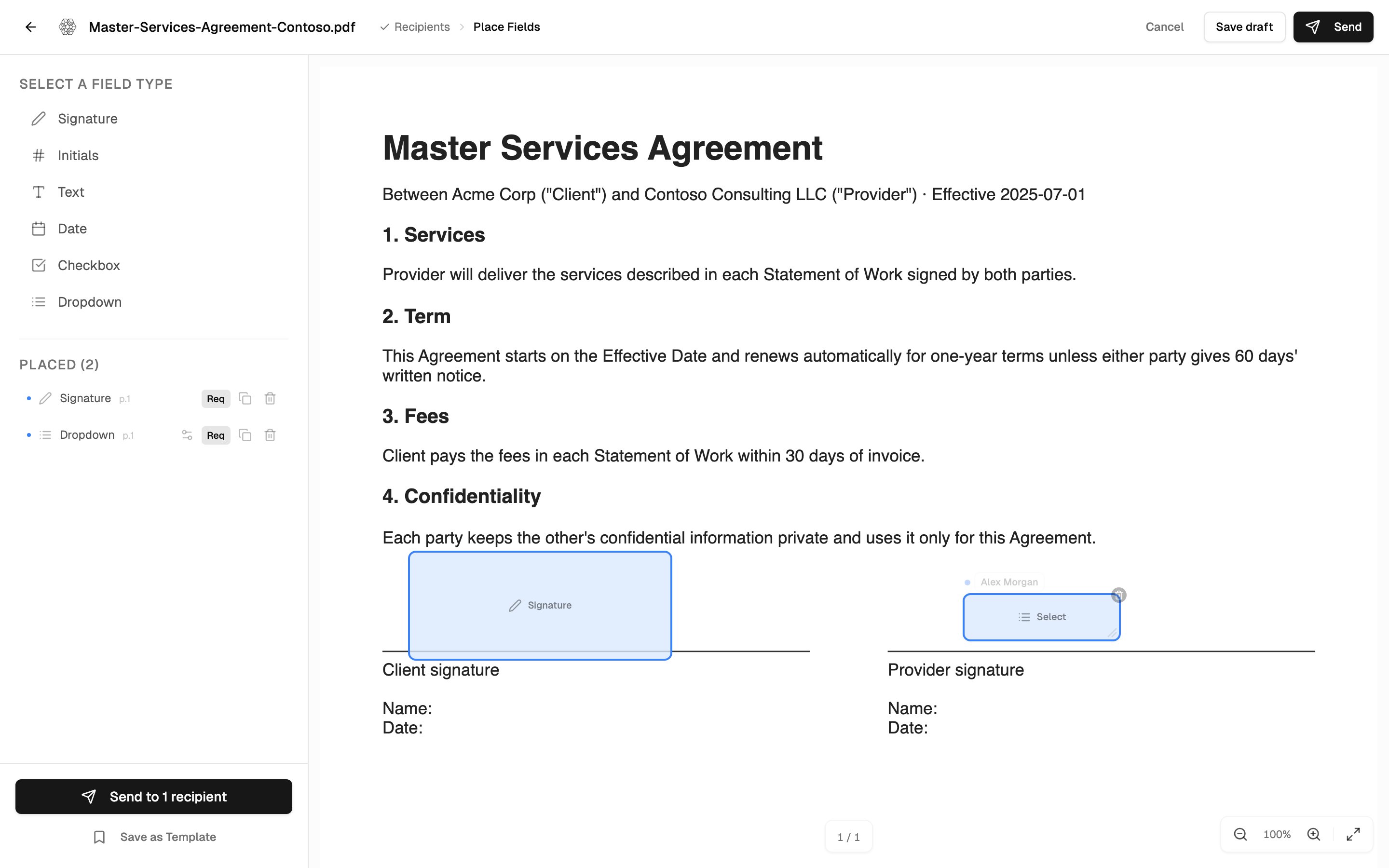
Every field you place is listed under Placed (N), with its page number. For each field you can:- Configure (gear icon, Text and Dropdown fields only):
- Label: what the field asks for, for example “Company Name”. The signer sees it as the placeholder.
- Options (one per line): the choices in a Dropdown field.
- Required: on or off.
- Toggle Req / Opt. Fields are required by default. A signer can’t finish until every required field is filled. Optional fields have a dashed border on the signer’s page.
- Duplicate the field onto the page you’re viewing.
- Delete the field.
Signing order
In sequence, a signer who opens their link before it’s their turn sees Waiting for previous signers to complete.
Drafts
A draft is a request that hasn’t been sent. Nobody is emailed.- Save a draft: click Save draft in the editor. You need a subject, at least one signer and at least one field.
- Find your drafts: in Settings > Signatures, under Waiting. They show the Draft status.
- Finish a draft: open it and click Edit & send.
- A draft past its expiry date can’t be sent. Open it, change or remove the date, then send.
- Delete a draft: click Discard on the draft, or Discard draft in the editor. The draft is removed for good.
Templates
A template saves a field layout so you can reuse it on similar documents, such as a standard NDA.Save a template
- Prepare a request and place at least one field.
- Click Save as Template.
- Enter a name and click Save.
- The fields: their type, position, size, label, options and whether they’re required
- How many recipients there are
- The signing order
- The message
- Whether email verification is required
Use a template
- Open the PDF and click Request Signature in the toolbar.
- Choose the template. Each one shows how many roles and fields it has.
- Enter each recipient’s email. The template adds one empty recipient row for each role.
- Check the fields, then send.
Manage templates
Templates are shared across the workspace. Anyone who can open workspace settings sees them in the template picker and in Settings > Signing Templates. Each template shows its name, roles, fields and the date it was made. Only the person who created a template can delete it. To delete one, click ⋯ next to it and choose Delete.What signers do
1
Open the link
The email’s subject is “Sender has sent you a document to sign: subject”. Each signer has their own link.
2
Verify their email (if required)
If you turned on email verification, they enter a code before anything else. See Email verification.
3
Agree to sign electronically
The Review and Sign screen explains that the signer is agreeing to use electronic signatures. They click Continue to Document, or I decline to sign.
4
Fill in the fields
The document opens at the first field they need to fill. A progress bar shows how many required fields are done, and Next jumps to the next one.
- Signature and Initials: click Sign here or Initial here, then Draw, Type or Upload a signature and click Apply Signature. Once they’ve signed one field, other signature fields show Click to apply, with Change signature to use a different one.
- Date: click it to fill in today’s date.
- Text: type in the box.
- Checkbox: click to check or uncheck.
- Dropdown: pick an option.
5
Finish
They click Finish once every required field is filled. They see Signing Complete. Everyone gets a copy when the last signer finishes.
An uploaded signature must be a PNG or JPG image of 500 KB or less, and no more than 4,096 pixels on a side.
What CC recipients see
A CC recipient gets an email with the subject “Sender shared a document with you: subject”. Their link opens a read-only copy marked Copy for your records, with no fields to fill and nothing to sign. If email verification is on, they enter a code first, like signers.Email verification
When you turn on Require email verification, each recipient proves they control their email address before the document is shown to them:- When they open their link, they see Verify Your Identity and click Send Verification Code.
- A 6-digit code is emailed to them. The screen shows a masked version of their address.
- They enter the code and click Verify.
Declining
A signer can decline from the Review and Sign screen (I decline to sign) or from the document (Decline). They can give a reason, which is optional. If email verification is on, they have to enter the code before they can decline. When a signer declines:- The whole request stops. Its status becomes Declined, and nobody else can sign it.
- You get an email naming who declined, with their reason.
- The other recipients get an email saying the request was cancelled.
- The reason appears next to the signer on the request’s page.
Track and manage requests
Open Settings > Signatures to see every request you’ve sent in this workspace. Each row shows the title, status, file name, how many signers have signed, and the recipients. Hover over a recipient to see their status. Filter the list:
Click ⋯ on a row for View Details, Open File, Send Reminder and Void Request. Click a row to open the request’s page.
Request statuses
Each recipient also has a status: Pending (not emailed yet, for example waiting their turn in a sequence), Notified, Viewed, Signed or Declined.
The request page
The request’s page shows each recipient’s status and signing date, the Audit Trail of everything that happened, and the request ID, creation date, completion date and expiry date. Depending on the status, you can:- Remind: email a reminder now
- Void: cancel the request
- Original: download the PDF as it was sent
- Signed PDF: download the signed copy (completed requests)
- Edit & send or Discard (drafts)
- Reassign a recipient (click ⋯ next to them)
Reminders
Remind (or Send Reminder in the list) emails the signers whose turn it is and who haven’t signed yet. In a sequence, only the current signer is reminded. CC recipients aren’t reminded. Auto-remind sends the same reminder on a schedule while the request is waiting. The count starts when the request is created and restarts each time a reminder goes out, including one you send yourself.Reassign a signer
If someone can’t sign, hand their part to someone else:- On the request’s page, click ⋯ next to the recipient and choose Reassign.
- Enter the new email address and, optionally, a name.
- Click Reassign.
Void a request
Voiding cancels a request that hasn’t completed. It can’t be undone.- Signing links stop working.
- Everyone who had already been emailed about the request gets a notice that it was cancelled. People who were never emailed, such as later signers in a sequence, aren’t contacted.
Expiry
If you set an expiry date, signing links stop working at the end of that day in your time zone, and the request becomes Expired. Emails to recipients state the date in your time zone. Signers who open their link see This signing request has expired. You can’t change the expiry date after sending. To give people more time, send a new request.When everyone has signed
When the last signer finishes, the request becomes Completed and:- A signed copy is saved in your workspace, in the same folder as the original, named “original name (Signed).pdf”. The original PDF isn’t changed.
- Every party gets an email: you, every signer and every CC. The subject is “Completed: All parties have signed …”. The signed PDF is attached, as “original name - signed.pdf”, when it’s 25 MB or less. Your email also links to the request in The Drive AI.
- A Certificate of Completion is added to the end of the signed PDF.
- The request title, file name, request ID, completion date, and the SHA-256 hash of the original document
- For each signer: name, email, status, when they signed, when they gave consent and from which IP address, and whether their email was verified
- The audit trail: each event with its time, who did it and their IP address
If the signed PDF is larger than 25 MB, it isn’t attached. You can download it from the request’s page and send it to the other parties yourself.
If you delete the original PDF
When a PDF with signature requests is permanently deleted (see Versions and Trash):- Drafts for it are deleted.
- Requests still waiting for signatures are voided, and their links stop working. Recipients aren’t emailed about this.
- Completed, declined, expired and voided requests stay in your list. The Original download no longer works, but Signed PDF still does.
Send through the agent
You can ask the agent to prepare and send a request, for example: “Send this NDA to jane@example.com for signature, signature and date at the end.”- The agent prepares a draft. It places the fields next to the document’s signature lines, or in the free space at the end of a page. It won’t place a field over printed text. Nothing is sent yet.
- You review the card. It lists each recipient, their role, their position in a sequence and how many fields they have, plus the expiry date. It shows the pages with the fields drawn on them.
- You decide. Click Allow to send, or Not now. To move or add fields first, click Adjust in the editor. When you allow it, the draft is sent as it is at that moment, including your edits.
The agent can only send PDFs stored in your workspace. To send a file from a connected drive, copy it into the workspace first. The agent doesn’t add Dropdown fields or turn on email verification; add those in the editor before you allow the send.
Legal compliance
The Drive AI’s E-Sign captures a complete audit trail for every document:
Compliant with:
- ESIGN Act (Electronic Signatures in Global and National Commerce Act) — legally binding in the United States
- eIDAS Regulation — recognized in the European Union
Electronic signatures created through The Drive AI carry the same legal weight as handwritten signatures for most documents.
Troubleshooting
I can't find Request Signature
I can't find Request Signature
It only appears for PDFs. Only owners, admins and members can send requests; if you’re a viewer, ask an admin to change your role. If the editor shows an upgrade prompt, your plan doesn’t include e-sign.
Send is grayed out
Send is grayed out
You need a subject, at least one recipient set to Signer with an email, and at least one field.
I get an error that an email is listed twice
I get an error that an email is listed twice
Each email can appear only once in a request. Remove the duplicate row.
A signer says their link doesn't work
A signer says their link doesn't work
The page tells them why:
- Waiting for previous signers to complete: it’s not their turn yet in a sequence.
- This signing request has expired: the expiry date passed.
- You have already signed this document: they’ve finished their part.
- This document is no longer available for signing: the request was voided, declined or completed.
- Invalid or expired signing link: the link was replaced, for example because you reassigned their part.
A signer didn't get the verification code
A signer didn't get the verification code
Ask them to check spam, then click Didn’t receive it? Send again. Each code works for 5 minutes, and they can get up to 5 codes an hour.
A signer can't upload their signature
A signer can't upload their signature
Use a PNG or JPG of 500 KB or less, or draw or type the signature instead.
I can't see a colleague's request
I can't see a colleague's request
Signature requests are visible only to the person who sent them.
I can't delete a template
I can't delete a template
Only the person who created a template can delete it.
What’s next?
PDF Tools
Merge, split and fill PDFs.
File Requests
Collect documents from anyone with a secure link.