

The file browser
The middle of the web app shows the folder you have open. Folders are listed first under Folders, then files under Files. The path at the top shows where you are. Click any part of it to go back up. On a long path, the middle folders fold into …: click it to pick one. For the sidebar, the agent panel and Settings, see Interface overview.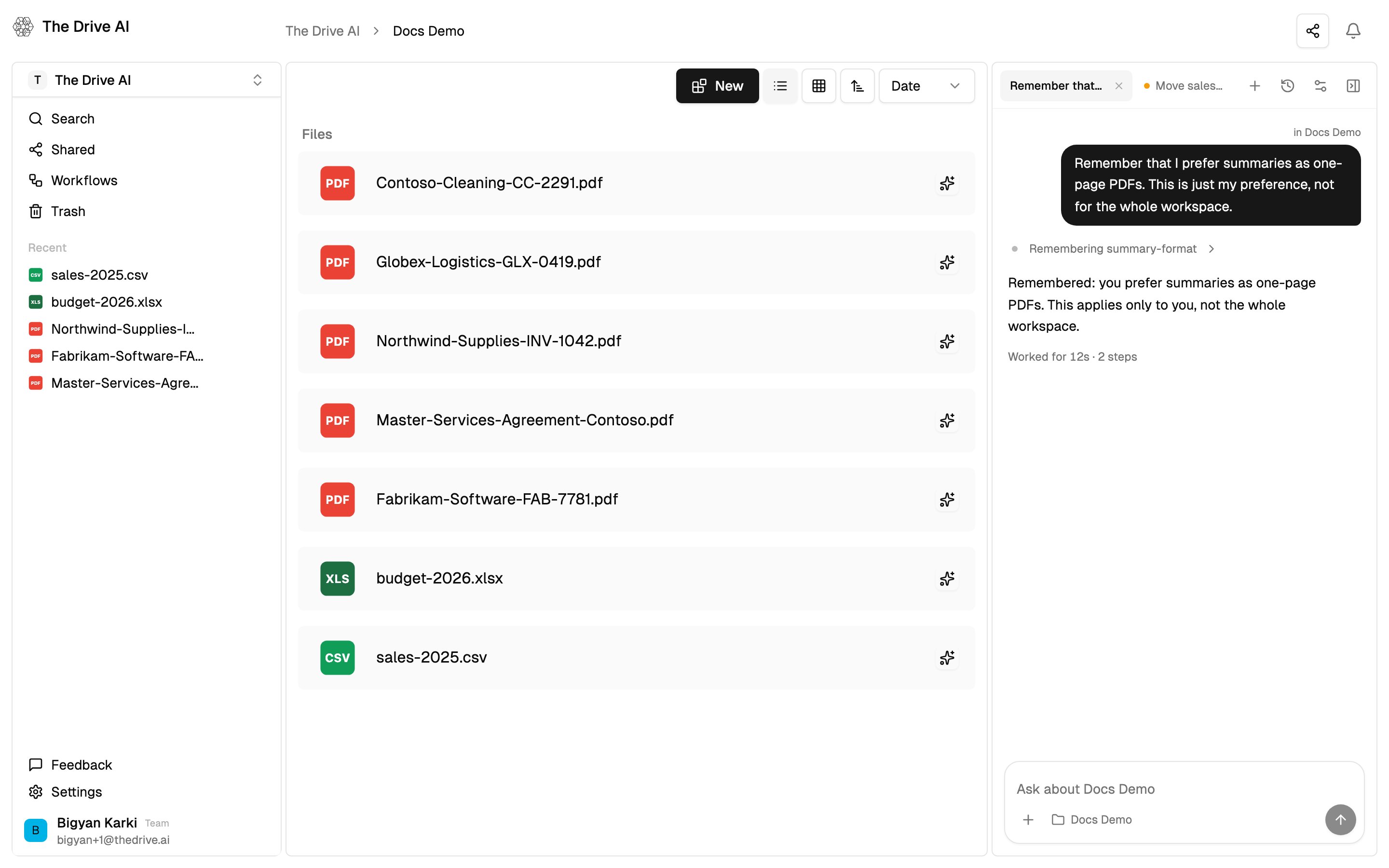
Views and sorting
The toolbar above your files has:- New, to create or add files. See The New menu.
- List view and Grid view.
- A sort order button, to switch between ascending and descending.
- A sort menu: Date or Name.
Opening files and folders
- On a computer: click once to select, double-click to open. With the keyboard,
Tabto it and pressEnter. - On a touch screen: tap to open.
- To open a file in a new browser tab, click ⋮ and choose Open.
Selecting several items
⌘-click (Mac) orCtrl-click (Windows) to add or remove one item.Shift-click to select everything between the last item you clicked and this one.- Drag a box across empty space to select everything it touches.
⌘AorCtrl+Ato select everything in the folder.
The bar doesn’t appear in folders you can only view.
The file menu
Point at a file or folder and click ⋮ for its menu:
Owners, admins and members see the ⋮ menu on workspace files. On files shared with you, you see it when you have Full Access. Viewers don’t see it, but they can still open files and download them from the viewer.
Icons next to a file name tell you how The Drive AI reads it:
- A sparkle: Included in assistant’s knowledge.
- A crown: the file type needs a higher plan to be read (Upgrade to unlock).
- A faded warning: File type is not supported by the assistant.
The right-click menu
Right-click an empty part of the file browser for:- Organize this folder (⌘K): AI files everything in this folder into subfolders. Only shown when the folder has files. It has its own monthly allowance, shown in Settings > Usage.
- Create New File
- Create New Folder
- Upload Files
- Import from Cloud
The New menu
Click New in the toolbar:- New File creates a note. Enter a name and click Create.
- New Folder creates a folder. Enter a name and click Create.
- Upload opens the upload window. See Uploading files.
- Import from Cloud copies files in from a connected drive. Needs a plan with connected drives.
Moving, copying and renaming
To move files or folders, use any of these:- Click ⋮ > Move to, or select several and click Move to in the bottom bar. Pick a folder, or type in Search folders…, then click Move here.
- Drag them onto a folder in the file browser.
- Select them, press
⌘XorCtrl+X, open the destination folder and press⌘VorCtrl+V.
⌘C or Ctrl+C, open the destination folder and press ⌘V or Ctrl+V. A copy pasted into the same folder gets “(copy)” in its name.
To rename, click ⋮ > Rename.
To move, rename or organize many files at once, ask the agent, for example “Move every PDF from 2023 into /Archive/2023.” It shows you the plan first, and you can undo it.
Recent, Shared and Connected
These sections are in the left sidebar.- Recent lists up to five of the most recently changed files. Click one to open it.
- Shared lists files and folders other people have shared with you. You see only what was shared, not the rest of their workspace. See File sharing.
- Connected lists the Google Drive, OneDrive, SharePoint and Dropbox drives the agent can see. It appears once a drive is connected. Click a drive to browse it.
The file viewer
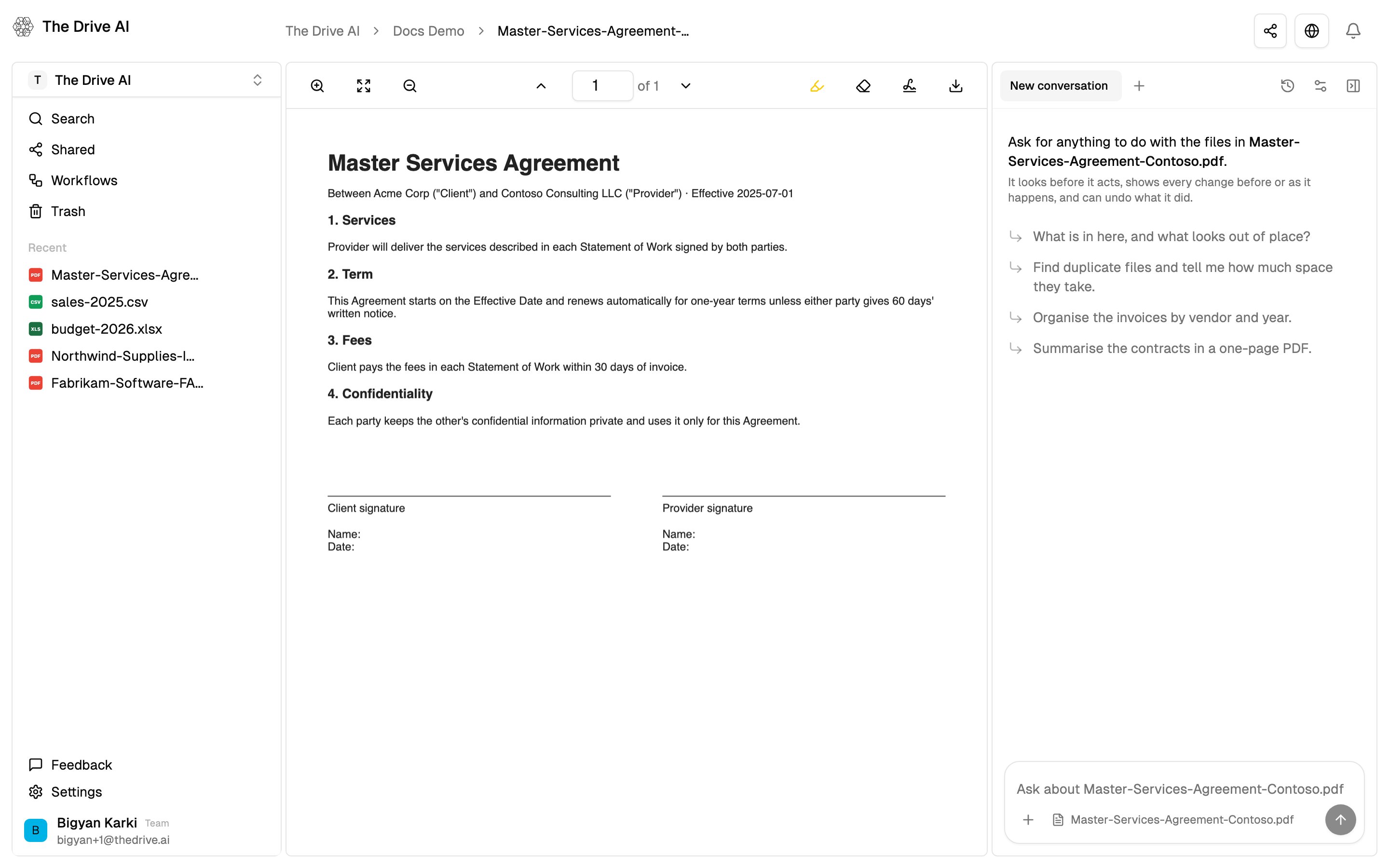
Open a file to see it in the viewer. The toolbar at the top keeps Share, Publish and Agent for the file you have open. See File sharing and The agent.PDFs
The PDF toolbar has:- Zoom In, Fit to width and Zoom Out.
- Page arrows and a page box. Type a page number to jump to it.
- A highlighter, with a color picker and Opacity and Thickness sliders, and an eraser with Eraser Thickness. Highlights are saved with the file.
- Save Filled PDF, for a PDF with form fields. Fill in the fields, then click it to save the filled-in PDF over the original. This replaces the file and doesn’t keep the earlier version.
- Request Signature. See E-signatures.
- Download.
Documents, spreadsheets and text
Word documents, spreadsheets, CSV, Markdown, text, code, JSON and log files are shown in the viewer for reading. Click Download to open a file in its own app. To change one in place, ask the agent.- Markdown files can be shown Rendered or as Source.
- Chart and diagram files can also be downloaded as a picture with PNG.
- PowerPoint decks and older .doc files are shown in Microsoft’s online viewer.
Images, audio and video
Images open in the viewer, and audio and video play there. Each has a download button. When a video has a transcript, click View Transcript to read it, and Copy Transcript to copy it.Notes
A note is a document you write and edit inside The Drive AI. Create one with New > New File, or ask the agent to write one.- Type
/(Press / for menu) to add headings, lists, task lists, quotes, code, tables, images and video, columns, callouts, dividers and drawings. - Changes save as you type. If someone else has the note open, you see their edits as they make them.
- If you can only view the note, it opens read-only.
Search
Click Search in the left sidebar, or press⌘P (Mac) or Ctrl+P (Windows).
1
Type part of a name
Search finds files and folders whose name contains what you type, or that sit in a folder whose name does. Each result shows its folder path.
2
Narrow it down
Use the filters under the search box:
- Type: All types, Folders or Files.
- Date: Any time, Today, Past week, Past month or Past year, by when it was last modified.
- Index status: All, Indexed or Not indexed.
- File types: tick the kinds of file to show.
- Sort: Name, Date modified or Date created.
3
Open a result
Click it, or use the arrow keys and press
Enter.Search inside files
Search matches names, not what’s inside files. To find a file by its contents, ask the agent. It can look for exact words inside your documents, or find documents by what they’re about:Keyboard shortcuts
What’s next?
Versions and Trash
Get back an earlier version or a deleted file.
The agent
Find, read and reorganize files by asking.