

Overview
Agent Mode is where the real power of The Drive AI comes to life. Unlike Chat Mode which only provides answers, Agent Mode actually takes actions—creating, renaming, moving, sharing, organizing, and deleting files based on your natural language commands.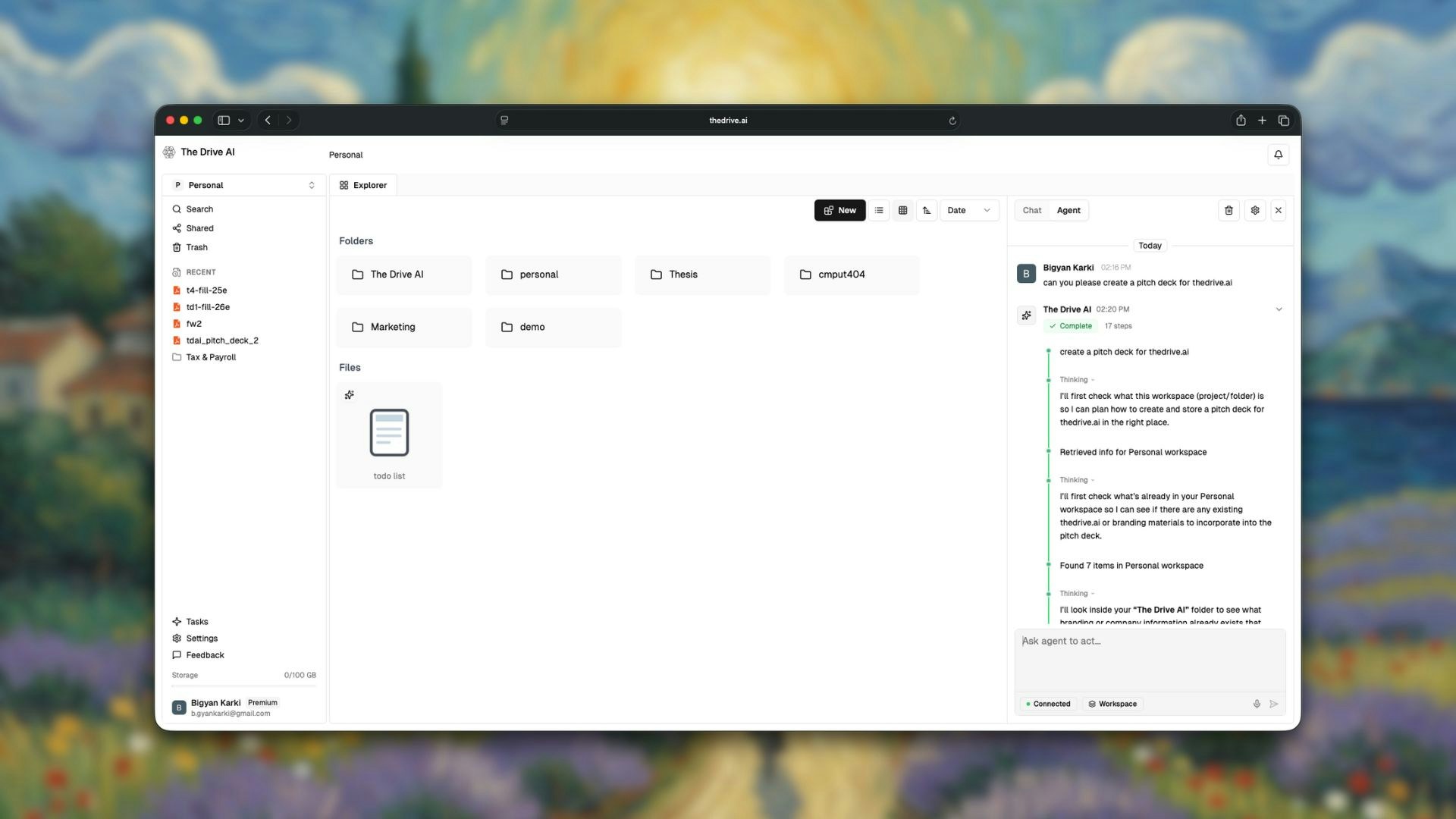
What is Agent Mode?
Agent Mode is for taking actions. The AI executes file operations based on your commands—it can create, rename, move, share, organize, and delete files.
When to Use Agent Mode
Use Agent Mode when you want to:- Create new files or folders
- Rename single or multiple files
- Move files between folders
- Organize files into logical structures
- Delete or archive old files
- Share files with others
- Manipulate files—merge PDFs, fill out forms, and more
- Browse the internet to fetch information, research topics, and download files
- Analyze data by running code on your files
- Generate charts and visualizations from your data
- Perform bulk operations across many files
How to Use Agent Mode
1
Open the Chat Panel
Click on the chat interface in your workspace.
2
Select Agent Mode
Switch to Agent Mode using the mode selector.
3
Describe What You Want
Type your command in natural language - describe the outcome you want.
4
Watch It Happen
The AI executes your command and confirms the actions taken.
Understanding Scope
The AI only operates within your current location and its contents - not parent folders. Your scope is determined by where you are in the workspace:
The current scope is always displayed in the input box at the bottom of the chat panel, so you know exactly what the AI can access.
Example Commands
Creating Files and Folders
Renaming Files
Moving Files
Organizing Files
Deleting and Archiving
Sharing Files
Manipulating Files
Browsing the Internet
Data Analysis and Charts
Complex Multi-Step Operations
Features
Natural Language Understanding
You don’t need to use specific syntax or commands. Just describe what you want in plain English:- “Put all the spreadsheets in one place” → Moves all .xlsx and .csv files to a folder
- “Clean up my downloads” → Organizes and sorts your Downloads folder
- “Get rid of the old stuff” → Archives or moves older files
Bulk Operations
Agent Mode excels at operations that would take hours manually:Smart Context
The AI understands context:- It knows what “old files” means based on your usage patterns
- It understands “related files” by analyzing content
- It recognizes project names, client names, and common terms in your files
Confirmation and Feedback
After executing commands, Agent Mode:- Confirms what actions were taken
- Shows how many files were affected
- Provides details on the changes made
- Alerts you to any issues encountered
Best Practices
Be Clear About Scope
Be Clear About Scope
Specify which folder or files you’re referring to.Good: “Move all PDFs in the Downloads folder to Documents”Better: “In the Downloads folder, move all PDF files to Documents/Reports”
Start Small for Complex Operations
Start Small for Complex Operations
For large operations, test with a subset first.Example: “Move 5 of the oldest files to Archive” before “Archive all files older than 1 year”
Use Descriptive Folder Names
Use Descriptive Folder Names
When creating folders, use clear names.Good: “Create a folder called ‘Q1 2024 Marketing Campaign’”Not as good: “Create a new folder”
Chat Mode vs Agent Mode
Safety and Control
Agent Mode is powerful, but The Drive AI includes safeguards:- Tasks panel: View all running agent tasks from the Tasks section in the left sidebar
- Trash folder: Deleted files go to Trash first, not permanently deleted
- Stop action: You can stop agent anytime by clicking on stop button
- Action history: Messages are saved, so you can see action history
- Undo action: Soon
What’s Next?
Auto-Organization
Learn about automatic file organization.
MCP Server
Use Agent Mode from other AI tools.