

Overview
Auto-Organization is one of The Drive AI’s most powerful features. Instead of manually creating folders and sorting files, the AI analyzes your file contents and automatically creates logical folder structures.How It Works
1
Drop Files
Upload files to your workspace. You don’t need to think about folder structures—just drop everything in.
2
AI Analyzes
The Drive AI reads and understands the content, context, and relationships between your files. It identifies document types, topics, projects, and more.
3
Instant Organization
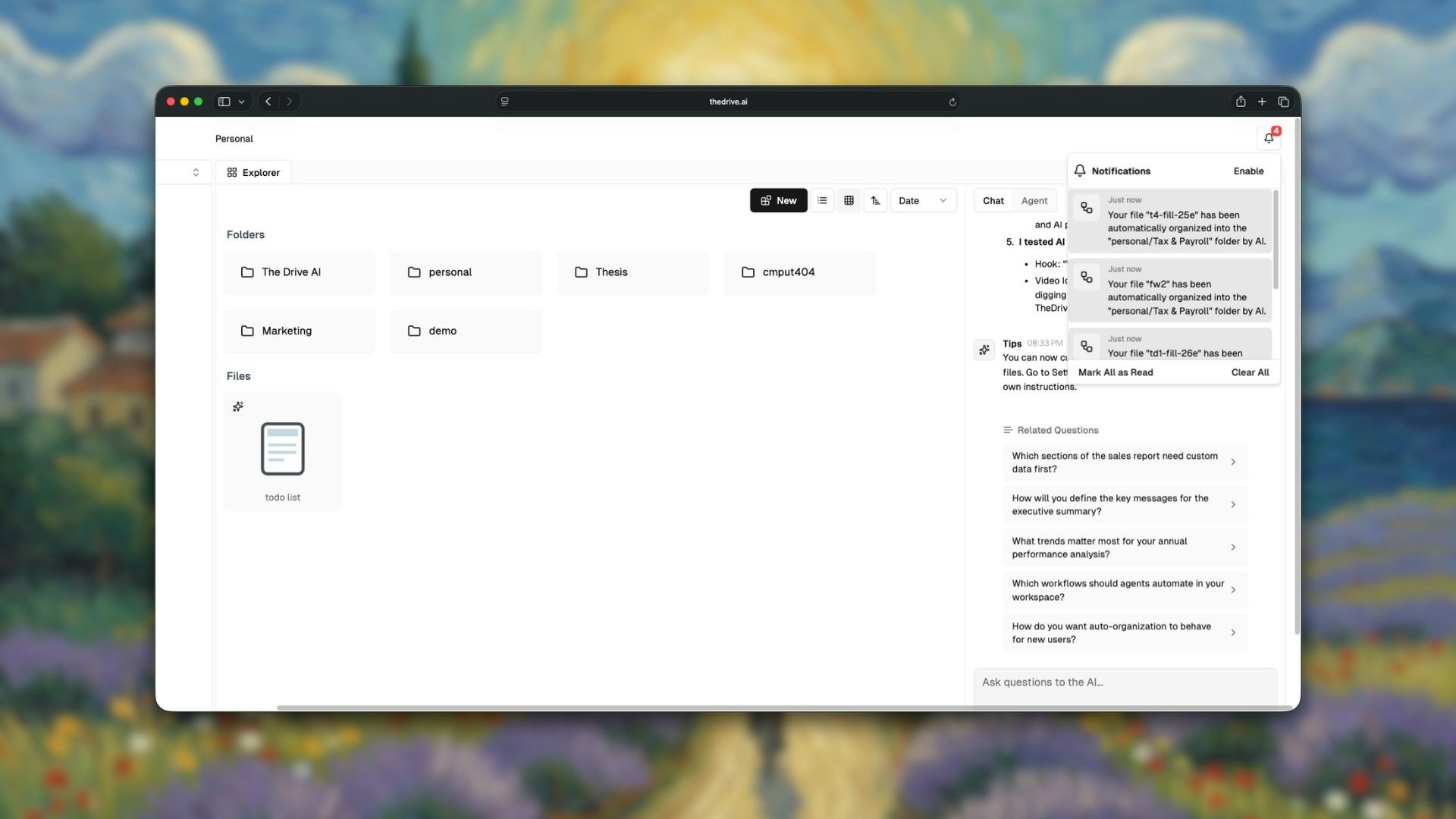
Files are automatically renamed and organized into the right folders. New folders are intelligently created based on your content.
Two Organization Modes
The Drive AI offers two ways to trigger auto-organization:Automatic Mode
Files uploaded to your workspace root are automatically organized without any action on your part.Best for: Bulk imports, daily uploads, and hands-free organization.
- Upload files to the root of your workspace
- You’ll see: “Uploading X file(s), and auto-organizing…”
- Files are analyzed and sorted into folders automatically
- No clicks required
Command+K Mode
Manually trigger organization for any folder at any time using the keyboard shortcut.Best for: Organizing existing folders, controlled timing, and nested directories.
- Navigate to the folder you want to organize
- Press
Command+K(Mac) orCtrl+K(Windows) - The AI analyzes and organizes the contents
- New subfolders are created as needed
What the AI Considers
When organizing your files, The Drive AI analyzes:Automatic File Renaming
The Drive AI can automatically rename files to make them more descriptive and easier to find. This happens during organization when files have unclear or generic names. When files get renamed:- Files with generic names like
Document1.pdforIMG_1234.jpg - Scanned documents with meaningless filenames
- Files where the content doesn’t match the filename
- The AI analyzes the file content to understand what it is
- A descriptive name is generated based on the content
- Original file extension is preserved
- You receive a notification showing the old and new names
Real-World Example
Scenario: You drop 20 mixed files into a project folder—spreadsheets, PDFs, meeting notes, and images. Before Command+K:Organization Accuracy
The Drive AI is designed for high-accuracy organization:- 99.9% accuracy in file categorization
- Sub-second processing per file
- Context-aware decisions based on content, not just file names
- Learning over time to match your organizational preferences
Customizing Organization
While The Drive AI handles organization automatically, you have full control over how files are organized.Custom Organization Prompts
Instead of letting the AI decide, you can specify exactly how you want files organized using natural language prompts. How to use custom prompts:- Select the files or folder you want to organize
- Press
Command+K(Mac) orCtrl+K(Windows) - Type your custom organization instructions
- Press Enter to execute
Existing Folder Structure
If you already have folders, the AI will:- Respect your existing structure
- Add files to appropriate existing folders
- Only create new folders when necessary
Manual Adjustments
After auto-organization, you can:- Move files to different folders
- Rename folders created by AI
- Merge or split folders as needed
When to Use Each Mode
Troubleshooting
Files Not Being Organized
Files Not Being Organized
- Ensure files are uploaded to the workspace root for Automatic Mode
- For Command+K, make sure you’re in the correct folder
- Check that file processing is complete before organizing
Unexpected Folder Structure
Unexpected Folder Structure
- The AI bases decisions on content analysis
- Move files manually to preferred locations
- The AI learns from your adjustments
Organization Taking Too Long
Organization Taking Too Long
- Large batches take more time
- Complex documents require deeper analysis
- Check the notification panel for progress
What’s Next?
Chat Mode
Ask questions about your organized files.
Agent Mode
Perform advanced file operations with natural language.