> ## Documentation Index
> Fetch the complete documentation index at: https://docs.thedrive.ai/llms.txt
> Use this file to discover all available pages before exploring further.
# Triggers
> Every way a workflow can start, the settings for each, and how to narrow a workflow to a folder, sender or channel
## Overview
A trigger, shown on the canvas as a **Source**, decides which files a workflow sees. Every file that reaches a source goes through the workflow once.
| Source | Starts when |
| - | - |
| **File Uploaded** | A file is added to The Drive AI or to a connected storage account |
| **File Updated** | A file is added or changed in a connected Dropbox account |
| **On a Schedule** | A set time comes round, then goes through a folder |
| **Email Attachment** | An attachment arrives in a connected Gmail or Outlook account |
| **Slack** | A file is shared in a connected Slack channel |
| **Microsoft Teams** | A file is shared in a connected Teams channel |
To add one, open the **Nodes** tab in the editor and pick it from **Sources**. Click the source on the canvas to open its settings.
Only owners and admins can add or change sources. Sources other than The Drive AI need the account connected in **Settings** > **Integrations** and a plan that includes connected accounts. See [Plans & Pricing](/account/plans-pricing).
## More than one source
One workflow can have several sources, for example The Drive AI, a Google Drive account and an Outlook inbox. They all share the same steps. Each file is handled in the place it came from: a file from Google Drive is moved and renamed inside that Google Drive.
Add a second source when you want the same rules on more files. Use a separate workflow when the rules should differ.
When a workflow mixes sources, every step has to work for all of them. For example, a workflow with an **Email Attachment** source needs a **Save a Copy** step before anything that moves or renames, even for files that come from a drive.
## File Uploaded
Starts when a new file appears. Under **Where**, choose where to watch:
* **The Drive AI**: files added to your workspace. Uploads, imports and synced files all count as new files.
* **A connected account**: a Google Drive, OneDrive, SharePoint or Dropbox account connected in **Settings** > **Integrations**.
* **Every member's Google Drive**, **OneDrive** or **Dropbox**: each member's own drive, in team workspaces. See [Every member's own drive](#every-members-own-drive).
### Narrow it to a folder
Under **Folder**, choose:
| Option | Which files start the workflow |
| - | - |
| **All folders** | Every new file in that place |
| **Root only** | Only files added at the top level, nothing inside folders |
| **Specific** | Files in the folder you pick and its subfolders |
A new **File Uploaded** source on The Drive AI starts on **Root only**, and one on a connected account starts on **All folders**. **Root only** suits a filing workflow, because a file someone already put in a client folder has already been filed by a person.
### Google shared drives
If the Google account can reach shared drives, a **Location** list appears. Choose **My Drive** for the account's own files, or a shared drive. When you pick a shared drive, anyone on the team who adds a file to it starts the workflow. It runs through this one account, so only that account has to stay connected, and nobody else needs to join.
### SharePoint sites and libraries
SharePoint has no single drive to watch. After you choose a SharePoint account:
Under **SharePoint site**, search for the site by name, or paste a link to it.
Under **Document library**, choose the library. Anyone who adds a file to that library starts the workflow, through this one account.
Under **Folder**, choose **All folders**, **Root only** or **Specific**.
If the library holds a Teams channel's files, the picker says so. Files shared in that team's channels land in the library, so the workflow sees them too.
### Skip duplicate files
Under **More options**, turn on **Skip duplicate files** to ignore exact copies of a file that's already in the watched place or that this workflow has already handled. Only byte-for-byte copies count. A re-scan or re-export of the same document is a different file.
## File Updated
When you choose a Dropbox account under **Where**, the source shows as **File Updated**. Dropbox doesn't say whether a file is new or edited, so this source runs for files that are added and for files that change. Its settings are the same as **File Uploaded**.
A workflow doesn't start again because of its own changes. Moving or renaming a file doesn't send it back through the same workflow.
## On a Schedule
Starts at set times and goes through a folder, running the workflow once for each file it finds. Use it for rules about files that are already there, like archiving anything older than a year, or for tidying a folder every night.
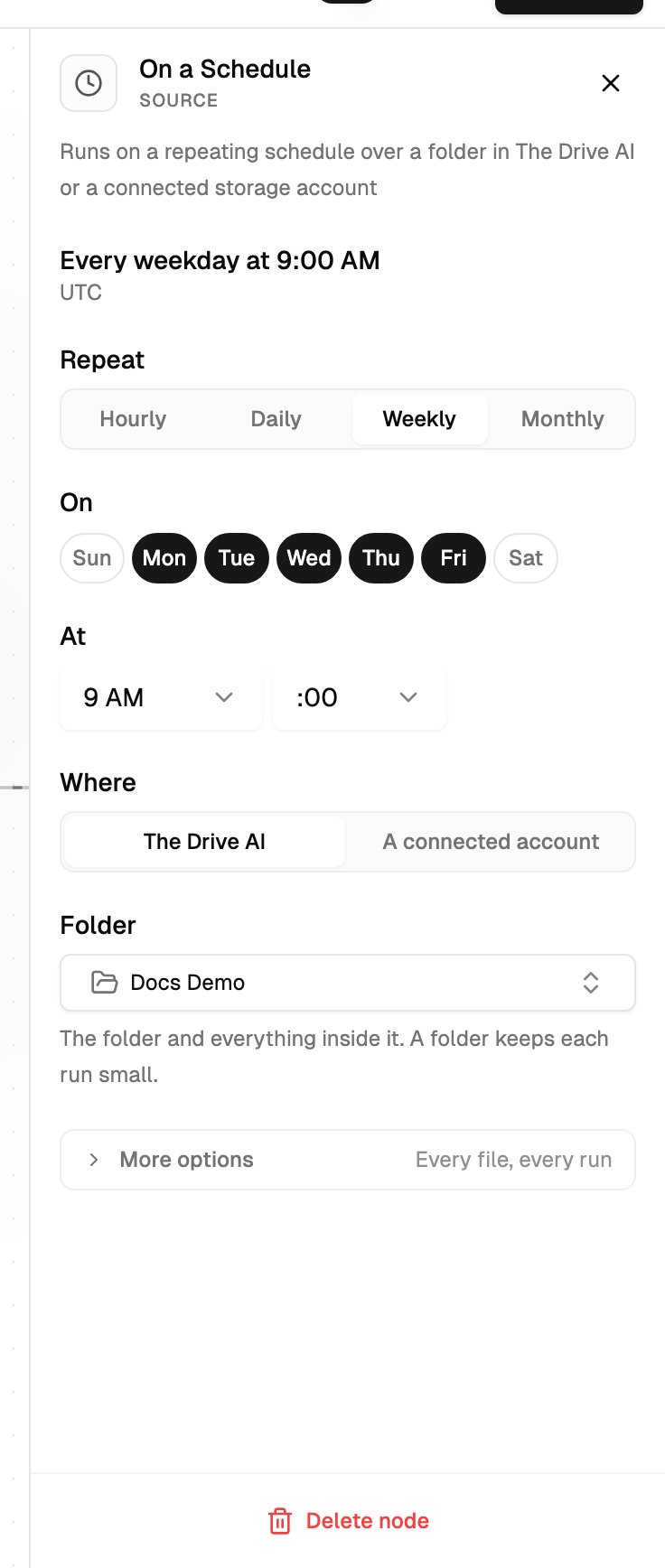 The top of the panel says when it runs, for example "Every weekday at 9:00 AM", with its time zone. Times use the time zone of the browser it was set up in.
| Setting | Options |
| - | - |
| **Repeat** | **Hourly**, **Daily**, **Weekly** or **Monthly** |
| **Every** (Hourly) | Every hour, or every 2, 3, 4, 6, 8 or 12 hours |
| **On** (Weekly) | The days of the week |
| **Day of month** (Monthly) | 1 to 28, so it never skips a short month |
| **At** | The hour, and :00, :15, :30 or :45 |
| **Where** | **The Drive AI** or **A connected account** |
| **Folder** | The folder to go through, including everything inside it |
For The Drive AI, the folder is optional: leave it as **Whole workspace** to go through everything, though a folder keeps each run small. For a connected account, a folder is required. SharePoint asks for the site and library first, and Google Drive offers its shared drives under **Location**.
### Which files each run goes through
Under **More options**, **Each run goes through** decides how much of the folder each run looks at:
* **New and changed files only**: each file is handled once, then left alone until it changes. Right for keeping a folder organized. This is the default for a connected account.
* **Every file, every run**: right for rules about age, like "older than 90 days", because those files aren't changing. AI steps run again on every file each time. This is the default for The Drive AI.
**Skip duplicate files** is also under **More options**.
With **Every file, every run**, put a [**Check File Details**](/workflows/steps#check-file-details) step first so only the files you mean reach the actions. Otherwise every action runs on every file, every time.
### Limits
* A schedule can run at most every 5 minutes. The picker's shortest option is every hour. A schedule the agent wrote with a pattern the picker can't show appears as a read-only **Pattern**, and still runs as written. Click **Replace with a simple schedule** to use the picker instead.
* Each run handles up to 200 files. A bigger folder is finished over the next runs, picking up where the last one stopped.
* Each file in each run counts as a [workflow file](/workflows/workflow-files).
The Workflows page and the editor show when a scheduled workflow runs next, for example "Next run in 3 hr".
## Email Attachment
Starts once for every attachment that arrives in a connected Gmail or Outlook account. The email itself isn't saved.
* **Account**: the inbox to watch.
* **More options** > **From**: only attachments from senders containing this text, for example `@acme.com` or part of a name.
* **More options** > **Subject contains**: only emails whose subject contains this text, for example `Invoice`.
In a team workspace, **Whose inbox** offers **One account** or **Team members**. With **Team members**, each member chosen is asked to join with their own inbox, and choose **Gmail or Outlook, whichever each member has**, **Gmail only** or **Outlook only** under **Email app**.
An attachment isn't stored anywhere yet when the workflow starts, so the first step has to be **Save a Copy**, set to keep working on the copy. Save refuses the workflow without it. See [Save a Copy](/workflows/steps#save-a-copy).
**What doesn't start it:**
* Mail that arrived before the account was connected, or while it was disconnected.
* Attachments brought in with **Historical sync**. See [Email integration](/integrations/email-integration).
* Mail from a sender on the workspace **Email Blocklist** or the account's blocked senders. These show in **Activity** as skipped, naming the address and the blocklist.
## Slack
Starts when a file is shared in a connected Slack channel.
* **Workspace**: the Slack workspace.
* **Channel**: one or more channels, or **All channels**. Only channels the app has been added to are listed. See [Slack](/integrations/slack).
A shared file isn't saved anywhere until the workflow saves it, so the first step has to be **Save a Copy**.
## Microsoft Teams
Starts when a file is shared in a connected Teams channel.
* **Workspace**: the Teams connection.
* **Team** and **Channel**: the team, then one or more of its channels, or **All channels**.
In a team workspace, **Whose account** offers **One account** or **Team members**. With **Team members**, the team is watched through one member who has joined and can reach it. If they leave, another member who has joined takes over. To pick the team and channels this way, connect your own Teams account first.
Like Slack, the first step has to be **Save a Copy**. See [Microsoft Teams](/integrations/microsoft-teams).
## Every member's own drive
In a team workspace, **File Uploaded** can watch each member's personal drive instead of one account. Under **Where**, choose **Every member's Google Drive**, **Every member's OneDrive** or **Every member's Dropbox**.
* Each member's files are organized inside their own drive. Nothing is moved out of it or copied anywhere else.
* Nothing runs on a member's drive until that member joins. See [Workflows that ask to use your account](/workflows/approvals-and-activity#workflows-that-ask-to-use-your-account).
* Under **Whose drives?**, choose **Everyone** (including people who join the workspace later), **Admins**, or **Specific people**.
* Under **Folder**, type a folder path such as `Clients/Inbox`. The same path is looked up on each member's drive. A drive without that folder is watched once it appears.
* One source covers one kind of drive. A member who hasn't connected that service can't join it. Add a second source for the other kind.
Once saved, **Who has joined** shows each member's status: **Joined**, **Waiting**, **Declined** or **Paused — account disconnected**.
"The team's drive" usually means one shared place, like a Google shared drive or a SharePoint library. Watch that through one account under **Where**, not with **Every member's** drive.
## A folder that doesn't exist yet
If [the agent](/workflows/building-with-the-agent) builds a source for a folder that hasn't been created, the source waits. The panel says it's waiting for the folder, no files are processed until it exists, and it starts on its own when the folder appears.
## What's next?
Decide what happens to each file.
See what each source picked up.
This documentation is built and hosted on [Mintlify](https://mintlify.com), a developer documentation platform.
The top of the panel says when it runs, for example "Every weekday at 9:00 AM", with its time zone. Times use the time zone of the browser it was set up in.
| Setting | Options |
| - | - |
| **Repeat** | **Hourly**, **Daily**, **Weekly** or **Monthly** |
| **Every** (Hourly) | Every hour, or every 2, 3, 4, 6, 8 or 12 hours |
| **On** (Weekly) | The days of the week |
| **Day of month** (Monthly) | 1 to 28, so it never skips a short month |
| **At** | The hour, and :00, :15, :30 or :45 |
| **Where** | **The Drive AI** or **A connected account** |
| **Folder** | The folder to go through, including everything inside it |
For The Drive AI, the folder is optional: leave it as **Whole workspace** to go through everything, though a folder keeps each run small. For a connected account, a folder is required. SharePoint asks for the site and library first, and Google Drive offers its shared drives under **Location**.
### Which files each run goes through
Under **More options**, **Each run goes through** decides how much of the folder each run looks at:
* **New and changed files only**: each file is handled once, then left alone until it changes. Right for keeping a folder organized. This is the default for a connected account.
* **Every file, every run**: right for rules about age, like "older than 90 days", because those files aren't changing. AI steps run again on every file each time. This is the default for The Drive AI.
**Skip duplicate files** is also under **More options**.
With **Every file, every run**, put a [**Check File Details**](/workflows/steps#check-file-details) step first so only the files you mean reach the actions. Otherwise every action runs on every file, every time.
### Limits
* A schedule can run at most every 5 minutes. The picker's shortest option is every hour. A schedule the agent wrote with a pattern the picker can't show appears as a read-only **Pattern**, and still runs as written. Click **Replace with a simple schedule** to use the picker instead.
* Each run handles up to 200 files. A bigger folder is finished over the next runs, picking up where the last one stopped.
* Each file in each run counts as a [workflow file](/workflows/workflow-files).
The Workflows page and the editor show when a scheduled workflow runs next, for example "Next run in 3 hr".
## Email Attachment
Starts once for every attachment that arrives in a connected Gmail or Outlook account. The email itself isn't saved.
* **Account**: the inbox to watch.
* **More options** > **From**: only attachments from senders containing this text, for example `@acme.com` or part of a name.
* **More options** > **Subject contains**: only emails whose subject contains this text, for example `Invoice`.
In a team workspace, **Whose inbox** offers **One account** or **Team members**. With **Team members**, each member chosen is asked to join with their own inbox, and choose **Gmail or Outlook, whichever each member has**, **Gmail only** or **Outlook only** under **Email app**.
An attachment isn't stored anywhere yet when the workflow starts, so the first step has to be **Save a Copy**, set to keep working on the copy. Save refuses the workflow without it. See [Save a Copy](/workflows/steps#save-a-copy).
**What doesn't start it:**
* Mail that arrived before the account was connected, or while it was disconnected.
* Attachments brought in with **Historical sync**. See [Email integration](/integrations/email-integration).
* Mail from a sender on the workspace **Email Blocklist** or the account's blocked senders. These show in **Activity** as skipped, naming the address and the blocklist.
## Slack
Starts when a file is shared in a connected Slack channel.
* **Workspace**: the Slack workspace.
* **Channel**: one or more channels, or **All channels**. Only channels the app has been added to are listed. See [Slack](/integrations/slack).
A shared file isn't saved anywhere until the workflow saves it, so the first step has to be **Save a Copy**.
## Microsoft Teams
Starts when a file is shared in a connected Teams channel.
* **Workspace**: the Teams connection.
* **Team** and **Channel**: the team, then one or more of its channels, or **All channels**.
In a team workspace, **Whose account** offers **One account** or **Team members**. With **Team members**, the team is watched through one member who has joined and can reach it. If they leave, another member who has joined takes over. To pick the team and channels this way, connect your own Teams account first.
Like Slack, the first step has to be **Save a Copy**. See [Microsoft Teams](/integrations/microsoft-teams).
## Every member's own drive
In a team workspace, **File Uploaded** can watch each member's personal drive instead of one account. Under **Where**, choose **Every member's Google Drive**, **Every member's OneDrive** or **Every member's Dropbox**.
* Each member's files are organized inside their own drive. Nothing is moved out of it or copied anywhere else.
* Nothing runs on a member's drive until that member joins. See [Workflows that ask to use your account](/workflows/approvals-and-activity#workflows-that-ask-to-use-your-account).
* Under **Whose drives?**, choose **Everyone** (including people who join the workspace later), **Admins**, or **Specific people**.
* Under **Folder**, type a folder path such as `Clients/Inbox`. The same path is looked up on each member's drive. A drive without that folder is watched once it appears.
* One source covers one kind of drive. A member who hasn't connected that service can't join it. Add a second source for the other kind.
Once saved, **Who has joined** shows each member's status: **Joined**, **Waiting**, **Declined** or **Paused — account disconnected**.
"The team's drive" usually means one shared place, like a Google shared drive or a SharePoint library. Watch that through one account under **Where**, not with **Every member's** drive.
## A folder that doesn't exist yet
If [the agent](/workflows/building-with-the-agent) builds a source for a folder that hasn't been created, the source waits. The panel says it's waiting for the folder, no files are processed until it exists, and it starts on its own when the folder appears.
## What's next?
Decide what happens to each file.
See what each source picked up.
This documentation is built and hosted on [Mintlify](https://mintlify.com), a developer documentation platform.