> ## Documentation Index
> Fetch the complete documentation index at: https://docs.thedrive.ai/llms.txt
> Use this file to discover all available pages before exploring further.
# Steps
> Every decision and action a workflow can take, with its settings and an example
## Overview
After a [trigger](/workflows/triggers) picks up a file, steps decide what happens to it. There are two kinds:
* **Decisions** send each file down a path: by the file's details, by AI reading it, or by a person.
* **Actions** do something: move, rename, read details, save a copy, send a message and more.
Add steps from the **Nodes** tab in the editor and click one to open its settings. Settings most workflows don't need are under **More options**, and the fold shows anything you've changed there.
A label next to a step in **Nodes** tells you what it needs to run:
| Label | Meaning |
| - | - |
| **Reads the file** | Opens the file and reads it with AI, so it can occasionally be wrong |
| **Waits for you** | Pauses the workflow until someone approves or rejects |
| **Sends outside** | Contacts a service outside The Drive AI |
| **Can send outside** | Contacts an outside service only if you pick a connected account as the destination |
Steps with no label are instant and exact.
## How files flow
* Every file that reaches a step goes through it. Only decisions choose between paths.
* A decision has one exit per path. Leave an exit unconnected and files that take it stop there, untouched. That's how you say "leave everything else alone".
* Each action has one next step. When two paths need the same action, give each path its own copy of the step.
* Move and rename act wherever the file is: in The Drive AI, or in the connected account it came from.
## Decisions
### Check File Details
Sends files down different paths by what's already known about them: type, age, size, name or location. No AI, so it's instant, free and exact. Use it instead of **Ask AI About the File** whenever the question doesn't need the file's contents.
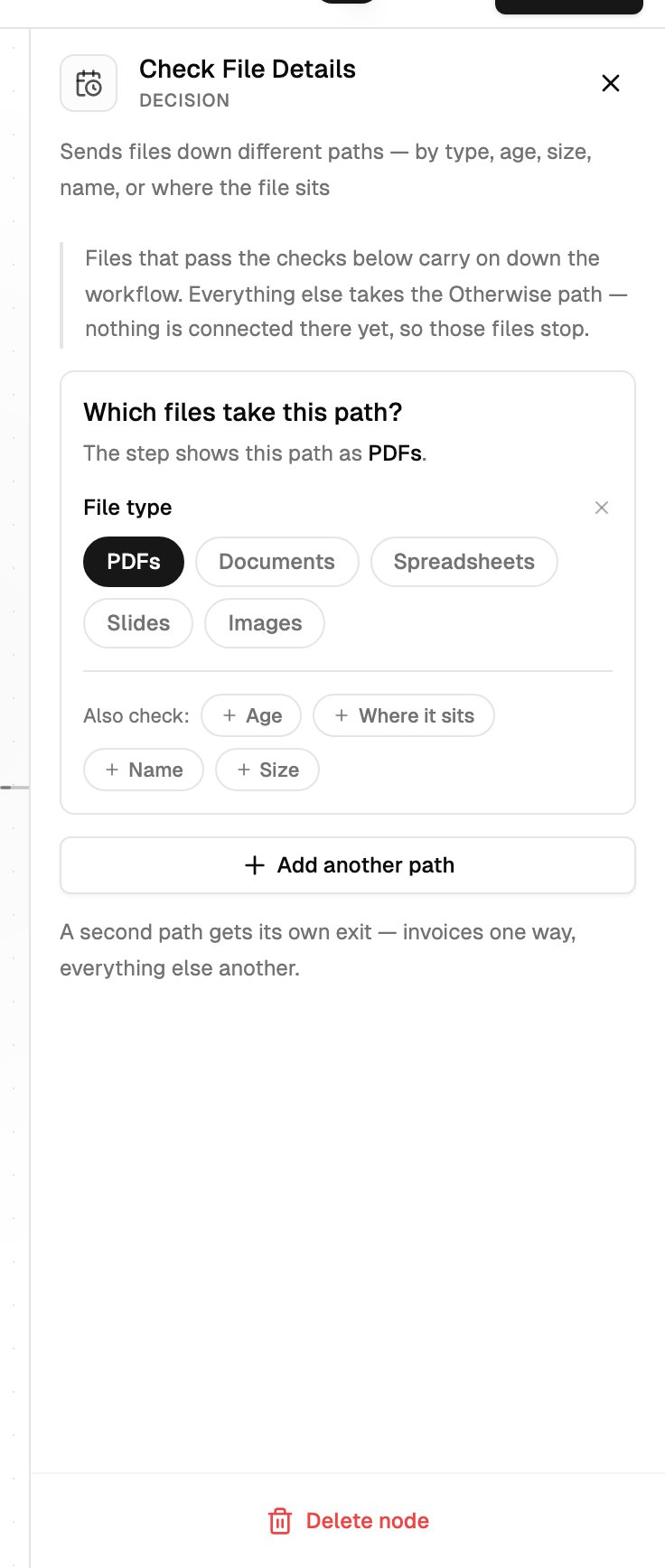 Each path is a set of checks. A file takes the first path whose checks it all passes. Everything else takes the **Otherwise** path. With one path the step works as a filter; with several, it's a sorter. Click **Add another path** for another exit.
On each path, add checks with the buttons under it:
| Check | Settings |
| - | - |
| **File type** | **PDFs**, **Documents**, **Spreadsheets**, **Slides**, **Images** (pick any) |
| **Age** | **Older than** or **Within last** a number of days, with shortcuts for **30 days**, **90 days**, **1 year** and **7 years** |
| **Where it sits** | **Loose in the folder** (straight in the watched folder) or **In a subfolder** (optionally a named one, like `Clients/Acme`) |
| **Name** | Contains some text, like `draft` |
| **Size** | **Over MB** and **Under MB** |
The panel shows how each path is labelled on the canvas, in plain words.
* **Age** needs files with a stored date, so it doesn't work with email attachments.
* **Where it sits** needs an **On a Schedule** source. For other sources, narrow the source's folder instead.
* A path with no checks matches every file. The panel warns you.
**Example:** a schedule over Archive, then **Check File Details** with one path, **Age**: older than **7 years**, connected to **Move to Trash**.
To act on everything except one kind of file, give that kind its own path and leave its exit unconnected. Everything else falls to **Otherwise**.
### Ask AI About the File
AI reads the file and answers your question, then sends the file down the path for that answer.
* **What should this step check?**: ask about what the file says, for example "Is this contract fully signed?"
* **Possible answers**: the exits. They start as `yes` and `no`; rename them or click **Add** for more, like `invoice`, `receipt`, `contract`.
The AI picks exactly one answer. When it isn't sure, the file takes the **last** answer, so keep a catch-all like `other` last.
**Example:** "What kind of document is this?" with answers `invoice`, `receipt`, `other`. Invoices go to a **Move** step, receipts to a **Rename** step, and `other` is left unconnected.
End the question with two or three examples, like "a bill with an invoice number and total due → invoice; a purchase order → other". Examples make the answers more reliable.
### Ask a Person to Approve
Pauses the run and asks a person before anything after it happens. Put it before the steps it guards.
| Setting | What it does |
| - | - |
| **What should the approver decide?** | The question shown next to the file in **Approvals**, for example "OK to file this in the client folder?" |
| **Who decides?** | **Admins** (every owner and admin), **Specific people**, or **Everyone**. Any one of them can decide. In a personal workspace, it's you. |
| **When to ask** | **Always ask**, or **Only when unsure** |
| **How sure must it be?** | With **Only when unsure**: **Careful**, **Balanced** or **Relaxed** |
| **Wait up to** | **24 hours**, **3 days** or **1 week** |
The step has three exits: **Approved**, **Rejected** and **Expired**. A rejected or expired file stops and stays where it is, unless you connect that exit to another step, for example a **Move** into a Review folder.
With **Only when unsure**, confident filing into existing folders goes ahead on its own and is logged. New folders, unsure matches and anything destructive still ask.
Approvers are emailed and notified in the app. If you pick **Specific people** but don't choose anyone, admins are asked instead. Owners and admins can also decide approvals addressed to specific people.
**Example:** **Check File Details** (older than 1 year) → **Ask a Person to Approve** ("Delete this old file?") → **Approved** to **Move to Trash**, **Rejected** to **Move** into Archive.
An approver can add a note when deciding. The note steers the steps that take instructions after the approval, like **Move**, **Rename** and **Read Details from File**. It can't change **Move to Trash**. See [Approvals and activity](/workflows/approvals-and-activity#approvals).
## Actions that read the file
These steps take an instruction in plain words. The AI reads each file and works out the rest. End an instruction with two or three examples, written as "this → that", for the most reliable results.
### Move
Moves the file to a folder. Under **Where should this file go?**, describe where, for example "to the client's folder, then by year". Folders that don't exist yet are created.
Describe where each value comes from in the document, and only the folder levels you want. "To the client's folder, from the party named on the invoice, then by year from the invoice date" works better than "by client and year".
Under **More options**, **If the same file is already there** decides what happens when a file with identical content is already in the destination:
* **Move it anyway**: renamed if the name is taken. This is the default.
* **Leave it where it is**.
* **Set it aside for review**: filed into a **Possible Duplicates** folder.
**Example:** "to Clients/\[client name from the letterhead]/\[year from the document date]. e.g. an Acme Corp invoice dated 12 Mar 2026 → Clients/Acme Corp/2026"
### Rename
Renames the file. Under **What should this file be named?**, describe the name, for example "with client name and invoice number".
**Example:** "date, client and invoice number. e.g. invoice INV-10422 from Acme Corp dated 12 Mar 2026 → 2026-03-12 Acme Corp INV-10422.pdf"
### Read Details from File
Pulls values out of the file, like vendor, amount or due date, without moving or renaming it. Under **What data should be extracted?**, say what to read.
Under **Values later steps can use**, name each value and choose its type: **Text**, **Number**, **Yes / no** or **List**. Named values can be dropped into later steps' messages, questions and instructions. Without names, the values only appear in the run's activity.
You don't need this step just to file or rename by a value: **Move** and **Rename** read the file themselves. Use it when you want the values in a message, an approval question or another app, or when the same value must appear in two places.
**Example:** read `vendor` and `amount`, then **Send a Message** to Slack with a message like "Invoice from" followed by the **vendor** value, "for", and the **amount** value.
### Split Document
Splits one file into several, for example a scanned stack into separate invoices. Under **How should the document be split?**, describe it, for example "split into separate invoices" or "split every 5 pages".
The parts are saved next to the original, and each part continues through the rest of the workflow on its own. Under **More options**, **The original, once split** can be **Stays where it is**, **Goes to trash** or **Goes to a folder**.
### Merge Files
Combines several files that arrive together into one, for example all the exhibits attached to one email. Under **How should files be merged?**, describe the order, for example "combine into one PDF, ordered by date".
It only combines files from the same arrival, like one email's attachments or the parts of a split. Files that arrive separately over time aren't held together.
## Actions that store or remove files
### Save a Copy
Puts a copy of the file in The Drive AI or in a connected Google Drive, OneDrive, SharePoint or Dropbox account. The original is never moved or deleted.
Each path is a set of checks. A file takes the first path whose checks it all passes. Everything else takes the **Otherwise** path. With one path the step works as a filter; with several, it's a sorter. Click **Add another path** for another exit.
On each path, add checks with the buttons under it:
| Check | Settings |
| - | - |
| **File type** | **PDFs**, **Documents**, **Spreadsheets**, **Slides**, **Images** (pick any) |
| **Age** | **Older than** or **Within last** a number of days, with shortcuts for **30 days**, **90 days**, **1 year** and **7 years** |
| **Where it sits** | **Loose in the folder** (straight in the watched folder) or **In a subfolder** (optionally a named one, like `Clients/Acme`) |
| **Name** | Contains some text, like `draft` |
| **Size** | **Over MB** and **Under MB** |
The panel shows how each path is labelled on the canvas, in plain words.
* **Age** needs files with a stored date, so it doesn't work with email attachments.
* **Where it sits** needs an **On a Schedule** source. For other sources, narrow the source's folder instead.
* A path with no checks matches every file. The panel warns you.
**Example:** a schedule over Archive, then **Check File Details** with one path, **Age**: older than **7 years**, connected to **Move to Trash**.
To act on everything except one kind of file, give that kind its own path and leave its exit unconnected. Everything else falls to **Otherwise**.
### Ask AI About the File
AI reads the file and answers your question, then sends the file down the path for that answer.
* **What should this step check?**: ask about what the file says, for example "Is this contract fully signed?"
* **Possible answers**: the exits. They start as `yes` and `no`; rename them or click **Add** for more, like `invoice`, `receipt`, `contract`.
The AI picks exactly one answer. When it isn't sure, the file takes the **last** answer, so keep a catch-all like `other` last.
**Example:** "What kind of document is this?" with answers `invoice`, `receipt`, `other`. Invoices go to a **Move** step, receipts to a **Rename** step, and `other` is left unconnected.
End the question with two or three examples, like "a bill with an invoice number and total due → invoice; a purchase order → other". Examples make the answers more reliable.
### Ask a Person to Approve
Pauses the run and asks a person before anything after it happens. Put it before the steps it guards.
| Setting | What it does |
| - | - |
| **What should the approver decide?** | The question shown next to the file in **Approvals**, for example "OK to file this in the client folder?" |
| **Who decides?** | **Admins** (every owner and admin), **Specific people**, or **Everyone**. Any one of them can decide. In a personal workspace, it's you. |
| **When to ask** | **Always ask**, or **Only when unsure** |
| **How sure must it be?** | With **Only when unsure**: **Careful**, **Balanced** or **Relaxed** |
| **Wait up to** | **24 hours**, **3 days** or **1 week** |
The step has three exits: **Approved**, **Rejected** and **Expired**. A rejected or expired file stops and stays where it is, unless you connect that exit to another step, for example a **Move** into a Review folder.
With **Only when unsure**, confident filing into existing folders goes ahead on its own and is logged. New folders, unsure matches and anything destructive still ask.
Approvers are emailed and notified in the app. If you pick **Specific people** but don't choose anyone, admins are asked instead. Owners and admins can also decide approvals addressed to specific people.
**Example:** **Check File Details** (older than 1 year) → **Ask a Person to Approve** ("Delete this old file?") → **Approved** to **Move to Trash**, **Rejected** to **Move** into Archive.
An approver can add a note when deciding. The note steers the steps that take instructions after the approval, like **Move**, **Rename** and **Read Details from File**. It can't change **Move to Trash**. See [Approvals and activity](/workflows/approvals-and-activity#approvals).
## Actions that read the file
These steps take an instruction in plain words. The AI reads each file and works out the rest. End an instruction with two or three examples, written as "this → that", for the most reliable results.
### Move
Moves the file to a folder. Under **Where should this file go?**, describe where, for example "to the client's folder, then by year". Folders that don't exist yet are created.
Describe where each value comes from in the document, and only the folder levels you want. "To the client's folder, from the party named on the invoice, then by year from the invoice date" works better than "by client and year".
Under **More options**, **If the same file is already there** decides what happens when a file with identical content is already in the destination:
* **Move it anyway**: renamed if the name is taken. This is the default.
* **Leave it where it is**.
* **Set it aside for review**: filed into a **Possible Duplicates** folder.
**Example:** "to Clients/\[client name from the letterhead]/\[year from the document date]. e.g. an Acme Corp invoice dated 12 Mar 2026 → Clients/Acme Corp/2026"
### Rename
Renames the file. Under **What should this file be named?**, describe the name, for example "with client name and invoice number".
**Example:** "date, client and invoice number. e.g. invoice INV-10422 from Acme Corp dated 12 Mar 2026 → 2026-03-12 Acme Corp INV-10422.pdf"
### Read Details from File
Pulls values out of the file, like vendor, amount or due date, without moving or renaming it. Under **What data should be extracted?**, say what to read.
Under **Values later steps can use**, name each value and choose its type: **Text**, **Number**, **Yes / no** or **List**. Named values can be dropped into later steps' messages, questions and instructions. Without names, the values only appear in the run's activity.
You don't need this step just to file or rename by a value: **Move** and **Rename** read the file themselves. Use it when you want the values in a message, an approval question or another app, or when the same value must appear in two places.
**Example:** read `vendor` and `amount`, then **Send a Message** to Slack with a message like "Invoice from" followed by the **vendor** value, "for", and the **amount** value.
### Split Document
Splits one file into several, for example a scanned stack into separate invoices. Under **How should the document be split?**, describe it, for example "split into separate invoices" or "split every 5 pages".
The parts are saved next to the original, and each part continues through the rest of the workflow on its own. Under **More options**, **The original, once split** can be **Stays where it is**, **Goes to trash** or **Goes to a folder**.
### Merge Files
Combines several files that arrive together into one, for example all the exhibits attached to one email. Under **How should files be merged?**, describe the order, for example "combine into one PDF, ordered by date".
It only combines files from the same arrival, like one email's attachments or the parts of a split. Files that arrive separately over time aren't held together.
## Actions that store or remove files
### Save a Copy
Puts a copy of the file in The Drive AI or in a connected Google Drive, OneDrive, SharePoint or Dropbox account. The original is never moved or deleted.
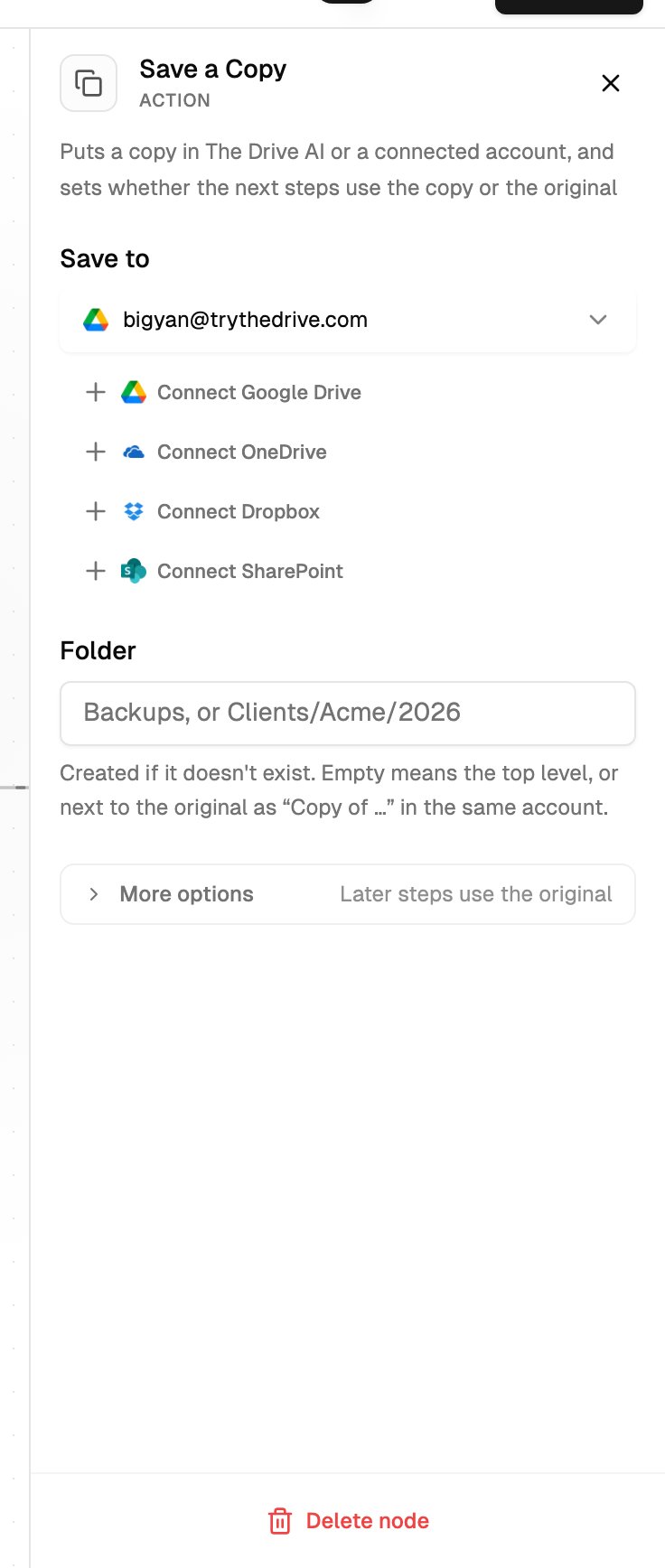 | Setting | What it does |
| - | - |
| **Save to** | **The Drive AI** or a connected account |
| **Location** | Google Drive only: **My Drive** or a shared drive, where the team can see the copy |
| **Site and library** | SharePoint only, and required: the site, then the document library |
| **Folder** | A path like `Backups` or `Clients/Acme/2026`. Created if it doesn't exist. Empty means the top level. |
| **Then keep working on** (More options) | **The copy**: later steps move and rename the copy, and the original is left alone. **The original**: later steps work on the original, and the copy stays where it was saved. |
| **If it was already saved there** (More options) | **Skip it** (the default) or **Save it again** |
To pick a SharePoint site and library, you need your own SharePoint account connected in **Settings** > **Integrations**.
If the file is already in that exact account, nothing is copied and the workflow carries on with the file.
**Email Attachment**, **Slack** and **Microsoft Teams** sources need **Save a Copy** as their first step, set to **The copy**, because those files aren't stored anywhere until then.
**Example:** **Email Attachment** → **Save a Copy** to Google Drive, folder `Inbox`, **The copy** → **Move** "to the client's folder".
### Move to Trash
Moves the file to the trash, where it can still be recovered. There's nothing to set up, and nothing runs after it, so use it at the end of a path.
Pair it with **Check File Details** or **Ask AI About the File** so only the files you mean reach it, and consider **Ask a Person to Approve** first.
## Actions that tell someone
### Send a Message
Sends a message without changing the file. Under **Send this as**, choose:
* **A Slack message**: pick the **Workspace** and one **Channel**. Slack has to be connected in **Settings** > **Integrations**.
* **An email**: enter **To** and **Subject**.
Write the **Message**. Click a value under it to drop it in, like **File name**, **Source** or a value read by an earlier step. It's filled in when the workflow runs.
**Example:** a Slack message to your accounts channel that says "New invoice:" followed by the **File name** value.
### Send to Another App
Sends the file's details to another tool you use, such as your accounting system, at an address that tool gives you.
* **Address**: the web address to send to. Required.
* **More options** > **Method**: **POST** unless the other app asks for **PUT** or **PATCH**.
* **More options** > **Key**: **No key needed**, **Bearer token** or **API key (X-API-Key header)**, then enter the token or key.
* **More options** > **Body**: leave blank to send the standard details, or write your own, using values from earlier steps.
Whoever set up the other app can give you the address and any key it needs.
## Using values from earlier steps
Text settings like messages, approval questions, move and rename instructions and the **Send to Another App** body can include values filled in at run time. Click a value under the field to insert it.
| Values | Available with |
| - | - |
| **File name**, **File type**, **Source** | Every source |
| **File size** | Stored-file sources and schedules |
| **Folder** | **File Uploaded** on The Drive AI |
| **Sender**, **Subject** | **Email Attachment** |
| **Channel**, **Shared by** | **Slack** and **Microsoft Teams** |
| Named values | After a **Read Details from File** step on the same path |
With several sources, only values every source has are offered. **Source** says which one the file came from, like Google Drive or The Drive AI.
## What's next?
Describe the steps in words and let the agent wire them.
Follow each file through its steps.
This documentation is built and hosted on [Mintlify](https://mintlify.com), a developer documentation platform.
| Setting | What it does |
| - | - |
| **Save to** | **The Drive AI** or a connected account |
| **Location** | Google Drive only: **My Drive** or a shared drive, where the team can see the copy |
| **Site and library** | SharePoint only, and required: the site, then the document library |
| **Folder** | A path like `Backups` or `Clients/Acme/2026`. Created if it doesn't exist. Empty means the top level. |
| **Then keep working on** (More options) | **The copy**: later steps move and rename the copy, and the original is left alone. **The original**: later steps work on the original, and the copy stays where it was saved. |
| **If it was already saved there** (More options) | **Skip it** (the default) or **Save it again** |
To pick a SharePoint site and library, you need your own SharePoint account connected in **Settings** > **Integrations**.
If the file is already in that exact account, nothing is copied and the workflow carries on with the file.
**Email Attachment**, **Slack** and **Microsoft Teams** sources need **Save a Copy** as their first step, set to **The copy**, because those files aren't stored anywhere until then.
**Example:** **Email Attachment** → **Save a Copy** to Google Drive, folder `Inbox`, **The copy** → **Move** "to the client's folder".
### Move to Trash
Moves the file to the trash, where it can still be recovered. There's nothing to set up, and nothing runs after it, so use it at the end of a path.
Pair it with **Check File Details** or **Ask AI About the File** so only the files you mean reach it, and consider **Ask a Person to Approve** first.
## Actions that tell someone
### Send a Message
Sends a message without changing the file. Under **Send this as**, choose:
* **A Slack message**: pick the **Workspace** and one **Channel**. Slack has to be connected in **Settings** > **Integrations**.
* **An email**: enter **To** and **Subject**.
Write the **Message**. Click a value under it to drop it in, like **File name**, **Source** or a value read by an earlier step. It's filled in when the workflow runs.
**Example:** a Slack message to your accounts channel that says "New invoice:" followed by the **File name** value.
### Send to Another App
Sends the file's details to another tool you use, such as your accounting system, at an address that tool gives you.
* **Address**: the web address to send to. Required.
* **More options** > **Method**: **POST** unless the other app asks for **PUT** or **PATCH**.
* **More options** > **Key**: **No key needed**, **Bearer token** or **API key (X-API-Key header)**, then enter the token or key.
* **More options** > **Body**: leave blank to send the standard details, or write your own, using values from earlier steps.
Whoever set up the other app can give you the address and any key it needs.
## Using values from earlier steps
Text settings like messages, approval questions, move and rename instructions and the **Send to Another App** body can include values filled in at run time. Click a value under the field to insert it.
| Values | Available with |
| - | - |
| **File name**, **File type**, **Source** | Every source |
| **File size** | Stored-file sources and schedules |
| **Folder** | **File Uploaded** on The Drive AI |
| **Sender**, **Subject** | **Email Attachment** |
| **Channel**, **Shared by** | **Slack** and **Microsoft Teams** |
| Named values | After a **Read Details from File** step on the same path |
With several sources, only values every source has are offered. **Source** says which one the file came from, like Google Drive or The Drive AI.
## What's next?
Describe the steps in words and let the agent wire them.
Follow each file through its steps.
This documentation is built and hosted on [Mintlify](https://mintlify.com), a developer documentation platform.