> ## Documentation Index
> Fetch the complete documentation index at: https://docs.thedrive.ai/llms.txt
> Use this file to discover all available pages before exploring further.
# Workflows
> Automate what happens to files as they arrive or on a schedule: filing, renaming, approvals and more
## Overview
A workflow runs on its own. It starts when something happens, such as a file being uploaded or an email attachment arriving, or on a schedule. It then checks each file and does something with it, such as moving it to the right folder, renaming it, sending a message or asking someone to approve.
Every workflow has the same shape:
* **Sources**: what starts it. See [Triggers](/workflows/triggers).
* **Decisions**: which path each file takes, decided by the file's details, by AI reading the file, or by a person.
* **Actions**: what happens to the file. See [Steps](/workflows/steps) for both.
Workflows replace the old automatic filing on upload. Nothing is filed automatically unless a workflow does it.
## Example workflows
* **File invoices from email**: when an attachment arrives in Gmail, save a copy to The Drive AI, check whether it's an invoice, then move it to a folder for the client and year.
* **Rename scans**: when a file is uploaded to a scans folder, rename it with the date and document type read from the page.
* **Clean up old files**: every Sunday, go through an archive folder and move anything older than 7 years to the trash, after an admin approves.
* **Tell the team**: when a signed contract lands in a SharePoint library, post the client name and amount in a Slack channel.
* **Split batch scans**: when a scanner drops a stack of leases as one PDF, split it into one file per lease.
## Who can use workflows
* **Owners and admins** create, edit, run, pause and delete workflows.
* **Everyone else in the workspace** can open any workflow to see its steps and settings, read its activity, and decide approvals that are addressed to them. The editor shows **View only** for them.
Some workflows watch each member's own inbox or drive. Those members choose for themselves whether to join. See [Approvals and activity](/workflows/approvals-and-activity#workflows-that-ask-to-use-your-account).
Workflows on files in The Drive AI work on every plan. Watching or saving to a connected storage account, email or messaging app needs a plan that includes connected accounts. Each plan also includes a number of [workflow files](/workflows/workflow-files) a month. See [Plans & Pricing](/account/plans-pricing).
## The Workflows page
Click **Workflows** in the left sidebar. You can also open **Settings** > **Workflows** and click **Open workflows**.
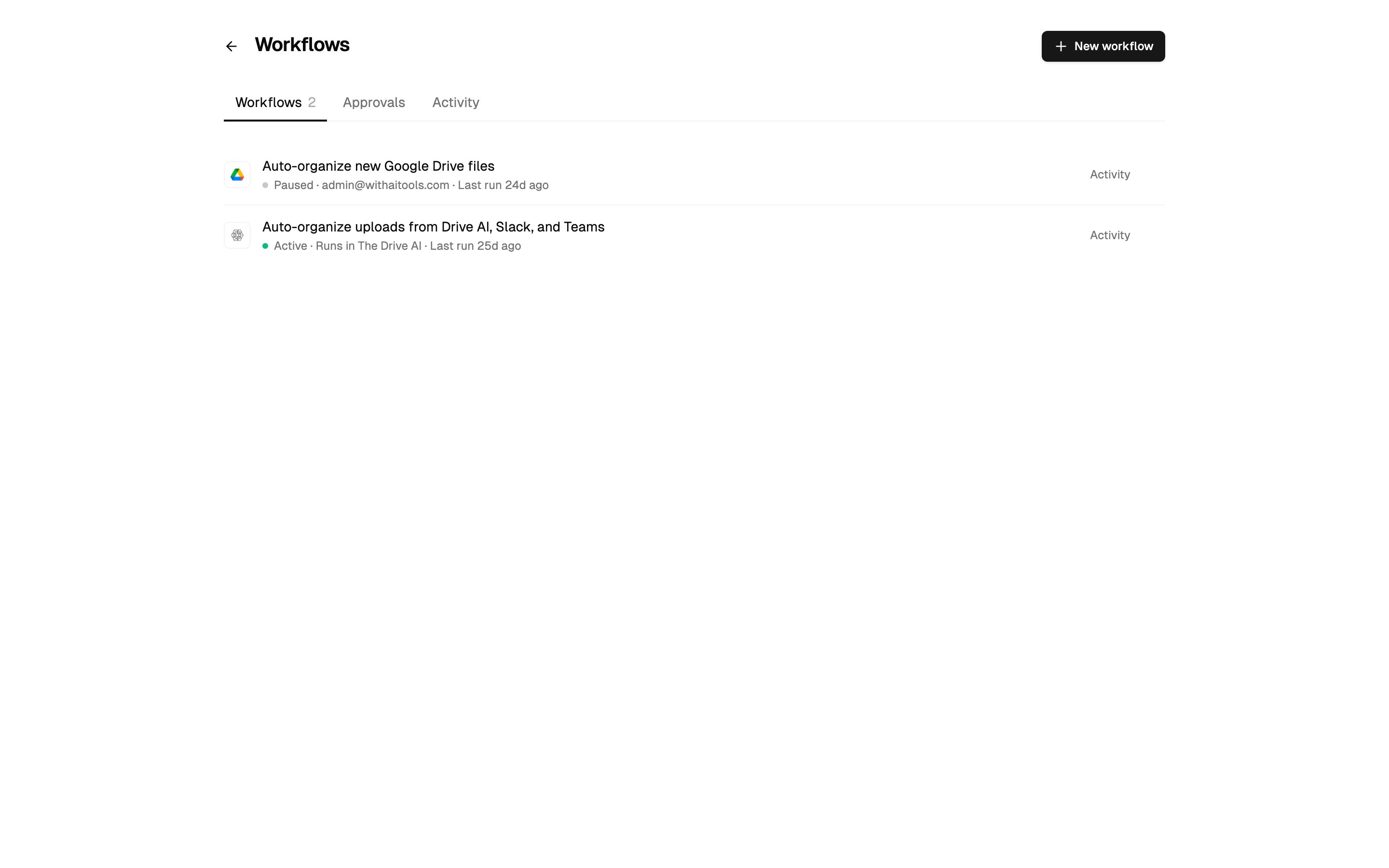 The page has three tabs:
| Tab | What's there |
| - | - |
| **Workflows** | Every workflow in the workspace. Each row shows whether it's **Active** or **Paused**, its source, when it last ran and how that run went, and for a scheduled workflow, when it runs next. |
| **Approvals** | Decisions waiting on you, decisions already made, and requests to use your account. |
| **Activity** | Every run, newest first, which you can filter by status, workflow and file name. |
Banners above the tabs tell you when something needs you, for example **2 approvals are waiting on you** or **1 workflow is asking to use your account**. Click **Review** to go to it. A banner also appears when the workspace is close to or out of its [monthly workflow files](/workflows/workflow-files).
On a workflow's row, click **Activity** to see only its runs. Owners and admins can open the **…** menu to **Edit** or **Delete** it.
## Create a workflow
You can create a workflow three ways. All three end on the same canvas, where you can check and change everything before you save.
### Describe it
On the Workflows page, click **New workflow**.
Under **What would you like to automate?**, describe it in a sentence or two, for example "When I get email attachments, sort invoices into client folders". The builder assembles the sources and steps on the canvas.
Click any step to open its settings and change them. Click **Validate** to check the workflow for problems.
Click **Save**. A new workflow saves as **Active** unless you switch it to **Paused** first.
### Build it on the canvas
On the Workflows page, click **New workflow**, then click **Build manually instead**.
Open the **Nodes** tab in the left panel. Tap a node to add it, or drag it onto the canvas. Nodes are grouped as **Sources**, **Decisions** and **Actions**, and you can search them.
Drag from a step's connection point to the next step. A decision has one exit per answer or path. Leave an exit unconnected to stop there and leave the file as it is.
Click a step to open its settings. Settings that most workflows don't need are under **More options**.
Click **Validate**, fix anything it lists, then click **Save**.
The page has three tabs:
| Tab | What's there |
| - | - |
| **Workflows** | Every workflow in the workspace. Each row shows whether it's **Active** or **Paused**, its source, when it last ran and how that run went, and for a scheduled workflow, when it runs next. |
| **Approvals** | Decisions waiting on you, decisions already made, and requests to use your account. |
| **Activity** | Every run, newest first, which you can filter by status, workflow and file name. |
Banners above the tabs tell you when something needs you, for example **2 approvals are waiting on you** or **1 workflow is asking to use your account**. Click **Review** to go to it. A banner also appears when the workspace is close to or out of its [monthly workflow files](/workflows/workflow-files).
On a workflow's row, click **Activity** to see only its runs. Owners and admins can open the **…** menu to **Edit** or **Delete** it.
## Create a workflow
You can create a workflow three ways. All three end on the same canvas, where you can check and change everything before you save.
### Describe it
On the Workflows page, click **New workflow**.
Under **What would you like to automate?**, describe it in a sentence or two, for example "When I get email attachments, sort invoices into client folders". The builder assembles the sources and steps on the canvas.
Click any step to open its settings and change them. Click **Validate** to check the workflow for problems.
Click **Save**. A new workflow saves as **Active** unless you switch it to **Paused** first.
### Build it on the canvas
On the Workflows page, click **New workflow**, then click **Build manually instead**.
Open the **Nodes** tab in the left panel. Tap a node to add it, or drag it onto the canvas. Nodes are grouped as **Sources**, **Decisions** and **Actions**, and you can search them.
Drag from a step's connection point to the next step. A decision has one exit per answer or path. Leave an exit unconnected to stop there and leave the file as it is.
Click a step to open its settings. Settings that most workflows don't need are under **More options**.
Click **Validate**, fix anything it lists, then click **Save**.
 ### Ask the agent
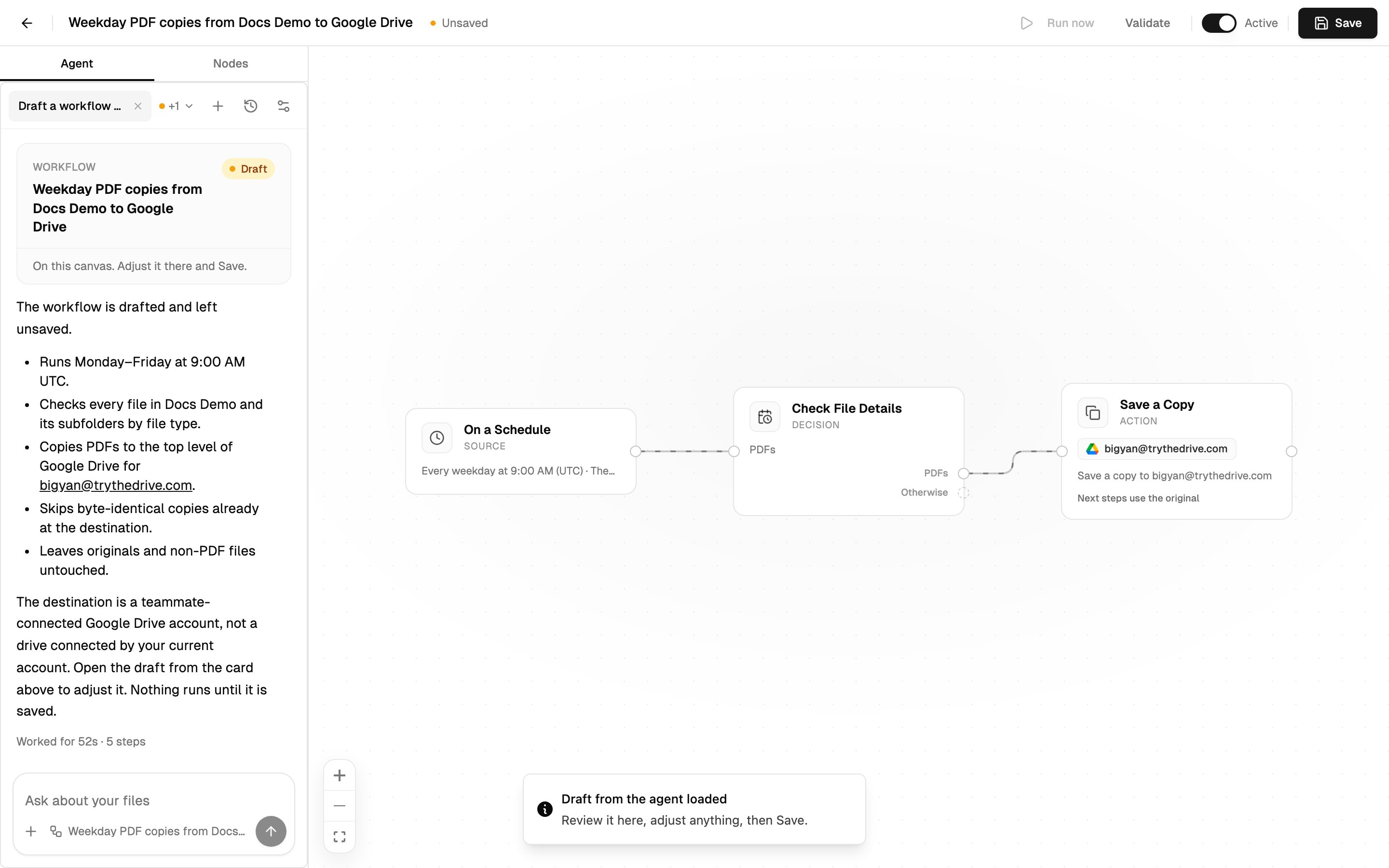
Ask [the agent](/agent/overview) in any conversation, for example "Whenever a file lands in Inbox, file it by client and year." It shows you a draft that you can **Open in editor** or **Save**. On the canvas, the **Agent** tab beside **Nodes** lets you change the workflow in words. See [Building with the agent](/workflows/building-with-the-agent).
Start with a narrow source, like one folder or one sender, and widen it once you've watched a few runs in **Activity**.
## Turn a workflow on or off
In the editor's toolbar, use the switch next to **Validate**. It shows **Active** or **Paused**, and the change takes effect straight away without saving. A paused workflow ignores new files.
Turning a workflow on checks it again. If it uses a connected account that has been disconnected, you're asked to reconnect it first. If your plan no longer includes connected accounts, it can't be turned on until you upgrade.
If you save changes made by the agent that removed sources or steps from an active workflow, you're asked to confirm, because the removed parts stop working as soon as you save.
## Run now
A scheduled workflow can be tried without waiting for its next run. Save it, then click **Run now** in the editor's toolbar.
* It runs for real, on up to 5 files from the scheduled folder, newest first.
* It works even while the workflow is **Paused**, so you can try one before turning it on.
* It doesn't change when the next scheduled run happens.
* The **Activity** tab opens so you can watch what happens.
**Run now** only appears on workflows with an **On a Schedule** source. Other workflows run when a file arrives.
## Delete a workflow
On the Workflows page, open the workflow's **…** menu and choose **Delete**. The workflow stops running and its activity history is removed. Files it already organized aren't affected. This can't be undone.
## Coming from Auto Organization
If your workspace used automatic filing before, an owner or admin can open **Settings** > **Auto Organization**. Any organizing instructions you wrote are kept there, and one click turns them into a workflow: **Build a workflow from these instructions**, or **Build the workflow for me** if you never wrote any. The builder opens with the draft, and you review it before it runs.
Organizing a folder on demand with ⌘K is separate and still works. It has its own monthly count in **Settings** > **Usage**.
## What's next?
Every way a workflow can start, and how to narrow it.
Every decision and action, with examples.
Create and change workflows by asking.
See what ran, retry failures and make decisions.
The monthly allowance and what happens when it runs out.
Connect Google Drive, OneDrive, SharePoint and Dropbox.
This documentation is built and hosted on [Mintlify](https://mintlify.com), a developer documentation platform.
### Ask the agent
Ask [the agent](/agent/overview) in any conversation, for example "Whenever a file lands in Inbox, file it by client and year." It shows you a draft that you can **Open in editor** or **Save**. On the canvas, the **Agent** tab beside **Nodes** lets you change the workflow in words. See [Building with the agent](/workflows/building-with-the-agent).
Start with a narrow source, like one folder or one sender, and widen it once you've watched a few runs in **Activity**.
## Turn a workflow on or off
In the editor's toolbar, use the switch next to **Validate**. It shows **Active** or **Paused**, and the change takes effect straight away without saving. A paused workflow ignores new files.
Turning a workflow on checks it again. If it uses a connected account that has been disconnected, you're asked to reconnect it first. If your plan no longer includes connected accounts, it can't be turned on until you upgrade.
If you save changes made by the agent that removed sources or steps from an active workflow, you're asked to confirm, because the removed parts stop working as soon as you save.
## Run now
A scheduled workflow can be tried without waiting for its next run. Save it, then click **Run now** in the editor's toolbar.
* It runs for real, on up to 5 files from the scheduled folder, newest first.
* It works even while the workflow is **Paused**, so you can try one before turning it on.
* It doesn't change when the next scheduled run happens.
* The **Activity** tab opens so you can watch what happens.
**Run now** only appears on workflows with an **On a Schedule** source. Other workflows run when a file arrives.
## Delete a workflow
On the Workflows page, open the workflow's **…** menu and choose **Delete**. The workflow stops running and its activity history is removed. Files it already organized aren't affected. This can't be undone.
## Coming from Auto Organization
If your workspace used automatic filing before, an owner or admin can open **Settings** > **Auto Organization**. Any organizing instructions you wrote are kept there, and one click turns them into a workflow: **Build a workflow from these instructions**, or **Build the workflow for me** if you never wrote any. The builder opens with the draft, and you review it before it runs.
Organizing a folder on demand with ⌘K is separate and still works. It has its own monthly count in **Settings** > **Usage**.
## What's next?
Every way a workflow can start, and how to narrow it.
Every decision and action, with examples.
Create and change workflows by asking.
See what ran, retry failures and make decisions.
The monthly allowance and what happens when it runs out.
Connect Google Drive, OneDrive, SharePoint and Dropbox.
This documentation is built and hosted on [Mintlify](https://mintlify.com), a developer documentation platform.