> ## Documentation Index
> Fetch the complete documentation index at: https://docs.thedrive.ai/llms.txt
> Use this file to discover all available pages before exploring further.
# MCP Server
> Connect The Drive AI to AI assistants like Claude, ChatGPT, and Cursor
## Overview
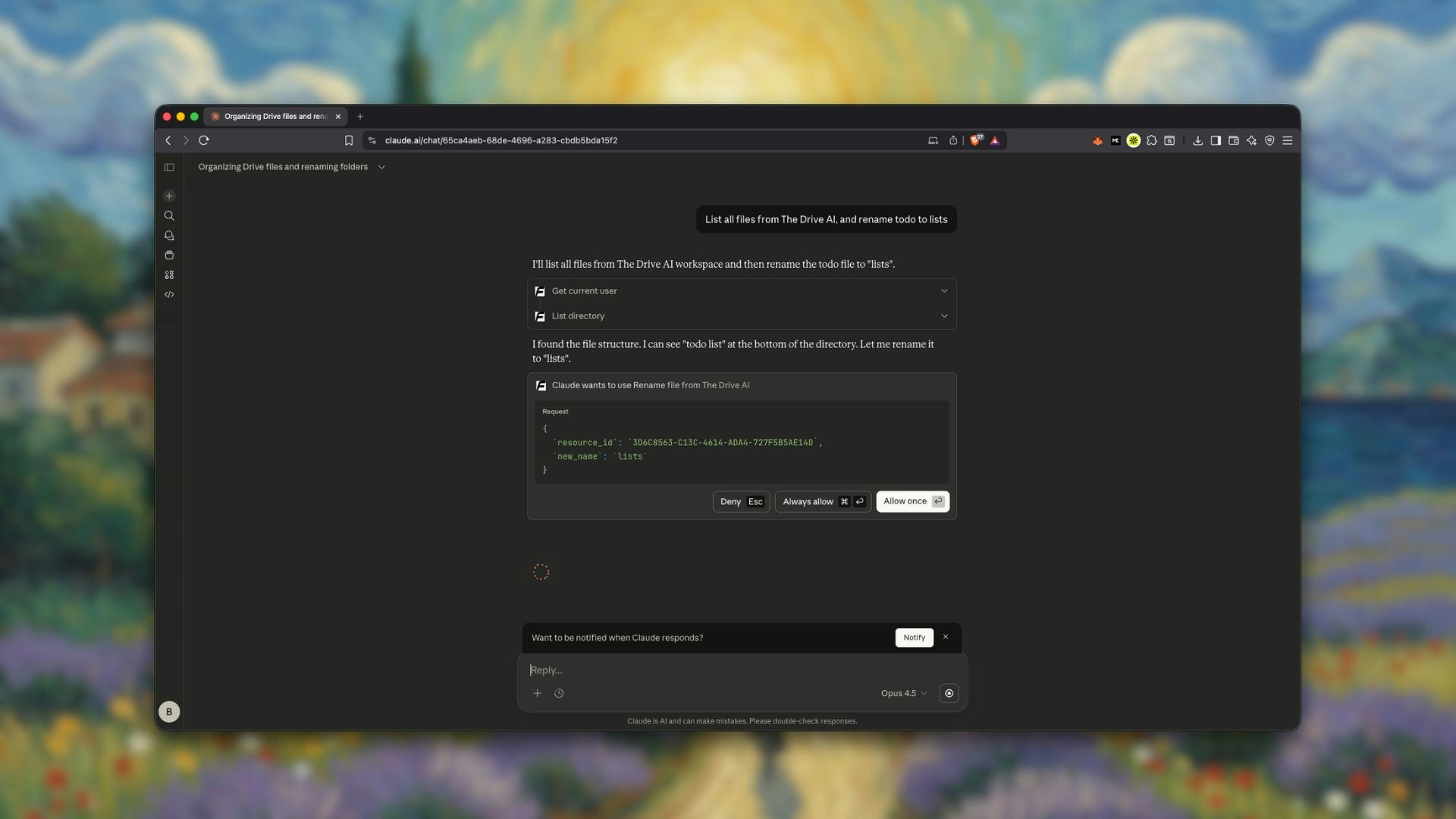
The Drive AI provides an MCP (Model Context Protocol) server that allows you to connect your workspace to AI assistants like Claude, ChatGPT, Cursor IDE, and more. This means you can manage your files from any compatible AI tool.
 ## What is MCP?
The **Model Context Protocol (MCP)** is an open standard that enables AI assistants to securely connect to external data sources and tools. With MCP, AI assistants can:
* Browse and search through your Drive AI files
* Create, rename, move, and share files
* Save AI-generated content directly to your workspace
* Perform file operations through natural language
## MCP Server URL
```
https://thedriveai.fastmcp.app/mcp
```
Use this URL when configuring MCP clients to connect to The Drive AI.
## Supported Integrations
Anthropic's desktop app for Claude AI.
OpenAI's ChatGPT via Connectors.
Claude on the web via Connectors.
AI-powered code editor.
Command-line Claude assistant.
Visual Studio Code with MCP extensions.
Google's Gemini from the command line.
OpenAI's Codex CLI tool.
## Setup Instructions
### Claude Desktop
Go to [thedrive.ai/mcp](https://thedrive.ai/mcp).
Click the **Claude Desktop** button to download the `.dxt` manifest file.
Open Claude Desktop and import the downloaded manifest file.
Follow the prompts to authorize The Drive AI to connect with Claude Desktop.
### ChatGPT
In ChatGPT, go to **Settings** > **Connectors**.
Click **Add Connector** and enter the MCP server URL:
```
https://thedriveai.fastmcp.app/mcp
```
Sign in to your Drive AI account when prompted.
You can now ask ChatGPT to interact with your Drive AI files.
### Claude.ai (Web)
On [claude.ai](https://claude.ai), go to **Settings** > **Connectors**.
Add The Drive AI connector using the MCP server URL.
Complete the authorization flow.
### Cursor IDE
In Cursor, open the settings panel.
Find the MCP configuration section.
Visit [thedrive.ai/mcp](https://thedrive.ai/mcp) and click the **Cursor** button for one-click installation.
### Command-Line Tools (Claude Code, Gemini CLI, etc.)
For command-line MCP clients, add The Drive AI to your MCP configuration:
```json theme={null}
{
"servers": {
"thedrive": {
"url": "https://thedriveai.fastmcp.app/mcp"
}
}
}
```
Refer to your specific CLI tool's documentation for the exact configuration location.
## Available Tools
The MCP server provides 14 tools across three categories:
### User & Authentication
| Tool | Description |
| ------------------ | -------------------------------------------- |
| `get_current_user` | Get information about the authenticated user |
### File Operations
| Tool | Description |
| ---------------- | ------------------------------------- |
| `list_directory` | List files and folders in a directory |
| `read_file` | Read the contents of a file |
| `write_file` | Write content to a file |
| `create_file` | Create a new file |
| `delete_file` | Delete a file |
| `move_file` | Move a file to a new location |
| `copy_file` | Copy a file |
| `rename_file` | Rename a file |
### File Management
| Tool | Description |
| -------------------------- | ------------------------------------- |
| `upload_file_content` | Upload content as a new file |
| `manage_permissions` | Manage file sharing permissions |
| `get_info` | Get metadata about a file or folder |
| `search_files` | Search for files by name or content |
| `list_directory_structure` | Get the full directory tree structure |
## Example Usage
Once connected, you can use natural language with your AI assistant:
### With Claude
```
"List all the files in my Documents folder on Drive AI"
```
```
"Create a new file called notes.txt with today's meeting summary"
```
```
"Search for files containing 'quarterly report' in Drive AI"
```
### With ChatGPT
```
"Show me my recent files from The Drive AI"
```
```
"Save this conversation summary to my Drive AI workspace"
```
### With Cursor
```
"Read the config file from my Drive AI and help me update it"
```
```
"Save this code snippet to my Drive AI code folder"
```
## Requirements
To use the MCP server, you need:
* An **active Drive AI account** (sign in with Google, Microsoft, GitHub, or email)
* A **compatible MCP client** (see supported integrations above)
* **Internet connectivity**
## Security
The MCP server uses OAuth for secure authentication. Each connected app must be authorized through your Drive AI account.
You control which apps can access your Drive AI workspace. You can revoke access at any time from Settings > Integrations.
Connected apps can only access files in your Drive AI workspace. They cannot access files outside of The Drive AI.
## Managing Connected Apps
### View Connected Apps
Go to **Settings** > **Integrations** > **Connected Apps** to see all apps connected via MCP.
### Revoke Access
To disconnect an app:
1. Go to **Settings** > **Integrations** > **Connected Apps**
2. Find the app you want to disconnect
3. Click **Revoke Access**
4. Confirm the revocation
## Troubleshooting
* Verify the MCP server URL is correct
* Ensure you're signed into your Drive AI account
* Check your internet connection
* Try re-authorizing the connection
* Make sure the MCP client supports all tool types
* Some clients may have limitations on available tools
* Check the client's documentation for MCP support details
* Verify your Drive AI account is active
* Check that the app has been properly authorized
* Try disconnecting and reconnecting the app
## What's Next?
Learn about file operations in The Drive AI.
See what's included in each plan.
## What is MCP?
The **Model Context Protocol (MCP)** is an open standard that enables AI assistants to securely connect to external data sources and tools. With MCP, AI assistants can:
* Browse and search through your Drive AI files
* Create, rename, move, and share files
* Save AI-generated content directly to your workspace
* Perform file operations through natural language
## MCP Server URL
```
https://thedriveai.fastmcp.app/mcp
```
Use this URL when configuring MCP clients to connect to The Drive AI.
## Supported Integrations
Anthropic's desktop app for Claude AI.
OpenAI's ChatGPT via Connectors.
Claude on the web via Connectors.
AI-powered code editor.
Command-line Claude assistant.
Visual Studio Code with MCP extensions.
Google's Gemini from the command line.
OpenAI's Codex CLI tool.
## Setup Instructions
### Claude Desktop
Go to [thedrive.ai/mcp](https://thedrive.ai/mcp).
Click the **Claude Desktop** button to download the `.dxt` manifest file.
Open Claude Desktop and import the downloaded manifest file.
Follow the prompts to authorize The Drive AI to connect with Claude Desktop.
### ChatGPT
In ChatGPT, go to **Settings** > **Connectors**.
Click **Add Connector** and enter the MCP server URL:
```
https://thedriveai.fastmcp.app/mcp
```
Sign in to your Drive AI account when prompted.
You can now ask ChatGPT to interact with your Drive AI files.
### Claude.ai (Web)
On [claude.ai](https://claude.ai), go to **Settings** > **Connectors**.
Add The Drive AI connector using the MCP server URL.
Complete the authorization flow.
### Cursor IDE
In Cursor, open the settings panel.
Find the MCP configuration section.
Visit [thedrive.ai/mcp](https://thedrive.ai/mcp) and click the **Cursor** button for one-click installation.
### Command-Line Tools (Claude Code, Gemini CLI, etc.)
For command-line MCP clients, add The Drive AI to your MCP configuration:
```json theme={null}
{
"servers": {
"thedrive": {
"url": "https://thedriveai.fastmcp.app/mcp"
}
}
}
```
Refer to your specific CLI tool's documentation for the exact configuration location.
## Available Tools
The MCP server provides 14 tools across three categories:
### User & Authentication
| Tool | Description |
| ------------------ | -------------------------------------------- |
| `get_current_user` | Get information about the authenticated user |
### File Operations
| Tool | Description |
| ---------------- | ------------------------------------- |
| `list_directory` | List files and folders in a directory |
| `read_file` | Read the contents of a file |
| `write_file` | Write content to a file |
| `create_file` | Create a new file |
| `delete_file` | Delete a file |
| `move_file` | Move a file to a new location |
| `copy_file` | Copy a file |
| `rename_file` | Rename a file |
### File Management
| Tool | Description |
| -------------------------- | ------------------------------------- |
| `upload_file_content` | Upload content as a new file |
| `manage_permissions` | Manage file sharing permissions |
| `get_info` | Get metadata about a file or folder |
| `search_files` | Search for files by name or content |
| `list_directory_structure` | Get the full directory tree structure |
## Example Usage
Once connected, you can use natural language with your AI assistant:
### With Claude
```
"List all the files in my Documents folder on Drive AI"
```
```
"Create a new file called notes.txt with today's meeting summary"
```
```
"Search for files containing 'quarterly report' in Drive AI"
```
### With ChatGPT
```
"Show me my recent files from The Drive AI"
```
```
"Save this conversation summary to my Drive AI workspace"
```
### With Cursor
```
"Read the config file from my Drive AI and help me update it"
```
```
"Save this code snippet to my Drive AI code folder"
```
## Requirements
To use the MCP server, you need:
* An **active Drive AI account** (sign in with Google, Microsoft, GitHub, or email)
* A **compatible MCP client** (see supported integrations above)
* **Internet connectivity**
## Security
The MCP server uses OAuth for secure authentication. Each connected app must be authorized through your Drive AI account.
You control which apps can access your Drive AI workspace. You can revoke access at any time from Settings > Integrations.
Connected apps can only access files in your Drive AI workspace. They cannot access files outside of The Drive AI.
## Managing Connected Apps
### View Connected Apps
Go to **Settings** > **Integrations** > **Connected Apps** to see all apps connected via MCP.
### Revoke Access
To disconnect an app:
1. Go to **Settings** > **Integrations** > **Connected Apps**
2. Find the app you want to disconnect
3. Click **Revoke Access**
4. Confirm the revocation
## Troubleshooting
* Verify the MCP server URL is correct
* Ensure you're signed into your Drive AI account
* Check your internet connection
* Try re-authorizing the connection
* Make sure the MCP client supports all tool types
* Some clients may have limitations on available tools
* Check the client's documentation for MCP support details
* Verify your Drive AI account is active
* Check that the app has been properly authorized
* Try disconnecting and reconnecting the app
## What's Next?
Learn about file operations in The Drive AI.
See what's included in each plan.