> ## Documentation Index
> Fetch the complete documentation index at: https://docs.thedrive.ai/llms.txt
> Use this file to discover all available pages before exploring further.
# Google Drive
> Connect Google Drive so the agent and workflows can work in it, and import or export files
## Overview
Connecting Google Drive lets The Drive AI work with your files where they already are:
* **The agent** can find, read and organize files in Google Drive. Every change is shown on a card in the chat, and you can undo it there. See [Connected drives](/agent/connected-drives#undo-on-each-drive) for what can be undone in Google Drive.
* **Workflows** can start when a file is added to Google Drive, and can save files there. See [Workflows](/workflows/overview).
* **Import and export** copy files between Google Drive and The Drive AI when you want a copy on the other side.
Connected drives and accounts come with Max, Team, Business and Enterprise. See [Plans & Pricing](/account/plans-pricing).
## Who can do what
| Task | Who |
| - | - |
| Connect a Google account | Any member who can open **Settings**. Viewers can't. |
| See which accounts are connected, and who connected them | Every member |
| Browse an account, import from it or export to it | Only the person who connected it |
| Add a Shared Drive for the agent | Owners and admins, with a Google account they connected themselves |
| Disconnect an account | The person who connected it, or an owner or admin |
## Connect Google Drive
Open **Settings** and choose **Integrations**. Under **Cloud storage**, click **Google Drive**.
Click **Connect Google Drive**. A window opens where you choose your Google account and allow access. If nothing opens, allow pop-ups for The Drive AI and try again.
When you're done, you see **Google Drive connected** and the account appears under **Connected accounts**. While the agent builds its catalog of your drive, the account shows **Agent: cataloguing**. When it's done, it shows **Agent: ready**.
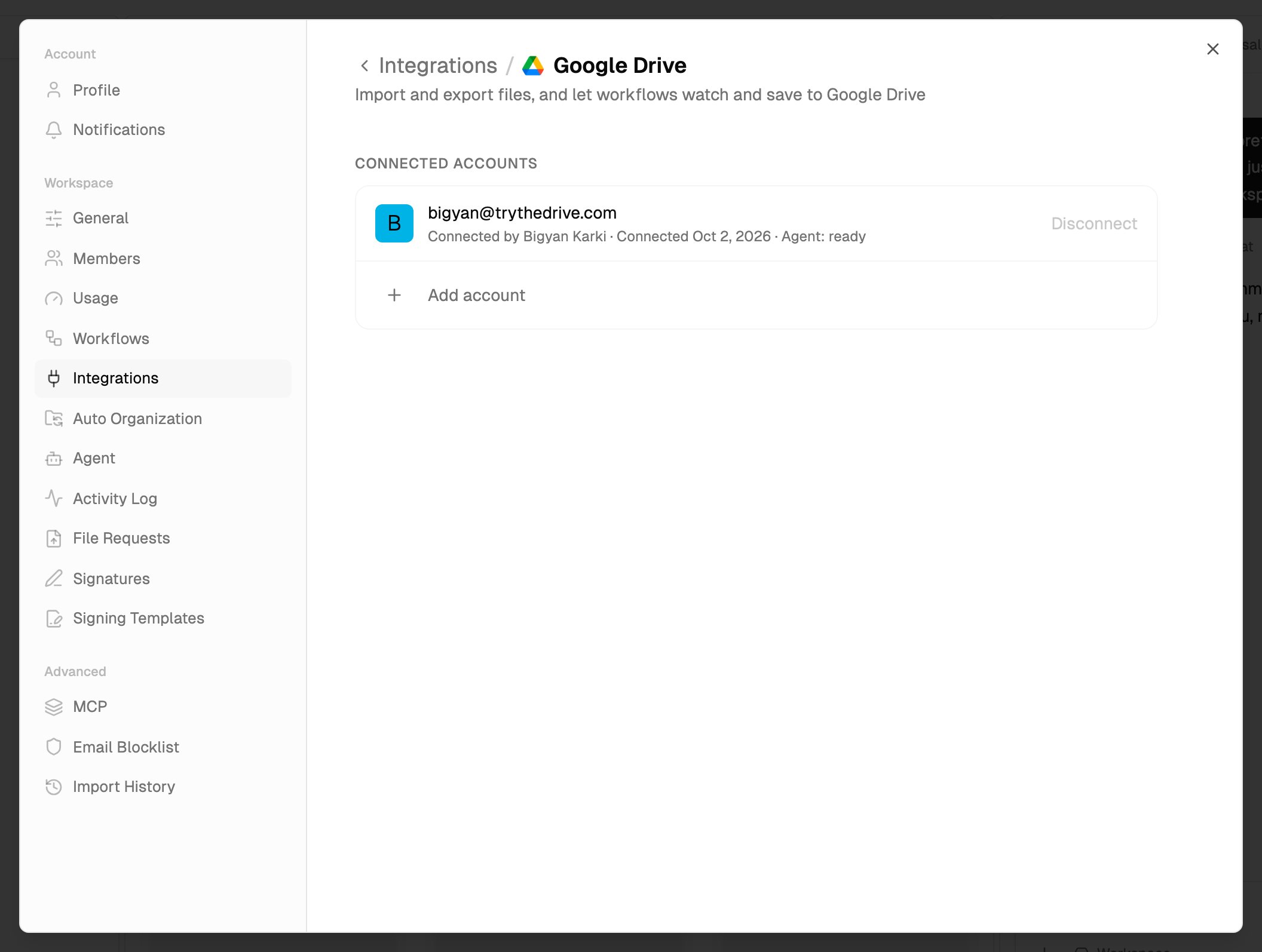 To connect another Google account, click **Add account** at the bottom of the list. Each account is listed separately, with who connected it, when, and how many workflows use it (for example **Used by 2 workflows**). Accounts you can't act on show **View only**.
If your plan doesn't include connected drives, clicking **Google Drive** opens a message saying which plans include them, instead of the sign-in window.
### What you allow
Google asks you to let The Drive AI see, edit, create and delete files in your Google Drive. That access is what lets the agent organize files where they are, lets workflows save files there, and lets you export. The agent only changes files when you ask, and shows each change on a card you can undo. Workflows only act on what an owner or admin set them up to do.
The Drive AI uses the account with your own Google permissions. It can't open anything your Google account can't.
## Shared Drives
A Google Shared Drive isn't part of anyone's **My Drive**, so it's added separately:
* **For the agent:** a workspace owner or admin adds it once for the workspace, with their own connected Google account: open **Settings** > **Agent** and click **Add shared drive**, or click **+** beside **Google Drive** under **Connected** in the left sidebar. Each member then reaches it through their own connected Google account, if that account is a member of the Shared Drive. See [Connected drives](/agent/connected-drives#personal-drives-and-shared-drives).
* **For import and export:** if your account belongs to any Shared Drives, a picker next to your account lets you switch between **My Drive** and each Shared Drive.
* **For workflows:** see [Triggers](/workflows/triggers).
## Import files into The Drive AI
Importing makes a copy in The Drive AI. You don't need to import a file for the agent to work on it: the agent can read and organize files in your connected drive where they are.
In the file browser, open the folder you want the files in.
Click **New** and choose **Import from Cloud**. You can also right-click an empty part of the folder and choose **Import from Cloud**.
Under **Connected accounts**, click your Google account. Only accounts you connected yourself are listed. To connect one here, click **Google Drive** under **Add account**.
Browse to what you want and tick it. To import from a Shared Drive, switch from **My Drive** in the picker at the top. You can select up to 100 items per import. A selected folder counts as one item and is imported with everything in it.
Leave **Skip duplicates** on, then click **Import** (the button shows how many items, for example **Import 3 items**).
What to expect:
* **Progress** shows under **Transfers** in the left sidebar while the import runs. Click it to see each transfer's progress.
* **Skip duplicates** is on by default. With it on, a file whose content is already somewhere in the workspace is skipped, and a folder with the same name already in the same place is reused instead of created again.
* **Google Docs, Sheets, Slides and Drawings** are imported as PDFs. One of these over 10 MB can't be imported.
* **Folders** are imported up to 10 levels deep.
* **Imported files are copies.** Your originals in Google Drive stay where they are, and later changes on either side aren't copied across.
## Export files to Google Drive
Click **⋮** on a file or folder and choose **Export to Cloud**. To export several at once, select them and click **Export** in the selection bar.
Choose your Google account, switch to a Shared Drive if you need to, and open the destination folder.
Click **Export here**. Progress shows under **Transfers**.
Only the person who connected an account can export to it. Viewers can't export.
## Disconnect
In **Settings** > **Integrations**, open **Google Drive**.
Click **Disconnect** next to the account. The confirmation lists the workflows that will pause, or says **No workflows depend on this account.** Confirm to disconnect.
When you disconnect:
* Workflows that use the account are paused. If the same Google account is connected again later, workflows paused only because of the disconnect start again on their own.
* The agent stops seeing the drive. In **Settings** > **Agent**, it shows as **Paused**.
* Files you already imported stay in The Drive AI.
* The Drive AI stops using the account, but the access you allowed is still listed in your Google account. To remove it there too, remove The Drive AI's access in your Google account settings.
## Troubleshooting
* If you see **Popup blocked**, allow pop-ups for The Drive AI, then try again.
* Make sure you choose the right Google account in the sign-in window.
* If a message about plans appears instead of the sign-in window, your plan doesn't include connected drives.
Only the person who connected an account can browse it. If a teammate's account shows **View only**, connect your own Google account with **Add account**.
* **In Import from Cloud:** the picker only appears when your account belongs to at least one Shared Drive. Check that you connected the Google account that's a member.
* **For the agent:** an owner or admin has to add the Shared Drive in **Settings** > **Agent**, and your own connected Google account has to be a member of it.
* Wait until the account shows **Agent: ready** in **Settings** > **Integrations**.
* If it shows **Agent: needs attention**, open **Settings** > **Agent** to see why, and click **Re-scan**.
* See [Troubleshooting](/help/troubleshooting).
With **Skip duplicates** on, files already in the workspace are skipped. Turn it off to import a second copy.
## What's next?
What the agent can and can't do in Google Drive.
Use the agent next to Google Drive in Chrome.
This documentation is built and hosted on [Mintlify](https://mintlify.com), a developer documentation platform.
To connect another Google account, click **Add account** at the bottom of the list. Each account is listed separately, with who connected it, when, and how many workflows use it (for example **Used by 2 workflows**). Accounts you can't act on show **View only**.
If your plan doesn't include connected drives, clicking **Google Drive** opens a message saying which plans include them, instead of the sign-in window.
### What you allow
Google asks you to let The Drive AI see, edit, create and delete files in your Google Drive. That access is what lets the agent organize files where they are, lets workflows save files there, and lets you export. The agent only changes files when you ask, and shows each change on a card you can undo. Workflows only act on what an owner or admin set them up to do.
The Drive AI uses the account with your own Google permissions. It can't open anything your Google account can't.
## Shared Drives
A Google Shared Drive isn't part of anyone's **My Drive**, so it's added separately:
* **For the agent:** a workspace owner or admin adds it once for the workspace, with their own connected Google account: open **Settings** > **Agent** and click **Add shared drive**, or click **+** beside **Google Drive** under **Connected** in the left sidebar. Each member then reaches it through their own connected Google account, if that account is a member of the Shared Drive. See [Connected drives](/agent/connected-drives#personal-drives-and-shared-drives).
* **For import and export:** if your account belongs to any Shared Drives, a picker next to your account lets you switch between **My Drive** and each Shared Drive.
* **For workflows:** see [Triggers](/workflows/triggers).
## Import files into The Drive AI
Importing makes a copy in The Drive AI. You don't need to import a file for the agent to work on it: the agent can read and organize files in your connected drive where they are.
In the file browser, open the folder you want the files in.
Click **New** and choose **Import from Cloud**. You can also right-click an empty part of the folder and choose **Import from Cloud**.
Under **Connected accounts**, click your Google account. Only accounts you connected yourself are listed. To connect one here, click **Google Drive** under **Add account**.
Browse to what you want and tick it. To import from a Shared Drive, switch from **My Drive** in the picker at the top. You can select up to 100 items per import. A selected folder counts as one item and is imported with everything in it.
Leave **Skip duplicates** on, then click **Import** (the button shows how many items, for example **Import 3 items**).
What to expect:
* **Progress** shows under **Transfers** in the left sidebar while the import runs. Click it to see each transfer's progress.
* **Skip duplicates** is on by default. With it on, a file whose content is already somewhere in the workspace is skipped, and a folder with the same name already in the same place is reused instead of created again.
* **Google Docs, Sheets, Slides and Drawings** are imported as PDFs. One of these over 10 MB can't be imported.
* **Folders** are imported up to 10 levels deep.
* **Imported files are copies.** Your originals in Google Drive stay where they are, and later changes on either side aren't copied across.
## Export files to Google Drive
Click **⋮** on a file or folder and choose **Export to Cloud**. To export several at once, select them and click **Export** in the selection bar.
Choose your Google account, switch to a Shared Drive if you need to, and open the destination folder.
Click **Export here**. Progress shows under **Transfers**.
Only the person who connected an account can export to it. Viewers can't export.
## Disconnect
In **Settings** > **Integrations**, open **Google Drive**.
Click **Disconnect** next to the account. The confirmation lists the workflows that will pause, or says **No workflows depend on this account.** Confirm to disconnect.
When you disconnect:
* Workflows that use the account are paused. If the same Google account is connected again later, workflows paused only because of the disconnect start again on their own.
* The agent stops seeing the drive. In **Settings** > **Agent**, it shows as **Paused**.
* Files you already imported stay in The Drive AI.
* The Drive AI stops using the account, but the access you allowed is still listed in your Google account. To remove it there too, remove The Drive AI's access in your Google account settings.
## Troubleshooting
* If you see **Popup blocked**, allow pop-ups for The Drive AI, then try again.
* Make sure you choose the right Google account in the sign-in window.
* If a message about plans appears instead of the sign-in window, your plan doesn't include connected drives.
Only the person who connected an account can browse it. If a teammate's account shows **View only**, connect your own Google account with **Add account**.
* **In Import from Cloud:** the picker only appears when your account belongs to at least one Shared Drive. Check that you connected the Google account that's a member.
* **For the agent:** an owner or admin has to add the Shared Drive in **Settings** > **Agent**, and your own connected Google account has to be a member of it.
* Wait until the account shows **Agent: ready** in **Settings** > **Integrations**.
* If it shows **Agent: needs attention**, open **Settings** > **Agent** to see why, and click **Re-scan**.
* See [Troubleshooting](/help/troubleshooting).
With **Skip duplicates** on, files already in the workspace are skipped. Turn it off to import a second copy.
## What's next?
What the agent can and can't do in Google Drive.
Use the agent next to Google Drive in Chrome.
This documentation is built and hosted on [Mintlify](https://mintlify.com), a developer documentation platform.