> ## Documentation Index
> Fetch the complete documentation index at: https://docs.thedrive.ai/llms.txt
> Use this file to discover all available pages before exploring further.
# Google Drive Import
> Import and export files between Google Drive and The Drive AI
## Overview
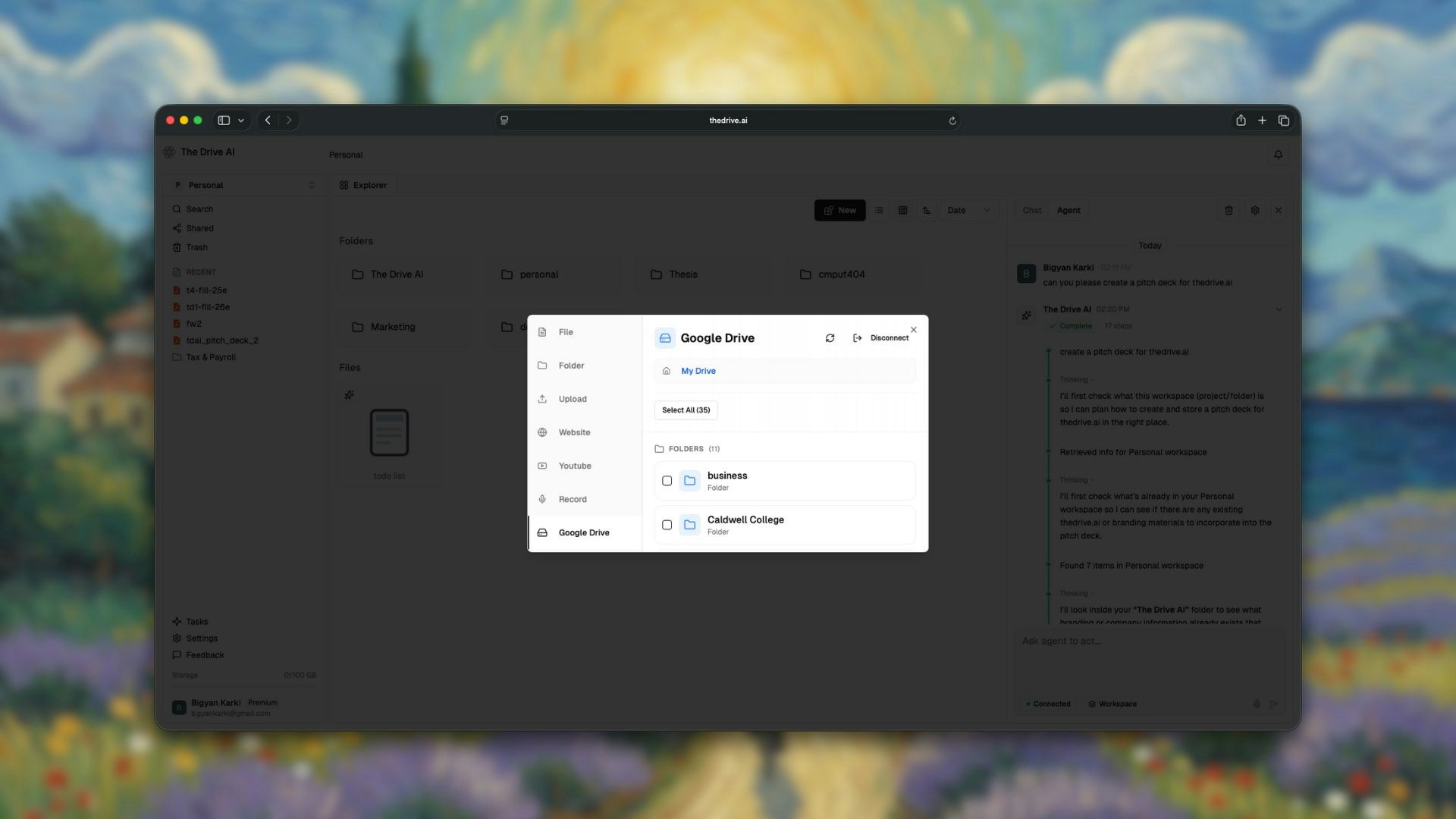
The Drive AI connects with Google Drive so you can import files from Google Drive into your workspace and export files back. This is a manual import/export—files are copied on demand, not automatically synced.
 ## Why Import from Google Drive?
When you import files from Google Drive to The Drive AI, you unlock:
* **AI-powered organization** for your existing files
* **Natural language search** across all your documents
* **Chat Mode** to ask questions about your files
* **Agent Mode** to perform bulk operations
* **Unified workspace** for all your files
## How to Import from Google Drive
In The Drive AI, navigate to **Settings** > **Integrations** > **Google Drive**.
Click **Connect Google Drive** and authorize The Drive AI to access your files.
The Drive AI uses secure OAuth authentication. Your Google password is never shared with us.
Once connected, you'll see your Google Drive folders and files in the import interface.
Navigate to the files or folders you want to import.
Select individual files or entire folders to import.
* **Single files**: Click to select
* **Multiple files**: Hold `Command` (Mac) or `Ctrl` (Windows) and click
* **Entire folders**: Select the folder to import all contents
Select where in your The Drive AI workspace you want the files to go.
You can:
* Import to the root of your workspace (auto-organization will sort them)
* Import to a specific existing folder
* Create a new folder for the imported files
Click **Import** to begin the transfer.
Files are copied to The Drive AI—your original Google Drive files remain untouched.
## Exporting Files to Google Drive
You can also send files from your Drive AI workspace back to Google Drive:
Select the files or folders you want to export from your workspace.
Right-click and select **Export to Cloud**, or use the export option from the file actions menu.
Select the Google Drive folder where you want the files to go.
Click **Export** to copy the files to your Google Drive.
## How Import/Export Works
Google Drive integration is **manual import/export**, not live sync. Files are copied when you trigger the action. Changes made in one location are not automatically reflected in the other.
| Behavior | Details |
| ------------------ | -------------------------------------------------------- |
| **Import** | Copies files from Google Drive to your workspace |
| **Export** | Copies files from your workspace to Google Drive |
| **Live sync** | Not available — import and export are triggered manually |
| **Original files** | Remain untouched in the source location |
### Auto-Organization on Import
When importing to your workspace root, you can enable auto-organization:
* **Enabled**: Files are automatically sorted into logical folders after import
* **Disabled**: Files are placed exactly where you specify
## Supported File Types
All Google Drive file types supported by The Drive AI can be imported:
| Google Drive Format | The Drive AI Support |
| ------------------- | --------------------------- |
| Google Docs | Converted to DOCX |
| Google Sheets | Converted to XLSX |
| Google Slides | Converted to PPTX |
| PDF files | Imported as-is |
| Images | Imported as-is (Premium) |
| Other files | Imported in original format |
Google Docs, Sheets, and Slides are converted to Microsoft Office formats during import to ensure full compatibility.
## Managing Your Google Drive Connection
### Viewing Connection Status
Go to **Settings** > **Integrations** to see your connected Google account and connection status.
### Disconnecting Google Drive
To disconnect:
1. Go to **Settings** > **Integrations** > **Google Drive**
2. Click **Disconnect**
3. Confirm the disconnection
Disconnecting does not delete files already imported to The Drive AI. It only removes the ability to import new files.
### Reconnecting
If you need to reconnect or connect a different Google account:
1. Disconnect the current account (if connected)
2. Click **Connect Google Drive**
3. Sign in with the desired Google account
## Tips for Importing
Don't try to import everything at once. Start with your most important folders and let The Drive AI organize them.
Import files to your workspace root with auto-organization enabled. The AI will create a logical structure automatically.
Before large imports, check your storage limits:
* Free plan: 5 GB
* Premium plan: 100 GB
For large Google Drives, import in batches to monitor progress and ensure successful transfers.
## Troubleshooting
* Ensure you're signed into the correct Google account
* Check that you've granted the necessary permissions
* Try disconnecting and reconnecting
* Refresh the import interface
* Check if the files are in a shared drive (may have different permissions)
* Ensure the file types are supported
* Large files take longer to transfer
* Slow internet connections affect import speed
* Try importing smaller batches
## What's Next?
Auto-import attachments from Gmail and Outlook.
Learn how imported files get organized.
## Why Import from Google Drive?
When you import files from Google Drive to The Drive AI, you unlock:
* **AI-powered organization** for your existing files
* **Natural language search** across all your documents
* **Chat Mode** to ask questions about your files
* **Agent Mode** to perform bulk operations
* **Unified workspace** for all your files
## How to Import from Google Drive
In The Drive AI, navigate to **Settings** > **Integrations** > **Google Drive**.
Click **Connect Google Drive** and authorize The Drive AI to access your files.
The Drive AI uses secure OAuth authentication. Your Google password is never shared with us.
Once connected, you'll see your Google Drive folders and files in the import interface.
Navigate to the files or folders you want to import.
Select individual files or entire folders to import.
* **Single files**: Click to select
* **Multiple files**: Hold `Command` (Mac) or `Ctrl` (Windows) and click
* **Entire folders**: Select the folder to import all contents
Select where in your The Drive AI workspace you want the files to go.
You can:
* Import to the root of your workspace (auto-organization will sort them)
* Import to a specific existing folder
* Create a new folder for the imported files
Click **Import** to begin the transfer.
Files are copied to The Drive AI—your original Google Drive files remain untouched.
## Exporting Files to Google Drive
You can also send files from your Drive AI workspace back to Google Drive:
Select the files or folders you want to export from your workspace.
Right-click and select **Export to Cloud**, or use the export option from the file actions menu.
Select the Google Drive folder where you want the files to go.
Click **Export** to copy the files to your Google Drive.
## How Import/Export Works
Google Drive integration is **manual import/export**, not live sync. Files are copied when you trigger the action. Changes made in one location are not automatically reflected in the other.
| Behavior | Details |
| ------------------ | -------------------------------------------------------- |
| **Import** | Copies files from Google Drive to your workspace |
| **Export** | Copies files from your workspace to Google Drive |
| **Live sync** | Not available — import and export are triggered manually |
| **Original files** | Remain untouched in the source location |
### Auto-Organization on Import
When importing to your workspace root, you can enable auto-organization:
* **Enabled**: Files are automatically sorted into logical folders after import
* **Disabled**: Files are placed exactly where you specify
## Supported File Types
All Google Drive file types supported by The Drive AI can be imported:
| Google Drive Format | The Drive AI Support |
| ------------------- | --------------------------- |
| Google Docs | Converted to DOCX |
| Google Sheets | Converted to XLSX |
| Google Slides | Converted to PPTX |
| PDF files | Imported as-is |
| Images | Imported as-is (Premium) |
| Other files | Imported in original format |
Google Docs, Sheets, and Slides are converted to Microsoft Office formats during import to ensure full compatibility.
## Managing Your Google Drive Connection
### Viewing Connection Status
Go to **Settings** > **Integrations** to see your connected Google account and connection status.
### Disconnecting Google Drive
To disconnect:
1. Go to **Settings** > **Integrations** > **Google Drive**
2. Click **Disconnect**
3. Confirm the disconnection
Disconnecting does not delete files already imported to The Drive AI. It only removes the ability to import new files.
### Reconnecting
If you need to reconnect or connect a different Google account:
1. Disconnect the current account (if connected)
2. Click **Connect Google Drive**
3. Sign in with the desired Google account
## Tips for Importing
Don't try to import everything at once. Start with your most important folders and let The Drive AI organize them.
Import files to your workspace root with auto-organization enabled. The AI will create a logical structure automatically.
Before large imports, check your storage limits:
* Free plan: 5 GB
* Premium plan: 100 GB
For large Google Drives, import in batches to monitor progress and ensure successful transfers.
## Troubleshooting
* Ensure you're signed into the correct Google account
* Check that you've granted the necessary permissions
* Try disconnecting and reconnecting
* Refresh the import interface
* Check if the files are in a shared drive (may have different permissions)
* Ensure the file types are supported
* Large files take longer to transfer
* Slow internet connections affect import speed
* Try importing smaller batches
## What's Next?
Auto-import attachments from Gmail and Outlook.
Learn how imported files get organized.