> ## Documentation Index
> Fetch the complete documentation index at: https://docs.thedrive.ai/llms.txt
> Use this file to discover all available pages before exploring further.
# Quick Start
> Get up and running with The Drive AI in minutes
## Create Your Account
Visit [thedrive.ai](https://thedrive.ai) in your web browser.
Select your preferred sign-in option:
* **Google** - Sign in with your Google account
* **Microsoft** - Sign in with your Microsoft account
* **GitHub** - Sign in with your GitHub account
* **Email & Password** - Create an account with your email address
Social sign-in (Google, Microsoft, GitHub) is the fastest way to get started—no password to remember.
Follow the onboarding prompts to set up your workspace. You'll be ready to start uploading files immediately.
## Upload Your First Files
Once you're in your workspace, you can start uploading files right away. There are two ways to upload:
The quickest way to upload files:
1. Open your workspace in The Drive AI
2. Drag files from your computer into the browser window
3. Drop them anywhere in the workspace
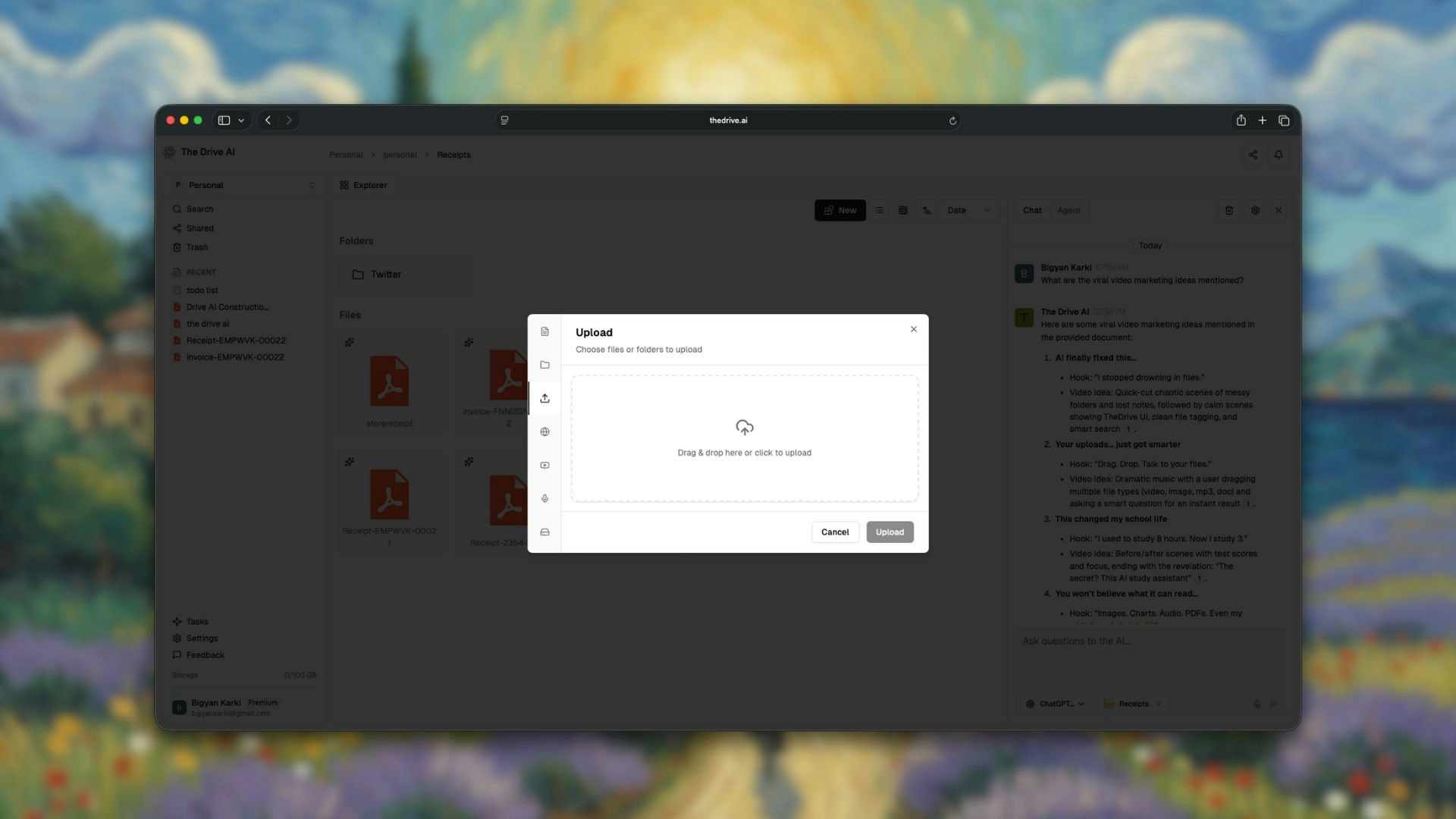
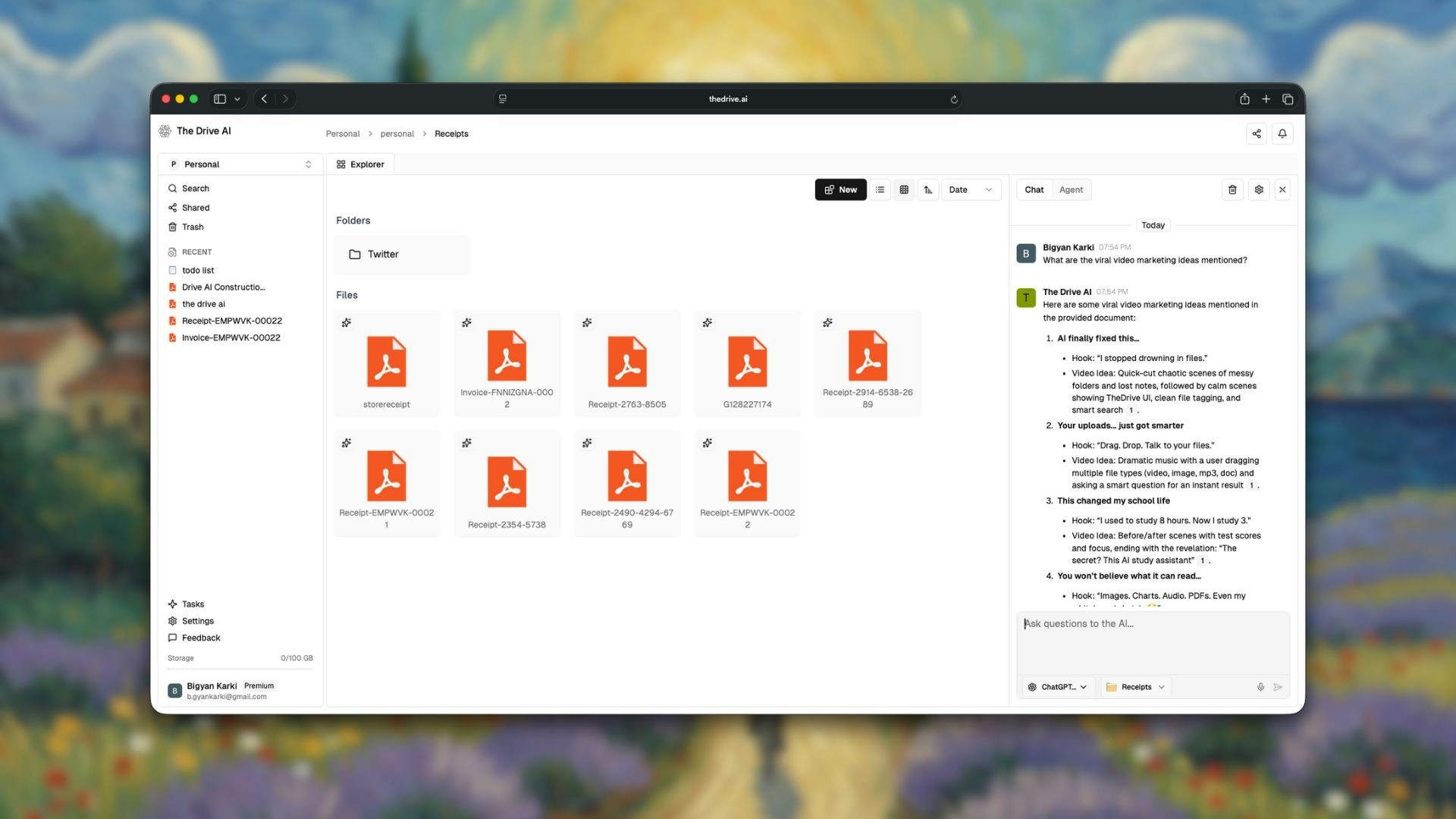 Use the toolbar to upload:
1. Click the **New** button in the toolbar
2. Select **Upload File** from the menu
3. Choose files from your computer
Use the toolbar to upload:
1. Click the **New** button in the toolbar
2. Select **Upload File** from the menu
3. Choose files from your computer
 ### Supported File Types
The Drive AI supports a wide range of file formats:
PDF, DOCX, DOC, TXT, RTF
XLSX, XLS, CSV
PPTX, PPT
PNG, JPG, JPEG, GIF, WEBP
MP3, WAV, M4A
MP4, MOV, AVI
**Free plan** supports text-based files only (PDF, DOCX, etc.). **Premium plan** unlocks support for images, audio, and video files.
## Let AI Organize Your Files
After uploading, you have two options for organization:
### Option 1: Automatic Organization
When you upload files to the root of your workspace, The Drive AI automatically analyzes and organizes them into appropriate folders. No action needed—just upload and watch the magic happen.
### Option 2: Manual Organization (Command+K)
Want more control? Use the keyboard shortcut:
1. Select the files or folder you want to organize
2. Press `Command+K` (Mac) or `Ctrl+K` (Windows)
3. The AI will analyze and organize the selected items
You can also right-click on files or folders and select **Organize with AI** from the context menu.
## Try Your First Command
Now that you have files in your workspace, try interacting with them:
### Chat Mode (Ask Questions)
Click on the chat interface and ask a question about your files:
```
What are the main topics covered in my uploaded documents?
```
The AI will analyze your files and provide an answer.
### Agent Mode (Take Actions)
Switch to Agent Mode to perform actions:
```
Create a folder called "Reports" and move all PDF files there
```
The AI will execute this command automatically.
## What's Next?
Learn the layout and navigation of The Drive AI.
Master the AI-powered organization features.
Learn how to ask questions about your files.
Discover powerful file operations with natural language.
### Supported File Types
The Drive AI supports a wide range of file formats:
PDF, DOCX, DOC, TXT, RTF
XLSX, XLS, CSV
PPTX, PPT
PNG, JPG, JPEG, GIF, WEBP
MP3, WAV, M4A
MP4, MOV, AVI
**Free plan** supports text-based files only (PDF, DOCX, etc.). **Premium plan** unlocks support for images, audio, and video files.
## Let AI Organize Your Files
After uploading, you have two options for organization:
### Option 1: Automatic Organization
When you upload files to the root of your workspace, The Drive AI automatically analyzes and organizes them into appropriate folders. No action needed—just upload and watch the magic happen.
### Option 2: Manual Organization (Command+K)
Want more control? Use the keyboard shortcut:
1. Select the files or folder you want to organize
2. Press `Command+K` (Mac) or `Ctrl+K` (Windows)
3. The AI will analyze and organize the selected items
You can also right-click on files or folders and select **Organize with AI** from the context menu.
## Try Your First Command
Now that you have files in your workspace, try interacting with them:
### Chat Mode (Ask Questions)
Click on the chat interface and ask a question about your files:
```
What are the main topics covered in my uploaded documents?
```
The AI will analyze your files and provide an answer.
### Agent Mode (Take Actions)
Switch to Agent Mode to perform actions:
```
Create a folder called "Reports" and move all PDF files there
```
The AI will execute this command automatically.
## What's Next?
Learn the layout and navigation of The Drive AI.
Master the AI-powered organization features.
Learn how to ask questions about your files.
Discover powerful file operations with natural language.