> ## Documentation Index
> Fetch the complete documentation index at: https://docs.thedrive.ai/llms.txt
> Use this file to discover all available pages before exploring further.
# Introduction
> Learn what The Drive AI is and how it transforms file management
 ## What is The Drive AI?
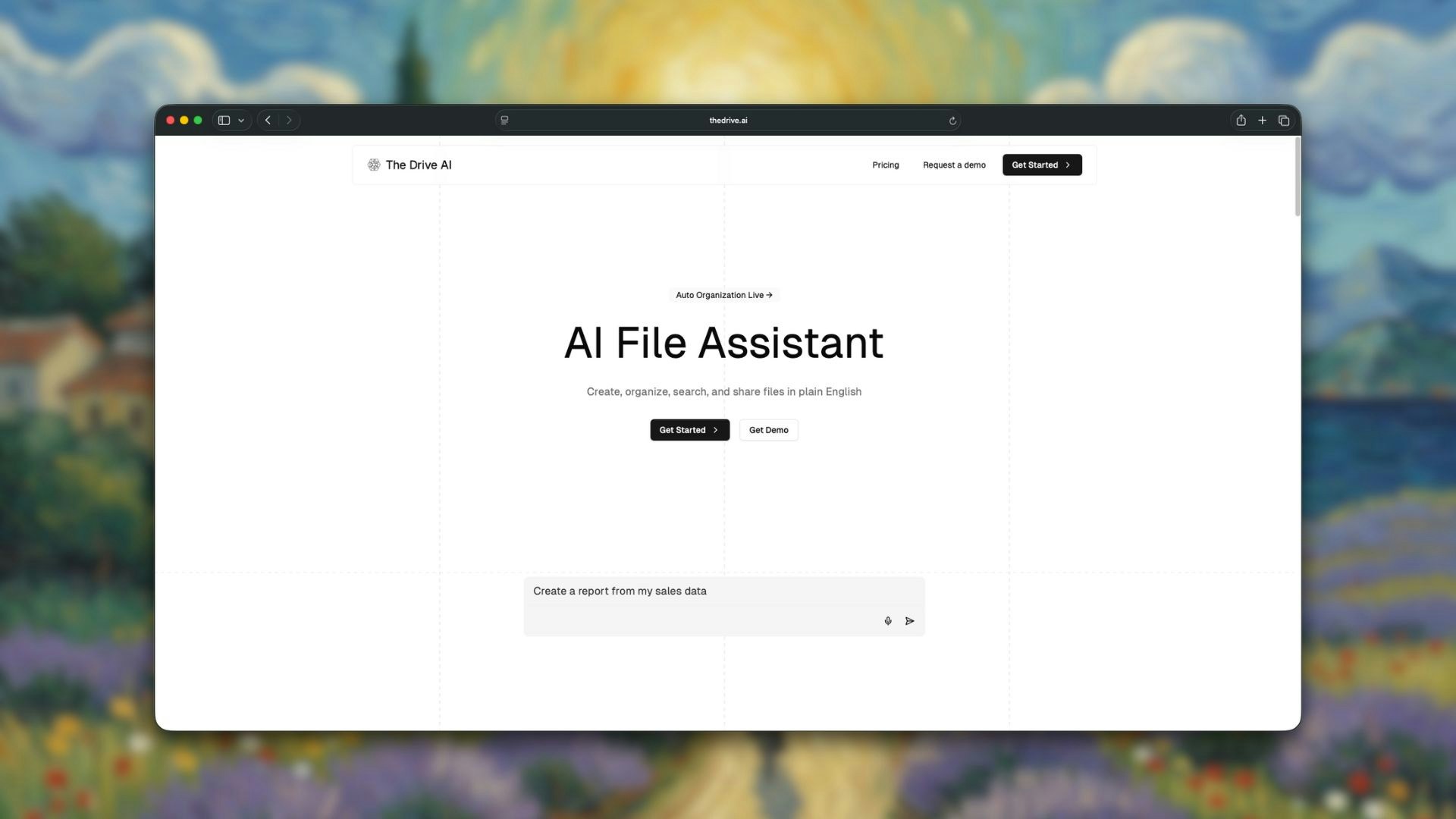
[The Drive AI](https://thedrive.ai) is an AI-powered workspace where all file operations—creating, sharing, organizing, and managing files—can be done using plain English. Think of it as ChatGPT for your files.
Instead of navigating folders, copying content, or manually organizing documents, you simply describe what you want to accomplish. The Drive AI figures out the steps and executes them automatically.
## Key Features
AI reads and understands your files, then automatically organizes them into logical folder structures.
Ask questions about your files and get instant answers without taking any actions.
Execute file operations through natural language—create, rename, move, share, and organize files by just describing what you want.
Works with PDFs, documents, spreadsheets, presentations, images, videos, and audio files.
Create team workspaces with up to 50 members and role-based access levels for seamless collaboration.
Connect with Google Drive, Gmail, Outlook, and AI tools like Claude, ChatGPT, and Cursor.
## How It Works
Drag and drop files into your workspace. No need to worry about folder structures upfront.
The Drive AI reads and understands the content, context, and relationships between your files.
Files are placed in the right folders instantly, or you can trigger organization manually with `Command+K`.
Use Chat Mode to ask questions or Agent Mode to perform actions—all through natural language.
## How Is This Different From Traditional Tools?
Traditional file management tools give you buttons, menus, and folders—and expect you to do all the work yourself. You manually create folders, drag files around, rename them one by one, and spend hours organizing.
**The Drive AI is different:**
| Traditional Tools | The Drive AI |
| ---------------------- | --------------------------------------- |
| Manual folder creation | AI creates folders based on content |
| One file at a time | Bulk operations via natural language |
| Click-heavy workflows | Describe what you want in plain English |
| You organize | AI organizes for you |
| Search through folders | Ask questions, get answers |
## Example Use Cases
Organize lecture notes, assignments, and research papers automatically. Ask questions like "What did my professor say about neural networks?" and get answers from your notes.
Keep project files organized across clients. Use commands like "Create a folder structure for the new marketing campaign" and watch it happen instantly.
Manage case files and legal documents. Search across hundreds of documents with natural language queries.
Organize reports, spreadsheets, and presentations. Quickly find specific data across multiple files.
## What's Next?
Set up your account and upload your first files.
Learn your way around The Drive AI dashboard.
## What is The Drive AI?
[The Drive AI](https://thedrive.ai) is an AI-powered workspace where all file operations—creating, sharing, organizing, and managing files—can be done using plain English. Think of it as ChatGPT for your files.
Instead of navigating folders, copying content, or manually organizing documents, you simply describe what you want to accomplish. The Drive AI figures out the steps and executes them automatically.
## Key Features
AI reads and understands your files, then automatically organizes them into logical folder structures.
Ask questions about your files and get instant answers without taking any actions.
Execute file operations through natural language—create, rename, move, share, and organize files by just describing what you want.
Works with PDFs, documents, spreadsheets, presentations, images, videos, and audio files.
Create team workspaces with up to 50 members and role-based access levels for seamless collaboration.
Connect with Google Drive, Gmail, Outlook, and AI tools like Claude, ChatGPT, and Cursor.
## How It Works
Drag and drop files into your workspace. No need to worry about folder structures upfront.
The Drive AI reads and understands the content, context, and relationships between your files.
Files are placed in the right folders instantly, or you can trigger organization manually with `Command+K`.
Use Chat Mode to ask questions or Agent Mode to perform actions—all through natural language.
## How Is This Different From Traditional Tools?
Traditional file management tools give you buttons, menus, and folders—and expect you to do all the work yourself. You manually create folders, drag files around, rename them one by one, and spend hours organizing.
**The Drive AI is different:**
| Traditional Tools | The Drive AI |
| ---------------------- | --------------------------------------- |
| Manual folder creation | AI creates folders based on content |
| One file at a time | Bulk operations via natural language |
| Click-heavy workflows | Describe what you want in plain English |
| You organize | AI organizes for you |
| Search through folders | Ask questions, get answers |
## Example Use Cases
Organize lecture notes, assignments, and research papers automatically. Ask questions like "What did my professor say about neural networks?" and get answers from your notes.
Keep project files organized across clients. Use commands like "Create a folder structure for the new marketing campaign" and watch it happen instantly.
Manage case files and legal documents. Search across hundreds of documents with natural language queries.
Organize reports, spreadsheets, and presentations. Quickly find specific data across multiple files.
## What's Next?
Set up your account and upload your first files.
Learn your way around The Drive AI dashboard.