> ## Documentation Index
> Fetch the complete documentation index at: https://docs.thedrive.ai/llms.txt
> Use this file to discover all available pages before exploring further.
# Interface Overview
> Navigate The Drive AI workspace with confidence
 ## Workspace Layout
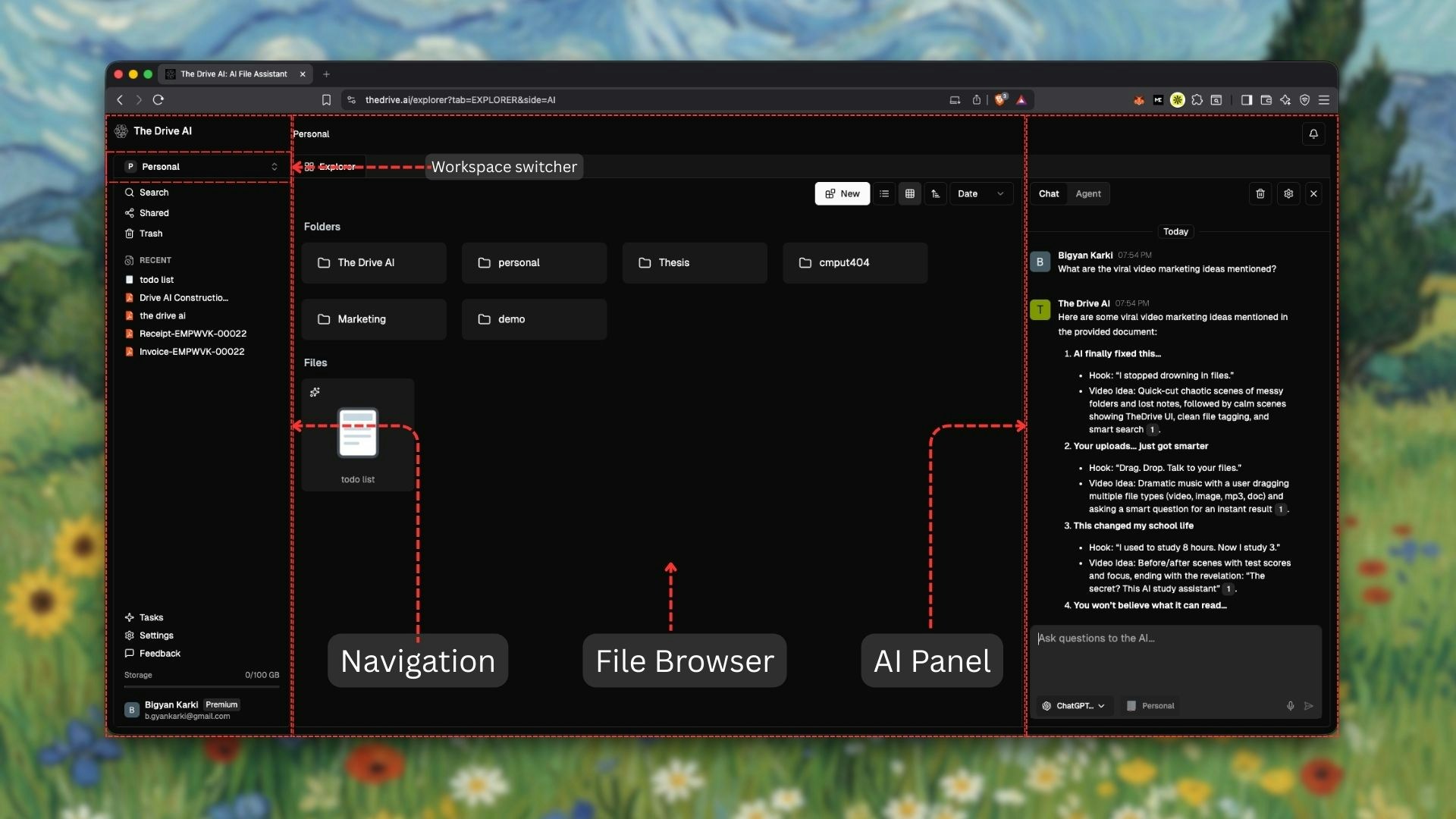
The Drive AI interface is designed to be intuitive and familiar, while providing powerful AI capabilities at your fingertips.
### Main Components
At the top of the left sidebar, click your workspace name to switch between workspaces or create new team workspaces.
The central area displays your files and folders in a familiar layout. Browse, select, and manage files just like a traditional file explorer.
The chat interface where you interact with AI. Switch between Chat Mode and Agent Mode to ask questions or execute commands.
Quick access to your workspace sections, recent files, and integrations.
Press `Command+P` to access the command palette for quick file search.
## Workspace Switcher
The workspace switcher is located at the top of the left sidebar, showing your current workspace name.
### Switching Workspaces
1. Click the **workspace name** at the top of the sidebar
2. A dropdown appears showing all your workspaces
3. Click on a workspace to switch to it
### Creating a Team Workspace
1. Click the workspace name to open the dropdown
2. Click **Create Workspace** at the bottom of the list
3. Enter a name for your new team workspace
4. Start your 1-month free trial
Everyone starts with a **Personal Workspace** (1 user only). You can create additional **Team Workspaces** for collaboration with up to 50 members.
## File Browser
The file browser is the heart of your workspace.
### Viewing Files
* **Grid View**: See file thumbnails in a grid layout
* **List View**: View files in a detailed list with metadata
* **Sort Options**: Sort by name, date, size, or type
### Selecting Files
* **Single Click**: Select one file
* **Command+Click** (Mac) or **Ctrl+Click** (Windows): Select multiple files
* **Shift+Click**: Select a range of files
### File Actions
Right-click on any file or folder to access actions:
* **Open**: View the file contents
* **Rename**: Change the file or folder name
* **Move**: Move to a different location
* **Copy**: Create a duplicate
* **Share**: Generate a sharing link
* **Delete**: Move to trash
* **Organize with AI**: Trigger AI-powered organization
## AI Chat Panel
The chat panel is where you interact with The Drive AI's intelligence.
## Workspace Layout
The Drive AI interface is designed to be intuitive and familiar, while providing powerful AI capabilities at your fingertips.
### Main Components
At the top of the left sidebar, click your workspace name to switch between workspaces or create new team workspaces.
The central area displays your files and folders in a familiar layout. Browse, select, and manage files just like a traditional file explorer.
The chat interface where you interact with AI. Switch between Chat Mode and Agent Mode to ask questions or execute commands.
Quick access to your workspace sections, recent files, and integrations.
Press `Command+P` to access the command palette for quick file search.
## Workspace Switcher
The workspace switcher is located at the top of the left sidebar, showing your current workspace name.
### Switching Workspaces
1. Click the **workspace name** at the top of the sidebar
2. A dropdown appears showing all your workspaces
3. Click on a workspace to switch to it
### Creating a Team Workspace
1. Click the workspace name to open the dropdown
2. Click **Create Workspace** at the bottom of the list
3. Enter a name for your new team workspace
4. Start your 1-month free trial
Everyone starts with a **Personal Workspace** (1 user only). You can create additional **Team Workspaces** for collaboration with up to 50 members.
## File Browser
The file browser is the heart of your workspace.
### Viewing Files
* **Grid View**: See file thumbnails in a grid layout
* **List View**: View files in a detailed list with metadata
* **Sort Options**: Sort by name, date, size, or type
### Selecting Files
* **Single Click**: Select one file
* **Command+Click** (Mac) or **Ctrl+Click** (Windows): Select multiple files
* **Shift+Click**: Select a range of files
### File Actions
Right-click on any file or folder to access actions:
* **Open**: View the file contents
* **Rename**: Change the file or folder name
* **Move**: Move to a different location
* **Copy**: Create a duplicate
* **Share**: Generate a sharing link
* **Delete**: Move to trash
* **Organize with AI**: Trigger AI-powered organization
## AI Chat Panel
The chat panel is where you interact with The Drive AI's intelligence.
 ### Chat Mode
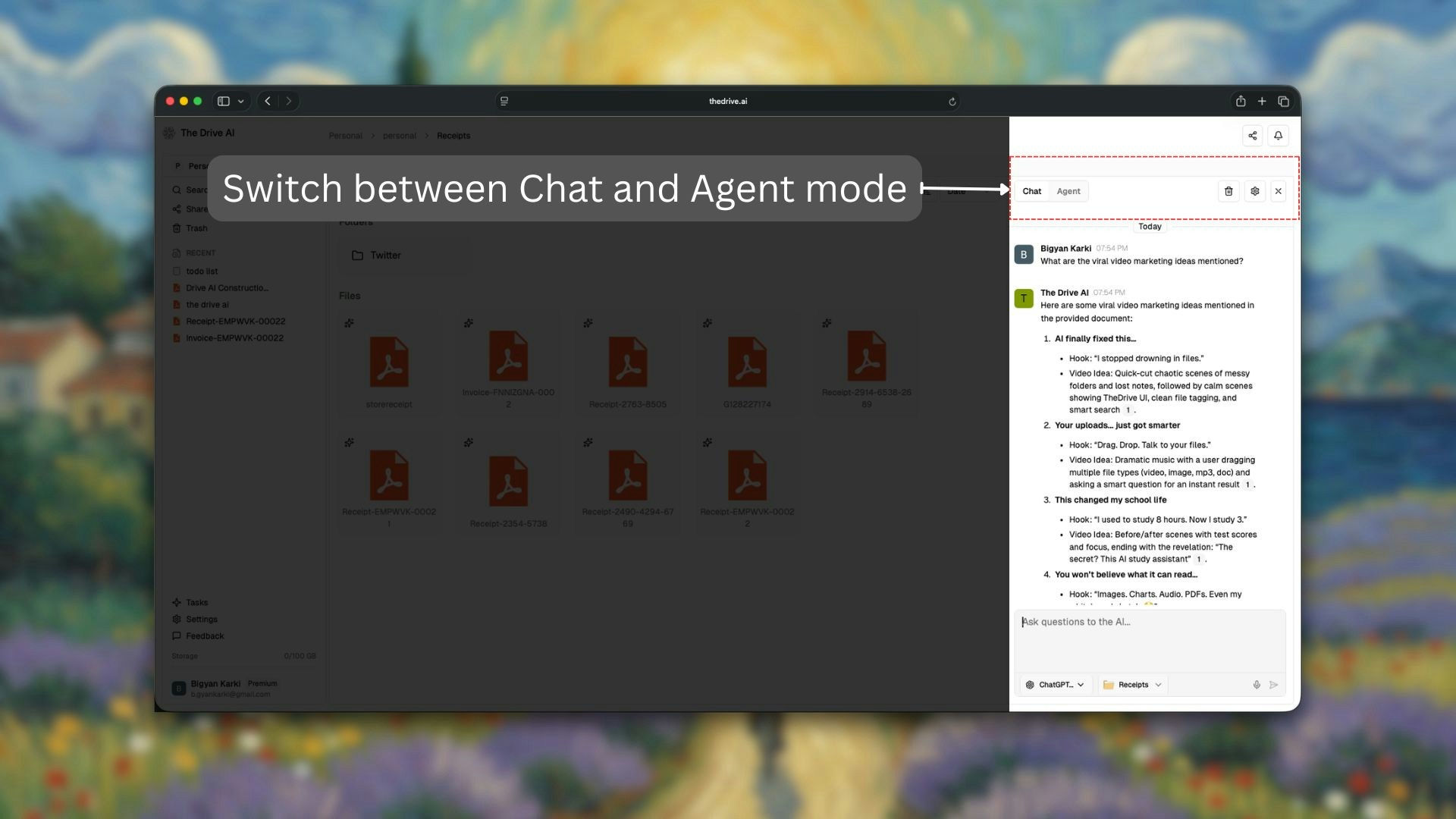
**Chat Mode** is for asking questions and getting answers. The AI reads your files and responds but doesn't take any actions.
Use Chat Mode when you want to:
* Search for information across your files
* Get summaries of documents
* Ask questions about file contents
* Find specific data without knowing which file it's in
### Agent Mode
**Agent Mode** is for taking actions. The AI can create, rename, move, share, organize, and delete files based on your commands.
Use Agent Mode when you want to:
* Organize files automatically
* Rename multiple files at once
* Create folder structures
* Move files based on criteria
* Perform bulk operations
### Switching Modes
Toggle between Chat Mode and Agent Mode using the mode selector in the chat panel. Make sure you're in the right mode before entering your command.
## Keyboard Shortcuts
Speed up your workflow with these shortcuts:
| Shortcut | Action |
| ---------------------- | ----------------------- |
| `Command+K` / `Ctrl+K` | Trigger AI organization |
| `Command+P` / `Ctrl+P` | Search Pallete |
| `Command+C` / `Ctrl+C` | Copy file or folder |
| `Command+V` / `Ctrl+V` | Paste file or folder |
| `Space` | AI Assistant on Editor |
## Notifications
The Drive AI keeps you informed about:
* **Upload Progress**: Track file uploads in real-time
* **Organization Status**: See when AI is organizing your files
* **Errors**: Receive alerts if something goes wrong
## What's Next?
Now that you know your way around, dive into the core features:
Learn all the ways to get files into your workspace.
Master AI-powered file organization.
### Chat Mode
**Chat Mode** is for asking questions and getting answers. The AI reads your files and responds but doesn't take any actions.
Use Chat Mode when you want to:
* Search for information across your files
* Get summaries of documents
* Ask questions about file contents
* Find specific data without knowing which file it's in
### Agent Mode
**Agent Mode** is for taking actions. The AI can create, rename, move, share, organize, and delete files based on your commands.
Use Agent Mode when you want to:
* Organize files automatically
* Rename multiple files at once
* Create folder structures
* Move files based on criteria
* Perform bulk operations
### Switching Modes
Toggle between Chat Mode and Agent Mode using the mode selector in the chat panel. Make sure you're in the right mode before entering your command.
## Keyboard Shortcuts
Speed up your workflow with these shortcuts:
| Shortcut | Action |
| ---------------------- | ----------------------- |
| `Command+K` / `Ctrl+K` | Trigger AI organization |
| `Command+P` / `Ctrl+P` | Search Pallete |
| `Command+C` / `Ctrl+C` | Copy file or folder |
| `Command+V` / `Ctrl+V` | Paste file or folder |
| `Space` | AI Assistant on Editor |
## Notifications
The Drive AI keeps you informed about:
* **Upload Progress**: Track file uploads in real-time
* **Organization Status**: See when AI is organizing your files
* **Errors**: Receive alerts if something goes wrong
## What's Next?
Now that you know your way around, dive into the core features:
Learn all the ways to get files into your workspace.
Master AI-powered file organization.