> ## Documentation Index
> Fetch the complete documentation index at: https://docs.thedrive.ai/llms.txt
> Use this file to discover all available pages before exploring further.
# Versions and Trash
> Get back an earlier version of a file the agent changed, and restore or permanently delete files in the Trash
## File versions
When the agent changes the content of a file in The Drive AI, the file's previous content is kept as a version. You can read an earlier version or put it back.
### When a version is kept
A version is kept each time the agent edits or replaces a file's content. That includes the agent in the web app and the mobile app, and AI tools you've connected through the [MCP server](/integrations/mcp-server).
A version is **not** kept when:
* You edit a [note](/features/browsing-and-search#notes) yourself in the editor.
* You click **Save Filled PDF** on a PDF form. The filled-in PDF replaces the original.
* You upload a file with the same name. That makes a second file. See [Duplicates](/features/uploading-files#duplicates).
Versions are kept for 30 days.
### See and restore versions
There's no version history screen in the web app. Ask the [agent](/agent/overview) instead:
Open the file, so the agent knows which one you mean, or name it in your message.
For example, "Show me the earlier versions of this file" or "What did this say before yesterday's edit?" The agent lists up to 20 of the most recent versions, newest first, with when each was replaced and its size.
Ask, for example, "Restore the version from Monday morning." The agent shows the change on a card. Click to allow it, and the earlier content becomes the current content.
Restoring is a change like any other: the content it replaces is kept as a version in turn, and you can [undo](/agent/approving-and-undoing) it from its card.
You need to be able to edit the file to restore a version: owners, admins and members, or people it's shared with at **Write** or **Full Access**. Viewers can't.
To take back an edit the agent just made, click **Undo** on its card. You don't need to look up the version. See [Approving and undoing](/agent/approving-and-undoing).
For files on [connected drives](/agent/connected-drives), see [Undo on each drive](/agent/connected-drives#undo-on-each-drive).
## Trash
Deleted files and folders go to the Trash first, so you can get them back.
### Move something to the Trash
* Click **⋮** on a file or folder and choose **Delete**, then confirm.
* Or select several items and click **Delete** in the bar at the bottom of the screen.
* In the mobile app, press and hold a file and choose **Delete**, or select several and tap **Delete**.
Deleting a folder moves everything in it to the Trash too. A file in the Trash stops counting against your storage straight away, and counts again if you restore it.
Owners, admins and members can delete files. Viewers can't.
### Open the Trash
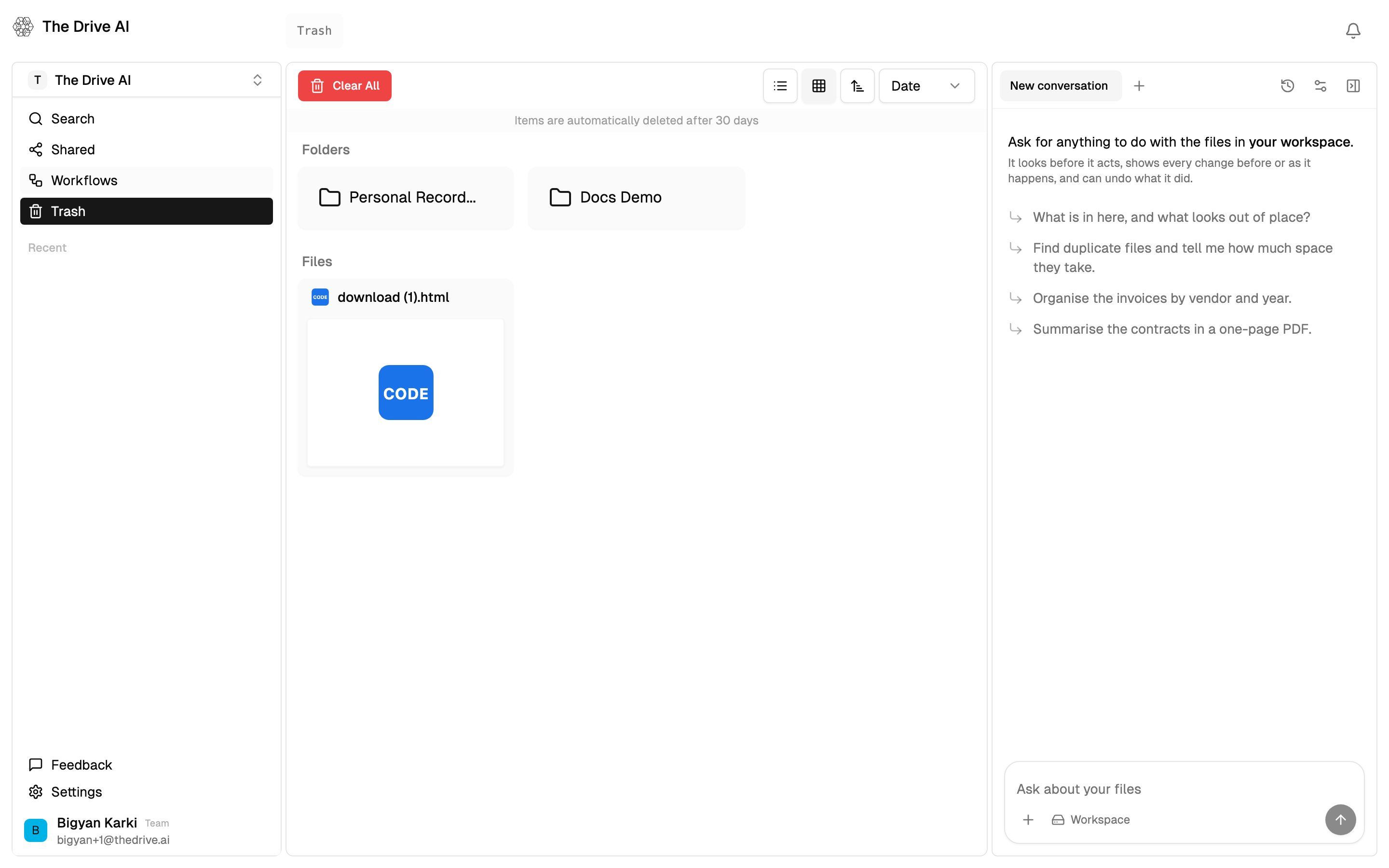
Click **Trash** in the left sidebar. The Trash is shared by the whole workspace: everyone who can open it sees everything deleted in the workspace, whoever deleted it.
You can open a deleted folder to see what was in it. Use the list and grid buttons and the sort controls as in the file browser.
 ### Restore
Point at an item at the top level of the Trash and click **Restore**, or select several and click **Restore** in the bar at the bottom. The item goes back to the folder it was deleted from, with everything that was deleted along with it, and The Drive AI reads it again so you can search it and the agent can work with it. Files you deleted from the folder on their own, before you deleted the folder, stay in the Trash; restore them separately.
Items inside a deleted folder can't be restored on their own. Restore the folder.
You can also ask the agent to undo a delete it made.
### Delete permanently
* **One item:** point at it and click **Delete Permanently**.
* **Several:** select them and click **Delete Permanently** in the bar at the bottom.
* **Everything:** click **Clear All**.
Each asks you to confirm. Permanent deletion can't be undone. It runs in the background, so large deletions can take a moment to disappear.
Owners, admins and members can restore and permanently delete. Viewers can't. In a read-only team workspace, nobody can.
### Automatic deletion after 30 days
Anything in the Trash for more than 30 days is permanently deleted automatically, overnight. To keep something, restore it before then.
Your storage is freed when you move a file to the Trash, not when it's permanently deleted. Emptying the Trash doesn't change the storage shown in **Settings** > **Usage**.
### What permanent deletion also removes
When a file is permanently deleted:
* **Its versions** are deleted with it.
* **Its sharing** is removed, and its public link stops working.
* **A signature request you were still preparing** (a draft) for it is deleted.
* **A signature request that was sent but not finished** is voided, and signers' links say so. See [E-signatures](/features/e-sign).
* **A completed signature request** keeps its record and signed copy. Its history isn't lost.
* **Its activity history** is kept in the workspace's activity log.
If a document is the only signed copy of a signature request completed long ago, it isn't deleted and stays in the Trash.
## What's next?
Undo a change the agent made.
Find, move and organize your files.
This documentation is built and hosted on [Mintlify](https://mintlify.com), a developer documentation platform.
### Restore
Point at an item at the top level of the Trash and click **Restore**, or select several and click **Restore** in the bar at the bottom. The item goes back to the folder it was deleted from, with everything that was deleted along with it, and The Drive AI reads it again so you can search it and the agent can work with it. Files you deleted from the folder on their own, before you deleted the folder, stay in the Trash; restore them separately.
Items inside a deleted folder can't be restored on their own. Restore the folder.
You can also ask the agent to undo a delete it made.
### Delete permanently
* **One item:** point at it and click **Delete Permanently**.
* **Several:** select them and click **Delete Permanently** in the bar at the bottom.
* **Everything:** click **Clear All**.
Each asks you to confirm. Permanent deletion can't be undone. It runs in the background, so large deletions can take a moment to disappear.
Owners, admins and members can restore and permanently delete. Viewers can't. In a read-only team workspace, nobody can.
### Automatic deletion after 30 days
Anything in the Trash for more than 30 days is permanently deleted automatically, overnight. To keep something, restore it before then.
Your storage is freed when you move a file to the Trash, not when it's permanently deleted. Emptying the Trash doesn't change the storage shown in **Settings** > **Usage**.
### What permanent deletion also removes
When a file is permanently deleted:
* **Its versions** are deleted with it.
* **Its sharing** is removed, and its public link stops working.
* **A signature request you were still preparing** (a draft) for it is deleted.
* **A signature request that was sent but not finished** is voided, and signers' links say so. See [E-signatures](/features/e-sign).
* **A completed signature request** keeps its record and signed copy. Its history isn't lost.
* **Its activity history** is kept in the workspace's activity log.
If a document is the only signed copy of a signature request completed long ago, it isn't deleted and stays in the Trash.
## What's next?
Undo a change the agent made.
Find, move and organize your files.
This documentation is built and hosted on [Mintlify](https://mintlify.com), a developer documentation platform.