> ## Documentation Index
> Fetch the complete documentation index at: https://docs.thedrive.ai/llms.txt
> Use this file to discover all available pages before exploring further.
# Uploading Files
> Get your files into The Drive AI workspace
## Overview
The Drive AI supports multiple ways to upload files to your workspace. Once uploaded, files can be automatically organized by AI or manually arranged.
## Upload Methods
### Drag and Drop
The quickest way to upload files:
Open Finder (Mac) or File Explorer (Windows) and select the files you want to upload.
Drag the selected files into The Drive AI browser window.
Release the files anywhere in your workspace. You'll see a drop zone indicator when files are ready to be dropped.
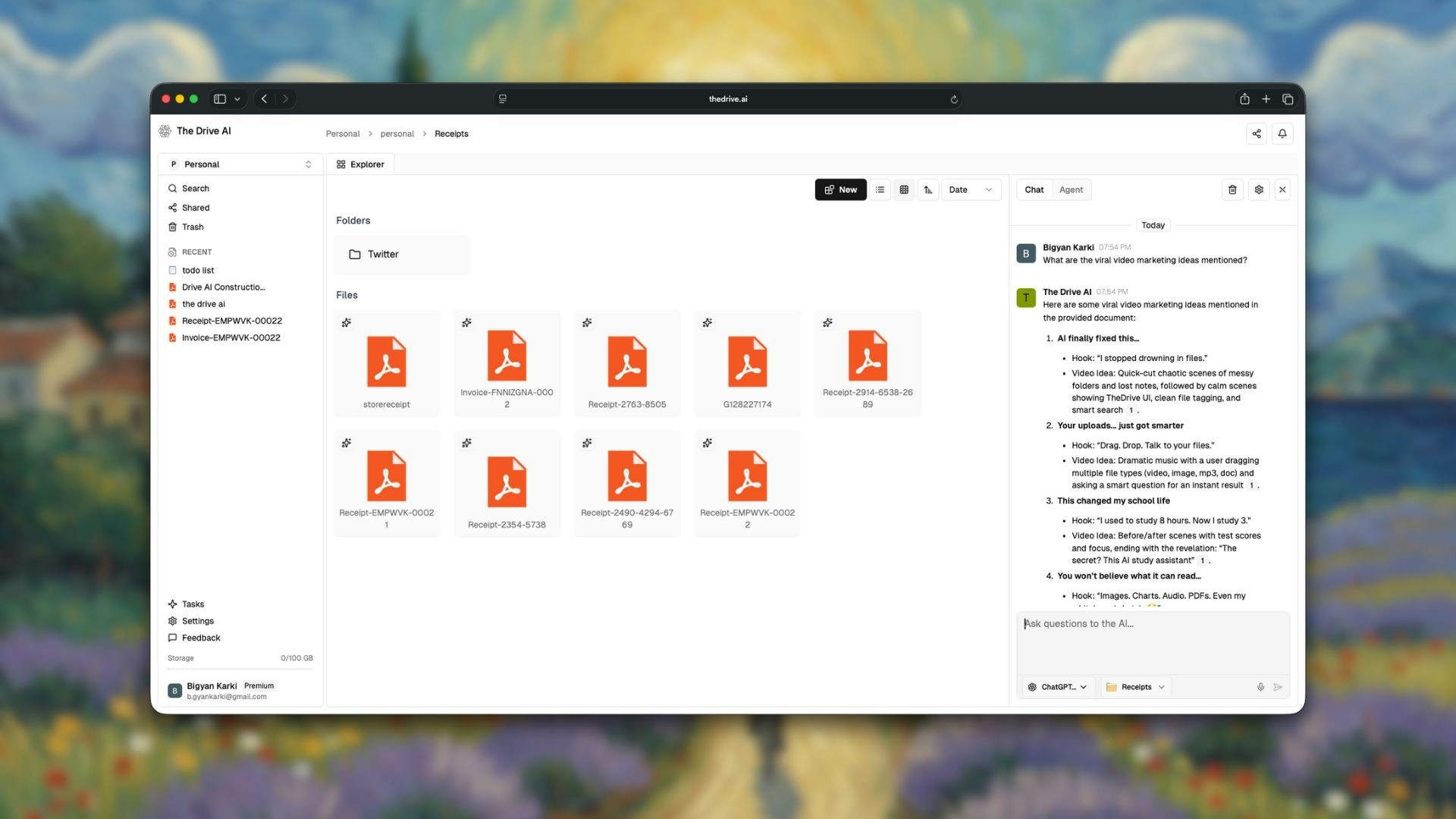 You can drag entire folders to upload all contents at once, preserving the folder structure.
### New Button
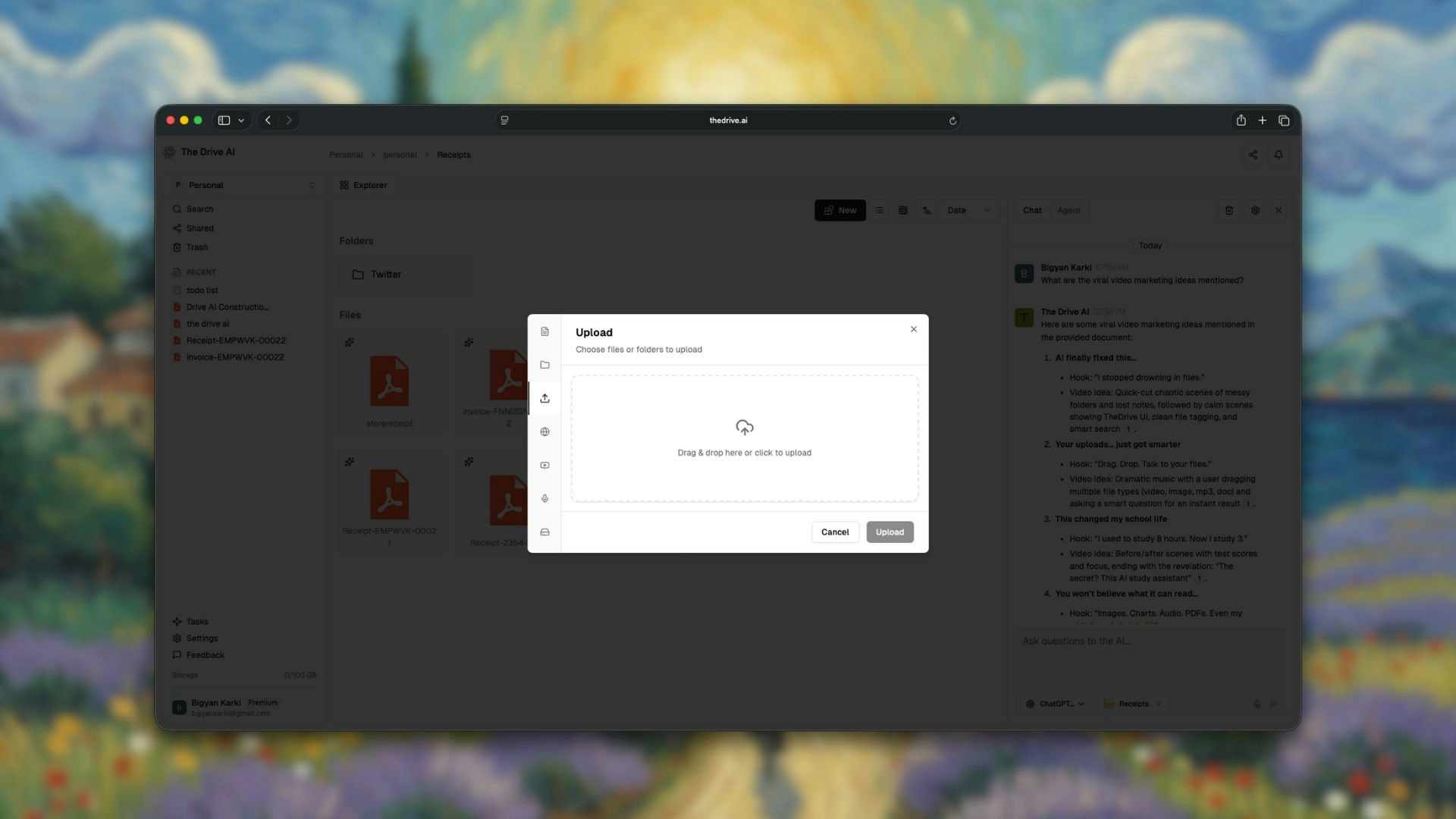
Use the toolbar for a more traditional upload experience:
Click the **New** button in the toolbar at the top of your workspace.
Choose **Upload File** from the dropdown menu.
Select one or more files from your computer using the file picker.
You can drag entire folders to upload all contents at once, preserving the folder structure.
### New Button
Use the toolbar for a more traditional upload experience:
Click the **New** button in the toolbar at the top of your workspace.
Choose **Upload File** from the dropdown menu.
Select one or more files from your computer using the file picker.
 ## Supported File Types
The Drive AI handles a wide variety of file formats:
### Documents
| Format | Extension | Free Plan | Premium Plan |
| --------- | --------------- | --------- | ------------ |
| PDF | `.pdf` | Yes | Yes |
| Word | `.docx`, `.doc` | Yes | Yes |
| Text | `.txt` | Yes | Yes |
| Rich Text | `.rtf` | Yes | Yes |
### Spreadsheets
| Format | Extension | Free Plan | Premium Plan |
| ------ | --------------- | --------- | ------------ |
| Excel | `.xlsx`, `.xls` | Yes | Yes |
| CSV | `.csv` | Yes | Yes |
### Presentations
| Format | Extension | Free Plan | Premium Plan |
| ---------- | --------------- | --------- | ------------ |
| PowerPoint | `.pptx`, `.ppt` | Yes | Yes |
### Media Files (Premium Only)
| Format | Extension | Free Plan | Premium Plan |
| ------ | ---------------------------------------- | --------- | ------------ |
| Images | `.png`, `.jpg`, `.jpeg`, `.gif`, `.webp` | No | Yes |
| Audio | `.mp3`, `.wav`, `.m4a` | No | Yes |
| Video | `.mp4`, `.mov`, `.avi` | No | Yes |
Premium plan unlocks full media support including image analysis, audio transcription with speaker identification, and video processing.
## What Happens After Upload
When you upload files to The Drive AI, the following happens:
### 1. File Processing
The AI reads and analyzes your file contents. This includes:
* Extracting text from documents and PDFs
* Performing OCR on images (Premium)
* Transcribing audio files (Premium)
* Analyzing video content (Premium)
### 2. Auto-Organization (If Enabled)
If you upload files to the root of your workspace, The Drive AI can automatically:
* Analyze the content and context of each file
* Identify relationships between files
* Create appropriate folder structures
* Place files in logical locations
You'll see a status indicator: *"Uploading 5 file(s), and auto-organizing..."*
### 3. Ready to Use
Once processing is complete, your files are:
* Fully searchable
* Available for Chat Mode queries
* Ready for Agent Mode actions
## Upload Limits
### Storage Limits
| Plan | Storage |
| ------- | ------- |
| Free | 5 GB |
| Premium | 100 GB |
### File Size Limits
Individual file size limits depend on your plan and file type. Large files may take longer to process.
## Tips for Uploading
Upload multiple files at once by selecting them all before dragging. The AI will process and organize them together, recognizing relationships between related files.
When you drag a folder, the original structure is preserved. You can then use Command+K to let AI re-organize if desired.
The Drive AI can detect and handle duplicate files. During organization, duplicates may be flagged or consolidated.
For large batches of files, upload in stages to monitor progress and ensure successful processing.
## Troubleshooting Uploads
* Check your internet connection
* Verify the file isn't corrupted
* Ensure you have enough storage space
* Try uploading a smaller batch
* Large files take longer to process
* Complex PDFs with many images may need extra time
* Check the notification panel for status updates
* Verify the file extension is in the supported list
* Some formats require Premium plan
* Try converting to a supported format
## What's Next?
Learn how AI organizes your uploaded files.
Ask questions about your uploaded files.
## Supported File Types
The Drive AI handles a wide variety of file formats:
### Documents
| Format | Extension | Free Plan | Premium Plan |
| --------- | --------------- | --------- | ------------ |
| PDF | `.pdf` | Yes | Yes |
| Word | `.docx`, `.doc` | Yes | Yes |
| Text | `.txt` | Yes | Yes |
| Rich Text | `.rtf` | Yes | Yes |
### Spreadsheets
| Format | Extension | Free Plan | Premium Plan |
| ------ | --------------- | --------- | ------------ |
| Excel | `.xlsx`, `.xls` | Yes | Yes |
| CSV | `.csv` | Yes | Yes |
### Presentations
| Format | Extension | Free Plan | Premium Plan |
| ---------- | --------------- | --------- | ------------ |
| PowerPoint | `.pptx`, `.ppt` | Yes | Yes |
### Media Files (Premium Only)
| Format | Extension | Free Plan | Premium Plan |
| ------ | ---------------------------------------- | --------- | ------------ |
| Images | `.png`, `.jpg`, `.jpeg`, `.gif`, `.webp` | No | Yes |
| Audio | `.mp3`, `.wav`, `.m4a` | No | Yes |
| Video | `.mp4`, `.mov`, `.avi` | No | Yes |
Premium plan unlocks full media support including image analysis, audio transcription with speaker identification, and video processing.
## What Happens After Upload
When you upload files to The Drive AI, the following happens:
### 1. File Processing
The AI reads and analyzes your file contents. This includes:
* Extracting text from documents and PDFs
* Performing OCR on images (Premium)
* Transcribing audio files (Premium)
* Analyzing video content (Premium)
### 2. Auto-Organization (If Enabled)
If you upload files to the root of your workspace, The Drive AI can automatically:
* Analyze the content and context of each file
* Identify relationships between files
* Create appropriate folder structures
* Place files in logical locations
You'll see a status indicator: *"Uploading 5 file(s), and auto-organizing..."*
### 3. Ready to Use
Once processing is complete, your files are:
* Fully searchable
* Available for Chat Mode queries
* Ready for Agent Mode actions
## Upload Limits
### Storage Limits
| Plan | Storage |
| ------- | ------- |
| Free | 5 GB |
| Premium | 100 GB |
### File Size Limits
Individual file size limits depend on your plan and file type. Large files may take longer to process.
## Tips for Uploading
Upload multiple files at once by selecting them all before dragging. The AI will process and organize them together, recognizing relationships between related files.
When you drag a folder, the original structure is preserved. You can then use Command+K to let AI re-organize if desired.
The Drive AI can detect and handle duplicate files. During organization, duplicates may be flagged or consolidated.
For large batches of files, upload in stages to monitor progress and ensure successful processing.
## Troubleshooting Uploads
* Check your internet connection
* Verify the file isn't corrupted
* Ensure you have enough storage space
* Try uploading a smaller batch
* Large files take longer to process
* Complex PDFs with many images may need extra time
* Check the notification panel for status updates
* Verify the file extension is in the supported list
* Some formats require Premium plan
* Try converting to a supported format
## What's Next?
Learn how AI organizes your uploaded files.
Ask questions about your uploaded files.