> ## Documentation Index
> Fetch the complete documentation index at: https://docs.thedrive.ai/llms.txt
> Use this file to discover all available pages before exploring further.
# File Requests
> Collect documents from anyone via email with checklists, reminders, and automatic organization
## Overview
File Requests let you collect documents from clients, vendors, or anyone by email. Recipients upload files through a secure link or simply reply with attachments—no account needed. Files land in your workspace, automatically renamed and organized.
## Managing File Requests
Navigate to **Settings** > **File Requests** to see all your file requests, their status, and create new ones.
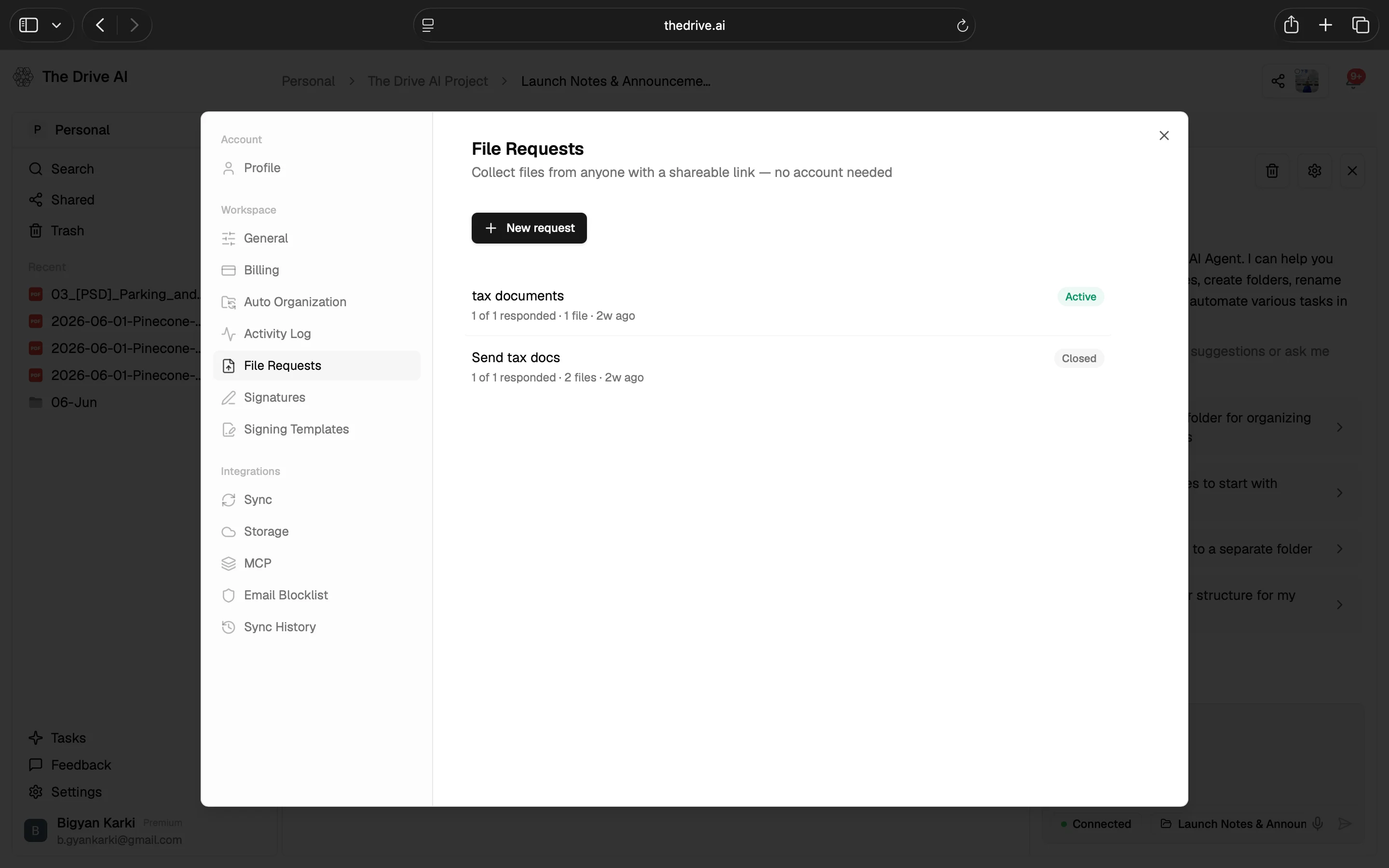 Each request shows the number of respondents, files received, time since creation, and status (**Active** or **Closed**). Click **+ New request** to create a new one.
## How It Works
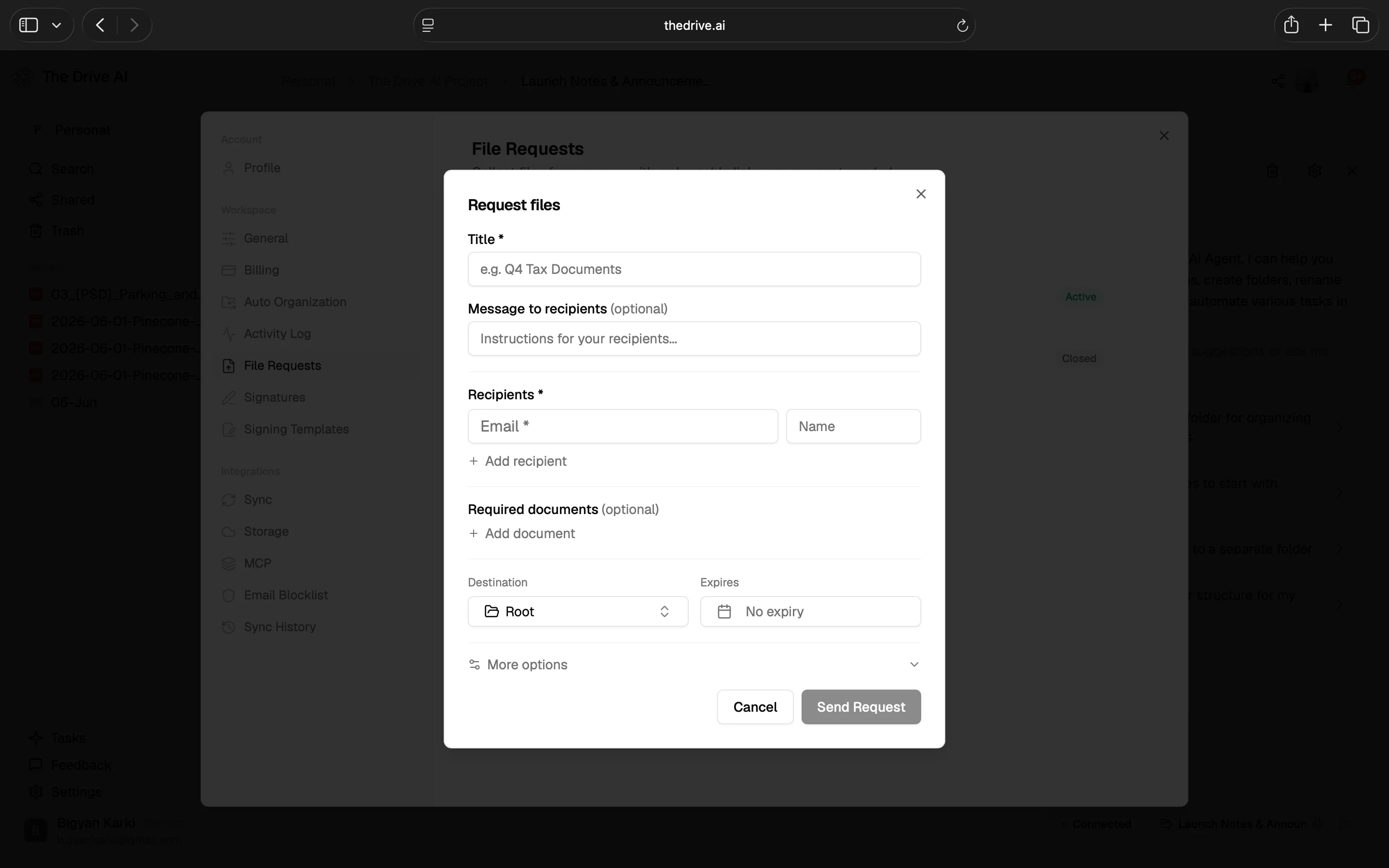
Click **+ New request** to open the request form. Fill in the details:
* **Title** (required) — e.g., "Q4 Tax Documents"
* **Message to recipients** (optional) — instructions for your recipients
* **Recipients** — email (required) and name (optional), add as many as needed
* **Required documents** (optional) — add a checklist of specific documents you need
* **Destination** — choose which folder files land in (defaults to Root)
* **Expires** — optionally set an expiration date
Each request shows the number of respondents, files received, time since creation, and status (**Active** or **Closed**). Click **+ New request** to create a new one.
## How It Works
Click **+ New request** to open the request form. Fill in the details:
* **Title** (required) — e.g., "Q4 Tax Documents"
* **Message to recipients** (optional) — instructions for your recipients
* **Recipients** — email (required) and name (optional), add as many as needed
* **Required documents** (optional) — add a checklist of specific documents you need
* **Destination** — choose which folder files land in (defaults to Root)
* **Expires** — optionally set an expiration date
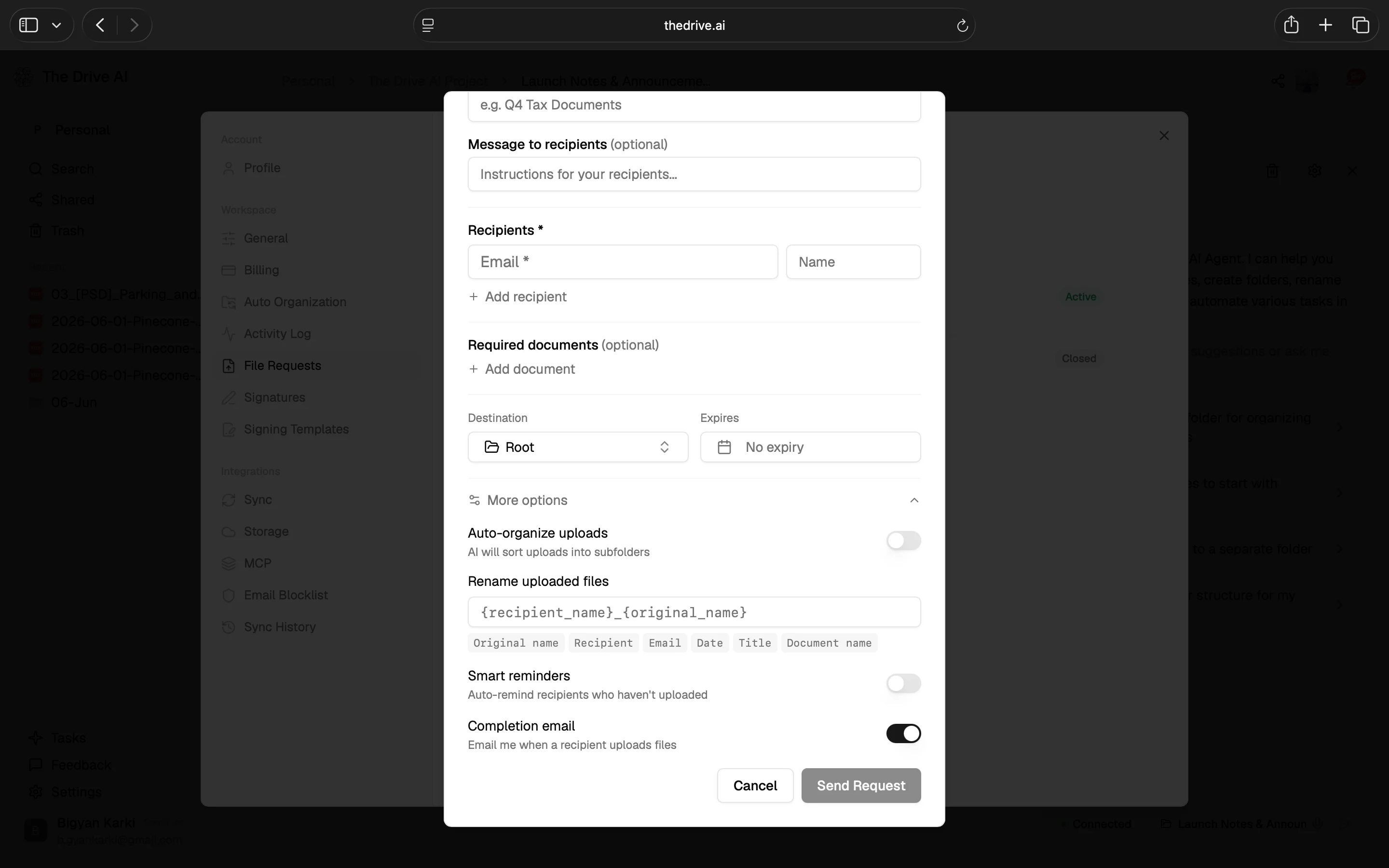
 Expand **More options** for additional settings:
* **Auto-organize uploads** — AI sorts incoming files into subfolders automatically (off by default)
* **Rename uploaded files** — define a naming pattern using variables like `{recipient_name}`, `{original_name}`, `{recipient}`, `{email}`, `{date}`, `{title}`, `{document_name}`
* **Smart reminders** — auto-remind recipients who haven't uploaded yet (off by default)
* **Completion email** — get notified by email when a recipient uploads files (on by default)
Expand **More options** for additional settings:
* **Auto-organize uploads** — AI sorts incoming files into subfolders automatically (off by default)
* **Rename uploaded files** — define a naming pattern using variables like `{recipient_name}`, `{original_name}`, `{recipient}`, `{email}`, `{date}`, `{title}`, `{document_name}`
* **Smart reminders** — auto-remind recipients who haven't uploaded yet (off by default)
* **Completion email** — get notified by email when a recipient uploads files (on by default)
 Click **Send Request** when ready.
Recipients receive an email with a secure link. They see the request title, your message, and the document checklist. They can upload files to each slot, replace uploaded files, or upload additional files. They can also reply to the request email with attachments instead.
No Drive AI account is required.
Click **Send Request** when ready.
Recipients receive an email with a secure link. They see the request title, your message, and the document checklist. They can upload files to each slot, replace uploaded files, or upload additional files. They can also reply to the request email with attachments instead.
No Drive AI account is required.
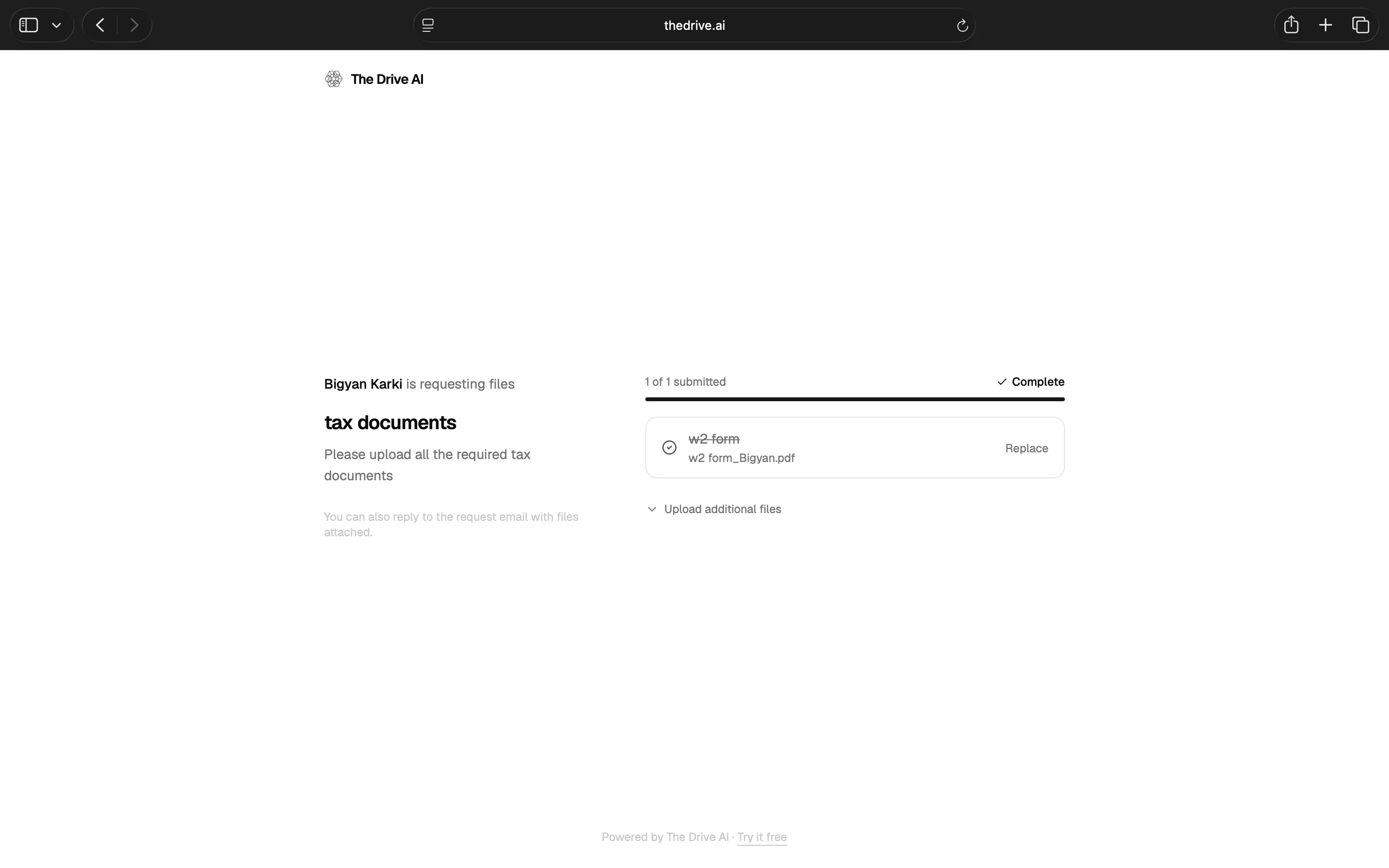 Uploaded documents land in your workspace, auto-renamed and organized based on your rules.
## Document Checklists
Specify the exact documents you need from each recipient. For example:
* W-2 forms
* Profit & loss statements
* Bank statements
* Government-issued ID
* Signed contracts
Recipients see a clear checklist interface and upload each file to the correct slot. You can track completion per recipient in real time.
## Two Ways to Respond
Recipients can submit files in whichever way is easiest for them:
| Method | How It Works |
| -------------------------- | -------------------------------------------------------------------------------------------------- |
| **Upload via secure link** | Recipients click the link, see a clean upload page, and drag-and-drop files. No login required. |
| **Reply with attachments** | Recipients simply reply to the request email with files attached. They are captured automatically. |
The reply-with-attachments option is great for less technical recipients who are more comfortable with email.
## Smart Reminders
Stop chasing people for documents. Enable auto-reminders for incomplete submissions:
* **Daily** — a reminder every day until complete
* **Every 3 days** — a gentler cadence
* **Weekly** — a light-touch reminder
Reminders are sent automatically to recipients who have not yet submitted all requested documents.
## Reusable Templates
Save your document checklists as templates and reuse them:
1. Create a checklist (e.g., "New Client Onboarding" with ID, contract, tax forms)
2. Save it as a template
3. Apply the template in one click for future requests
This is especially useful for recurring workflows like tax season, employee onboarding, or client intake.
## Organization Rules
Control how incoming files are organized in your workspace:
| Option | Description |
| ----------------------- | --------------------------------------------------------------------------------- |
| **Destination folder** | Choose the folder where files are placed |
| **Rename patterns** | Use variables like `{recipient}_{document}` for consistent naming |
| **Plain English rules** | Describe your organization rules in natural language and the AI handles placement |
### Auto-Rename
Files arrive consistently named based on patterns you define. No more `IMG_4032.pdf` or `Document (3).docx`—every file follows your naming convention.
## Tracking Submissions
Each file request includes a tracking dashboard where you can see:
* **Per-recipient status** — pending, in progress, or complete
* **Which documents** each person has submitted
* **Which documents** are still missing
* **Submission timestamps** for each file
## Use Cases
Collect tax documents and financial statements from clients at year-end.
Gather contracts, inspections, and disclosures from buyers and title companies.
Request discovery documents, agreements, and evidence from clients and opposing counsel.
Collect onboarding paperwork, IDs, and signed offer letters from new hires.
Request certificates, policy documents, and claims evidence.
Collect deliverables, approvals, and signed SOWs from clients.
## Security
* **Unique, time-limited links** — each request generates a secure upload link specific to that recipient
* **AES-256 encryption** — files are encrypted at rest and in transit (TLS)
* **No account required** — recipients upload without creating an account
* **Workspace isolation** — only workspace members can access uploaded files
* **Large file support** — supports files larger than typical email attachment limits
## What's Next?
Share files and folders with granular permissions.
Send PDFs for electronic signatures.
Uploaded documents land in your workspace, auto-renamed and organized based on your rules.
## Document Checklists
Specify the exact documents you need from each recipient. For example:
* W-2 forms
* Profit & loss statements
* Bank statements
* Government-issued ID
* Signed contracts
Recipients see a clear checklist interface and upload each file to the correct slot. You can track completion per recipient in real time.
## Two Ways to Respond
Recipients can submit files in whichever way is easiest for them:
| Method | How It Works |
| -------------------------- | -------------------------------------------------------------------------------------------------- |
| **Upload via secure link** | Recipients click the link, see a clean upload page, and drag-and-drop files. No login required. |
| **Reply with attachments** | Recipients simply reply to the request email with files attached. They are captured automatically. |
The reply-with-attachments option is great for less technical recipients who are more comfortable with email.
## Smart Reminders
Stop chasing people for documents. Enable auto-reminders for incomplete submissions:
* **Daily** — a reminder every day until complete
* **Every 3 days** — a gentler cadence
* **Weekly** — a light-touch reminder
Reminders are sent automatically to recipients who have not yet submitted all requested documents.
## Reusable Templates
Save your document checklists as templates and reuse them:
1. Create a checklist (e.g., "New Client Onboarding" with ID, contract, tax forms)
2. Save it as a template
3. Apply the template in one click for future requests
This is especially useful for recurring workflows like tax season, employee onboarding, or client intake.
## Organization Rules
Control how incoming files are organized in your workspace:
| Option | Description |
| ----------------------- | --------------------------------------------------------------------------------- |
| **Destination folder** | Choose the folder where files are placed |
| **Rename patterns** | Use variables like `{recipient}_{document}` for consistent naming |
| **Plain English rules** | Describe your organization rules in natural language and the AI handles placement |
### Auto-Rename
Files arrive consistently named based on patterns you define. No more `IMG_4032.pdf` or `Document (3).docx`—every file follows your naming convention.
## Tracking Submissions
Each file request includes a tracking dashboard where you can see:
* **Per-recipient status** — pending, in progress, or complete
* **Which documents** each person has submitted
* **Which documents** are still missing
* **Submission timestamps** for each file
## Use Cases
Collect tax documents and financial statements from clients at year-end.
Gather contracts, inspections, and disclosures from buyers and title companies.
Request discovery documents, agreements, and evidence from clients and opposing counsel.
Collect onboarding paperwork, IDs, and signed offer letters from new hires.
Request certificates, policy documents, and claims evidence.
Collect deliverables, approvals, and signed SOWs from clients.
## Security
* **Unique, time-limited links** — each request generates a secure upload link specific to that recipient
* **AES-256 encryption** — files are encrypted at rest and in transit (TLS)
* **No account required** — recipients upload without creating an account
* **Workspace isolation** — only workspace members can access uploaded files
* **Large file support** — supports files larger than typical email attachment limits
## What's Next?
Share files and folders with granular permissions.
Send PDFs for electronic signatures.