> ## Documentation Index
> Fetch the complete documentation index at: https://docs.thedrive.ai/llms.txt
> Use this file to discover all available pages before exploring further.
# E-Sign
> Send PDFs for legally binding electronic signatures — no account needed for signers
## Overview
Send any PDF for electronic signatures directly from your Drive AI workspace. Recipients sign from their browser—no account or software required. Every signature is legally binding with a full audit trail.
## How It Works
### Starting an E-Sign Request
There are two ways to start:
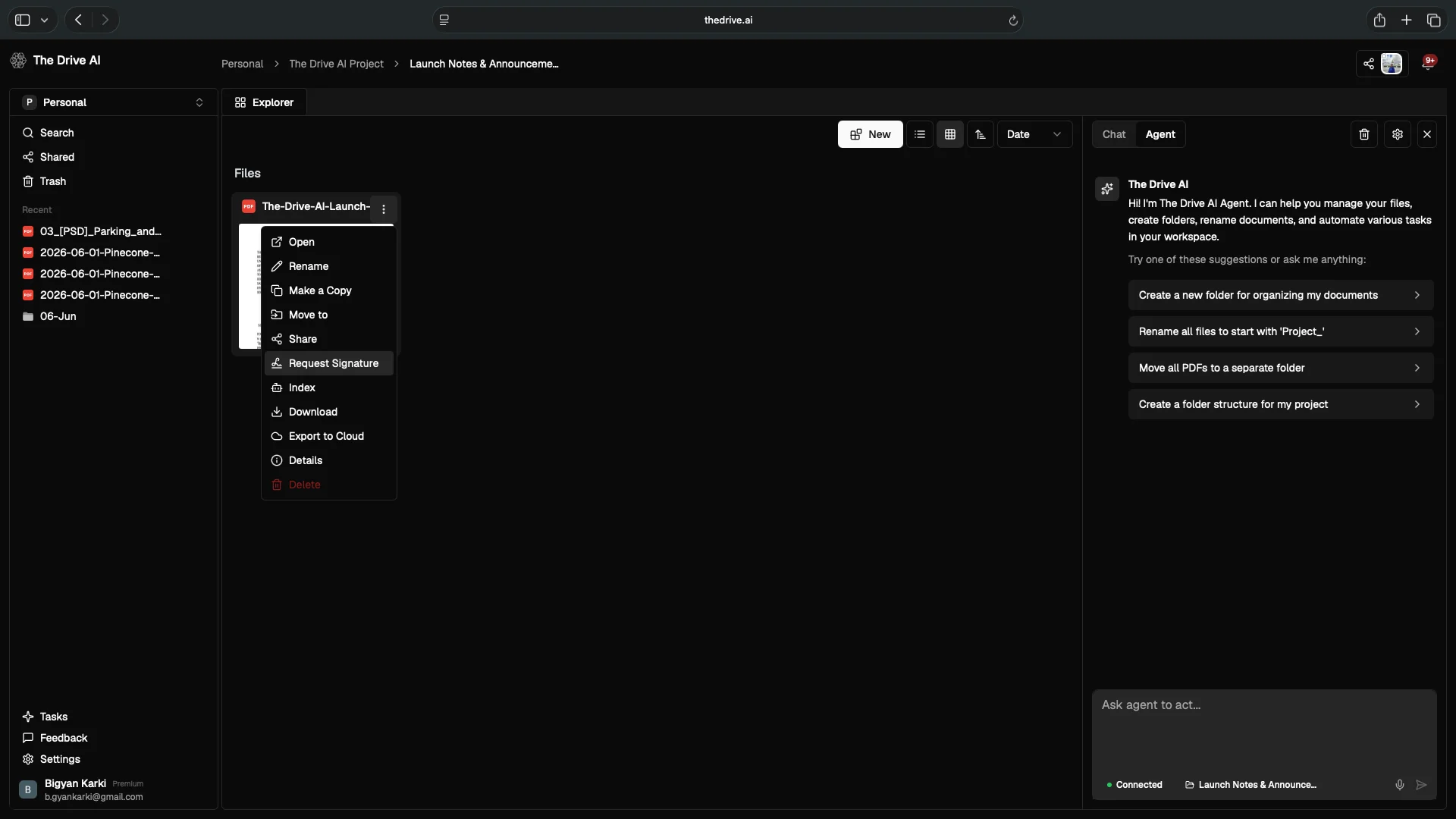
**From the file browser** — right-click on a PDF and select **Request Signature** from the context menu.
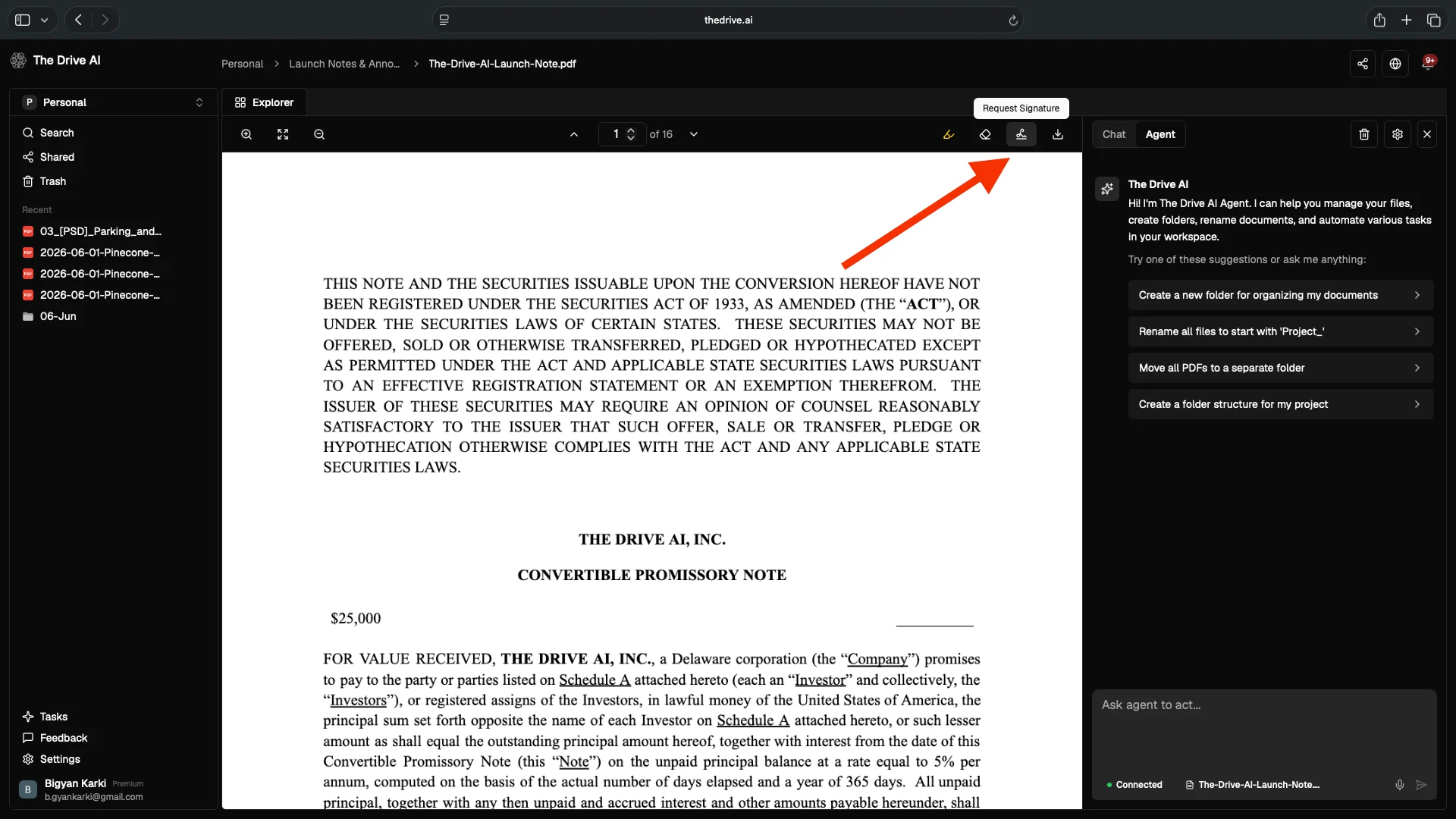
 **From the document viewer** — open a PDF and click the **E-Sign** icon in the top toolbar.
 ### Sender Workflow
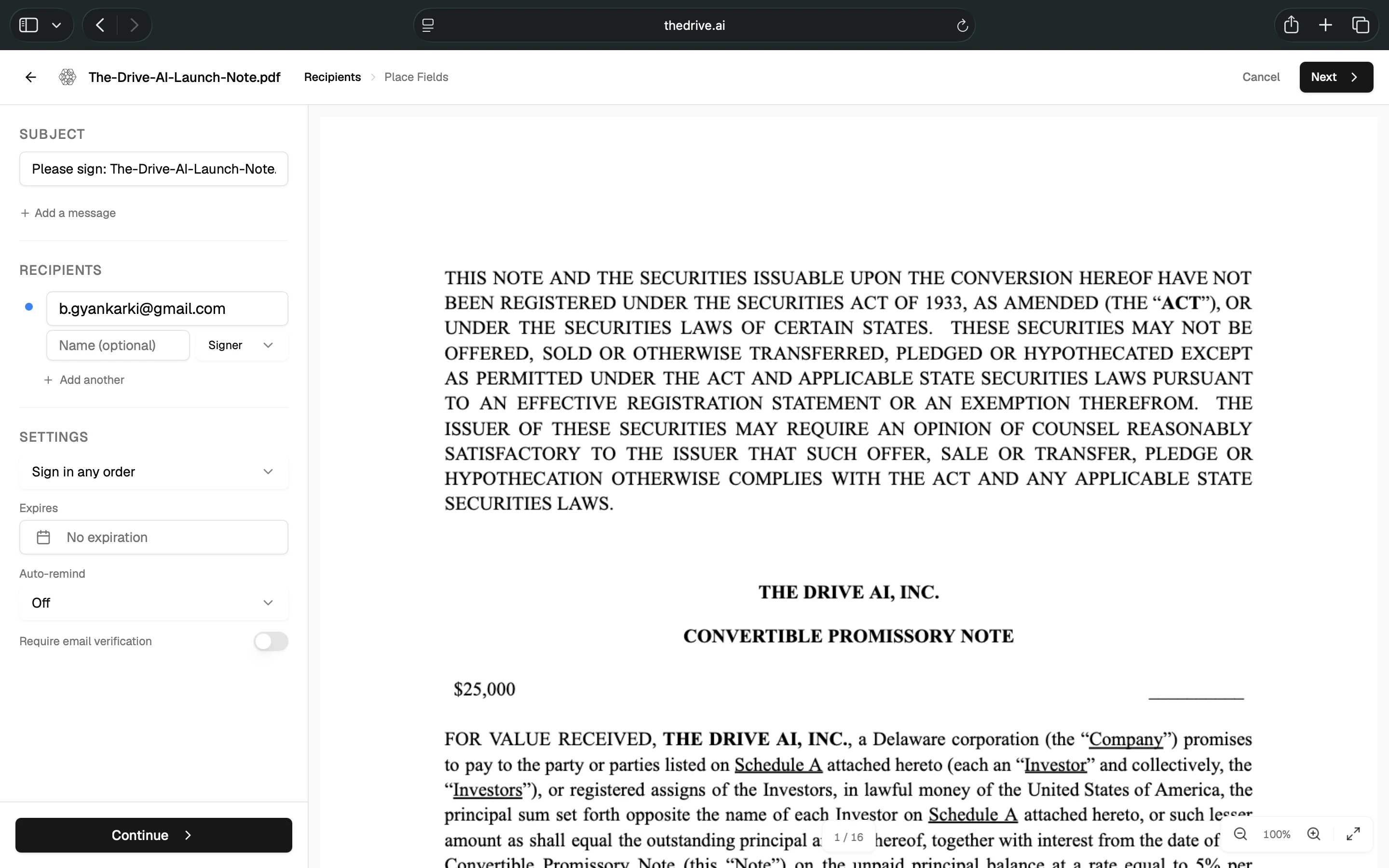
The first screen lets you configure the signing request:
* **Subject** — a title for the signing request
* **Message** — optional message to include in the email
* **Recipients** — enter each signer's email (required) and name (optional)
* **Signing order** — sign in any order (parallel) or sequential
* **Expiration** — optionally set an expiration date
* **Auto-reminder** — off by default; enable to send automatic reminders
* **Require email verification** — if enabled, recipients must verify their identity with a 6-digit code sent to their email before signing
### Sender Workflow
The first screen lets you configure the signing request:
* **Subject** — a title for the signing request
* **Message** — optional message to include in the email
* **Recipients** — enter each signer's email (required) and name (optional)
* **Signing order** — sign in any order (parallel) or sequential
* **Expiration** — optionally set an expiration date
* **Auto-reminder** — off by default; enable to send automatic reminders
* **Require email verification** — if enabled, recipients must verify their identity with a 6-digit code sent to their email before signing
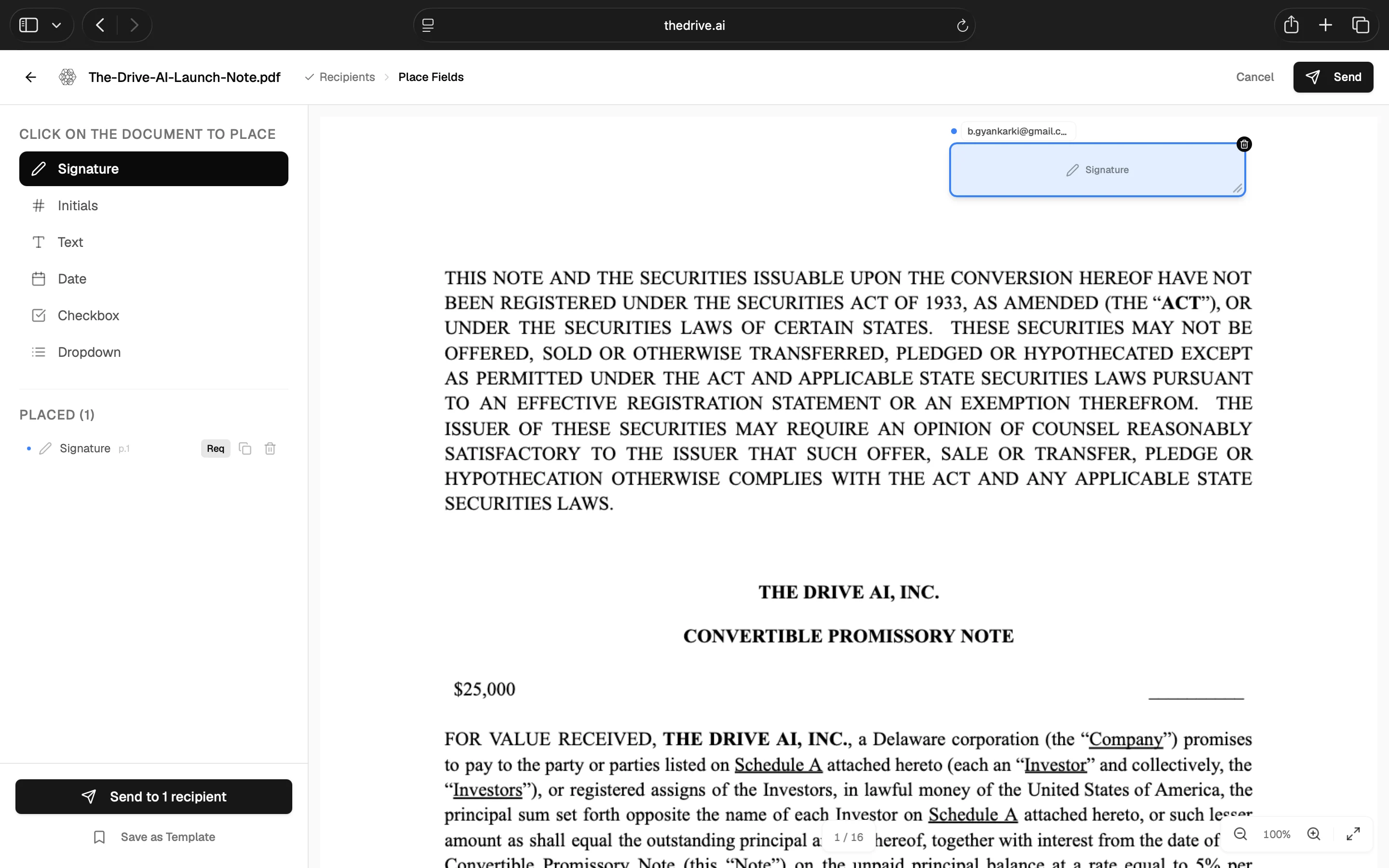
 Click on the document to place fields. The left sidebar shows the available field types:
* **Signature**
* **Initials**
* **Text**
* **Date**
* **Checkbox**
* **Dropdown**
Fields can be resized and repositioned. Each field is assigned to a specific recipient. You can also save the setup as a template for reuse.
Click on the document to place fields. The left sidebar shows the available field types:
* **Signature**
* **Initials**
* **Text**
* **Date**
* **Checkbox**
* **Dropdown**
Fields can be resized and repositioned. Each field is assigned to a specific recipient. You can also save the setup as a template for reuse.
 Click **Send to recipient(s)** to send the signing request. Recipients receive a secure email link to sign.
Monitor signing progress in real time. Once all parties have signed, download the completed PDF.
### Recipient Experience
Recipients do not need a Drive AI account or any software:
1. They receive an email with a secure signing link
2. They review and accept the ESIGN Act disclosure
3. They review the document and fill in their assigned fields
4. They submit their signature
The entire process happens in the browser.
## Reminders and Expiration
### Auto-Reminders
Enable automatic reminders for signers who have not yet completed:
| Cadence | Description |
| ------------------ | ----------------------------- |
| **Daily** | Reminder sent every day |
| **Every few days** | A moderate reminder cadence |
| **Weekly** | A light-touch weekly reminder |
### Expiration
Set an expiration date to automatically close stale signing requests. Expired requests can no longer be signed.
## Reusable Templates
Save your prepared documents as templates for recurring signatures:
* Set up fields and recipients once
* Reuse the template for new signers with one click
* Ideal for NDAs, offer letters, lease agreements, and other standard documents
## Identity Verification
For added security, enable email-based identity verification:
* Recipients receive a one-time 6-digit code to their email
* They must enter the code before accessing the document
* Adds an extra layer of identity assurance
## Legal Compliance
The Drive AI's E-Sign captures a complete audit trail for every document:
| Detail | What Is Recorded |
| ---------------------- | ---------------------------------------------------------- |
| **Consent** | Explicit ESIGN Act consent with timestamp and IP address |
| **Document integrity** | SHA-256 hash at every state transition |
| **Action log** | Every action recorded: viewed, filled, signed, or declined |
| **Audit trail** | Immutable record of all events |
Compliant with:
* **ESIGN Act** (Electronic Signatures in Global and National Commerce Act) — legally binding in the United States
* **eIDAS Regulation** — recognized in the European Union
Electronic signatures created through The Drive AI carry the same legal weight as handwritten signatures for most documents.
## Post-Signature
After all parties sign:
* The signed PDF is saved as a new file in your workspace (the original remains unchanged)
* All parties receive an email with a link to the completed document
* The full audit trail is attached to the document
## Use Cases
NDAs, retainers, settlements
Leases, purchase contracts
Offer letters, employment agreements
Consulting agreements, SOWs
Loans, compliance forms
Proposals, contracts
## What's Next?
Merge, split, compress, and manipulate your PDFs.
Collect documents from anyone via email.
Click **Send to recipient(s)** to send the signing request. Recipients receive a secure email link to sign.
Monitor signing progress in real time. Once all parties have signed, download the completed PDF.
### Recipient Experience
Recipients do not need a Drive AI account or any software:
1. They receive an email with a secure signing link
2. They review and accept the ESIGN Act disclosure
3. They review the document and fill in their assigned fields
4. They submit their signature
The entire process happens in the browser.
## Reminders and Expiration
### Auto-Reminders
Enable automatic reminders for signers who have not yet completed:
| Cadence | Description |
| ------------------ | ----------------------------- |
| **Daily** | Reminder sent every day |
| **Every few days** | A moderate reminder cadence |
| **Weekly** | A light-touch weekly reminder |
### Expiration
Set an expiration date to automatically close stale signing requests. Expired requests can no longer be signed.
## Reusable Templates
Save your prepared documents as templates for recurring signatures:
* Set up fields and recipients once
* Reuse the template for new signers with one click
* Ideal for NDAs, offer letters, lease agreements, and other standard documents
## Identity Verification
For added security, enable email-based identity verification:
* Recipients receive a one-time 6-digit code to their email
* They must enter the code before accessing the document
* Adds an extra layer of identity assurance
## Legal Compliance
The Drive AI's E-Sign captures a complete audit trail for every document:
| Detail | What Is Recorded |
| ---------------------- | ---------------------------------------------------------- |
| **Consent** | Explicit ESIGN Act consent with timestamp and IP address |
| **Document integrity** | SHA-256 hash at every state transition |
| **Action log** | Every action recorded: viewed, filled, signed, or declined |
| **Audit trail** | Immutable record of all events |
Compliant with:
* **ESIGN Act** (Electronic Signatures in Global and National Commerce Act) — legally binding in the United States
* **eIDAS Regulation** — recognized in the European Union
Electronic signatures created through The Drive AI carry the same legal weight as handwritten signatures for most documents.
## Post-Signature
After all parties sign:
* The signed PDF is saved as a new file in your workspace (the original remains unchanged)
* All parties receive an email with a link to the completed document
* The full audit trail is attached to the document
## Use Cases
NDAs, retainers, settlements
Leases, purchase contracts
Offer letters, employment agreements
Consulting agreements, SOWs
Loans, compliance forms
Proposals, contracts
## What's Next?
Merge, split, compress, and manipulate your PDFs.
Collect documents from anyone via email.