> ## Documentation Index
> Fetch the complete documentation index at: https://docs.thedrive.ai/llms.txt
> Use this file to discover all available pages before exploring further.
# Chat Mode
> Ask questions about your files and get instant answers
## Overview
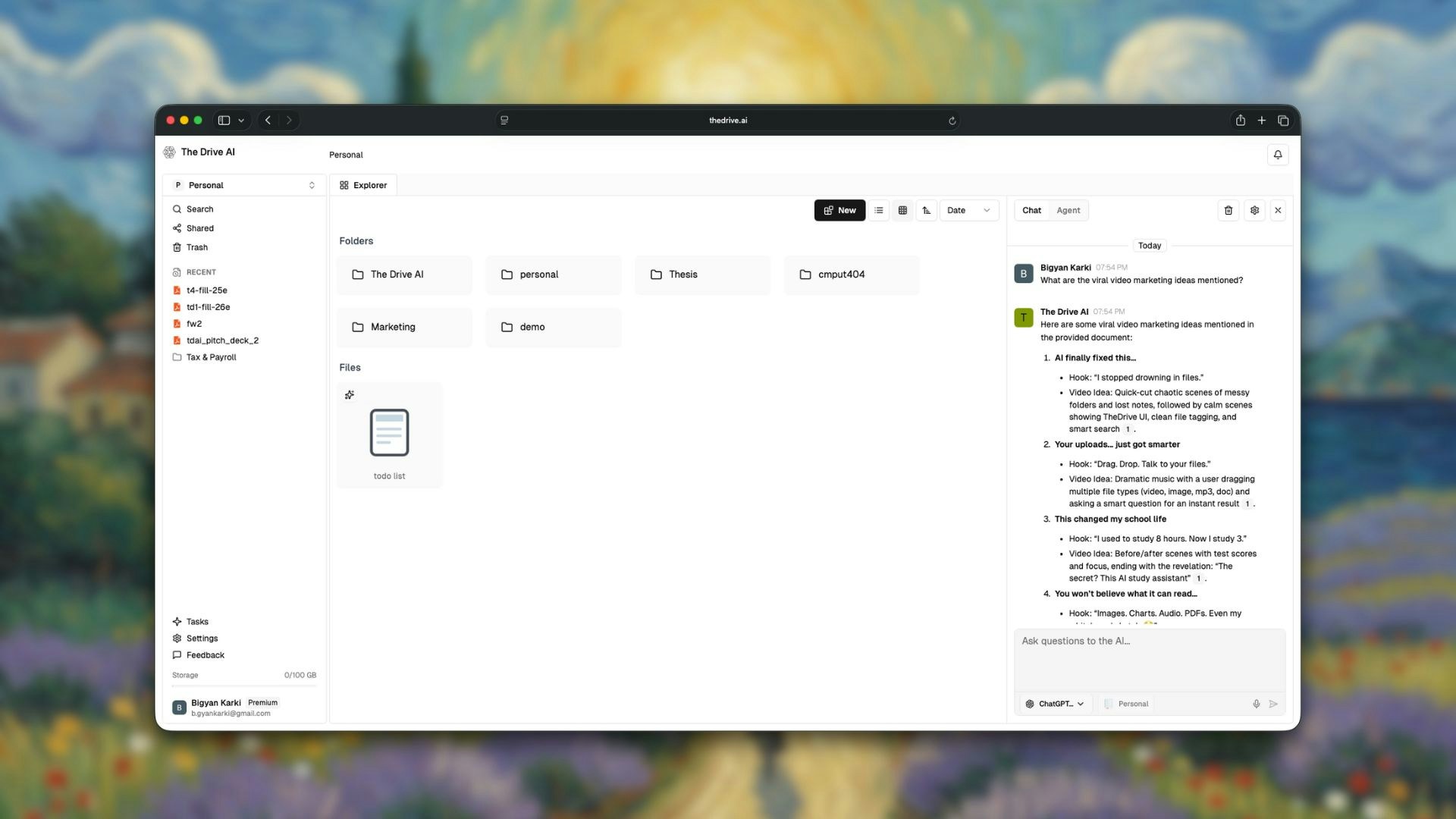
Chat Mode is your conversational interface for exploring and understanding your files. Ask questions in natural language, and The Drive AI searches through your documents to provide accurate answers—without taking any actions on your files.
 ## What is Chat Mode?
**Chat Mode** is for getting answers. The AI reads your files and responds to your questions but doesn't create, move, delete, or modify any files.
Think of Chat Mode as having a conversation with someone who has read all your documents and can instantly recall any information from them.
## When to Use Chat Mode
Use Chat Mode when you want to:
* **Find information** without knowing which file contains it
* **Get summaries** of long documents
* **Compare content** across multiple files
* **Search for specific data** in your workspace
* **Understand relationships** between documents
* **Extract key points** from reports or notes
## How to Use Chat Mode
Click on the chat interface in your workspace.
Ensure Chat Mode is selected (not Agent Mode) in the mode selector.
Type your question in natural language and press Enter.
The AI analyzes relevant files and provides a response with context.
## Understanding Scope
The AI only searches within your current location and its contents - not parent folders. Your scope is determined by where you are in the workspace:
| Your Location | AI Searches |
| ----------------- | -------------------------------------- |
| Workspace root | All files and folders in the workspace |
| A specific folder | That folder and all its subfolders |
| A specific file | Only that file |
The current scope is always displayed in the input box at the bottom of the chat panel, so you know exactly where the AI is looking.
Navigate to a specific folder before asking questions to narrow the AI's focus and get more relevant answers.
## Example Questions
### Finding Information
```
What was the total revenue mentioned in the Q4 report?
```
```
Find all mentions of "Project Alpha" in my documents
```
```
What are the key terms in the contract with Acme Corp?
```
### Summarization
```
Summarize the main points from yesterday's meeting notes
```
```
Give me a brief overview of the marketing proposal
```
```
What are the action items from the team standup documents?
```
### Comparison
```
Compare the budgets between Q3 and Q4 reports
```
```
What changed between version 1 and version 2 of the proposal?
```
### Searching
```
Which documents mention the new product launch?
```
```
Find files related to the Smith account
```
```
What files were created for the January campaign?
```
## Features
### Context-Aware Responses
Chat Mode understands context across your files. It can:
* Connect information from multiple documents
* Understand relationships between files
* Provide answers with references to source files
### Source Citations
When the AI answers your question, it indicates which files the information came from, so you can verify or explore further.
### Follow-Up Questions
Continue the conversation naturally:
```
User: What was our revenue in Q4?
AI: Based on the Q4 report, revenue was $2.4M...
User: How does that compare to Q3?
AI: In Q3, revenue was $2.1M, representing a 14% increase...
```
### Multi-Format Support
Chat Mode works across all your file types:
* Search through PDFs, Word documents, and text files
* Query spreadsheet data
* Find information in presentations
* Analyze transcribed audio and video content (Premium)
## Tips for Better Results
The more specific your question, the more accurate the answer.
**Instead of:** "Tell me about the budget"
**Try:** "What is the marketing budget for Q1 2024 in the annual planning document?"
Include relevant keywords that might appear in your documents.
**Example:** "Find mentions of 'machine learning' or 'ML' in the technical specs"
For long documents, ask for summaries or key points rather than trying to find specific sentences.
**Example:** "What are the top 5 recommendations from the audit report?"
If you know which files or folders to search, mention them.
**Example:** "In the contracts folder, what are the payment terms for each client?"
## Chat Mode vs Agent Mode
| Feature | Chat Mode | Agent Mode |
| ---------------- | --------- | ---------- |
| Ask questions | Yes | Yes |
| Get summaries | Yes | Yes |
| Search files | Yes | Yes |
| Create files | No | Yes |
| Move files | No | Yes |
| Rename files | No | Yes |
| Organize folders | No | Yes |
| Delete files | No | Yes |
Not sure if your request requires action? Start in Chat Mode. If the AI needs to take action, it will let you know to switch to Agent Mode.
## Limits
### Free Plan
* 5 AI queries per day
* Text-based files only (PDF, DOCX, etc.)
### Premium Plan
* Unlimited AI queries
* All file types including images, audio, and video
* Multiple AI models (GPT-5, Claude, etc.)
## What's Next?
Learn to take actions with natural language commands.
Compare plan features and upgrade.
## What is Chat Mode?
**Chat Mode** is for getting answers. The AI reads your files and responds to your questions but doesn't create, move, delete, or modify any files.
Think of Chat Mode as having a conversation with someone who has read all your documents and can instantly recall any information from them.
## When to Use Chat Mode
Use Chat Mode when you want to:
* **Find information** without knowing which file contains it
* **Get summaries** of long documents
* **Compare content** across multiple files
* **Search for specific data** in your workspace
* **Understand relationships** between documents
* **Extract key points** from reports or notes
## How to Use Chat Mode
Click on the chat interface in your workspace.
Ensure Chat Mode is selected (not Agent Mode) in the mode selector.
Type your question in natural language and press Enter.
The AI analyzes relevant files and provides a response with context.
## Understanding Scope
The AI only searches within your current location and its contents - not parent folders. Your scope is determined by where you are in the workspace:
| Your Location | AI Searches |
| ----------------- | -------------------------------------- |
| Workspace root | All files and folders in the workspace |
| A specific folder | That folder and all its subfolders |
| A specific file | Only that file |
The current scope is always displayed in the input box at the bottom of the chat panel, so you know exactly where the AI is looking.
Navigate to a specific folder before asking questions to narrow the AI's focus and get more relevant answers.
## Example Questions
### Finding Information
```
What was the total revenue mentioned in the Q4 report?
```
```
Find all mentions of "Project Alpha" in my documents
```
```
What are the key terms in the contract with Acme Corp?
```
### Summarization
```
Summarize the main points from yesterday's meeting notes
```
```
Give me a brief overview of the marketing proposal
```
```
What are the action items from the team standup documents?
```
### Comparison
```
Compare the budgets between Q3 and Q4 reports
```
```
What changed between version 1 and version 2 of the proposal?
```
### Searching
```
Which documents mention the new product launch?
```
```
Find files related to the Smith account
```
```
What files were created for the January campaign?
```
## Features
### Context-Aware Responses
Chat Mode understands context across your files. It can:
* Connect information from multiple documents
* Understand relationships between files
* Provide answers with references to source files
### Source Citations
When the AI answers your question, it indicates which files the information came from, so you can verify or explore further.
### Follow-Up Questions
Continue the conversation naturally:
```
User: What was our revenue in Q4?
AI: Based on the Q4 report, revenue was $2.4M...
User: How does that compare to Q3?
AI: In Q3, revenue was $2.1M, representing a 14% increase...
```
### Multi-Format Support
Chat Mode works across all your file types:
* Search through PDFs, Word documents, and text files
* Query spreadsheet data
* Find information in presentations
* Analyze transcribed audio and video content (Premium)
## Tips for Better Results
The more specific your question, the more accurate the answer.
**Instead of:** "Tell me about the budget"
**Try:** "What is the marketing budget for Q1 2024 in the annual planning document?"
Include relevant keywords that might appear in your documents.
**Example:** "Find mentions of 'machine learning' or 'ML' in the technical specs"
For long documents, ask for summaries or key points rather than trying to find specific sentences.
**Example:** "What are the top 5 recommendations from the audit report?"
If you know which files or folders to search, mention them.
**Example:** "In the contracts folder, what are the payment terms for each client?"
## Chat Mode vs Agent Mode
| Feature | Chat Mode | Agent Mode |
| ---------------- | --------- | ---------- |
| Ask questions | Yes | Yes |
| Get summaries | Yes | Yes |
| Search files | Yes | Yes |
| Create files | No | Yes |
| Move files | No | Yes |
| Rename files | No | Yes |
| Organize folders | No | Yes |
| Delete files | No | Yes |
Not sure if your request requires action? Start in Chat Mode. If the AI needs to take action, it will let you know to switch to Agent Mode.
## Limits
### Free Plan
* 5 AI queries per day
* Text-based files only (PDF, DOCX, etc.)
### Premium Plan
* Unlimited AI queries
* All file types including images, audio, and video
* Multiple AI models (GPT-5, Claude, etc.)
## What's Next?
Learn to take actions with natural language commands.
Compare plan features and upgrade.