> ## Documentation Index
> Fetch the complete documentation index at: https://docs.thedrive.ai/llms.txt
> Use this file to discover all available pages before exploring further.
# Browsing and Search
> Find your way around your files: views and sorting, selecting, the file menu, moving and copying, the file viewer, notes and search
## The file browser
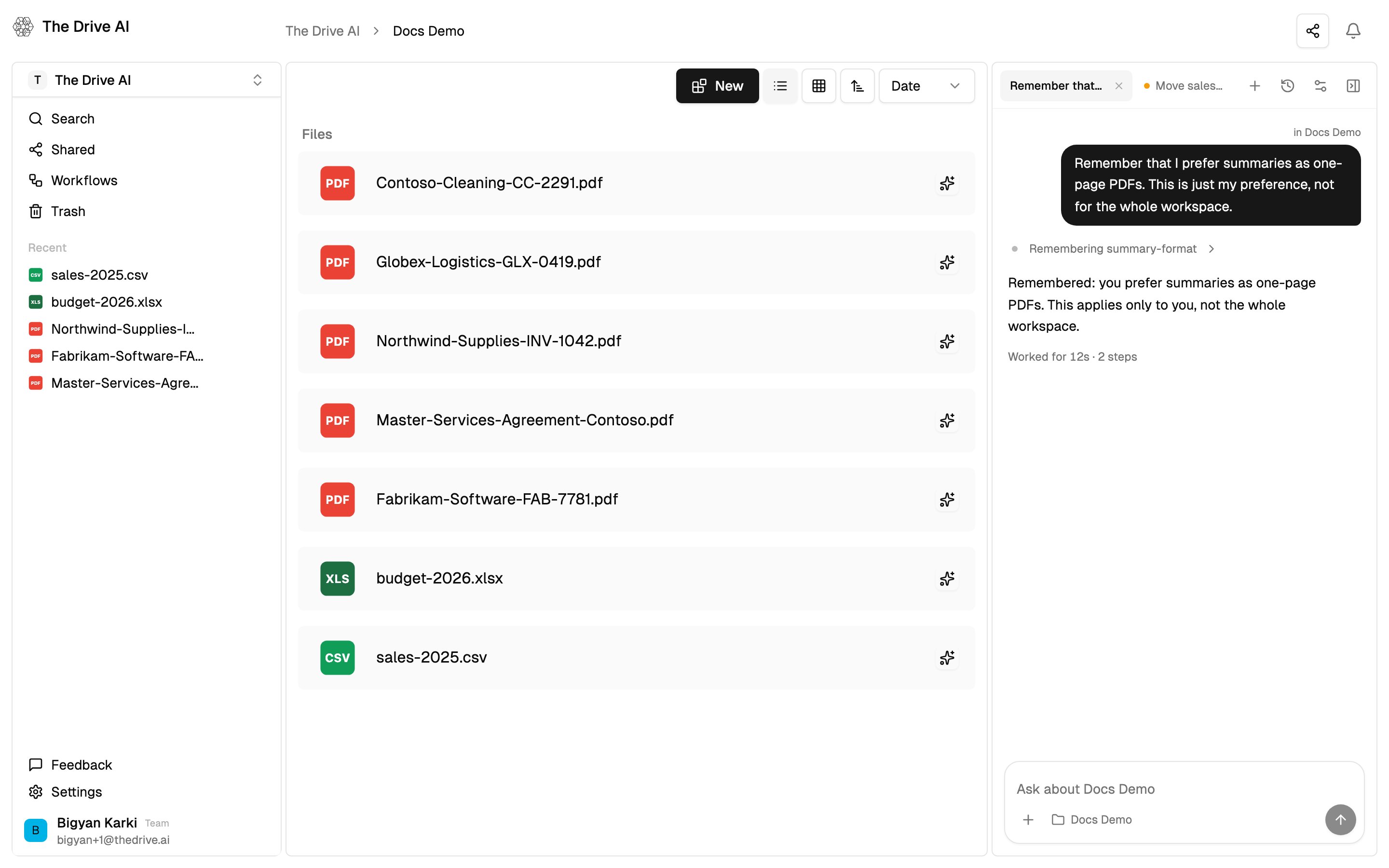
The middle of the web app shows the folder you have open. Folders are listed first under **Folders**, then files under **Files**. The path at the top shows where you are. Click any part of it to go back up. On a long path, the middle folders fold into **…**: click it to pick one.
For the sidebar, the agent panel and Settings, see [Interface overview](/getting-started/interface-overview).
 ### Views and sorting
The toolbar above your files has:
* **New**, to create or add files. See [The New menu](#the-new-menu).
* **List view** and **Grid view**.
* A sort order button, to switch between ascending and descending.
* A sort menu: **Date** or **Name**.
### Opening files and folders
* **On a computer:** click once to select, double-click to open. With the keyboard, `Tab` to it and press `Enter`.
* **On a touch screen:** tap to open.
* To open a file in a new browser tab, click **⋮** and choose **Open**.
A file that's still uploading or processing is faded and can't be opened until it's ready.
### Selecting several items
* `⌘`-click (Mac) or `Ctrl`-click (Windows) to add or remove one item.
* `Shift`-click to select everything between the last item you clicked and this one.
* Drag a box across empty space to select everything it touches.
* `⌘A` or `Ctrl+A` to select everything in the folder.
Click outside the files to clear the selection.
When you select something, a bar appears at the bottom of the screen with the number selected and these actions:
| Action | What it does |
| - | - |
| **Delete** | Moves the items to the [Trash](/features/versions-and-trash), after you confirm. |
| **Index** / **Unindex** | Turns indexing on or off for the selected files. |
| **Download** | One file downloads as itself, one folder as a zip. Several items download together as `download.zip`. |
| **Move to** | Moves them to another folder. See [Moving](#moving-copying-and-renaming). |
| **Export** | Copies them to a connected Google Drive, OneDrive, SharePoint or Dropbox account. Needs a plan with connected drives. |
The bar doesn't appear in folders you can only view.
### The file menu
Point at a file or folder and click **⋮** for its menu:
| Item | What it does |
| - | - |
| **Open** | Opens it in a new browser tab. |
| **Rename** | Gives it a new name. |
| **Make a Copy** | Makes a copy in the same folder, named with "(copy)". |
| **Move to** | Moves it to another folder. |
| **Share** | Shares it with people by email. See [File sharing](/features/file-sharing). |
| **Request Signature** | PDFs only. Starts a [signature request](/features/e-sign). |
| **Index** or **Un-Index** | Turns indexing on or off for the file. |
| **Download** | Downloads the file. A folder downloads as a zip. Web links and YouTube videos can't be downloaded. |
| **Export to Cloud** | Copies it to a connected drive. |
| **Details** | Shows its **Type**, **Size**, **Location**, **Created** and **Modified** dates, and an **Activity** tab with its history. |
| **Delete** | Moves it to the [Trash](/features/versions-and-trash). |
Owners, admins and members see the **⋮** menu on workspace files. On files shared with you, you see it when you have **Full Access**. Viewers don't see it, but they can still open files and download them from the viewer.
Icons next to a file name tell you how The Drive AI reads it:
* A sparkle: **Included in assistant's knowledge**.
* A crown: the file type needs a higher plan to be read (**Upgrade to unlock**).
* A faded warning: **File type is not supported by the assistant**.
### The right-click menu
Right-click an empty part of the file browser for:
* **Organize this folder (⌘K)**: AI files everything in this folder into subfolders. Only shown when the folder has files. It has its own monthly allowance, shown in **Settings** > **Usage**.
* **Create New File**
* **Create New Folder**
* **Upload Files**
* **Import from Cloud**
### The New menu
Click **New** in the toolbar:
* **New File** creates a [note](#notes). Enter a name and click **Create**.
* **New Folder** creates a folder. Enter a name and click **Create**.
* **Upload** opens the upload window. See [Uploading files](/features/uploading-files).
* **Import from Cloud** copies files in from a connected drive. Needs a plan with connected drives.
Viewers don't see **New**.
## Moving, copying and renaming
**To move** files or folders, use any of these:
* Click **⋮** > **Move to**, or select several and click **Move to** in the bottom bar. Pick a folder, or type in **Search folders...**, then click **Move here**.
* Drag them onto a folder in the file browser.
* Select them, press `⌘X` or `Ctrl+X`, open the destination folder and press `⌘V` or `Ctrl+V`.
**To copy**, click **⋮** > **Make a Copy** for a copy in the same folder. To copy into another folder, select the items, press `⌘C` or `Ctrl+C`, open the destination folder and press `⌘V` or `Ctrl+V`. A copy pasted into the same folder gets "(copy)" in its name.
**To rename**, click **⋮** > **Rename**.
To move, rename or organize many files at once, ask the [agent](/agent/overview), for example "Move every PDF from 2023 into /Archive/2023." It shows you the plan first, and you can undo it.
## Recent, Shared and Connected
These sections are in the left sidebar.
* **Recent** lists up to five of the most recently changed files. Click one to open it.
* **Shared** lists files and folders other people have shared with you. You see only what was shared, not the rest of their workspace. See [File sharing](/features/file-sharing).
* **Connected** lists the Google Drive, OneDrive, SharePoint and Dropbox drives the agent can see. It appears once a drive is connected. Click a drive to browse it.
Connected drives are **Read only** here: you can browse their folders and switch between list and grid view, and clicking a file opens it in its own service in a new tab. To change files on a connected drive, ask the agent or use the drive itself. See [Connected drives](/agent/connected-drives).
## The file viewer
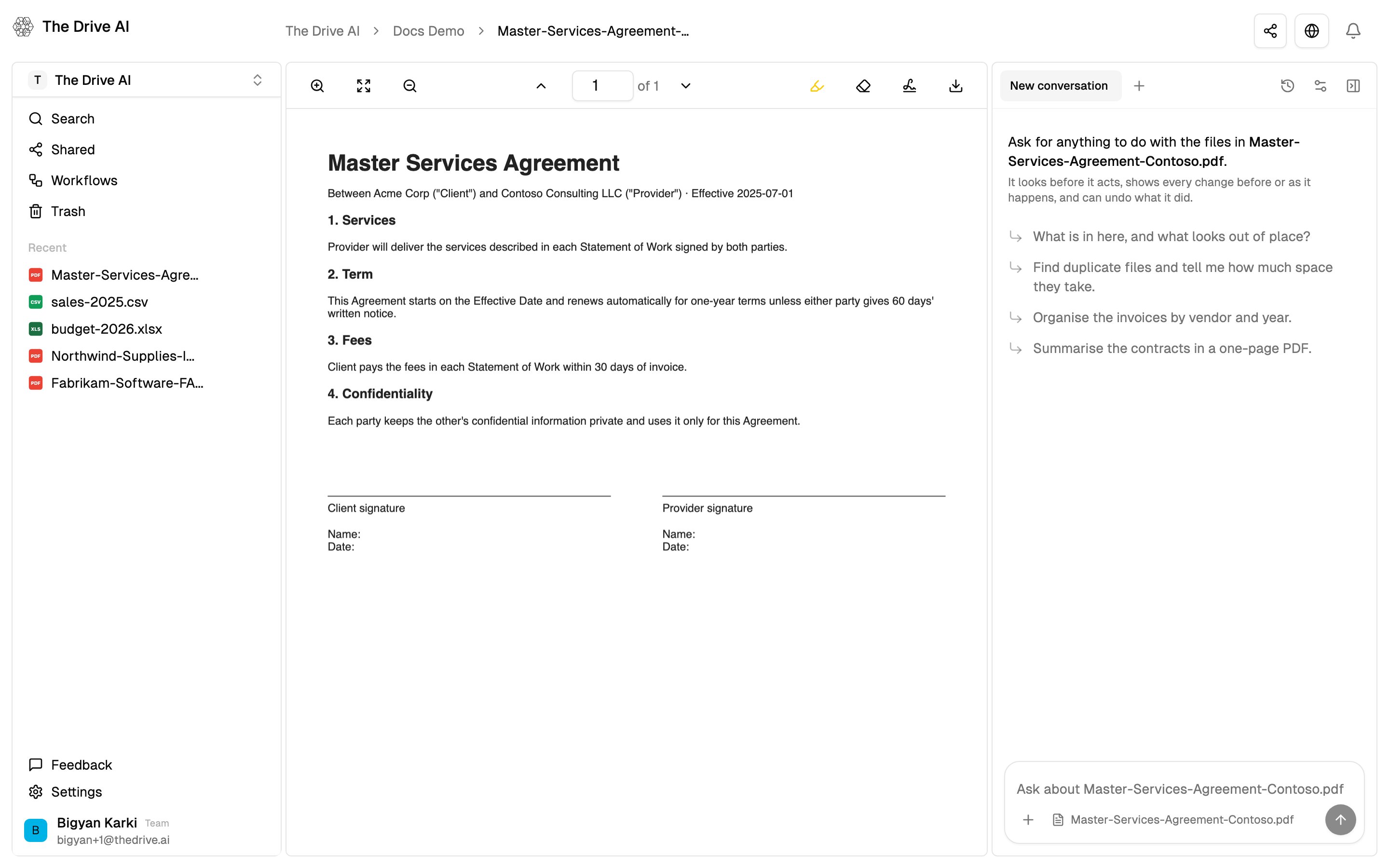
Open a file to see it in the viewer. The toolbar at the top keeps **Share**, **Publish** and **Agent** for the file you have open. See [File sharing](/features/file-sharing) and [The agent](/agent/overview).
### PDFs
The PDF toolbar has:
* **Zoom In**, **Fit to width** and **Zoom Out**.
* Page arrows and a page box. Type a page number to jump to it.
* A highlighter, with a color picker and **Opacity** and **Thickness** sliders, and an eraser with **Eraser Thickness**. Highlights are saved with the file.
* **Save Filled PDF**, for a PDF with form fields. Fill in the fields, then click it to save the filled-in PDF over the original. This replaces the file and doesn't keep the earlier version.
* **Request Signature**. See [E-signatures](/features/e-sign).
* **Download**.
If you can only view the PDF, the highlighter, eraser, **Save Filled PDF** and **Request Signature** aren't shown.
### Views and sorting
The toolbar above your files has:
* **New**, to create or add files. See [The New menu](#the-new-menu).
* **List view** and **Grid view**.
* A sort order button, to switch between ascending and descending.
* A sort menu: **Date** or **Name**.
### Opening files and folders
* **On a computer:** click once to select, double-click to open. With the keyboard, `Tab` to it and press `Enter`.
* **On a touch screen:** tap to open.
* To open a file in a new browser tab, click **⋮** and choose **Open**.
A file that's still uploading or processing is faded and can't be opened until it's ready.
### Selecting several items
* `⌘`-click (Mac) or `Ctrl`-click (Windows) to add or remove one item.
* `Shift`-click to select everything between the last item you clicked and this one.
* Drag a box across empty space to select everything it touches.
* `⌘A` or `Ctrl+A` to select everything in the folder.
Click outside the files to clear the selection.
When you select something, a bar appears at the bottom of the screen with the number selected and these actions:
| Action | What it does |
| - | - |
| **Delete** | Moves the items to the [Trash](/features/versions-and-trash), after you confirm. |
| **Index** / **Unindex** | Turns indexing on or off for the selected files. |
| **Download** | One file downloads as itself, one folder as a zip. Several items download together as `download.zip`. |
| **Move to** | Moves them to another folder. See [Moving](#moving-copying-and-renaming). |
| **Export** | Copies them to a connected Google Drive, OneDrive, SharePoint or Dropbox account. Needs a plan with connected drives. |
The bar doesn't appear in folders you can only view.
### The file menu
Point at a file or folder and click **⋮** for its menu:
| Item | What it does |
| - | - |
| **Open** | Opens it in a new browser tab. |
| **Rename** | Gives it a new name. |
| **Make a Copy** | Makes a copy in the same folder, named with "(copy)". |
| **Move to** | Moves it to another folder. |
| **Share** | Shares it with people by email. See [File sharing](/features/file-sharing). |
| **Request Signature** | PDFs only. Starts a [signature request](/features/e-sign). |
| **Index** or **Un-Index** | Turns indexing on or off for the file. |
| **Download** | Downloads the file. A folder downloads as a zip. Web links and YouTube videos can't be downloaded. |
| **Export to Cloud** | Copies it to a connected drive. |
| **Details** | Shows its **Type**, **Size**, **Location**, **Created** and **Modified** dates, and an **Activity** tab with its history. |
| **Delete** | Moves it to the [Trash](/features/versions-and-trash). |
Owners, admins and members see the **⋮** menu on workspace files. On files shared with you, you see it when you have **Full Access**. Viewers don't see it, but they can still open files and download them from the viewer.
Icons next to a file name tell you how The Drive AI reads it:
* A sparkle: **Included in assistant's knowledge**.
* A crown: the file type needs a higher plan to be read (**Upgrade to unlock**).
* A faded warning: **File type is not supported by the assistant**.
### The right-click menu
Right-click an empty part of the file browser for:
* **Organize this folder (⌘K)**: AI files everything in this folder into subfolders. Only shown when the folder has files. It has its own monthly allowance, shown in **Settings** > **Usage**.
* **Create New File**
* **Create New Folder**
* **Upload Files**
* **Import from Cloud**
### The New menu
Click **New** in the toolbar:
* **New File** creates a [note](#notes). Enter a name and click **Create**.
* **New Folder** creates a folder. Enter a name and click **Create**.
* **Upload** opens the upload window. See [Uploading files](/features/uploading-files).
* **Import from Cloud** copies files in from a connected drive. Needs a plan with connected drives.
Viewers don't see **New**.
## Moving, copying and renaming
**To move** files or folders, use any of these:
* Click **⋮** > **Move to**, or select several and click **Move to** in the bottom bar. Pick a folder, or type in **Search folders...**, then click **Move here**.
* Drag them onto a folder in the file browser.
* Select them, press `⌘X` or `Ctrl+X`, open the destination folder and press `⌘V` or `Ctrl+V`.
**To copy**, click **⋮** > **Make a Copy** for a copy in the same folder. To copy into another folder, select the items, press `⌘C` or `Ctrl+C`, open the destination folder and press `⌘V` or `Ctrl+V`. A copy pasted into the same folder gets "(copy)" in its name.
**To rename**, click **⋮** > **Rename**.
To move, rename or organize many files at once, ask the [agent](/agent/overview), for example "Move every PDF from 2023 into /Archive/2023." It shows you the plan first, and you can undo it.
## Recent, Shared and Connected
These sections are in the left sidebar.
* **Recent** lists up to five of the most recently changed files. Click one to open it.
* **Shared** lists files and folders other people have shared with you. You see only what was shared, not the rest of their workspace. See [File sharing](/features/file-sharing).
* **Connected** lists the Google Drive, OneDrive, SharePoint and Dropbox drives the agent can see. It appears once a drive is connected. Click a drive to browse it.
Connected drives are **Read only** here: you can browse their folders and switch between list and grid view, and clicking a file opens it in its own service in a new tab. To change files on a connected drive, ask the agent or use the drive itself. See [Connected drives](/agent/connected-drives).
## The file viewer
Open a file to see it in the viewer. The toolbar at the top keeps **Share**, **Publish** and **Agent** for the file you have open. See [File sharing](/features/file-sharing) and [The agent](/agent/overview).
### PDFs
The PDF toolbar has:
* **Zoom In**, **Fit to width** and **Zoom Out**.
* Page arrows and a page box. Type a page number to jump to it.
* A highlighter, with a color picker and **Opacity** and **Thickness** sliders, and an eraser with **Eraser Thickness**. Highlights are saved with the file.
* **Save Filled PDF**, for a PDF with form fields. Fill in the fields, then click it to save the filled-in PDF over the original. This replaces the file and doesn't keep the earlier version.
* **Request Signature**. See [E-signatures](/features/e-sign).
* **Download**.
If you can only view the PDF, the highlighter, eraser, **Save Filled PDF** and **Request Signature** aren't shown.
 ### Documents, spreadsheets and text
Word documents, spreadsheets, CSV, Markdown, text, code, JSON and log files are shown in the viewer for reading. Click **Download** to open a file in its own app. To change one in place, ask the [agent](/features/document-creation#changing-a-file).
* **Markdown** files can be shown **Rendered** or as **Source**.
* **Chart and diagram files** can also be downloaded as a picture with **PNG**.
* **PowerPoint decks and older .doc files** are shown in Microsoft's online viewer.
### Images, audio and video
Images open in the viewer, and audio and video play there. Each has a download button. When a video has a transcript, click **View Transcript** to read it, and **Copy Transcript** to copy it.
## Notes
A note is a document you write and edit inside The Drive AI. Create one with **New** > **New File**, or ask the agent to write one.
* Type `/` (**Press / for menu**) to add headings, lists, task lists, quotes, code, tables, images and video, columns, callouts, dividers and drawings.
* Changes save as you type. If someone else has the note open, you see their edits as they make them.
* If you can only view the note, it opens read-only.
## Search
Click **Search** in the left sidebar, or press `⌘P` (Mac) or `Ctrl+P` (Windows).
Search finds files and folders whose name contains what you type, or that sit in a folder whose name does. Each result shows its folder path.
Use the filters under the search box:
* **Type**: **All types**, **Folders** or **Files**.
* Date: **Any time**, **Today**, **Past week**, **Past month** or **Past year**, by when it was last modified.
* **Index status**: **All**, **Indexed** or **Not indexed**.
* **File types**: tick the kinds of file to show.
* Sort: **Name**, **Date modified** or **Date created**.
Click **Clear** to reset the filters.
Click it, or use the arrow keys and press `Enter`.
With nothing typed, search lists the items at the top level of your workspace. If something you just added is missing, click the refresh button next to the filters.
### Search inside files
Search matches names, not what's inside files. To find a file by its contents, ask the [agent](/agent/overview). It can look for exact words inside your documents, or find documents by what they're about:
```text theme={null}
Find the contract that mentions a 60-day termination notice
```
```text theme={null}
Which invoices in this folder are from Acme?
```
## Keyboard shortcuts
| Shortcut | Action |
| - | - |
| `⌘P` / `Ctrl+P` | Search files and folders |
| `⌘J` / `Ctrl+J` | Show or hide the agent |
| `⌘K` / `Ctrl+K` | Organize this folder |
| `⌘A` / `Ctrl+A` | Select everything in the folder |
| `⌘C` / `Ctrl+C` | Copy the selected items |
| `⌘X` / `Ctrl+X` | Cut the selected items |
| `⌘V` / `Ctrl+V` | Paste into the folder you have open |
| `⌘`-click / `Ctrl`-click | Add or remove one item from the selection |
| `Shift`-click | Select a range |
| `Enter` | Open the focused item |
## What's next?
Get back an earlier version or a deleted file.
Find, read and reorganize files by asking.
This documentation is built and hosted on [Mintlify](https://mintlify.com), a developer documentation platform.
### Documents, spreadsheets and text
Word documents, spreadsheets, CSV, Markdown, text, code, JSON and log files are shown in the viewer for reading. Click **Download** to open a file in its own app. To change one in place, ask the [agent](/features/document-creation#changing-a-file).
* **Markdown** files can be shown **Rendered** or as **Source**.
* **Chart and diagram files** can also be downloaded as a picture with **PNG**.
* **PowerPoint decks and older .doc files** are shown in Microsoft's online viewer.
### Images, audio and video
Images open in the viewer, and audio and video play there. Each has a download button. When a video has a transcript, click **View Transcript** to read it, and **Copy Transcript** to copy it.
## Notes
A note is a document you write and edit inside The Drive AI. Create one with **New** > **New File**, or ask the agent to write one.
* Type `/` (**Press / for menu**) to add headings, lists, task lists, quotes, code, tables, images and video, columns, callouts, dividers and drawings.
* Changes save as you type. If someone else has the note open, you see their edits as they make them.
* If you can only view the note, it opens read-only.
## Search
Click **Search** in the left sidebar, or press `⌘P` (Mac) or `Ctrl+P` (Windows).
Search finds files and folders whose name contains what you type, or that sit in a folder whose name does. Each result shows its folder path.
Use the filters under the search box:
* **Type**: **All types**, **Folders** or **Files**.
* Date: **Any time**, **Today**, **Past week**, **Past month** or **Past year**, by when it was last modified.
* **Index status**: **All**, **Indexed** or **Not indexed**.
* **File types**: tick the kinds of file to show.
* Sort: **Name**, **Date modified** or **Date created**.
Click **Clear** to reset the filters.
Click it, or use the arrow keys and press `Enter`.
With nothing typed, search lists the items at the top level of your workspace. If something you just added is missing, click the refresh button next to the filters.
### Search inside files
Search matches names, not what's inside files. To find a file by its contents, ask the [agent](/agent/overview). It can look for exact words inside your documents, or find documents by what they're about:
```text theme={null}
Find the contract that mentions a 60-day termination notice
```
```text theme={null}
Which invoices in this folder are from Acme?
```
## Keyboard shortcuts
| Shortcut | Action |
| - | - |
| `⌘P` / `Ctrl+P` | Search files and folders |
| `⌘J` / `Ctrl+J` | Show or hide the agent |
| `⌘K` / `Ctrl+K` | Organize this folder |
| `⌘A` / `Ctrl+A` | Select everything in the folder |
| `⌘C` / `Ctrl+C` | Copy the selected items |
| `⌘X` / `Ctrl+X` | Cut the selected items |
| `⌘V` / `Ctrl+V` | Paste into the folder you have open |
| `⌘`-click / `Ctrl`-click | Add or remove one item from the selection |
| `Shift`-click | Select a range |
| `Enter` | Open the focused item |
## What's next?
Get back an earlier version or a deleted file.
Find, read and reorganize files by asking.
This documentation is built and hosted on [Mintlify](https://mintlify.com), a developer documentation platform.