> ## Documentation Index
> Fetch the complete documentation index at: https://docs.thedrive.ai/llms.txt
> Use this file to discover all available pages before exploring further.
# Auto-Organization
> Let AI intelligently rename and organize your files into logical folder structures
## Overview
Auto-Organization is one of The Drive AI's most powerful features. Instead of manually creating folders and sorting files, the AI analyzes your file contents and automatically creates logical folder structures.
## How It Works
Upload files to your workspace. You don't need to think about folder structures—just drop everything in.
The Drive AI reads and understands the content, context, and relationships between your files. It identifies document types, topics, projects, and more.
Files are automatically renamed and organized into the right folders. New folders are intelligently created based on your content.
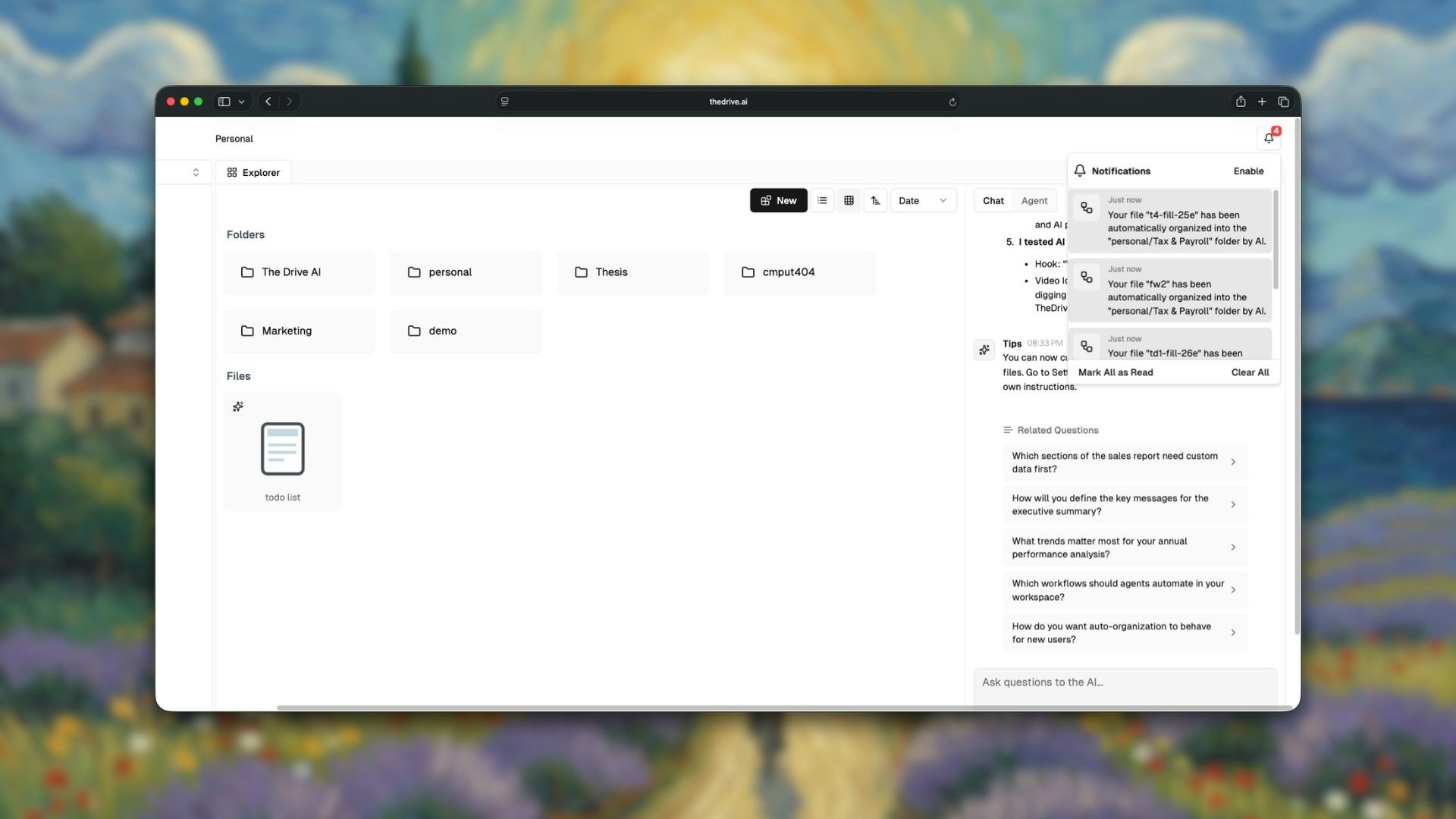
Once organization is complete, you'll receive a notification showing exactly which files were moved and where they ended up. This gives you full visibility into the AI's decisions.
 ## Two Organization Modes
The Drive AI offers two ways to trigger auto-organization:
### Automatic Mode
Files uploaded to your workspace root are automatically organized without any action on your part.
**Best for:** Bulk imports, daily uploads, and hands-free organization.
**How it works:**
1. Upload files to the root of your workspace
2. You'll see: *"Uploading X file(s), and auto-organizing..."*
3. Files are analyzed and sorted into folders automatically
4. No clicks required
### Command+K Mode
Manually trigger organization for any folder at any time using the keyboard shortcut.
**Best for:** Organizing existing folders, controlled timing, and nested directories.
**How it works:**
1. Navigate to the folder you want to organize
2. Press `Command+K` (Mac) or `Ctrl+K` (Windows)
3. The AI analyzes and organizes the contents
4. New subfolders are created as needed
You can also right-click on any folder and select **Organize with AI** from the context menu.
## What the AI Considers
When organizing your files, The Drive AI analyzes:
| Factor | Example |
| ---------------------- | ---------------------------------------- |
| **Document Type** | Reports, invoices, contracts, notes |
| **Content Topics** | Marketing, finance, legal, technical |
| **Project Context** | Client names, project codes, campaigns |
| **Date Patterns** | Quarterly reports, monthly statements |
| **File Relationships** | Related documents, versions, attachments |
## Automatic File Renaming
The Drive AI can automatically rename files to make them more descriptive and easier to find. This happens during organization when files have unclear or generic names.
**When files get renamed:**
* Files with generic names like `Document1.pdf` or `IMG_1234.jpg`
* Scanned documents with meaningless filenames
* Files where the content doesn't match the filename
**How renaming works:**
* The AI analyzes the file content to understand what it is
* A descriptive name is generated based on the content
* Original file extension is preserved
* You receive a notification showing the old and new names
**Example:**
| Original Name | AI-Generated Name |
| --------------- | ---------------------------------- |
| `scan001.pdf` | `Invoice_Acme_Corp_March_2024.pdf` |
| `IMG_4521.jpg` | `Team_Offsite_Photo_2024.jpg` |
| `Document.docx` | `Q4_Marketing_Strategy.docx` |
If you prefer to keep original filenames, you can disable automatic renaming in your workspace settings.
## Real-World Example
**Scenario:** You drop 20 mixed files into a project folder—spreadsheets, PDFs, meeting notes, and images.
**Before Command+K:**
```
Project Folder/
├── Q4_budget.xlsx
├── meeting_notes_dec.pdf
├── client_feedback.docx
├── logo_draft_v2.png
├── revenue_report.pdf
├── team_photo.jpg
├── contract_final.pdf
├── expenses_2024.xlsx
└── ... (12 more files)
```
**After Command+K:**
```
Project Folder/
├── Reports/
│ ├── Q4_budget.xlsx
│ ├── revenue_report.pdf
│ └── expenses_2024.xlsx
├── Documents/
│ ├── meeting_notes_dec.pdf
│ ├── client_feedback.docx
│ └── contract_final.pdf
├── Media/
│ ├── logo_draft_v2.png
│ └── team_photo.jpg
└── Notes/
└── ...
```
The AI created logical subfolders based on content analysis—all in seconds.
## Organization Accuracy
The Drive AI is designed for high-accuracy organization:
* **99.9% accuracy** in file categorization
* **Sub-second processing** per file
* **Context-aware** decisions based on content, not just file names
* **Learning over time** to match your organizational preferences
## Customizing Organization
While The Drive AI handles organization automatically, you have full control over how files are organized.
### Custom Organization Prompts
Instead of letting the AI decide, you can specify exactly how you want files organized using natural language prompts.
**How to use custom prompts:**
1. Select the files or folder you want to organize
2. Press `Command+K` (Mac) or `Ctrl+K` (Windows)
3. Type your custom organization instructions
4. Press Enter to execute
**Example prompts:**
```
Organize all receipts by Finance//
```
```
Sort these documents by Client Name/Year/Document Type
```
```
Move all invoices to Accounting/2024/Invoices and name them by date
```
```
Organize photos by Event Name/Date
```
Custom prompts give you precise control. Use folder path patterns like `Category/Subcategory/Details` to define your exact structure.
### Existing Folder Structure
If you already have folders, the AI will:
* Respect your existing structure
* Add files to appropriate existing folders
* Only create new folders when necessary
### Manual Adjustments
After auto-organization, you can:
* Move files to different folders
* Rename folders created by AI
* Merge or split folders as needed
The AI learns from your adjustments over time.
## When to Use Each Mode
| Situation | Recommended Mode |
| ------------------------------------ | ---------------- |
| Uploading new files daily | Automatic Mode |
| Importing a large batch of old files | Command+K Mode |
| Organizing a specific project folder | Command+K Mode |
| Quick cleanup of downloads | Command+K Mode |
| Hands-free workflow | Automatic Mode |
## Troubleshooting
* Ensure files are uploaded to the workspace root for Automatic Mode
* For Command+K, make sure you're in the correct folder
* Check that file processing is complete before organizing
* The AI bases decisions on content analysis
* Move files manually to preferred locations
* The AI learns from your adjustments
* Large batches take more time
* Complex documents require deeper analysis
* Check the notification panel for progress
## What's Next?
Ask questions about your organized files.
Perform advanced file operations with natural language.
## Two Organization Modes
The Drive AI offers two ways to trigger auto-organization:
### Automatic Mode
Files uploaded to your workspace root are automatically organized without any action on your part.
**Best for:** Bulk imports, daily uploads, and hands-free organization.
**How it works:**
1. Upload files to the root of your workspace
2. You'll see: *"Uploading X file(s), and auto-organizing..."*
3. Files are analyzed and sorted into folders automatically
4. No clicks required
### Command+K Mode
Manually trigger organization for any folder at any time using the keyboard shortcut.
**Best for:** Organizing existing folders, controlled timing, and nested directories.
**How it works:**
1. Navigate to the folder you want to organize
2. Press `Command+K` (Mac) or `Ctrl+K` (Windows)
3. The AI analyzes and organizes the contents
4. New subfolders are created as needed
You can also right-click on any folder and select **Organize with AI** from the context menu.
## What the AI Considers
When organizing your files, The Drive AI analyzes:
| Factor | Example |
| ---------------------- | ---------------------------------------- |
| **Document Type** | Reports, invoices, contracts, notes |
| **Content Topics** | Marketing, finance, legal, technical |
| **Project Context** | Client names, project codes, campaigns |
| **Date Patterns** | Quarterly reports, monthly statements |
| **File Relationships** | Related documents, versions, attachments |
## Automatic File Renaming
The Drive AI can automatically rename files to make them more descriptive and easier to find. This happens during organization when files have unclear or generic names.
**When files get renamed:**
* Files with generic names like `Document1.pdf` or `IMG_1234.jpg`
* Scanned documents with meaningless filenames
* Files where the content doesn't match the filename
**How renaming works:**
* The AI analyzes the file content to understand what it is
* A descriptive name is generated based on the content
* Original file extension is preserved
* You receive a notification showing the old and new names
**Example:**
| Original Name | AI-Generated Name |
| --------------- | ---------------------------------- |
| `scan001.pdf` | `Invoice_Acme_Corp_March_2024.pdf` |
| `IMG_4521.jpg` | `Team_Offsite_Photo_2024.jpg` |
| `Document.docx` | `Q4_Marketing_Strategy.docx` |
If you prefer to keep original filenames, you can disable automatic renaming in your workspace settings.
## Real-World Example
**Scenario:** You drop 20 mixed files into a project folder—spreadsheets, PDFs, meeting notes, and images.
**Before Command+K:**
```
Project Folder/
├── Q4_budget.xlsx
├── meeting_notes_dec.pdf
├── client_feedback.docx
├── logo_draft_v2.png
├── revenue_report.pdf
├── team_photo.jpg
├── contract_final.pdf
├── expenses_2024.xlsx
└── ... (12 more files)
```
**After Command+K:**
```
Project Folder/
├── Reports/
│ ├── Q4_budget.xlsx
│ ├── revenue_report.pdf
│ └── expenses_2024.xlsx
├── Documents/
│ ├── meeting_notes_dec.pdf
│ ├── client_feedback.docx
│ └── contract_final.pdf
├── Media/
│ ├── logo_draft_v2.png
│ └── team_photo.jpg
└── Notes/
└── ...
```
The AI created logical subfolders based on content analysis—all in seconds.
## Organization Accuracy
The Drive AI is designed for high-accuracy organization:
* **99.9% accuracy** in file categorization
* **Sub-second processing** per file
* **Context-aware** decisions based on content, not just file names
* **Learning over time** to match your organizational preferences
## Customizing Organization
While The Drive AI handles organization automatically, you have full control over how files are organized.
### Custom Organization Prompts
Instead of letting the AI decide, you can specify exactly how you want files organized using natural language prompts.
**How to use custom prompts:**
1. Select the files or folder you want to organize
2. Press `Command+K` (Mac) or `Ctrl+K` (Windows)
3. Type your custom organization instructions
4. Press Enter to execute
**Example prompts:**
```
Organize all receipts by Finance//
```
```
Sort these documents by Client Name/Year/Document Type
```
```
Move all invoices to Accounting/2024/Invoices and name them by date
```
```
Organize photos by Event Name/Date
```
Custom prompts give you precise control. Use folder path patterns like `Category/Subcategory/Details` to define your exact structure.
### Existing Folder Structure
If you already have folders, the AI will:
* Respect your existing structure
* Add files to appropriate existing folders
* Only create new folders when necessary
### Manual Adjustments
After auto-organization, you can:
* Move files to different folders
* Rename folders created by AI
* Merge or split folders as needed
The AI learns from your adjustments over time.
## When to Use Each Mode
| Situation | Recommended Mode |
| ------------------------------------ | ---------------- |
| Uploading new files daily | Automatic Mode |
| Importing a large batch of old files | Command+K Mode |
| Organizing a specific project folder | Command+K Mode |
| Quick cleanup of downloads | Command+K Mode |
| Hands-free workflow | Automatic Mode |
## Troubleshooting
* Ensure files are uploaded to the workspace root for Automatic Mode
* For Command+K, make sure you're in the correct folder
* Check that file processing is complete before organizing
* The AI bases decisions on content analysis
* Move files manually to preferred locations
* The AI learns from your adjustments
* Large batches take more time
* Complex documents require deeper analysis
* Check the notification panel for progress
## What's Next?
Ask questions about your organized files.
Perform advanced file operations with natural language.