> ## Documentation Index
> Fetch the complete documentation index at: https://docs.thedrive.ai/llms.txt
> Use this file to discover all available pages before exploring further.
# Agent Settings
> Every setting for the agent in Settings > Agent: turning it on or off, saving the files it makes, task size, approval limits, what it can see, tools from other apps, memory and behaviour
## Overview
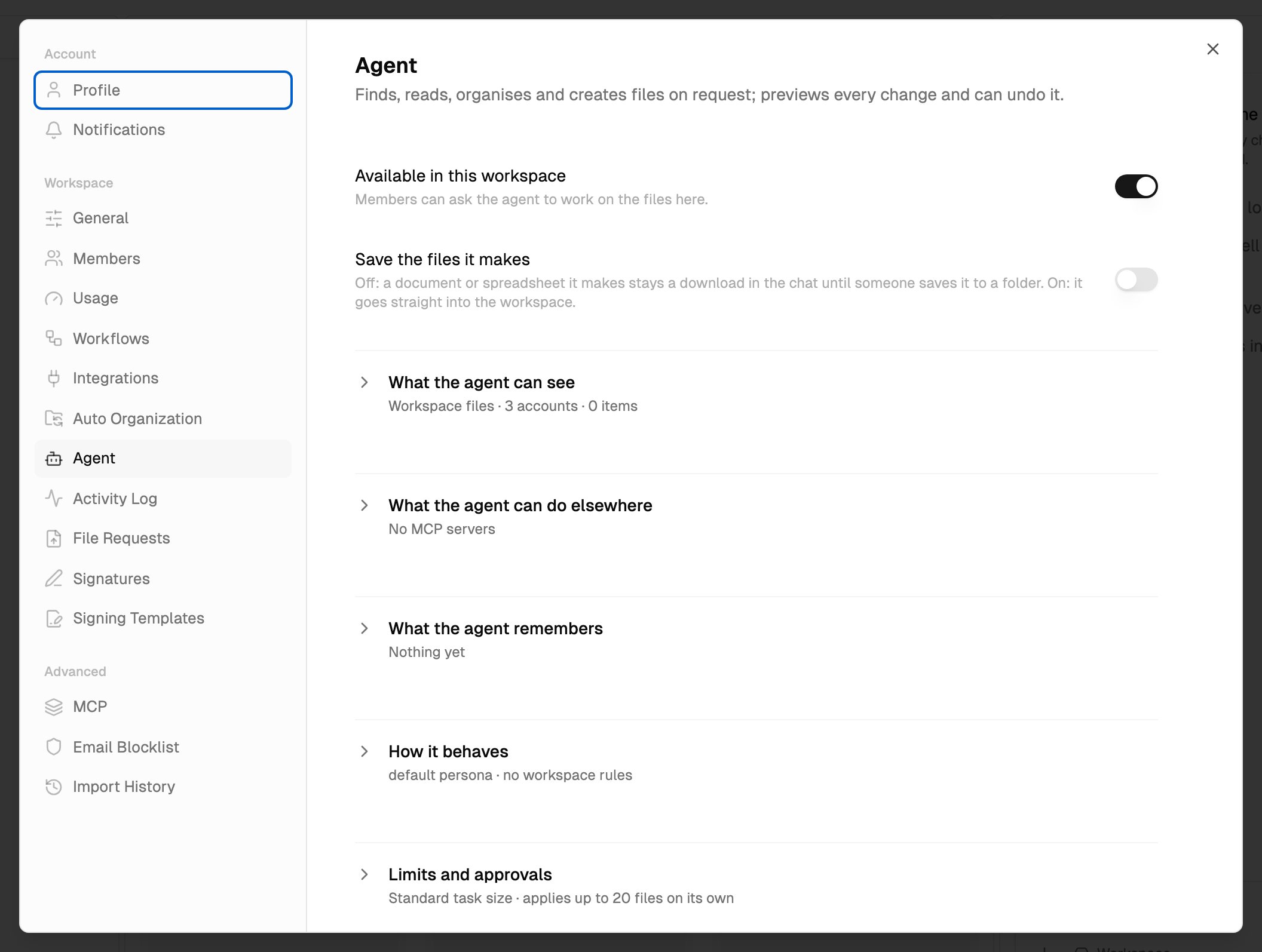
All of the agent's settings for a workspace are in one place: **Settings** > **Agent**. Settings apply to the whole workspace, except your own notes in **What the agent remembers**.
To get there, open **Settings** and choose **Agent**. Owners and admins can also click the gear icon (**Agent settings**) in the agent panel's header.
 ## Who can change what
| Section | Owners and admins | Members |
| - | - | - |
| **Available in this workspace** | Change | Don't see it |
| **Save the files it makes** | Change | Don't see it |
| **What the agent can see** | See what the agent reaches, and add shared drives | See what the agent reaches for them |
| **What the agent can do elsewhere** | Add, change, test and remove servers | See which servers are connected |
| **What the agent remembers** | Change workspace notes and their own | Read workspace notes; change their own |
| **How it behaves** | Change | Don't see it |
| **Limits and approvals** | Change | Don't see it |
Viewers can't open Settings.
In your personal workspace, you're the owner, so you can change everything.
## Available in this workspace
Turns the agent on or off for everyone in the workspace. It's on unless an owner or admin turns it off. The switch saves as soon as you click it.
When it's off, the agent panel says **The agent is not enabled for this workspace.**, and members see "An admin turned the agent off in this workspace" in **Settings** > **Agent**.
## Save the files it makes
Controls whether saving a new file the agent made into a folder needs your OK. It's off by default. The switch saves as soon as you click it.
* **Off:** a document or spreadsheet the agent makes stays in the chat, marked **Only in this chat**, until someone saves it to a folder. When you ask the agent to save it into a folder, it shows a card asking you to confirm where it goes.
* **On:** the agent saves new files into a folder without that confirmation.
Other rules still apply when it's on. For example, saving into a folder other than the one you're in still asks first. See [When the agent asks first](/agent/approving-and-undoing#when-the-agent-asks-first).
For how to save files from the chat yourself, see [Document creation](/features/document-creation#save-it-to-a-folder).
## What the agent can see
Lists what the agent can reach: **Workspace files** (always), plus each connected drive and its status, such as **Cataloguing** or **Ready**. Your own drives are visible only to you. Owners and admins add Google Shared Drives and SharePoint libraries here.
See [Connected drives](/agent/connected-drives#check-what-the-agent-can-see) for each status and how to add a shared drive.
## What the agent can do elsewhere
Lists the MCP servers that give the agent tools from other apps, such as a CRM or a ticketing system, with how many tools each offers. Owners and admins add and manage servers here.
See [Tools from other apps](/agent/mcp-tools).
## What the agent remembers
Short notes the agent starts every request with, under **Workspace** (everyone's requests) and **Yours** (only your requests). You can read, edit, add and delete notes here.
See [Memory and instructions](/agent/memory-and-instructions#what-the-agent-remembers).
## How it behaves
Two text fields that shape how the agent works for everyone in the workspace:
* **Persona** replaces the agent's default persona. Leave it blank to keep the default.
* **Workspace rules** are added to its standing instructions: filing conventions, naming rules, what never to touch.
See [Memory and instructions](/agent/memory-and-instructions#how-it-behaves).
## Limits and approvals
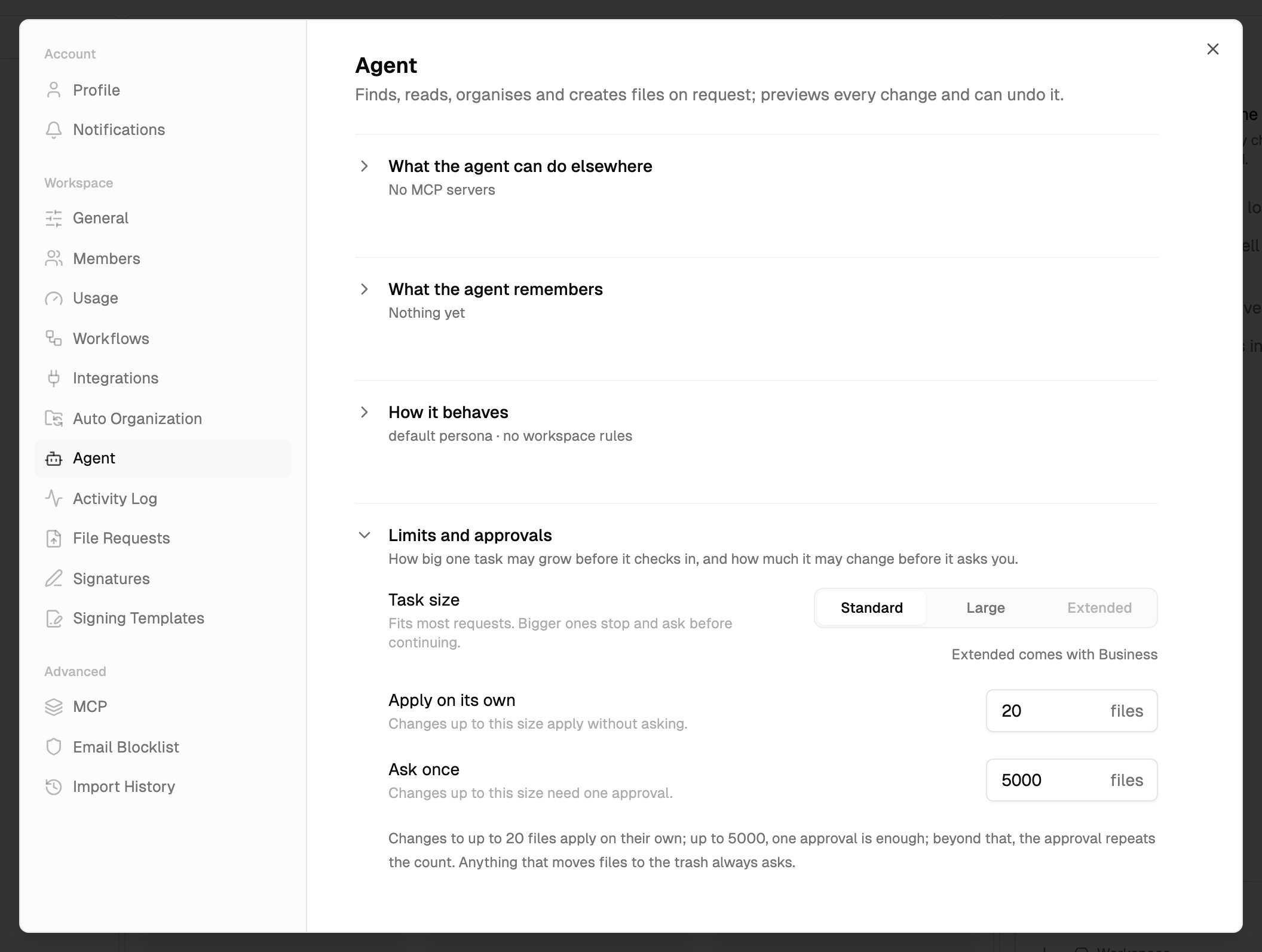
How big one task may grow before it checks in, and how much it may change before it asks. When collapsed, the section shows a summary such as "Standard task size · applies up to 20 files on its own".
### Task size
How much one turn of the agent can do before it stops and asks whether to continue. Saying "continue" starts a new [task](/agent/overview#tasks-and-limits).
| Size | What it's for |
| - | - |
| **Standard** | Fits most requests. Bigger ones stop and ask before continuing. This is the default. |
| **Large** | For requests that touch many files at once. |
| **Extended** | For long jobs. Uses the most before it checks in. |
Your plan sets the largest size you can choose. Sizes your plan doesn't include are greyed out, with a line that names the plans that include the next size up.
| Size | Comes with |
| - | - |
| **Standard** | Every plan |
| **Large** | Max, Team, Business and Enterprise |
| **Extended** | Business and Enterprise |
If the workspace moves to a plan that doesn't include the size that's set, the agent uses the largest size the new plan includes.
A bigger task size doesn't change how many tasks your plan includes. Each request still counts as one task, however much it does.
### Apply on its own
Changes up to this many items apply without asking. The default is 20.
Some changes always ask first, whatever this is set to, such as moving files to the trash, editing a document, or changing anything outside the folder you're in. See [Changes that always ask](/agent/approving-and-undoing#changes-that-always-ask).
### Ask once
Changes up to this many items need one approval. Bigger changes ask you to confirm the count with a second click. The default is 5,000.
**Apply on its own** must be a whole number greater than 0, and no bigger than **Ask once**.
### Save your changes
The text fields, **Task size**, **Apply on its own** and **Ask once** don't save on their own. When you change one, a bar appears at the bottom with **Unsaved changes**. Click **Save changes**, or **Discard** to go back to what's saved.
In **Settings** > **Agent**, click **Limits and approvals** to expand it.
Pick a **Task size**, and type numbers for **Apply on its own** and **Ask once**. A sentence under them says what the two numbers mean together.
Click **Save changes**.
## Who can change what
| Section | Owners and admins | Members |
| - | - | - |
| **Available in this workspace** | Change | Don't see it |
| **Save the files it makes** | Change | Don't see it |
| **What the agent can see** | See what the agent reaches, and add shared drives | See what the agent reaches for them |
| **What the agent can do elsewhere** | Add, change, test and remove servers | See which servers are connected |
| **What the agent remembers** | Change workspace notes and their own | Read workspace notes; change their own |
| **How it behaves** | Change | Don't see it |
| **Limits and approvals** | Change | Don't see it |
Viewers can't open Settings.
In your personal workspace, you're the owner, so you can change everything.
## Available in this workspace
Turns the agent on or off for everyone in the workspace. It's on unless an owner or admin turns it off. The switch saves as soon as you click it.
When it's off, the agent panel says **The agent is not enabled for this workspace.**, and members see "An admin turned the agent off in this workspace" in **Settings** > **Agent**.
## Save the files it makes
Controls whether saving a new file the agent made into a folder needs your OK. It's off by default. The switch saves as soon as you click it.
* **Off:** a document or spreadsheet the agent makes stays in the chat, marked **Only in this chat**, until someone saves it to a folder. When you ask the agent to save it into a folder, it shows a card asking you to confirm where it goes.
* **On:** the agent saves new files into a folder without that confirmation.
Other rules still apply when it's on. For example, saving into a folder other than the one you're in still asks first. See [When the agent asks first](/agent/approving-and-undoing#when-the-agent-asks-first).
For how to save files from the chat yourself, see [Document creation](/features/document-creation#save-it-to-a-folder).
## What the agent can see
Lists what the agent can reach: **Workspace files** (always), plus each connected drive and its status, such as **Cataloguing** or **Ready**. Your own drives are visible only to you. Owners and admins add Google Shared Drives and SharePoint libraries here.
See [Connected drives](/agent/connected-drives#check-what-the-agent-can-see) for each status and how to add a shared drive.
## What the agent can do elsewhere
Lists the MCP servers that give the agent tools from other apps, such as a CRM or a ticketing system, with how many tools each offers. Owners and admins add and manage servers here.
See [Tools from other apps](/agent/mcp-tools).
## What the agent remembers
Short notes the agent starts every request with, under **Workspace** (everyone's requests) and **Yours** (only your requests). You can read, edit, add and delete notes here.
See [Memory and instructions](/agent/memory-and-instructions#what-the-agent-remembers).
## How it behaves
Two text fields that shape how the agent works for everyone in the workspace:
* **Persona** replaces the agent's default persona. Leave it blank to keep the default.
* **Workspace rules** are added to its standing instructions: filing conventions, naming rules, what never to touch.
See [Memory and instructions](/agent/memory-and-instructions#how-it-behaves).
## Limits and approvals
How big one task may grow before it checks in, and how much it may change before it asks. When collapsed, the section shows a summary such as "Standard task size · applies up to 20 files on its own".
### Task size
How much one turn of the agent can do before it stops and asks whether to continue. Saying "continue" starts a new [task](/agent/overview#tasks-and-limits).
| Size | What it's for |
| - | - |
| **Standard** | Fits most requests. Bigger ones stop and ask before continuing. This is the default. |
| **Large** | For requests that touch many files at once. |
| **Extended** | For long jobs. Uses the most before it checks in. |
Your plan sets the largest size you can choose. Sizes your plan doesn't include are greyed out, with a line that names the plans that include the next size up.
| Size | Comes with |
| - | - |
| **Standard** | Every plan |
| **Large** | Max, Team, Business and Enterprise |
| **Extended** | Business and Enterprise |
If the workspace moves to a plan that doesn't include the size that's set, the agent uses the largest size the new plan includes.
A bigger task size doesn't change how many tasks your plan includes. Each request still counts as one task, however much it does.
### Apply on its own
Changes up to this many items apply without asking. The default is 20.
Some changes always ask first, whatever this is set to, such as moving files to the trash, editing a document, or changing anything outside the folder you're in. See [Changes that always ask](/agent/approving-and-undoing#changes-that-always-ask).
### Ask once
Changes up to this many items need one approval. Bigger changes ask you to confirm the count with a second click. The default is 5,000.
**Apply on its own** must be a whole number greater than 0, and no bigger than **Ask once**.
### Save your changes
The text fields, **Task size**, **Apply on its own** and **Ask once** don't save on their own. When you change one, a bar appears at the bottom with **Unsaved changes**. Click **Save changes**, or **Discard** to go back to what's saved.
In **Settings** > **Agent**, click **Limits and approvals** to expand it.
Pick a **Task size**, and type numbers for **Apply on its own** and **Ask once**. A sentence under them says what the two numbers mean together.
Click **Save changes**.
 ## What's next?
What the agent asks before it changes something.
What each plan includes.
This documentation is built and hosted on [Mintlify](https://mintlify.com), a developer documentation platform.
## What's next?
What the agent asks before it changes something.
What each plan includes.
This documentation is built and hosted on [Mintlify](https://mintlify.com), a developer documentation platform.