> ## Documentation Index
> Fetch the complete documentation index at: https://docs.thedrive.ai/llms.txt
> Use this file to discover all available pages before exploring further.
# The Agent
> Ask the agent to find, read, organize and create files, and to share, request signatures and build workflows. It shows every change and lets you undo it.
## What the agent is
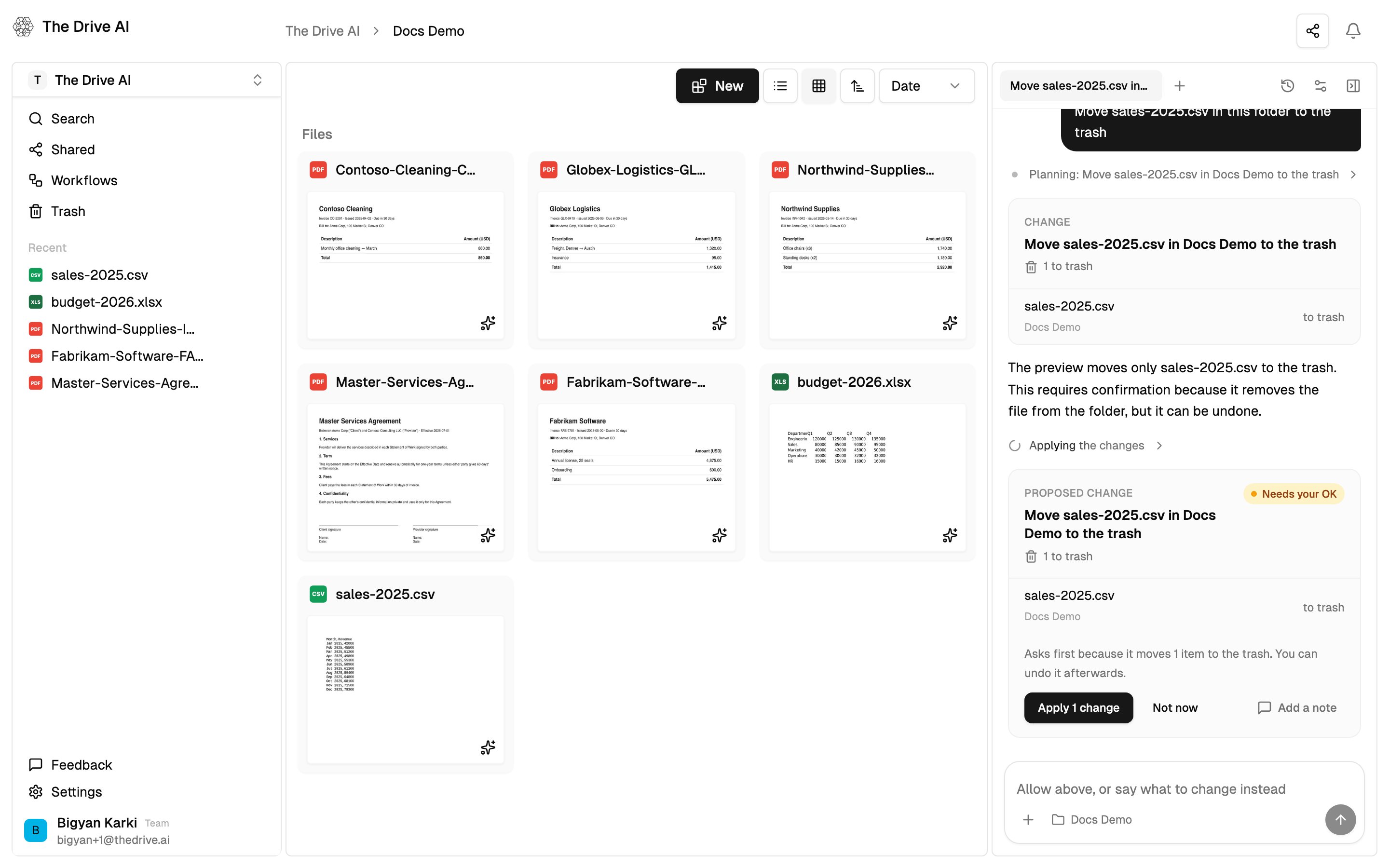
The agent works on your files for you. Describe what you want in plain language. It looks through your files first, then answers, or proposes the change and shows you exactly what it will do.
It works with your own permissions, so it can't open, change or share anything you couldn't yourself.
 ## Open the agent
* **In the web app.** Click **Agent** in the toolbar, or press `⌘J` (Mac) or `Ctrl+J` (Windows). To close the panel, press the shortcut again or click **Hide agent** in the panel's header. Drag the panel's edge to resize it; double-click the edge to reset it.
* **In your browser, next to Google Drive, OneDrive, SharePoint or Dropbox.** The [browser extension](/agent/browser-extension) opens the same agent in Chrome's side panel.
* **In the [mobile app](/getting-started/mobile-app)**, on iOS and Android.
On a narrow screen the panel takes the place of your files. Click **Back to files** to return.
The agent is on in every workspace unless an owner or admin turns it off. If the panel says **The agent is not enabled for this workspace.**, ask an owner or admin to switch on **Available in this workspace** in **Settings** > **Agent**. See [Agent settings](/agent/settings).
## What it works on
The agent works on what you're looking at. A chip next to the message box shows its current place:
* **A folder name** when you're in a folder. The agent treats that folder as "here".
* **A file name** when you have a file open, for example a PDF in the viewer. The agent treats that file as "this", and the folder it's in as "here".
* **Workspace** when you're at the top level.
The chip follows you as you move around. To point the agent somewhere else, open that folder or file. A change that reaches outside the folder you're in always asks you first.
Besides the files stored in The Drive AI, the agent can work in [connected drives](/agent/connected-drives) (Google Drive, OneDrive, SharePoint and Dropbox). Connected drives come with Max, Team, Business and Enterprise. A new conversation lists the drives it can reach under **Also sees**.
## What to ask
Start with what you want done, not how to do it. When you open a new conversation, the panel suggests a few requests you can click to send.
```text theme={null}
What is in here, and what looks out of place?
```
```text theme={null}
Find duplicate files and tell me how much space they take.
```
```text theme={null}
Organize the invoices by vendor and year.
```
```text theme={null}
Read every invoice in this folder and total them by month.
```
```text theme={null}
Summarize the contracts in a one-page PDF.
```
```text theme={null}
Share this folder with jane@example.com so she can edit.
```
Name a folder or file if it isn't the one you're in: "Rename the scans in /Inbox by the date on each page."
## What it can do
| Area | What the agent can do | More |
| - | - | - |
| **Files and folders** | Find files by name, type, size, date or what's inside them. Read documents, PDFs, spreadsheets and slides. Move, rename, copy, restore and move files to the trash. Create folders. Find duplicates. Work across many files at once, such as reading every invoice in a folder into one table. | [Browsing and search](/features/browsing-and-search) |
| **Connected drives** | Do the same in Google Drive, OneDrive, SharePoint and Dropbox, where the files are. | [Connected drives](/agent/connected-drives) |
| **Documents** | Make PDFs, Word documents, spreadsheets, CSVs, slide decks and notes. Edit existing documents. | [Document creation](/features/document-creation) |
| **Charts and diagrams** | Draw charts of your numbers and diagrams of processes and timelines. | [Charts and diagrams](/agent/charts-and-diagrams) |
| **PDFs** | Merge, split, rotate, compress, watermark, protect and fill PDFs, and pull tables out of them. | [PDF tools](/features/pdf-tools) |
| **Sharing** | Share files and folders with people, change or remove their access, and publish public links. | [File sharing](/features/file-sharing) |
| **E-signatures** | Prepare a PDF for signature, place the fields and send it. Remind signers or void a request. | [E-Sign](/features/e-sign) |
| **File requests** | Create a file request, add recipients, send reminders and close it. | [File requests](/features/file-requests) |
| **Workflows** | For owners and admins: draft a workflow from a description, then save it, switch it on or off, run it now and retry runs. Members can ask about existing workflows and their runs. | [Building workflows with the agent](/workflows/building-with-the-agent) |
| **Members** | List members. Owners and admins can invite people, change roles, remove members and resend invitations. | [Members and roles](/account/members-and-roles) |
| **Tools from other apps** | Use tools an admin adds from another service's MCP server, such as a CRM or a ticketing system. | [Tools from other apps](/agent/mcp-tools) |
Sharing, e-signatures, file requests, workflows and member changes always ask you before they happen.
## Approving and undoing changes
The agent never changes files silently. Every change appears in the conversation as a card that lists exactly what will change, such as "4 moves · 1 new folder".
* **Small changes in the folder you're in apply right away.** You can still undo them.
* **Bigger changes ask first.** Click **Apply N changes**, or **Not now** to skip it.
* **Some changes always ask**, such as moving files to the trash, editing a document, or changing anything outside the folder you're in.
* **Actions outside your files**, like sharing a file or sending a signature request, ask first too. Click **Allow** or **Not now**.
To reverse a change, click **Undo** on its card. See [Approving and undoing](/agent/approving-and-undoing) for every kind of card, what always asks, and what can't be undone.
## Attaching files and getting files back
**Attach a file** by clicking **+** next to the message box, or by dropping files onto the panel. Attached files belong to the conversation only. They aren't saved to your workspace. See [Conversations](/agent/conversations#attach-files) for the limits.
**Files the agent makes**, like a PDF summary or a spreadsheet, appear in the conversation as a card. You can view or download them, or choose **Save to a folder**. Until you save one, the card says **Only in this chat**. See [Document creation](/features/document-creation#getting-the-file).
## Tasks and limits
The agent counts **tasks**.
* **What counts.** Each request the agent acts on is one task, however many steps it takes. Saying hello, asking what it can do, answering its questions, or asking it to remember or forget something doesn't count. A task that stopped because of a problem on our side doesn't count. A task you stop yourself does.
* **Bigger tasks stop and ask.** If a task grows bigger than one turn, the agent stops and says so. Say "continue" and it picks up where it left off, building on any unfinished files it attached. Continuing counts as a new task. How big one turn may get is the workspace's **Task size**. See [Agent settings](/agent/settings#task-size).
* **Every plan includes a monthly number of tasks.** On team plans the tasks are per seat and shared across the workspace. The count resets on your billing date. On Free, it resets on the day of the month the workspace was created. See [Plans & Pricing](/account/plans-pricing) for each plan's allowance.
* **Reading many files at once has a cap per task.** When the agent reads a whole selection of files into a table, such as totalling every invoice in a folder, the plan limits how many files one task reads. Free reads up to 50; paid plans read far more. Moving, renaming and organizing many files isn't limited by this.
**When you've used them all**, the agent tells you the date they come back. If you can change the plan, it also offers an upgrade. Nothing else in the workspace changes.
**Smaller turns.** If a workspace uses the agent very heavily in a month, a notice above the message box says tasks run in smaller turns until a date. Every task still runs and counts as one, but bigger tasks stop and ask to continue more often. Click **Got it** to hide the notice.
**Monthly use limit.** Separately from the task count, there's a limit on how much the agent can be used in a month. If a workspace reaches it, the panel says **This workspace has reached this month's assistant use** and names the date it comes back. No new requests start until then, even if tasks are left.
To check what you've used, open **Settings** > **Usage** and look at **Assistant tasks this month**. See [Usage and limits](/account/usage-and-limits).
## What the agent can't do
* **It doesn't browse the web.**
* **It doesn't read or send your email.** [Workflows](/workflows/overview) can act on email that arrives in a connected inbox.
* **It can't move or copy files between two different storages in one change**, for example from Google Drive into The Drive AI, or from OneDrive to Dropbox. A workflow with a **Save a Copy** step can. See [Connected drives](/agent/connected-drives#what-it-cant-do).
* **It can't act beyond your own permissions.** If you can only view a file or drive, the agent can read it but not change it.
## What's next?
Tabs, history, alerts, attachments and stopping a task.
Every card the agent shows, and how to undo a change.
Teach the agent how you and your workspace work.
Turn the agent on or off, and set its limits and approvals.
This documentation is built and hosted on [Mintlify](https://mintlify.com), a developer documentation platform.
## Open the agent
* **In the web app.** Click **Agent** in the toolbar, or press `⌘J` (Mac) or `Ctrl+J` (Windows). To close the panel, press the shortcut again or click **Hide agent** in the panel's header. Drag the panel's edge to resize it; double-click the edge to reset it.
* **In your browser, next to Google Drive, OneDrive, SharePoint or Dropbox.** The [browser extension](/agent/browser-extension) opens the same agent in Chrome's side panel.
* **In the [mobile app](/getting-started/mobile-app)**, on iOS and Android.
On a narrow screen the panel takes the place of your files. Click **Back to files** to return.
The agent is on in every workspace unless an owner or admin turns it off. If the panel says **The agent is not enabled for this workspace.**, ask an owner or admin to switch on **Available in this workspace** in **Settings** > **Agent**. See [Agent settings](/agent/settings).
## What it works on
The agent works on what you're looking at. A chip next to the message box shows its current place:
* **A folder name** when you're in a folder. The agent treats that folder as "here".
* **A file name** when you have a file open, for example a PDF in the viewer. The agent treats that file as "this", and the folder it's in as "here".
* **Workspace** when you're at the top level.
The chip follows you as you move around. To point the agent somewhere else, open that folder or file. A change that reaches outside the folder you're in always asks you first.
Besides the files stored in The Drive AI, the agent can work in [connected drives](/agent/connected-drives) (Google Drive, OneDrive, SharePoint and Dropbox). Connected drives come with Max, Team, Business and Enterprise. A new conversation lists the drives it can reach under **Also sees**.
## What to ask
Start with what you want done, not how to do it. When you open a new conversation, the panel suggests a few requests you can click to send.
```text theme={null}
What is in here, and what looks out of place?
```
```text theme={null}
Find duplicate files and tell me how much space they take.
```
```text theme={null}
Organize the invoices by vendor and year.
```
```text theme={null}
Read every invoice in this folder and total them by month.
```
```text theme={null}
Summarize the contracts in a one-page PDF.
```
```text theme={null}
Share this folder with jane@example.com so she can edit.
```
Name a folder or file if it isn't the one you're in: "Rename the scans in /Inbox by the date on each page."
## What it can do
| Area | What the agent can do | More |
| - | - | - |
| **Files and folders** | Find files by name, type, size, date or what's inside them. Read documents, PDFs, spreadsheets and slides. Move, rename, copy, restore and move files to the trash. Create folders. Find duplicates. Work across many files at once, such as reading every invoice in a folder into one table. | [Browsing and search](/features/browsing-and-search) |
| **Connected drives** | Do the same in Google Drive, OneDrive, SharePoint and Dropbox, where the files are. | [Connected drives](/agent/connected-drives) |
| **Documents** | Make PDFs, Word documents, spreadsheets, CSVs, slide decks and notes. Edit existing documents. | [Document creation](/features/document-creation) |
| **Charts and diagrams** | Draw charts of your numbers and diagrams of processes and timelines. | [Charts and diagrams](/agent/charts-and-diagrams) |
| **PDFs** | Merge, split, rotate, compress, watermark, protect and fill PDFs, and pull tables out of them. | [PDF tools](/features/pdf-tools) |
| **Sharing** | Share files and folders with people, change or remove their access, and publish public links. | [File sharing](/features/file-sharing) |
| **E-signatures** | Prepare a PDF for signature, place the fields and send it. Remind signers or void a request. | [E-Sign](/features/e-sign) |
| **File requests** | Create a file request, add recipients, send reminders and close it. | [File requests](/features/file-requests) |
| **Workflows** | For owners and admins: draft a workflow from a description, then save it, switch it on or off, run it now and retry runs. Members can ask about existing workflows and their runs. | [Building workflows with the agent](/workflows/building-with-the-agent) |
| **Members** | List members. Owners and admins can invite people, change roles, remove members and resend invitations. | [Members and roles](/account/members-and-roles) |
| **Tools from other apps** | Use tools an admin adds from another service's MCP server, such as a CRM or a ticketing system. | [Tools from other apps](/agent/mcp-tools) |
Sharing, e-signatures, file requests, workflows and member changes always ask you before they happen.
## Approving and undoing changes
The agent never changes files silently. Every change appears in the conversation as a card that lists exactly what will change, such as "4 moves · 1 new folder".
* **Small changes in the folder you're in apply right away.** You can still undo them.
* **Bigger changes ask first.** Click **Apply N changes**, or **Not now** to skip it.
* **Some changes always ask**, such as moving files to the trash, editing a document, or changing anything outside the folder you're in.
* **Actions outside your files**, like sharing a file or sending a signature request, ask first too. Click **Allow** or **Not now**.
To reverse a change, click **Undo** on its card. See [Approving and undoing](/agent/approving-and-undoing) for every kind of card, what always asks, and what can't be undone.
## Attaching files and getting files back
**Attach a file** by clicking **+** next to the message box, or by dropping files onto the panel. Attached files belong to the conversation only. They aren't saved to your workspace. See [Conversations](/agent/conversations#attach-files) for the limits.
**Files the agent makes**, like a PDF summary or a spreadsheet, appear in the conversation as a card. You can view or download them, or choose **Save to a folder**. Until you save one, the card says **Only in this chat**. See [Document creation](/features/document-creation#getting-the-file).
## Tasks and limits
The agent counts **tasks**.
* **What counts.** Each request the agent acts on is one task, however many steps it takes. Saying hello, asking what it can do, answering its questions, or asking it to remember or forget something doesn't count. A task that stopped because of a problem on our side doesn't count. A task you stop yourself does.
* **Bigger tasks stop and ask.** If a task grows bigger than one turn, the agent stops and says so. Say "continue" and it picks up where it left off, building on any unfinished files it attached. Continuing counts as a new task. How big one turn may get is the workspace's **Task size**. See [Agent settings](/agent/settings#task-size).
* **Every plan includes a monthly number of tasks.** On team plans the tasks are per seat and shared across the workspace. The count resets on your billing date. On Free, it resets on the day of the month the workspace was created. See [Plans & Pricing](/account/plans-pricing) for each plan's allowance.
* **Reading many files at once has a cap per task.** When the agent reads a whole selection of files into a table, such as totalling every invoice in a folder, the plan limits how many files one task reads. Free reads up to 50; paid plans read far more. Moving, renaming and organizing many files isn't limited by this.
**When you've used them all**, the agent tells you the date they come back. If you can change the plan, it also offers an upgrade. Nothing else in the workspace changes.
**Smaller turns.** If a workspace uses the agent very heavily in a month, a notice above the message box says tasks run in smaller turns until a date. Every task still runs and counts as one, but bigger tasks stop and ask to continue more often. Click **Got it** to hide the notice.
**Monthly use limit.** Separately from the task count, there's a limit on how much the agent can be used in a month. If a workspace reaches it, the panel says **This workspace has reached this month's assistant use** and names the date it comes back. No new requests start until then, even if tasks are left.
To check what you've used, open **Settings** > **Usage** and look at **Assistant tasks this month**. See [Usage and limits](/account/usage-and-limits).
## What the agent can't do
* **It doesn't browse the web.**
* **It doesn't read or send your email.** [Workflows](/workflows/overview) can act on email that arrives in a connected inbox.
* **It can't move or copy files between two different storages in one change**, for example from Google Drive into The Drive AI, or from OneDrive to Dropbox. A workflow with a **Save a Copy** step can. See [Connected drives](/agent/connected-drives#what-it-cant-do).
* **It can't act beyond your own permissions.** If you can only view a file or drive, the agent can read it but not change it.
## What's next?
Tabs, history, alerts, attachments and stopping a task.
Every card the agent shows, and how to undo a change.
Teach the agent how you and your workspace work.
Turn the agent on or off, and set its limits and approvals.
This documentation is built and hosted on [Mintlify](https://mintlify.com), a developer documentation platform.