> ## Documentation Index
> Fetch the complete documentation index at: https://docs.thedrive.ai/llms.txt
> Use this file to discover all available pages before exploring further.
# Connected Drives
> How the agent works in Google Drive, OneDrive, SharePoint and Dropbox, and what it can't do there
## Overview
The agent can work directly in your Google Drive, OneDrive, SharePoint and Dropbox. It can find and read files, and move, rename, edit or organize them where they are. Nothing is copied into The Drive AI to make this work.
Connected drives and accounts come with Max, Team, Business and Enterprise. On other plans, the agent works only on files stored in The Drive AI. See [Plans & Pricing](/account/plans-pricing).
## Connect a drive
Any member of a workspace on one of those plans can connect their own account. Viewers can't open **Settings**, so they can't connect one.
Open **Settings** and choose **Integrations**. Under **Cloud storage**, click **Google Drive**, **OneDrive**, **SharePoint** or **Dropbox**.
Click **Connect Google Drive** (or the button for your drive) and sign in to your account in the window that opens. Allow pop-ups if your browser blocks it.
The agent first builds a catalog of what's in the drive. While it does, the account shows **Agent: cataloguing**. When it's done it shows **Agent: ready**. This takes minutes for most drives, and longer for very large ones.
To connect another account on the same service, open it again and click **Add account**. For the details of each service, see [Google Drive](/integrations/google-drive), [OneDrive and SharePoint](/integrations/onedrive) and [Dropbox](/integrations/dropbox).
Work and school Microsoft accounts need your Microsoft 365 administrator to approve The Drive AI first. If you see **Administrator approval is required**, ask your administrator to approve access in Microsoft Entra, then click **Check approval & finish connecting**.
## Personal drives and shared drives
**Your own drive appears automatically.** When you connect Google Drive (My Drive), OneDrive or Dropbox, the agent catalogs your drive. Only you can see it through the agent.
**Shared drives are added by an admin.** A workspace owner or admin chooses which Google Shared Drives and SharePoint document libraries the agent catalogs:
1. Connect your own Google Drive or SharePoint account, one that is a member of the shared drive or library. You can only add a drive with an account you connected yourself.
2. Open **Settings** > **Agent**, find your account under **What the agent can see**, and click **Add shared drive** (Google Drive) or **Add library** (SharePoint). Once the service is listed under **Connected** in the left sidebar, you can also point at it there and click **+**.
3. Choose the shared drive from the list. For SharePoint, search for the site by name (or paste a link to it), then choose the library and click **Add library**.
A drive only needs to be added once per workspace. If it's already added, it shows as **Added** (or **Already added** for a SharePoint library).
**Each member reaches a shared drive through their own account.** Adding a drive doesn't give anyone access to it. A member sees a shared drive, and can use the agent on it, when:
* they've connected their own Google or Microsoft account in this workspace, and
* that account can open the drive in Google Drive or SharePoint.
There's nothing else to do: once both are true, the drive appears for them the next time they open the agent. The agent works in the drive as that person, with their permissions. If their account can only view the drive, the agent can find and read files there but can't change them. Workspace viewers don't see shared drives.
If someone can't see a shared drive a teammate can, they should connect the Google or Microsoft account that's a member of it, or ask the drive's owner in Google Drive or SharePoint for access.
The drives the agent can see are listed in the left sidebar under **Connected**, grouped by service, with SharePoint libraries under their site. Your own drive is called **My Drive**, **My files** or **My Dropbox**. Click one to browse it.
## Check what the agent can see
Open **Settings** > **Agent** and expand **What the agent can see**. When it's folded, one line sums it up, for example **Workspace files · 2 accounts · 48,210 items**, or which drive needs a look.
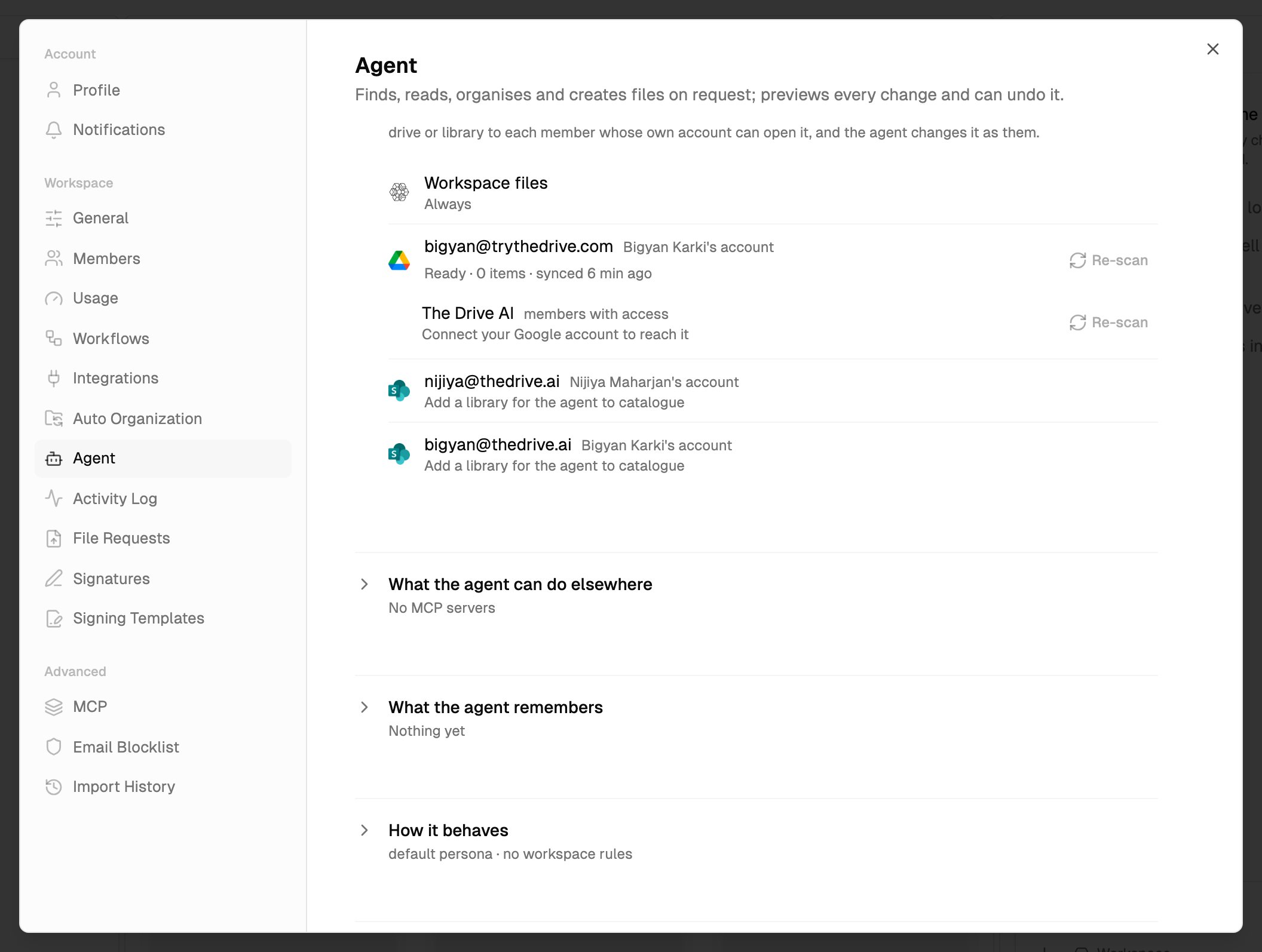 The list shows:
* **Workspace files**, marked **Always**: the files stored in The Drive AI.
* **Each connected account**, marked **your account** or with the teammate's name, and a status line for its own drive.
* **Shared drives and libraries** under the account that catalogs them, marked **members with access**. If your account can only view one, it says **members with access · you can view**.
Each drive shows one status:
| Status | Meaning |
| - | - |
| **Cataloguing…** or **Cataloguing · 1,200 items so far** | The agent is still building its catalog. Some files won't be found yet. |
| **Ready · 48,210 items · synced 2 min ago** | The catalog is complete and kept up to date. |
| **Retrying · …** | Recent updates failed and it's trying again. The reason follows. |
| **Stopped · … · re-scan to restart** | Updates stopped. Click **Re-scan** to start again. |
| **Paused** | The drive isn't being updated, for example after the account was disconnected or the agent was turned off. |
| **Waiting to be catalogued (starts within a minute)** | The account was just connected. |
Under a shared drive, a line can also say why you can't reach it:
| The line says | What to do |
| - | - |
| **Connect your Google account to reach it** or **Connect your Microsoft account to reach it** | Connect your own account in **Settings** > **Integrations**. |
| **Checking your access…** | Wait a moment. |
| **Your Google account can't open it** or **Your Microsoft account can't open it** | Ask the drive's owner for access, or connect the account that is a member. |
Click **Re-scan** on a drive to rebuild its catalog, for example when it shows **Stopped**. It isn't offered while a drive is still cataloguing.
For a SharePoint account, the line says **Add a library for the agent to catalogue** until a library is added, then how many libraries are catalogued. If the agent is turned off for the workspace, accounts say **Catalogued once the agent is on**.
Changes you make in the drive itself reach the agent within about a minute.
## What the agent can do in a connected drive
* **Find files** by name, and by content using the drive's own search.
* **Read** text files, PDFs, Word, Excel and PowerPoint files, and Google Docs, Sheets and Slides.
* **Read audio and video recordings**, on plans that include every file type. A recording is transcribed the first time you ask about it, which can take a minute or more, and the transcript is then searchable.
* **Organize**: move, rename, copy, create folders and move files to the drive's trash.
* **Edit documents in place**: Google Docs, Google Sheets and plain text files such as .txt, .md and .csv. The card shows the change before it's made, and undo puts back the earlier content.
* **Save files it makes** into a folder on the drive when you choose **Save to a folder**.
Every change uses the same [approve-and-undo](/agent/approving-and-undoing) cards as in The Drive AI. The agent acts with your own permissions on the drive.
## What it can't do
* **It can't move or copy files between two different storages in one change**, for example from Google Drive into The Drive AI, or from OneDrive to Dropbox. A [workflow](/workflows/overview) with a **Save a Copy** step can: it puts a copy of each file it handles into The Drive AI or another connected account, as files arrive or on a schedule over an existing folder. For a one-off copy, you can also use **Import from Cloud** and **Export to Cloud** (see [Google Drive](/integrations/google-drive)).
* **It can't read images stored in a connected drive.** Images stored in The Drive AI are different: they are read when you upload them, on plans that include every file type.
* **It can't edit Google files that have no text form**, like Slides decks and Drawings. Open those in Google Drive.
* **It can't move a file someone else shared with you** out of their Google Drive folder. Files whose folder you can't see are listed under **Shared with me**. The agent can copy them into a folder of yours instead.
* **Search by content may miss scanned pages.** The agent can read a scanned PDF when it opens it, but words that only appear in a scan may not be found by a search across the drive.
## Undo on each drive
When the agent moves a file to a drive's trash, whether **Undo** can bring it back depends on the drive:
| Drive | Undo a move to the trash |
| - | - |
| **Google Drive** | Yes |
| **Dropbox** | Yes. A folder comes back file by file. |
| **OneDrive (personal)** | Yes |
| **OneDrive (work or school) and SharePoint** | Yes, once your Microsoft account, or your Microsoft 365 admin, allows SharePoint access. Otherwise restore it from the recycle bin on the web, and the card tells you so. |
Other changes, like moves, renames and new folders, can be undone on every drive. An edit to a document can be undone unless its earlier version was too large to keep a copy of.
## Disconnecting
In **Settings** > **Integrations**, open the drive and click **Disconnect** next to the account. You can disconnect accounts you connected yourself. Owners and admins can disconnect anyone's.
* The agent stops seeing the drive, and it shows as **Paused** in **Settings** > **Agent**.
* Workflows that use the account are paused, and the confirmation tells you which ones. If the same account is connected again later, workflows paused only because of the disconnect start again on their own.
## Troubleshooting
* Check that the drive is listed under **What the agent can see** in **Settings** > **Agent**, and that it shows **Ready**.
* If it's still **Cataloguing**, wait until it finishes.
* If it shows **Stopped**, click **Re-scan**.
* Check that you're in the workspace where you connected the drive.
Connect the Google or Microsoft account that's a member of that drive. The line under the drive in **Settings** > **Agent** tells you what's missing.
Your account can only view that drive or folder. Ask its owner in Google Drive, OneDrive, SharePoint or Dropbox for edit access.
## What's next?
Use the agent right next to the drive you're browsing.
How change cards and undo work.
This documentation is built and hosted on [Mintlify](https://mintlify.com), a developer documentation platform.
The list shows:
* **Workspace files**, marked **Always**: the files stored in The Drive AI.
* **Each connected account**, marked **your account** or with the teammate's name, and a status line for its own drive.
* **Shared drives and libraries** under the account that catalogs them, marked **members with access**. If your account can only view one, it says **members with access · you can view**.
Each drive shows one status:
| Status | Meaning |
| - | - |
| **Cataloguing…** or **Cataloguing · 1,200 items so far** | The agent is still building its catalog. Some files won't be found yet. |
| **Ready · 48,210 items · synced 2 min ago** | The catalog is complete and kept up to date. |
| **Retrying · …** | Recent updates failed and it's trying again. The reason follows. |
| **Stopped · … · re-scan to restart** | Updates stopped. Click **Re-scan** to start again. |
| **Paused** | The drive isn't being updated, for example after the account was disconnected or the agent was turned off. |
| **Waiting to be catalogued (starts within a minute)** | The account was just connected. |
Under a shared drive, a line can also say why you can't reach it:
| The line says | What to do |
| - | - |
| **Connect your Google account to reach it** or **Connect your Microsoft account to reach it** | Connect your own account in **Settings** > **Integrations**. |
| **Checking your access…** | Wait a moment. |
| **Your Google account can't open it** or **Your Microsoft account can't open it** | Ask the drive's owner for access, or connect the account that is a member. |
Click **Re-scan** on a drive to rebuild its catalog, for example when it shows **Stopped**. It isn't offered while a drive is still cataloguing.
For a SharePoint account, the line says **Add a library for the agent to catalogue** until a library is added, then how many libraries are catalogued. If the agent is turned off for the workspace, accounts say **Catalogued once the agent is on**.
Changes you make in the drive itself reach the agent within about a minute.
## What the agent can do in a connected drive
* **Find files** by name, and by content using the drive's own search.
* **Read** text files, PDFs, Word, Excel and PowerPoint files, and Google Docs, Sheets and Slides.
* **Read audio and video recordings**, on plans that include every file type. A recording is transcribed the first time you ask about it, which can take a minute or more, and the transcript is then searchable.
* **Organize**: move, rename, copy, create folders and move files to the drive's trash.
* **Edit documents in place**: Google Docs, Google Sheets and plain text files such as .txt, .md and .csv. The card shows the change before it's made, and undo puts back the earlier content.
* **Save files it makes** into a folder on the drive when you choose **Save to a folder**.
Every change uses the same [approve-and-undo](/agent/approving-and-undoing) cards as in The Drive AI. The agent acts with your own permissions on the drive.
## What it can't do
* **It can't move or copy files between two different storages in one change**, for example from Google Drive into The Drive AI, or from OneDrive to Dropbox. A [workflow](/workflows/overview) with a **Save a Copy** step can: it puts a copy of each file it handles into The Drive AI or another connected account, as files arrive or on a schedule over an existing folder. For a one-off copy, you can also use **Import from Cloud** and **Export to Cloud** (see [Google Drive](/integrations/google-drive)).
* **It can't read images stored in a connected drive.** Images stored in The Drive AI are different: they are read when you upload them, on plans that include every file type.
* **It can't edit Google files that have no text form**, like Slides decks and Drawings. Open those in Google Drive.
* **It can't move a file someone else shared with you** out of their Google Drive folder. Files whose folder you can't see are listed under **Shared with me**. The agent can copy them into a folder of yours instead.
* **Search by content may miss scanned pages.** The agent can read a scanned PDF when it opens it, but words that only appear in a scan may not be found by a search across the drive.
## Undo on each drive
When the agent moves a file to a drive's trash, whether **Undo** can bring it back depends on the drive:
| Drive | Undo a move to the trash |
| - | - |
| **Google Drive** | Yes |
| **Dropbox** | Yes. A folder comes back file by file. |
| **OneDrive (personal)** | Yes |
| **OneDrive (work or school) and SharePoint** | Yes, once your Microsoft account, or your Microsoft 365 admin, allows SharePoint access. Otherwise restore it from the recycle bin on the web, and the card tells you so. |
Other changes, like moves, renames and new folders, can be undone on every drive. An edit to a document can be undone unless its earlier version was too large to keep a copy of.
## Disconnecting
In **Settings** > **Integrations**, open the drive and click **Disconnect** next to the account. You can disconnect accounts you connected yourself. Owners and admins can disconnect anyone's.
* The agent stops seeing the drive, and it shows as **Paused** in **Settings** > **Agent**.
* Workflows that use the account are paused, and the confirmation tells you which ones. If the same account is connected again later, workflows paused only because of the disconnect start again on their own.
## Troubleshooting
* Check that the drive is listed under **What the agent can see** in **Settings** > **Agent**, and that it shows **Ready**.
* If it's still **Cataloguing**, wait until it finishes.
* If it shows **Stopped**, click **Re-scan**.
* Check that you're in the workspace where you connected the drive.
Connect the Google or Microsoft account that's a member of that drive. The line under the drive in **Settings** > **Agent** tells you what's missing.
Your account can only view that drive or folder. Ask its owner in Google Drive, OneDrive, SharePoint or Dropbox for edit access.
## What's next?
Use the agent right next to the drive you're browsing.
How change cards and undo work.
This documentation is built and hosted on [Mintlify](https://mintlify.com), a developer documentation platform.