> ## Documentation Index
> Fetch the complete documentation index at: https://docs.thedrive.ai/llms.txt
> Use this file to discover all available pages before exploring further.
# Notifications
> Choose what can interrupt you in your browser, which emails you get, and where to find every notification in the app
## Overview
The Drive AI tells you about things in three ways:
* **In the app:** the bell in the top toolbar keeps a list of everything. The agent also shows pop-ups and a badge on the **Agent** button.
* **Browser alerts:** your computer's own notifications, for when you're in another tab or app. You choose these per browser.
* **Email:** a twice-daily summary of what you missed, and product news. You choose these for your account.
Your phone has its own settings. See [Mobile app](/getting-started/mobile-app).
Muting something never hides it from the bell. Your choices only decide what interrupts you.
## The bell
Click the bell in the top toolbar to see your notifications. A number on the bell shows how many are unread, and the browser tab title shows the count too.
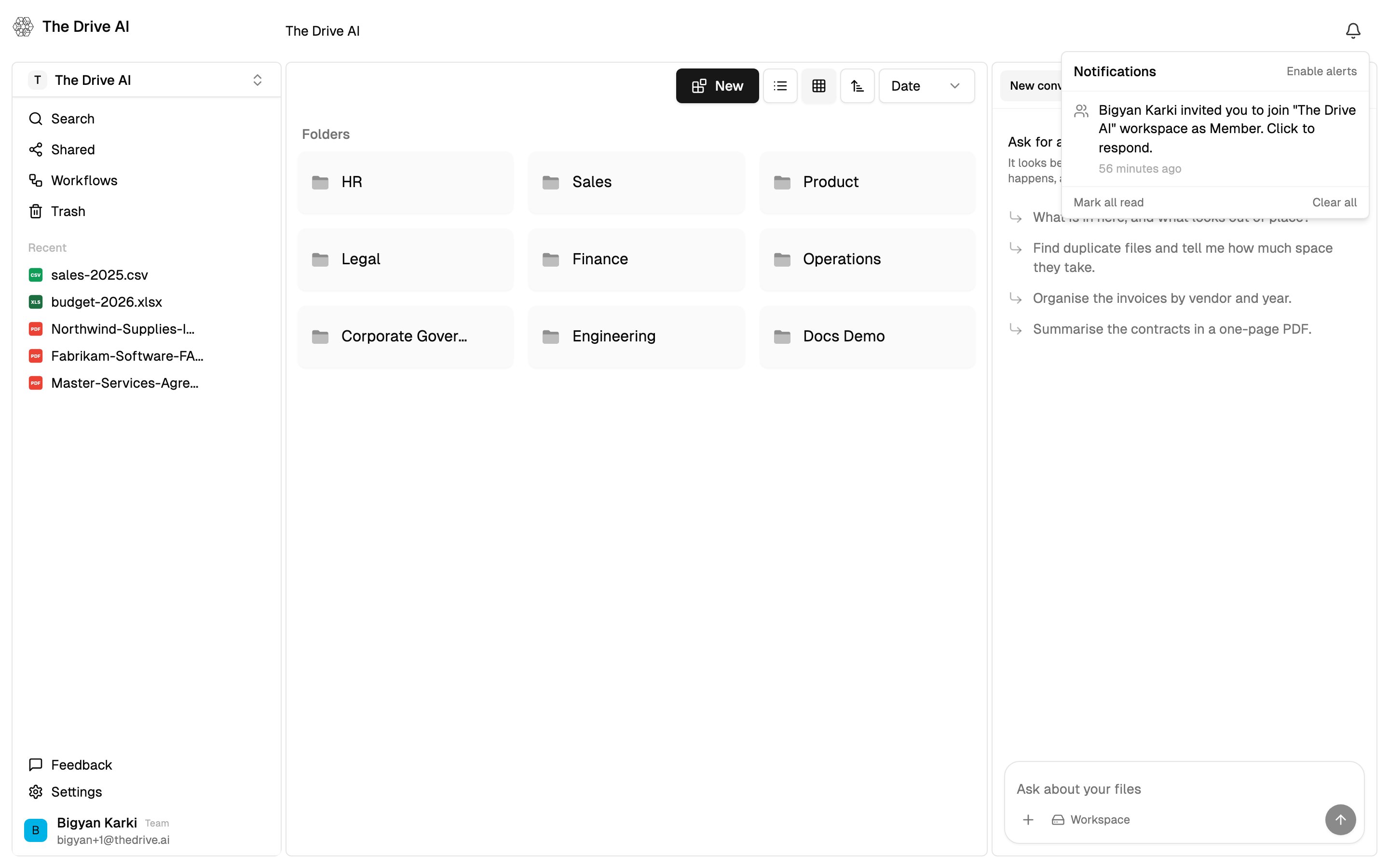 * Unread notifications are listed first, newest at the top.
* Click a notification to go to what it's about. This marks it as read. Workspace invitations stay unread until you accept or decline them.
* Click **Mark all read** or **Clear all** at the bottom of the list.
* Click **Settings** (or **Enable alerts**, if browser alerts are off) at the top of the list to open **Settings** > **Notifications**.
Notifications cover things like mentions, workspace invitations, approvals, requests and disconnected accounts.
## Agent alerts
When the agent needs you or finishes, you hear about it wherever you are in the app, in any workspace:
| What happened | What it says |
| - | - |
| It's waiting for you to approve a change | **\[conversation] needs your approval** |
| It asked you a question | **\[conversation] has a question** |
| It reached the size limit for one task | **\[conversation] can keep going** |
| It finished | **\[conversation] finished** |
| It stopped before finishing | **\[conversation] stopped** |
How you're told depends on what you're doing:
* **You're reading that conversation:** nothing extra. You can already see it.
* **The app is open in front of you:** a pop-up appears with **Open**, which takes you to the conversation, switching workspace if needed.
* **The app is in a tab or window you're not looking at:** a browser alert, if you've allowed them and the **Assistant** topic is on.
* **Neither:** the news waits and shows when you come back, unless the conversation has moved on since.
The **Agent** button in the toolbar also shows a number when conversations need you.
## Browser alerts
Browser alerts are your computer's notifications from The Drive AI. They're set **per browser**: a work laptop and a home computer can have different settings.
Open **Settings** > **Notifications**.
Switch on **Browser alerts**. If your browser asks for permission, click **Allow**.
Under **Alert me about**, switch on the topics you want.
* Unread notifications are listed first, newest at the top.
* Click a notification to go to what it's about. This marks it as read. Workspace invitations stay unread until you accept or decline them.
* Click **Mark all read** or **Clear all** at the bottom of the list.
* Click **Settings** (or **Enable alerts**, if browser alerts are off) at the top of the list to open **Settings** > **Notifications**.
Notifications cover things like mentions, workspace invitations, approvals, requests and disconnected accounts.
## Agent alerts
When the agent needs you or finishes, you hear about it wherever you are in the app, in any workspace:
| What happened | What it says |
| - | - |
| It's waiting for you to approve a change | **\[conversation] needs your approval** |
| It asked you a question | **\[conversation] has a question** |
| It reached the size limit for one task | **\[conversation] can keep going** |
| It finished | **\[conversation] finished** |
| It stopped before finishing | **\[conversation] stopped** |
How you're told depends on what you're doing:
* **You're reading that conversation:** nothing extra. You can already see it.
* **The app is open in front of you:** a pop-up appears with **Open**, which takes you to the conversation, switching workspace if needed.
* **The app is in a tab or window you're not looking at:** a browser alert, if you've allowed them and the **Assistant** topic is on.
* **Neither:** the news waits and shows when you come back, unless the conversation has moved on since.
The **Agent** button in the toolbar also shows a number when conversations need you.
## Browser alerts
Browser alerts are your computer's notifications from The Drive AI. They're set **per browser**: a work laptop and a home computer can have different settings.
Open **Settings** > **Notifications**.
Switch on **Browser alerts**. If your browser asks for permission, click **Allow**.
Under **Alert me about**, switch on the topics you want.
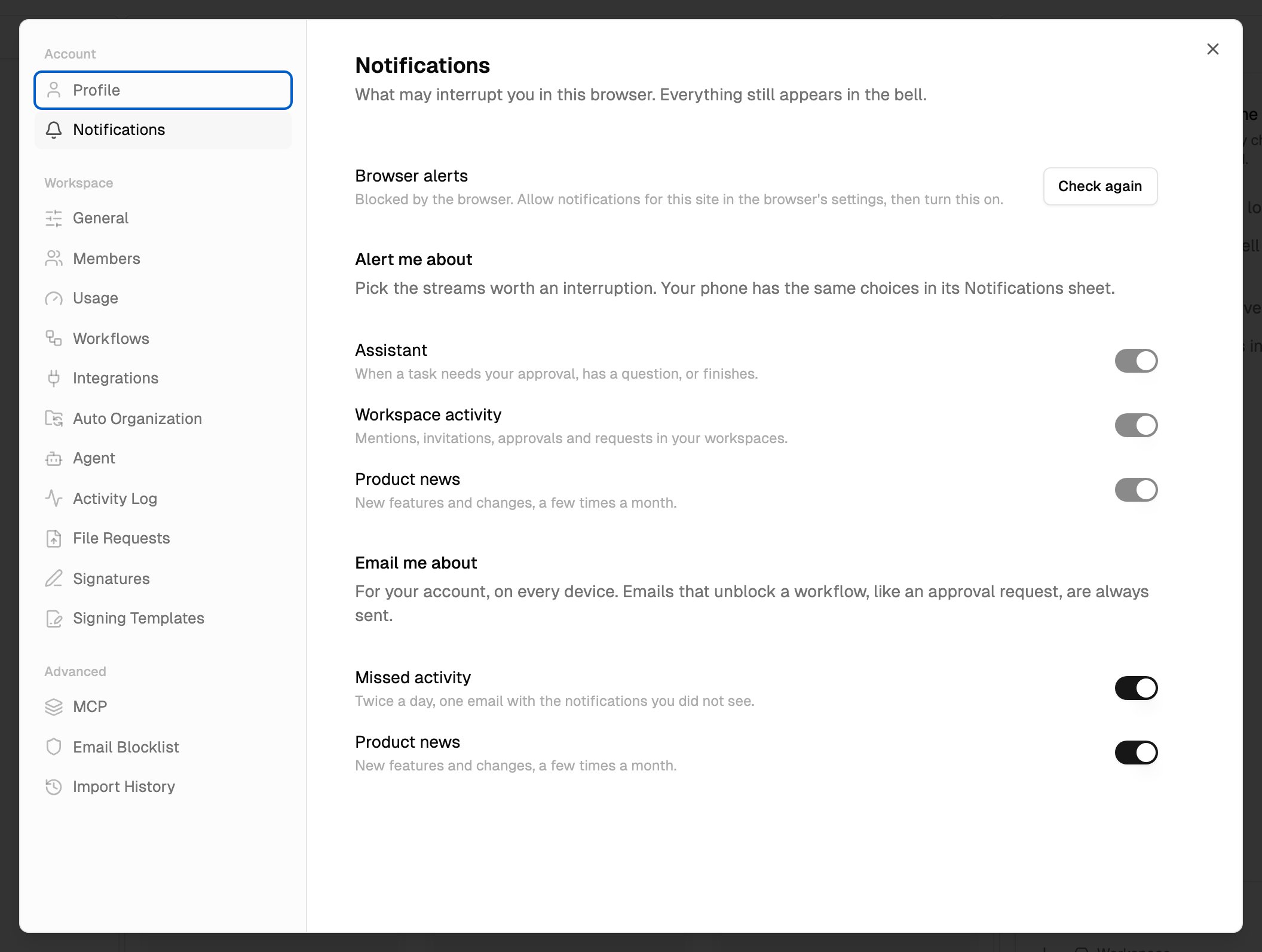 | Topic | What it covers |
| - | - |
| **Assistant** | When a task needs your approval, has a question, or finishes |
| **Workspace activity** | Mentions, invitations, approvals and requests in your workspaces |
| **Product news** | New features and changes, a few times a month |
All three topics are on until you turn one off. The topic switches only work while **Browser alerts** is on.
The first time you use the app in a browser, it may ask for permission to show notifications.
### If your browser blocked notifications
If **Browser alerts** says **Blocked by the browser**, you blocked notifications for The Drive AI earlier. The app can't turn them back on for you.
1. Open your browser's site settings for The Drive AI and allow notifications.
2. Come back to **Settings** > **Notifications** and click **Check again**.
3. Switch on **Browser alerts**.
If it says **This browser cannot show notifications**, your browser doesn't support them.
## Emails
Email settings are for your **account**: one choice that applies on every device.
Open **Settings** > **Notifications** and, under **Email me about**, choose:
| Email | What you get |
| - | - |
| **Missed activity** | Twice a day, one email with the notifications you didn't see |
| **Product news** | New features and changes, a few times a month |
Both are on until you turn them off.
Some emails are always sent because they're the way to act on something, for example a workflow approval request addressed to you. Turning off **Missed activity** doesn't stop those.
The agent doesn't send email notifications.
## Phone notifications
The mobile app sends push notifications for the same three topics. Choose them in the app's **Notifications** sheet, separately from your browser. See [Mobile app](/getting-started/mobile-app).
## Troubleshooting
* Check **Browser alerts** is on in **Settings** > **Notifications**, and the topic is on under **Alert me about**.
* Agent alerts only become browser alerts when you're not looking at the app. If the tab is in front of you, you see a pop-up in the app instead.
* Check your computer's own notification settings allow your browser to show notifications, and that Do Not Disturb or Focus is off.
* Settings are per browser. If you set them up in one browser, set them up again in another.
Turn off **Missed activity** under **Email me about**. You still get emails you need to act on, such as approval requests.
Clicking **Clear all** removes everything from the list. Muting a topic never removes notifications from the bell.
## What's next?
What to do when the agent needs your approval.
Decide workflow approvals.
This documentation is built and hosted on [Mintlify](https://mintlify.com), a developer documentation platform.
| Topic | What it covers |
| - | - |
| **Assistant** | When a task needs your approval, has a question, or finishes |
| **Workspace activity** | Mentions, invitations, approvals and requests in your workspaces |
| **Product news** | New features and changes, a few times a month |
All three topics are on until you turn one off. The topic switches only work while **Browser alerts** is on.
The first time you use the app in a browser, it may ask for permission to show notifications.
### If your browser blocked notifications
If **Browser alerts** says **Blocked by the browser**, you blocked notifications for The Drive AI earlier. The app can't turn them back on for you.
1. Open your browser's site settings for The Drive AI and allow notifications.
2. Come back to **Settings** > **Notifications** and click **Check again**.
3. Switch on **Browser alerts**.
If it says **This browser cannot show notifications**, your browser doesn't support them.
## Emails
Email settings are for your **account**: one choice that applies on every device.
Open **Settings** > **Notifications** and, under **Email me about**, choose:
| Email | What you get |
| - | - |
| **Missed activity** | Twice a day, one email with the notifications you didn't see |
| **Product news** | New features and changes, a few times a month |
Both are on until you turn them off.
Some emails are always sent because they're the way to act on something, for example a workflow approval request addressed to you. Turning off **Missed activity** doesn't stop those.
The agent doesn't send email notifications.
## Phone notifications
The mobile app sends push notifications for the same three topics. Choose them in the app's **Notifications** sheet, separately from your browser. See [Mobile app](/getting-started/mobile-app).
## Troubleshooting
* Check **Browser alerts** is on in **Settings** > **Notifications**, and the topic is on under **Alert me about**.
* Agent alerts only become browser alerts when you're not looking at the app. If the tab is in front of you, you see a pop-up in the app instead.
* Check your computer's own notification settings allow your browser to show notifications, and that Do Not Disturb or Focus is off.
* Settings are per browser. If you set them up in one browser, set them up again in another.
Turn off **Missed activity** under **Email me about**. You still get emails you need to act on, such as approval requests.
Clicking **Clear all** removes everything from the list. Muting a topic never removes notifications from the bell.
## What's next?
What to do when the agent needs your approval.
Decide workflow approvals.
This documentation is built and hosted on [Mintlify](https://mintlify.com), a developer documentation platform.